
[Quick Start!] Github Action x ZReviewTender Free and Fast Deployment of Your App Store Review Monitoring Bot
Three simple steps to create a free, stable, and secure app review bot that keeps you updated on the latest user feedback in real time.
ZReviewTender
ZReviewTender — is an open-source App store review bot I created in August 2022. It automatically fetches user reviews from the iOS App Store and Android Google Play Store and forwards them to a specified Slack channel.
You can also specify review fetching rules, integrate with Google Translate, Asana, Google Sheets, and support custom operations.
Github Action
Github Action is a CI/CD automation tool provided by Github. We can use our own machines as servers (Github Runner) or directly use machines provided by Github to run CI/CD and automation scripts.
Costs and Limitations
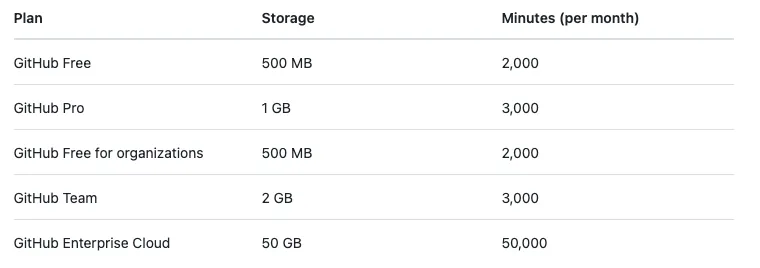
GitHub Free provides basic 500 MB Storage (for CI/CD Artifacts) and 2,000 minutes of runtime per month.
Note here is due to machine cost issues:
-
If using Github’s Windows machines, the consumed minutes equal the actual minutes multiplied by 2.
-
If you use Github’s macOS machines, the consumed minutes equal the actual minutes multiplied by 10.
For detailed pricing calculations, please refer to the official pricing calculator.
ZReviewTender _Minutes per month usage: about 120 minutes*
Only needs to run on a basic-priced Linux, each execution takes ≤ 1 minute. By default, it runs every 6 hours, spending 4 minutes per day and about 120 minutes per month, which fits well within the free tier.
ZReviewTender _Storage usage: 0*
No use of Artifacts to store data, so there are no Storage costs.
Slack
The company’s internal communication software creates a Slack App and uses this Slack App identity to forward app store review notifications to the designated channel.
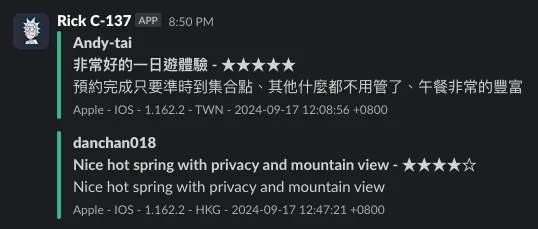
ZReviewTender x Github Action x Slack
We use Github Action to run the ZReviewTender script and forward results to Slack. The Github Repo (Action) is just a carrier, so even if your main project is not hosted on Github, you can still easily deploy ZReviewTender by following the steps below. 🎉🎉🎉
I have successfully deployed this on different apps from 5 different companies, and it has been running stably and free of charge for over 2 years.
Advantages:
-
Free: ZReviewTender is an open-source free service I created, deployed on Github Action with plenty of free usage quota.
You don’t need to pay monthly fees for App Review Bot or similar review monitoring services. -
Security: The credentials and keys used to fetch reviews are securely stored in your Github Private Repo, and no one else has access except you.
You no longer need to risk exposing important credentials and keys by uploading them to third-party services; ZReviewTender is an open-source project, and all operations are open to public scrutiny. -
Reliable: ZReviewTender uses the latest official APIs to fetch review data. Compared to other services that use RSS feeds, it is more accurate, stable, and reliable.
Buy me coffee ❤️❤️❤️

https://www.paypal.com/ncp/payment/CMALMPT8UUTY2
If this project has helped you, feel free to sponsor me a coffee. Thank you.
Quick Start!🚀
The entire setup takes about 30 minutes but only needs to be done once. Unless the credential keys are changed, it can run permanently for free and stably. 🚀🚀🚀🚀🚀
Step 1. Create a Slack App
If your organization already has a Slack App with message-sending permissions like chat:write, you can reuse it without creating a new one.
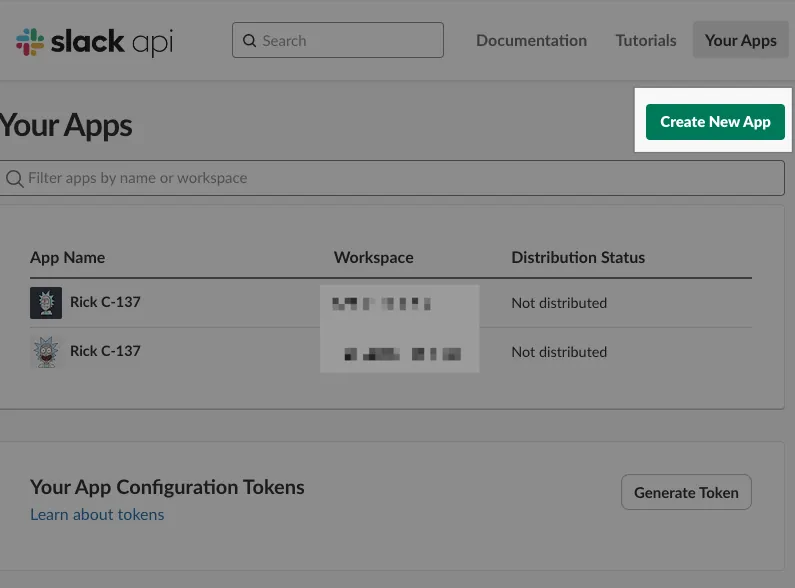
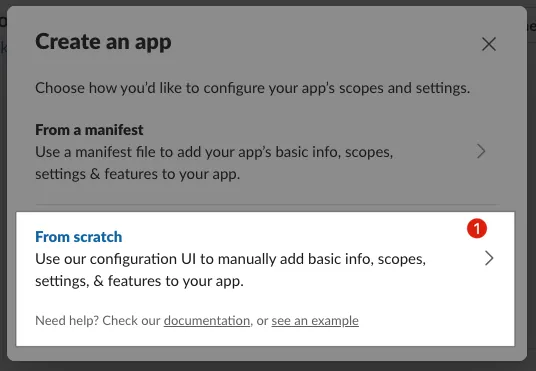
Click the “Create New App” button at the top right corner.
-
Choose: From scratch
-
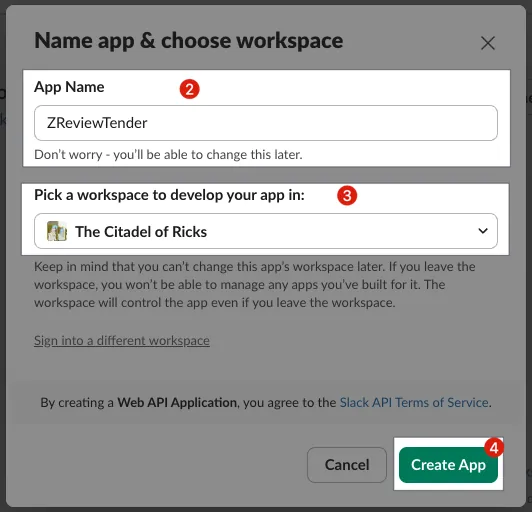
Enter App Name:
ZReviewTenderor a custom Slack App name -
Select the target Slack Workspace for installation: Please make sure you have permission to add a Slack App to the Workspace you choose.
-
Create App
Add OAuth & Permissions Scopes:
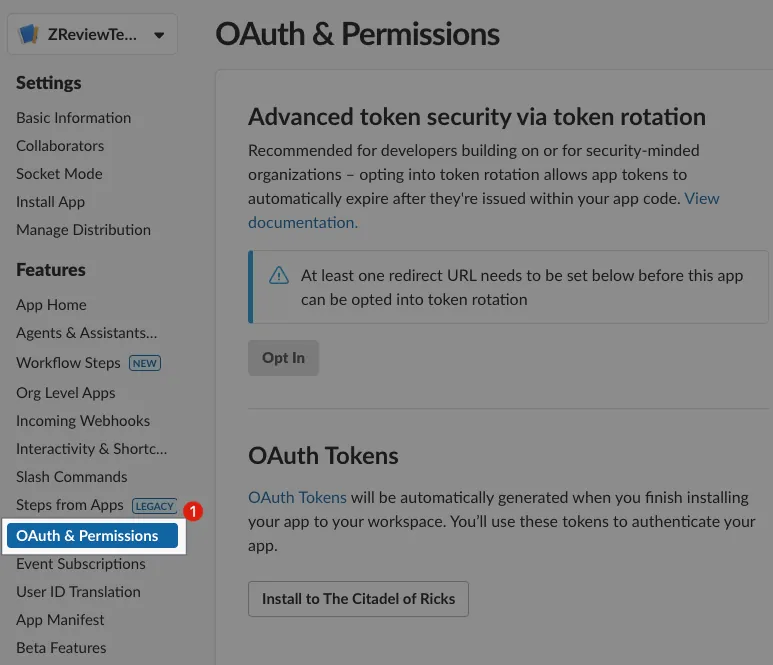
After creating the Slack app, go to the “OAuth & Permissions” tab to set the Scopes.
-
Select “OAuth & Permissions”
-
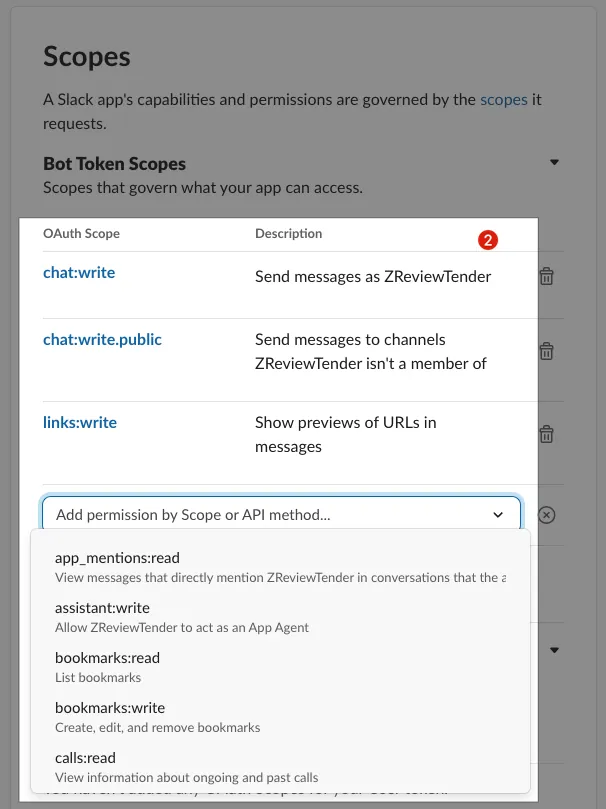
Scroll down to find the Scopes Section
-
Enter the three required Scopes for adding the ZReviewTender Slack App in order:
chat:write
chat:write.public
links:write
Install App
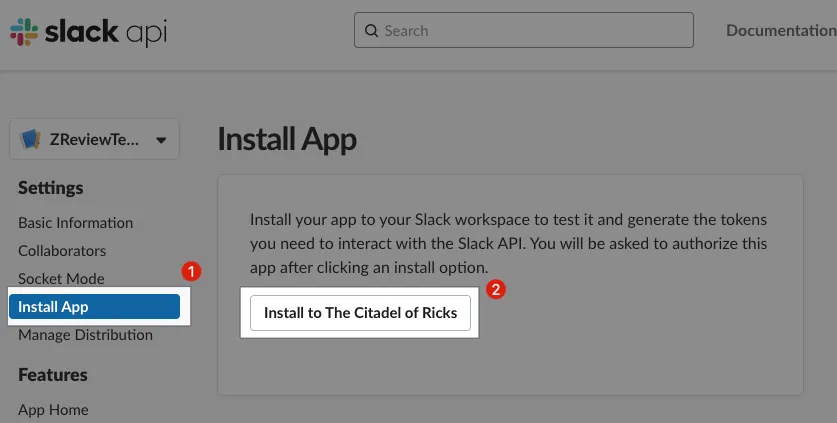
Go back to the Install App tab to install the Slack App into your Workspace.
-
Select “Install App”
-
Click “Install to YOUR_WORKSPACE”
-
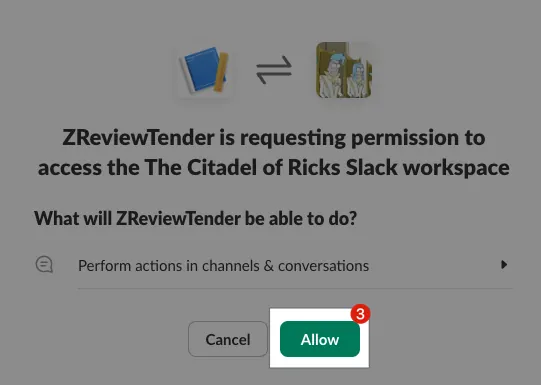
Click “Allow”
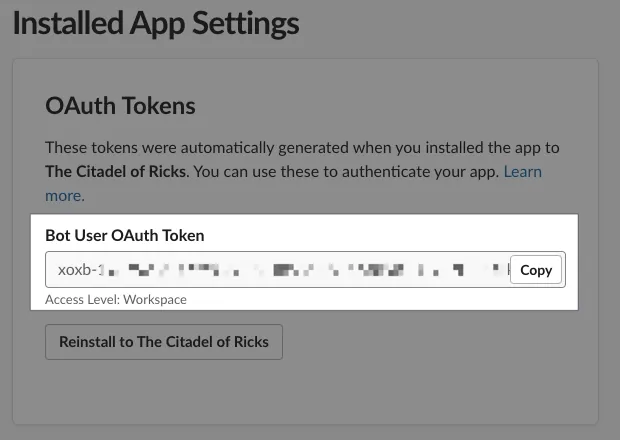
After installation, return to the Install App page where the Slack App Bot User OAuth Token will appear. Click “Copy” to copy it, and save it for later configuration.
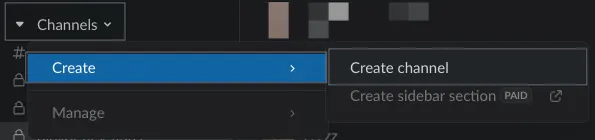
Create a channel to receive review notifications:
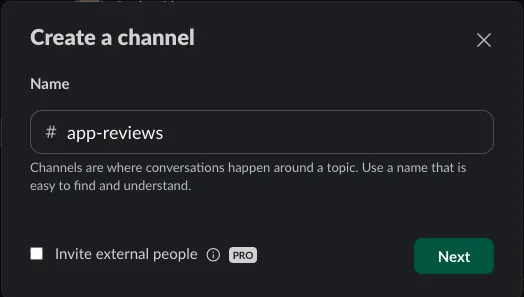
-
Sidebar -> Channels -> Create -> Create channel
-
Name: Enter the desired channel name
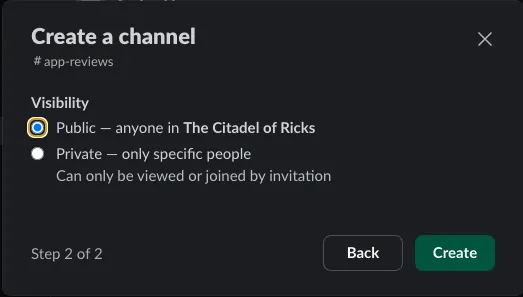
Visibility:
-
Public: Visible to everyone, no additional action required.
-
Private: Private channel, ⭐️⭐️⭐️ You need to add the Slack App you just created:
How to Add Slack App to a Channel:
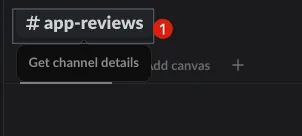
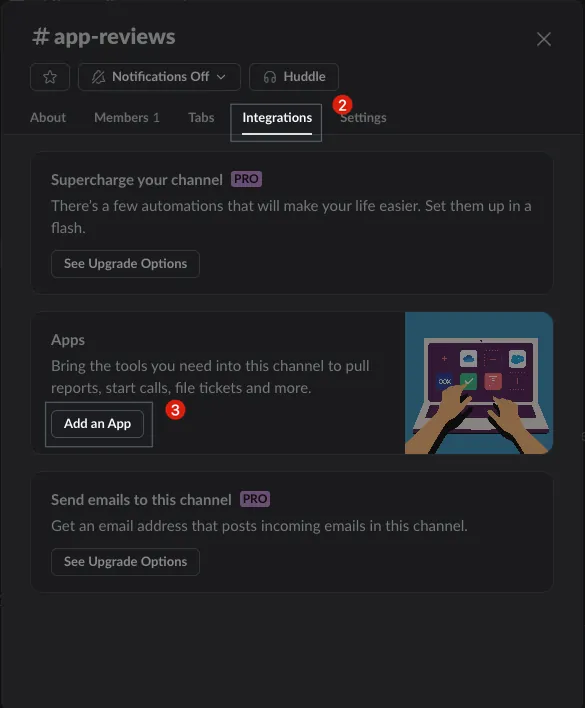
-
Click the #channel name above
-
Click “Settings”
-
Click “Add an App”
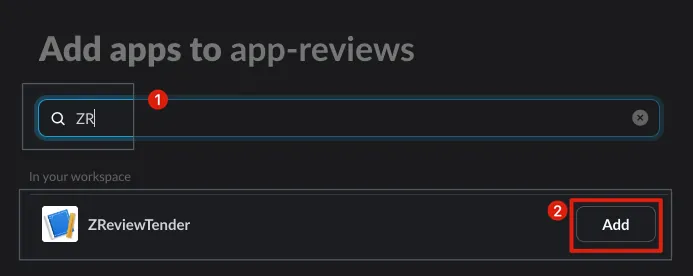
-
Search for the Slack App name you just created
-
Click “Add”

A message will appear in the channel upon successful joining: ZReviewTender joined.
⭐️⭐️⭐️There is a Slack bug where a newly created Slack App may not be found immediately; you need to wait a while before it appears. You can use a Public Channel first, as Public Channels can be used without adding the Slack App.
Get Channel ID:
The final and most important step is to obtain the Channel ID for later configuration.
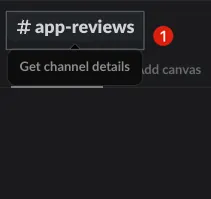
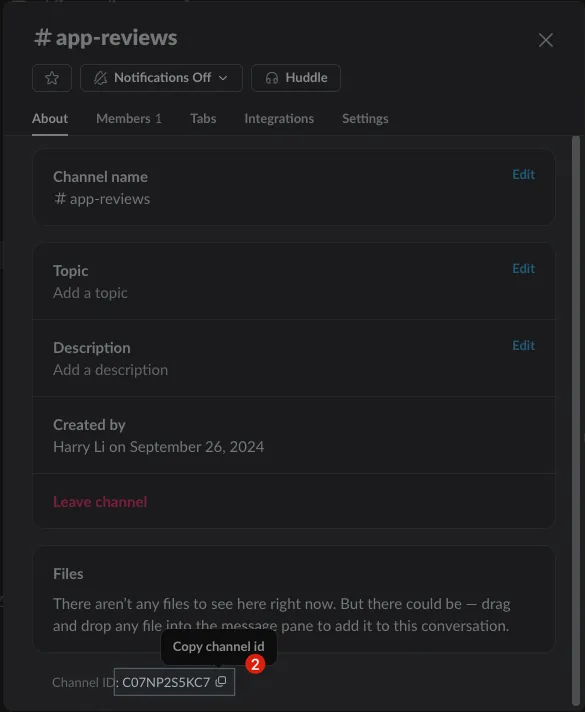
-
Click the #channel name above
-
At the bottom, there is Channel ID information
-
Note down the
Channel IDfor later configuration
Slack steps completed.
— — —
Additional Notes:
You can edit the Slack App name and icon under “Basic Information” -> “Display Information”:
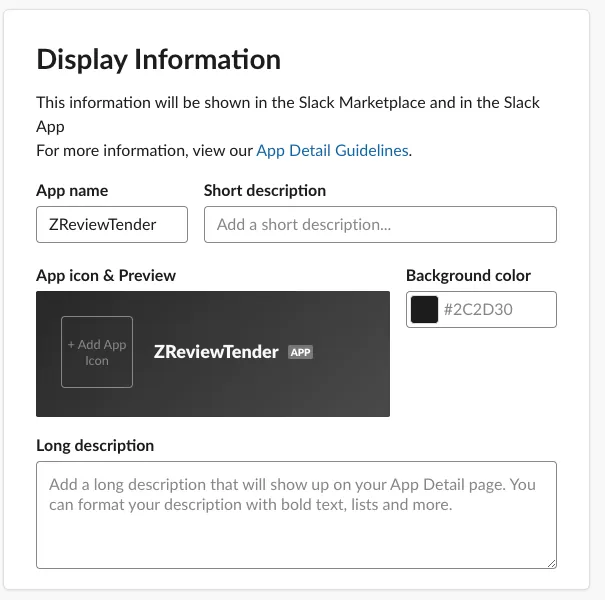
Remember to click “Save Changes” at the bottom right to save your modifications.
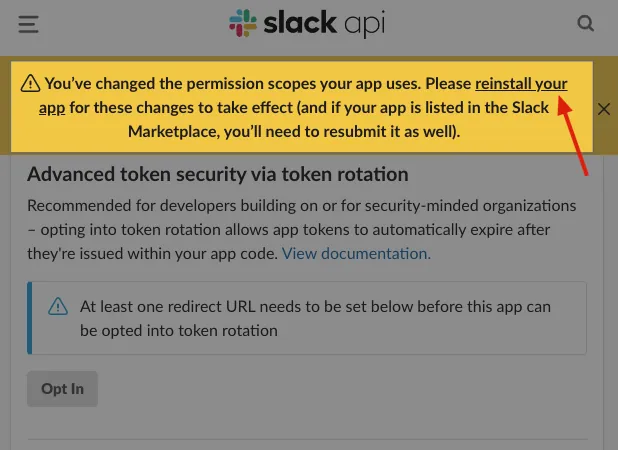
If new OAuth & Permissions Scopes are added, you need to click “reinstall your app” to apply the changes:
Step 2. Generate Apple App Store Connect API & Google Play Android Developer API Credentials
Apple App Store Connect API Credentials
iOS is easier; we only need to get the following four pieces of information from App Store Connect:
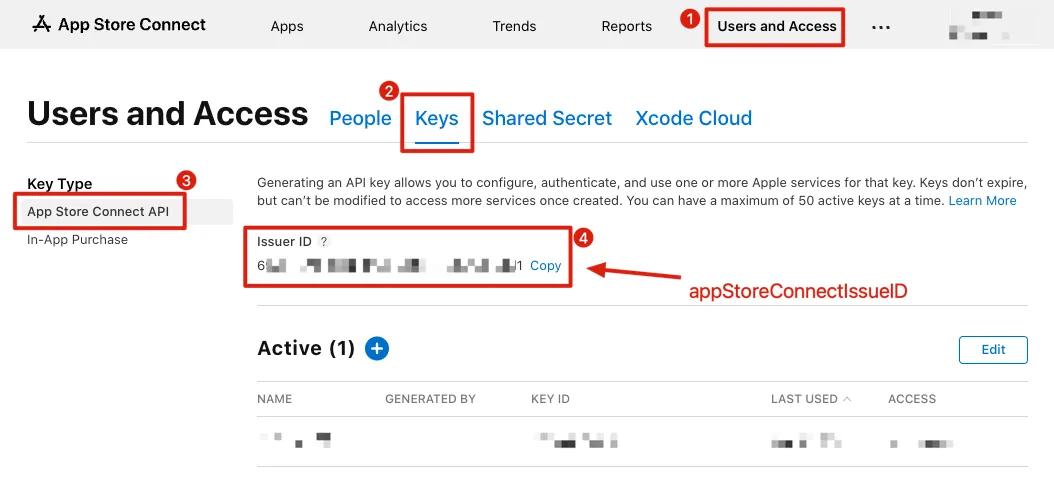
Issuer ID:
-
App Store Connect -> Keys -> App Store Connect API
-
Note down the
Issuer IDfor later configuration
Private Key ID & Private Key:
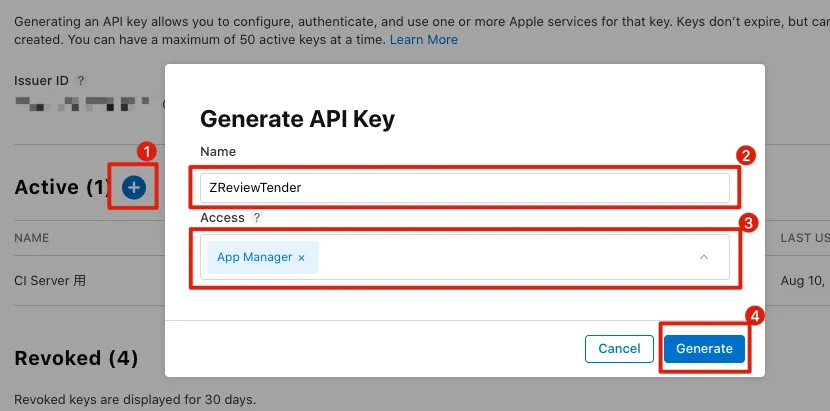
Click the “+” Add button:
-
Name:
ZReviewTender -
Access:
App Manager
-
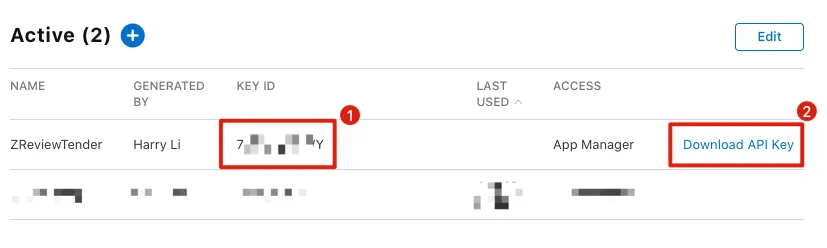
Key ID, to be used later in the setup -
Click “Download API Key” to save the downloaded
AuthKey_XXXXXXXXXX.p8file for later setup.
App ID : (The target App ID to fetch reviews from)
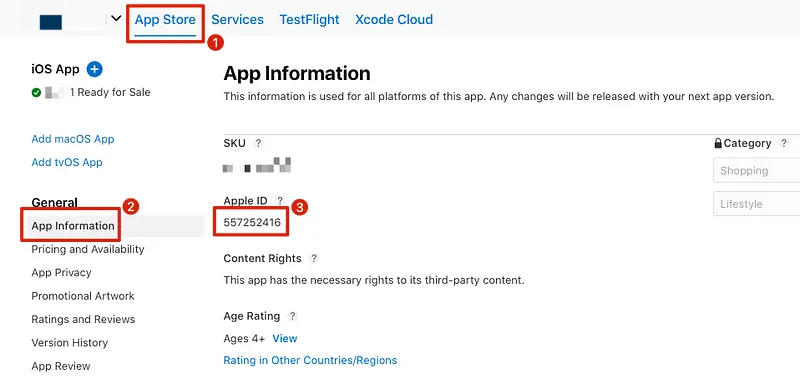
The App ID can be found in App Store Connect -> App Store -> General -> App Information -> App ID.
- Note down the
App IDfor later configuration
Google Play Android Developer API Credentials
Android is more complex. You need to enable the API from the Google Cloud Project associated with the app, create a Service Account, and add the Service Account to the Google Play Console with app permissions.
Select the Google Cloud Project associated with your App project or create a new Project.
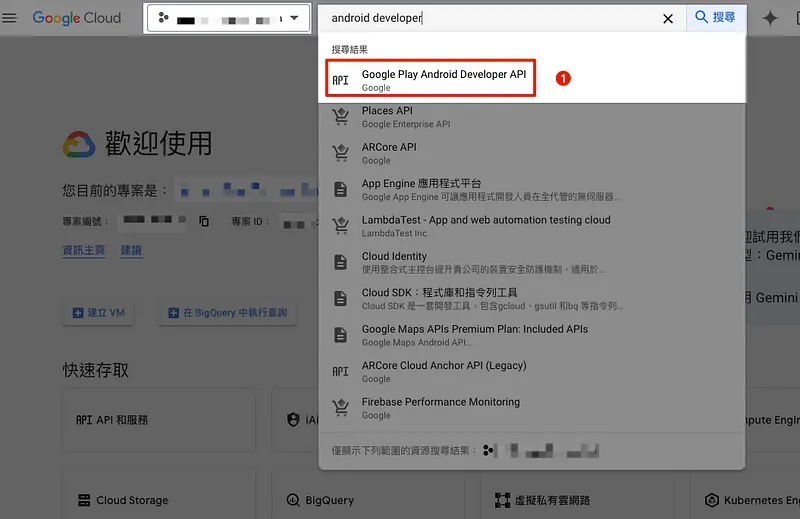
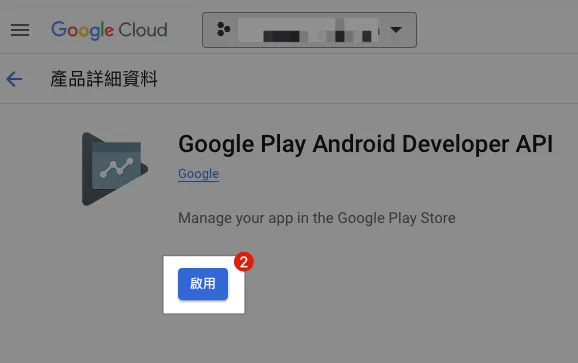
Enable “Android Developer API”:
-
Search for “Android Developer API” and click to enter
-
Select “Enable”
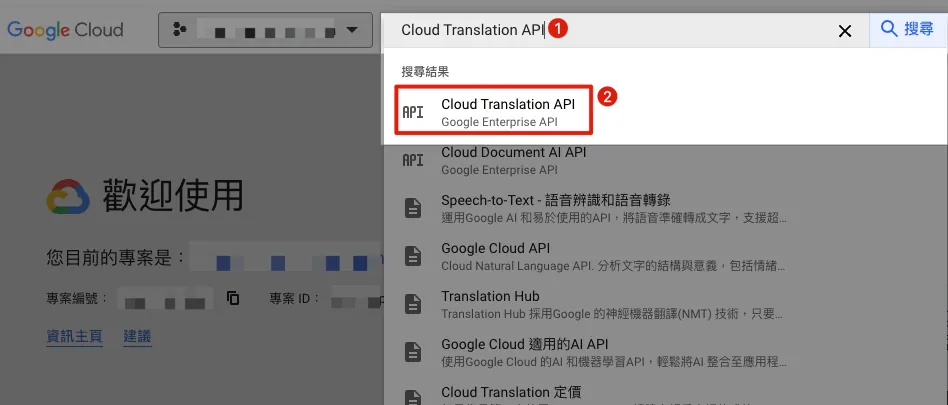
[Optional Step] You can also enable the “Cloud Translation API”:
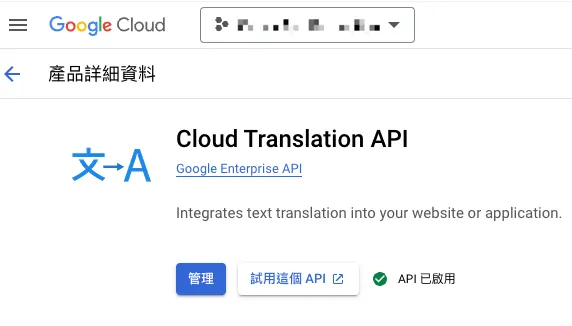
-
After activation, you can use the same Service Account credentials to enable the automatic review translation feature.
-
Note: The Cloud Translation API is not free; language detection and translation will incur charges!
-
Note: The Cloud Translation API is not free; language detection and translation will incur charges!
-
Note: The Cloud Translation API is not free; language detection and translation will incur charges!
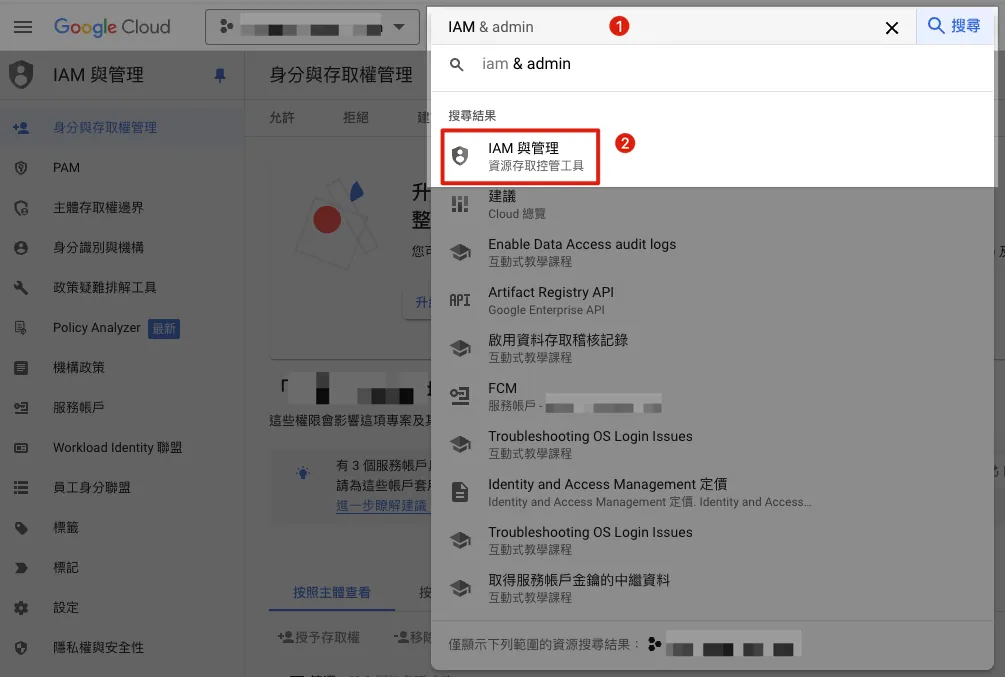
Create a Service Account:
-
Search for “IAM”
-
Select “IAM & Admin”
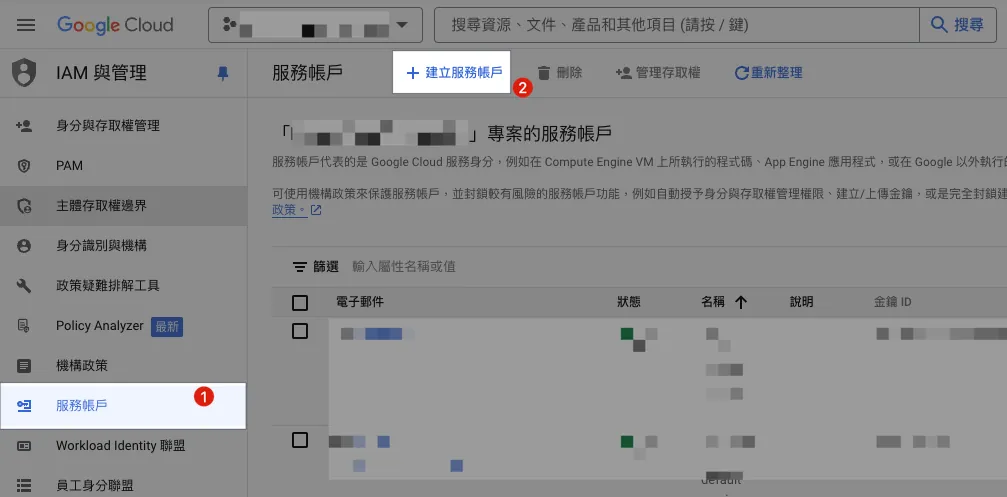
-
Select “Service Account”
-
Select “Create Service Account”
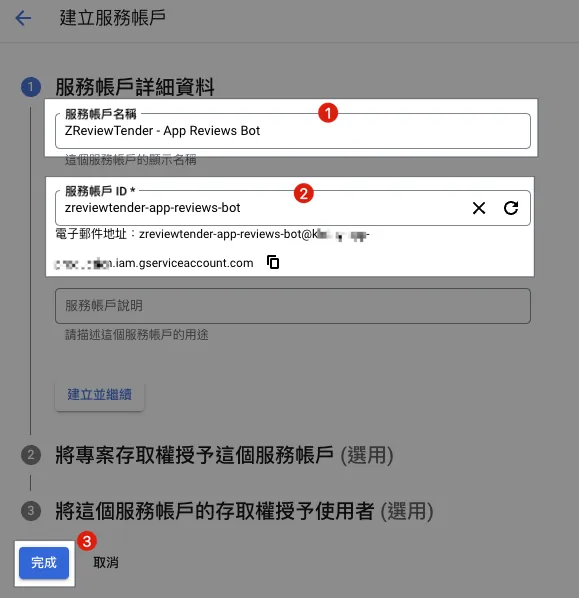
-
Service Account Name: Enter any name you like, such as “
ZReviewTender” or “Google Play Review Bot” -
Service Account ID: Automatically filled, no need to change unless necessary. This will also be your Service Account Email.
-
Click “Done”
Note down the email address of this Service Account:

-
The list page will also display the Service Account Email address
-
Note down the
Service Account Emailfor later configuration
Create Service Account Key Credentials:
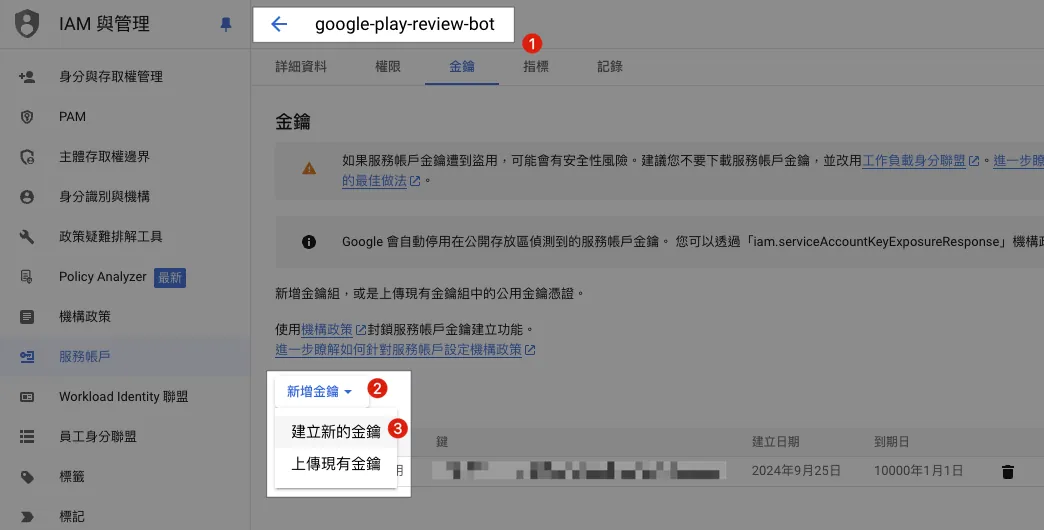
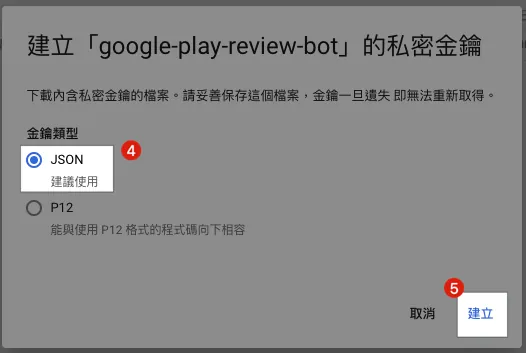
-
Refresh the list page, then click to enter the newly created Service Account.
-
Click “Add Key”
-
Click “Create a new key”
-
Select the key type as “JSON”
-
Click “Create”
-
Save the downloaded
XXXX-XXXX.jsonfile for later configuration
Add the service account to Google Play Console and grant permissions to the target app for fetching reviews:
Enter the Google Play Console backend:
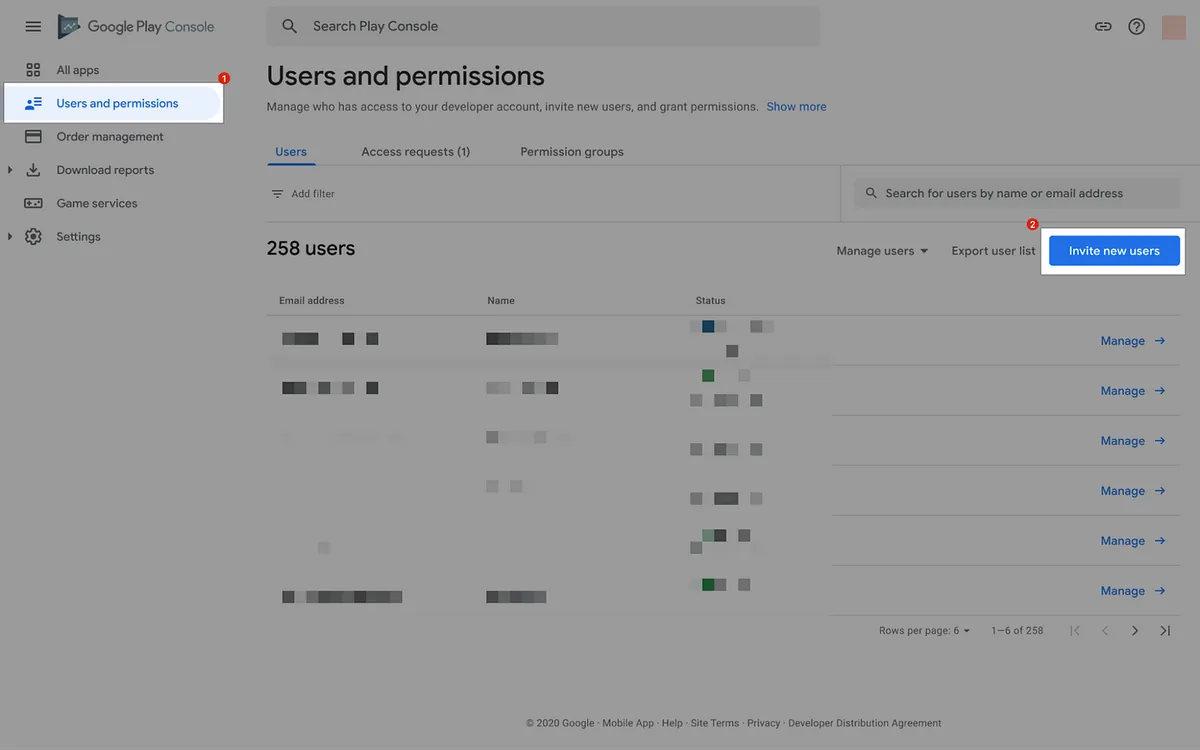
-
Click “Users and permissions”
-
Click “Invite new users” on the right side
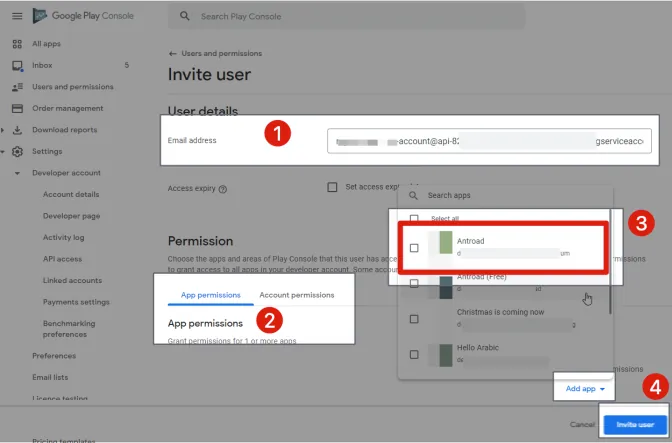
-
Enter the
Service Account Emailyou just noted down in the Email address field. -
App permissions -> Add app
-
Add the target App to fetch reviews from
-
Click “Invite user” to complete the invitation without verification.
Obtain Google Play Console Developer ID, App ID & Package Name Information:
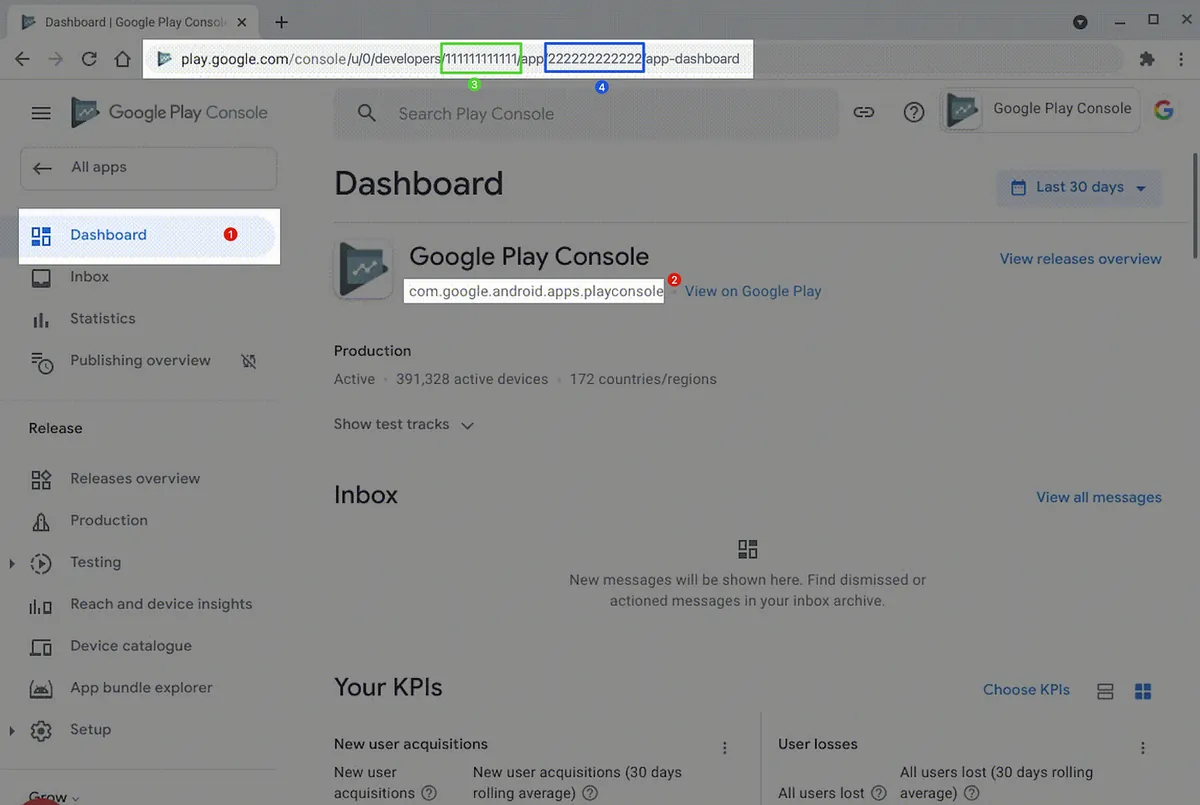
-
Click the target App to fetch reviews and enter the Dashboard
-
Note down the
Package Namefor later configuration
Copy the Dashboard URL and find from the URL:
-
Among them, /developers/
XXXis yourDeveloper ID. Note down this number for later configuration -
Among them, /app/
XXXis yourApp ID. Note down this App ID number for later configuration
Credential setup completed.
Step 3. Github Action Deployment and Configuration File Setup
The exciting news is that I have packaged the complex Github Repo and Github Action setup into a Repo Template & Marketplace Github Action. You can complete the process by following these simple steps.
Go to: ZReviewTender-deploy-with-github-action :
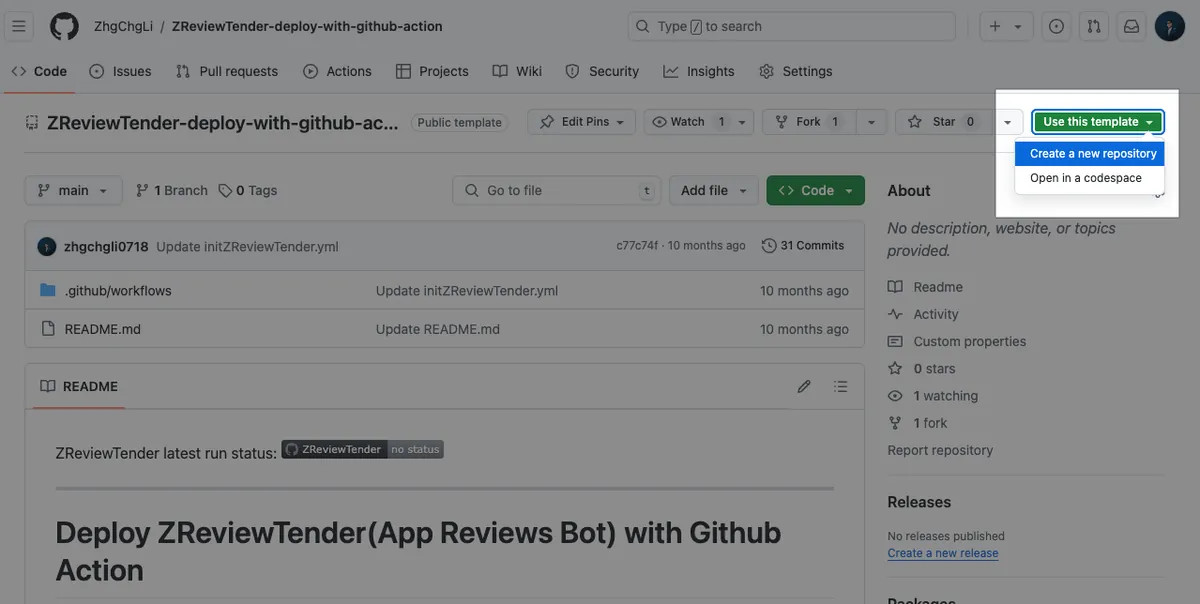
https://github.com/ZhgChgLi/ZReviewTender-deploy-with-github-action
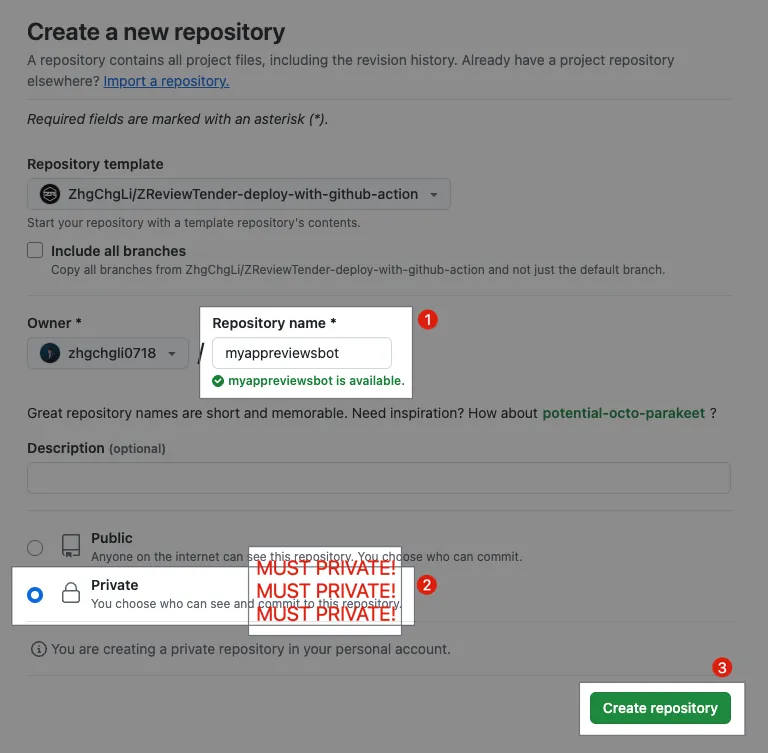
-
Repository name: Enter the desired Repo name
-
Private: Since the Repo will store access keys, be sure to set it as a Private Repo ⭐️⭐️⭐️
-
Private: Since the Repo will store access keys, be sure to set it as a Private Repo ⭐️⭐️⭐️
-
Private: Since the Repo will store access keys, be sure to set it as a Private Repo ⭐️⭐️⭐️
-
Click “Create repository”
The author and contributors of ZReviewTender, ZhgChgLi, are not responsible for any losses caused by your use of ZReviewTender.
Waiting for Repository to be Created:
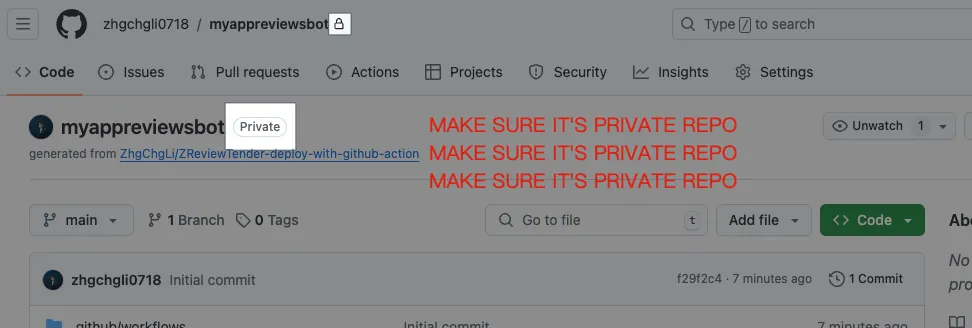
Confirm again that the repository created is Private:
-
Private: Since the Repo will store access keys, be sure to set it as a Private Repo ⭐️⭐️⭐️
-
Private: Since the Repo will store access keys, be sure to set it as a Private Repo ⭐️⭐️⭐️
-
Private: Since the Repo will store access keys, be sure to set it as a Private Repo ⭐️⭐️⭐️
Enable Github Actions Permissions:
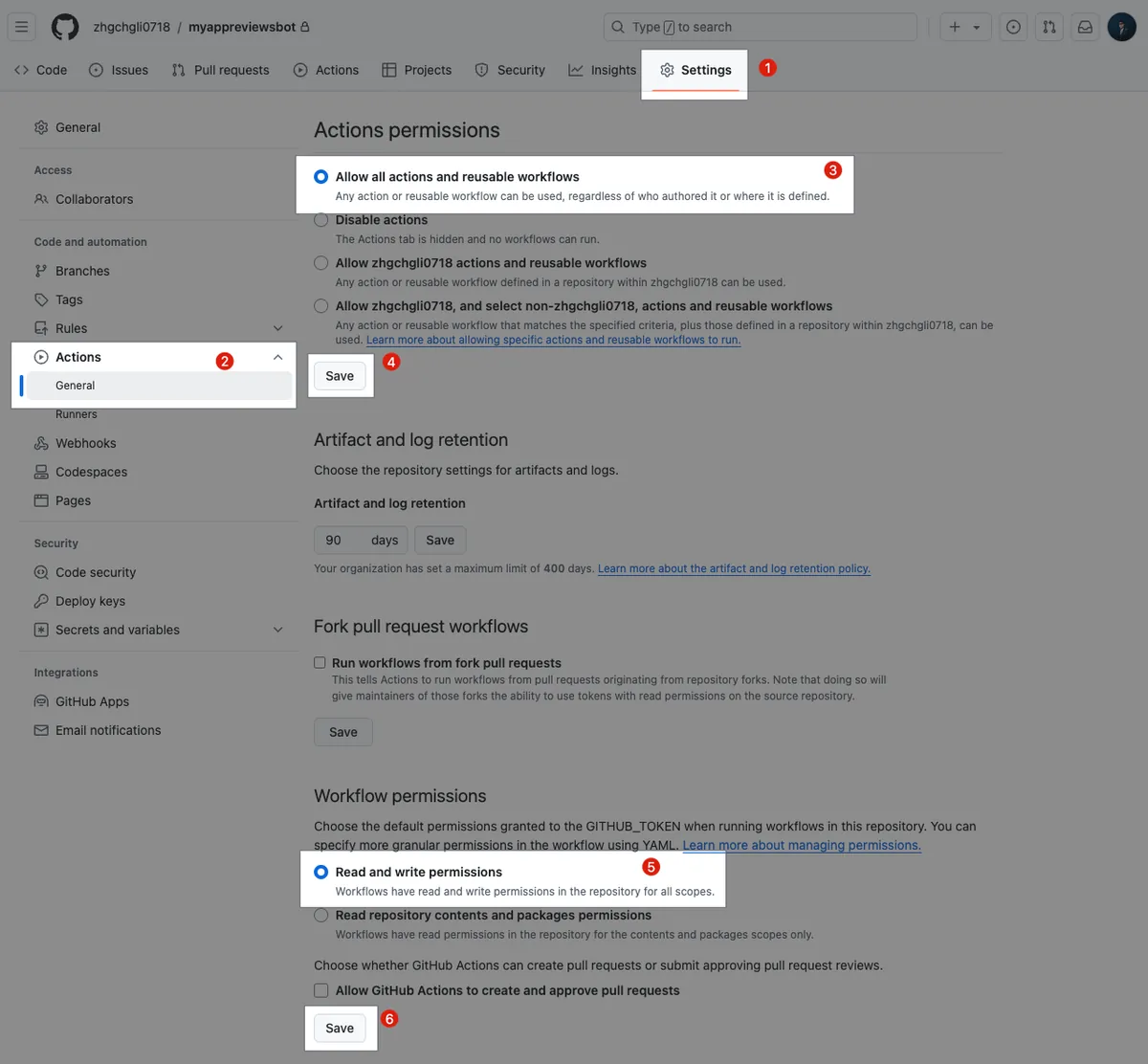
After creating the repo, due to Github security settings, you need to go to Repo Settings to allow Github Actions to run.
-
Repo -> Settings
-
Select “Actions” -> “General”
-
Set Actions permissions to “Allow all actions and reusable workflows”
-
Click “Save”
-
Set Workflow permissions to “Read repository contents and packages permissions”
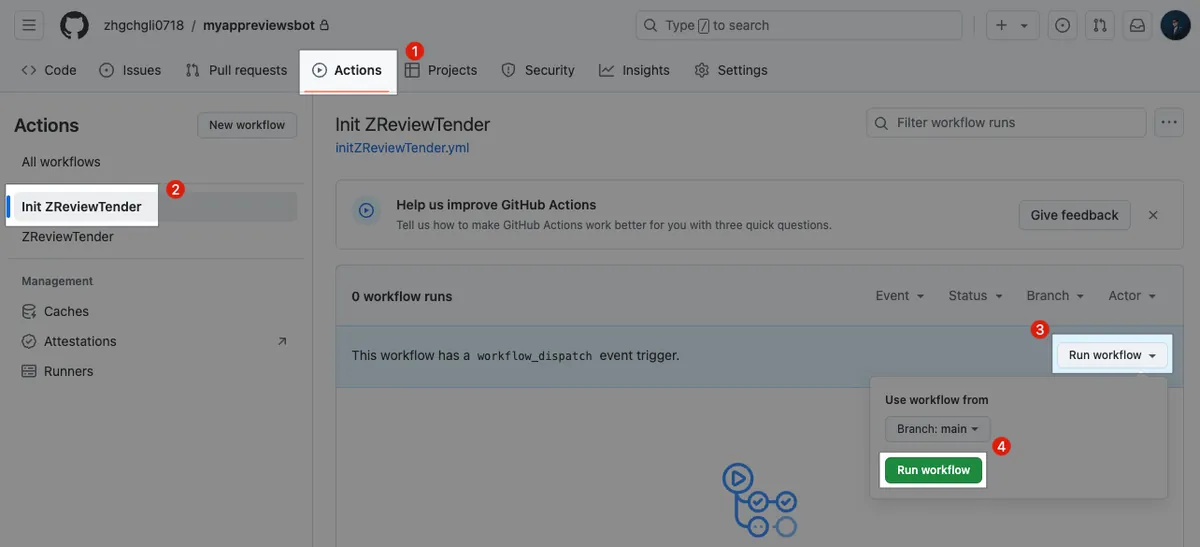
First Run, Initialize ZReviewTender:
-
Repo -> Actions
-
Select “Init ZReviewTender”
-
Select “Run workflow”
-
Click “Run workflow”
-
Refresh the page
Wait for init ZReviewTender Action to complete:

If you encounter ❌ Error: please double-check the previously mentioned Github Actions permission settings.
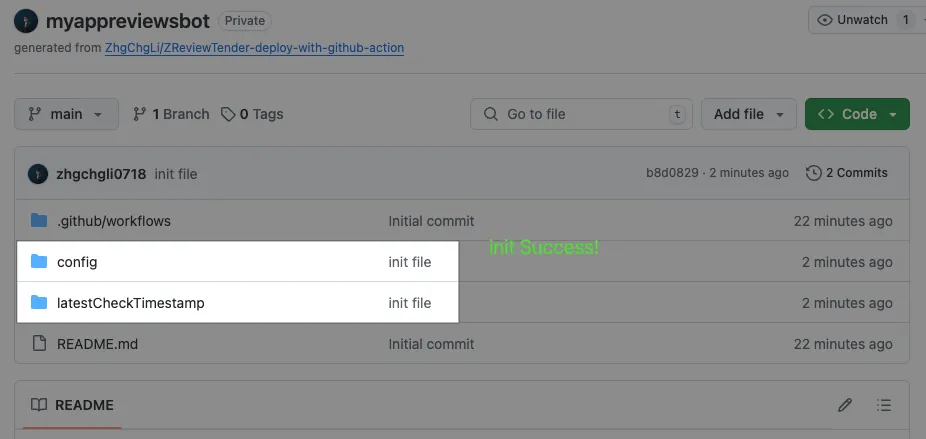
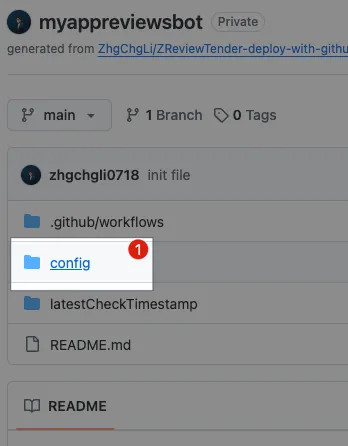
After successful initialization, two new directories will appear on the Repo homepage:
Upload the required credential files:
-
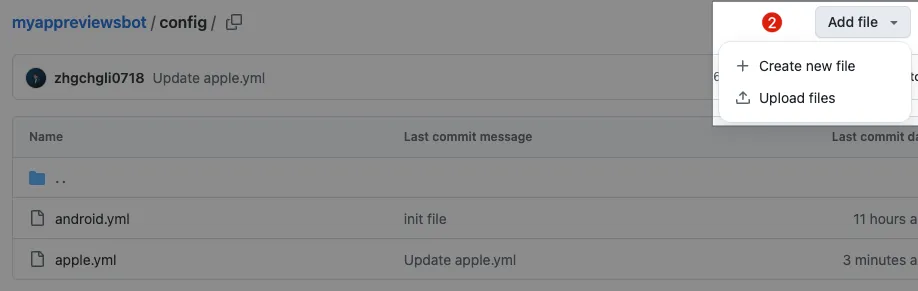
Enter the
/configdirectory -
Click “Add file” in the top right corner -> “Upload files”
-
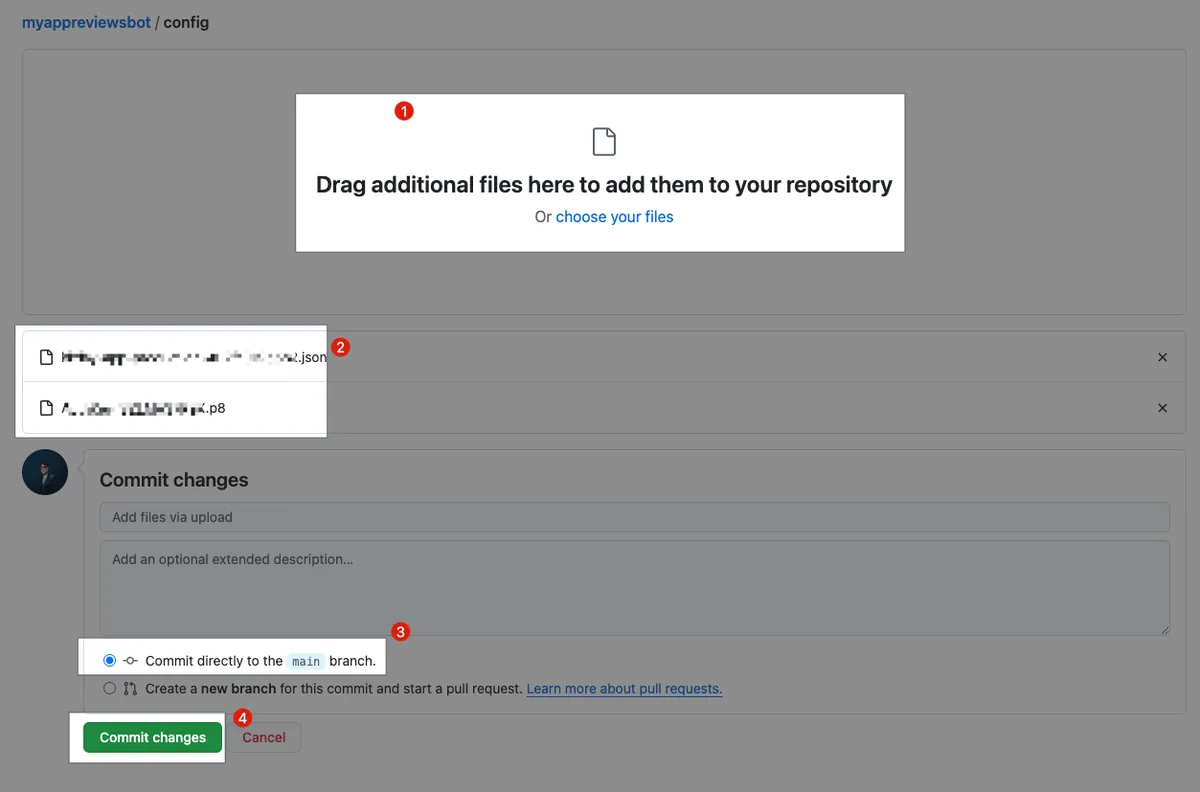
Upload the saved GCP Service Account
XXXX-XXXX.json(for Android) along with the App Store Connect savedAuthKey_XXXXXXXXXX.p8(for iOS). -
Wait for the upload to complete.
-
Select “Commit directly to the main branch.”
-
Click “Commit changes.”
Setup Apple (iOS):
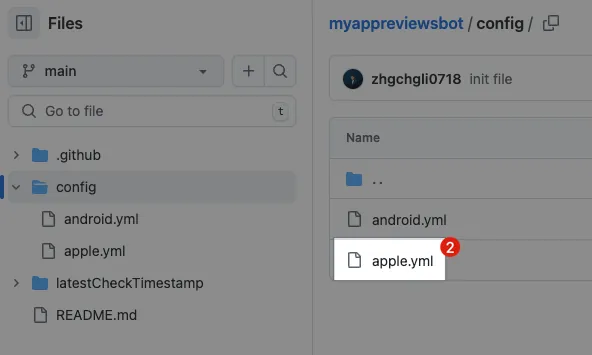
- Go to the
config/directory and click on theapple.ymlfile.
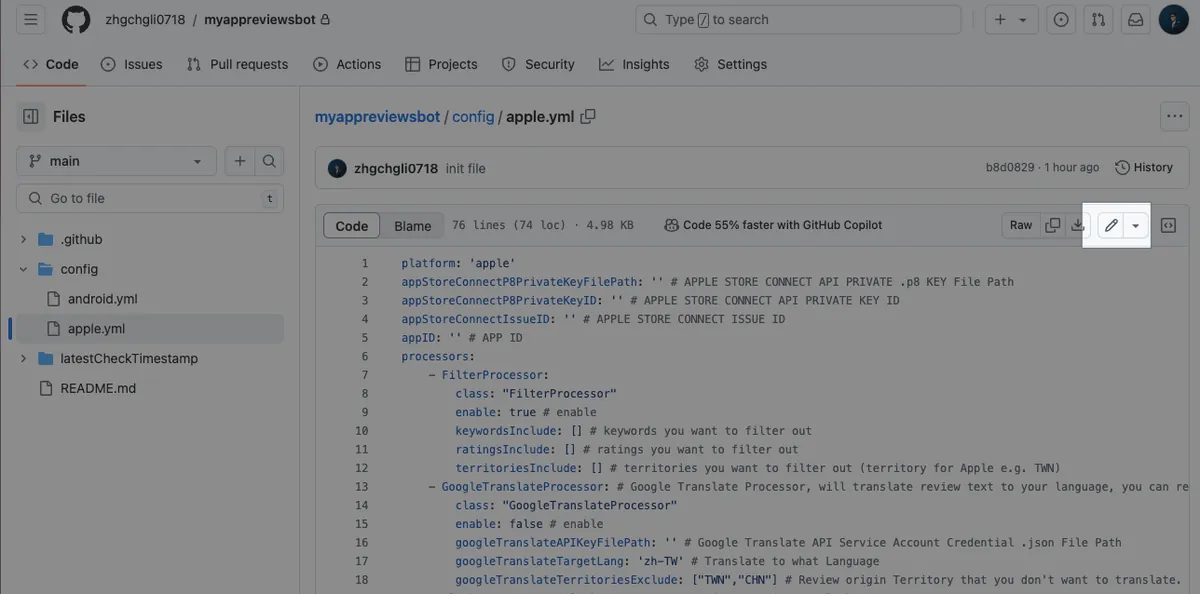
- Click the top right corner “🖊️ Edit”
Edit apple.yml, paste the following content, and fill in the information noted from the previous steps:
platform: 'apple'
appStoreConnectP8PrivateKeyFilePath: './config/AuthKey_XXXXXXXXXX.p8' # APPLE STORE CONNECT API PRIVATE .p8 KEY File Path
appStoreConnectP8PrivateKeyID: 'Private Key ID' # APPLE STORE CONNECT API PRIVATE KEY ID
appStoreConnectIssueID: 'Issuer ID' # APPLE STORE CONNECT ISSUE ID
appID: 'App ID' # APP ID
processors:
    - SlackProcessor: # Slack Processor, resend App Review to Slack.
        class: "SlackProcessor"
        enable: true # enable
        slackTimeZoneOffset: "+08:00" # Review Created Date TimeZone
        slackAttachmentGroupByNumber: "1" # 1~100, how many review messages in 1 slack message.
        slackBotToken: "Slack App Bot User OAuth Token" # Slack Bot Token, send Slack messages through Slack Bot.
        slackBotTargetChannel: "Target Channel ID" # Slack Bot Token, send Slack messages through Slack Bot. (recommended, first priority)
        slackInCommingWebHookURL: "" # Slack Incoming WebHook URL, send Slack messages through Incoming WebHook, not recommended, deprecated.
-
appStoreConnectP8PrivateKeyFilePath:
Enter./config/AuthKey_XXXXXXXXXX.p8(The filename of theAuthKey_XXXXXXXXXX.p8file saved from Step 2. App Store Connect) -
appStoreConnectP8PrivateKeyID: Step 2. ThePrivate Key IDrecorded from App Store Connect -
appStoreConnectIssueID: Step 2. TheIssuer IDrecorded from App Store Connect -
appID: Step 2. The target App’sApp IDrecorded from App Store Connect for fetching data -
slackBotToken: Enter theSlack App Bot User OAuth Tokennoted in Step 1. -
slackBotTargetChannel: Enter theChannel IDrecorded in Step 1 as the target channel for sending messages
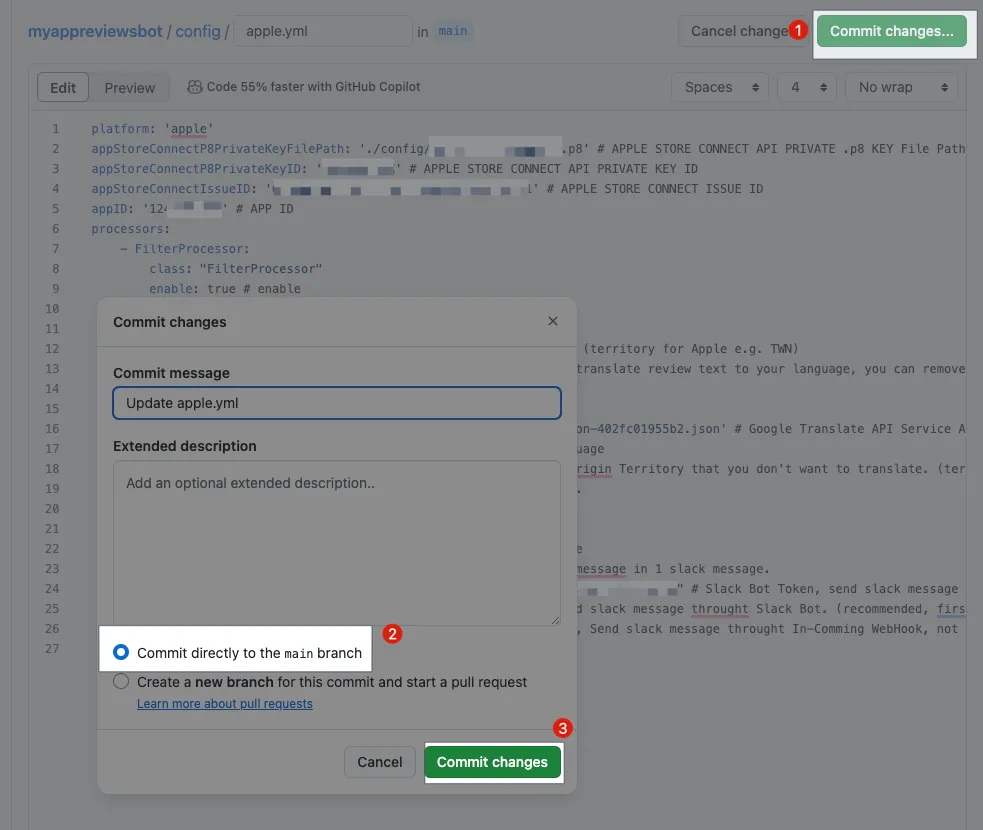
-
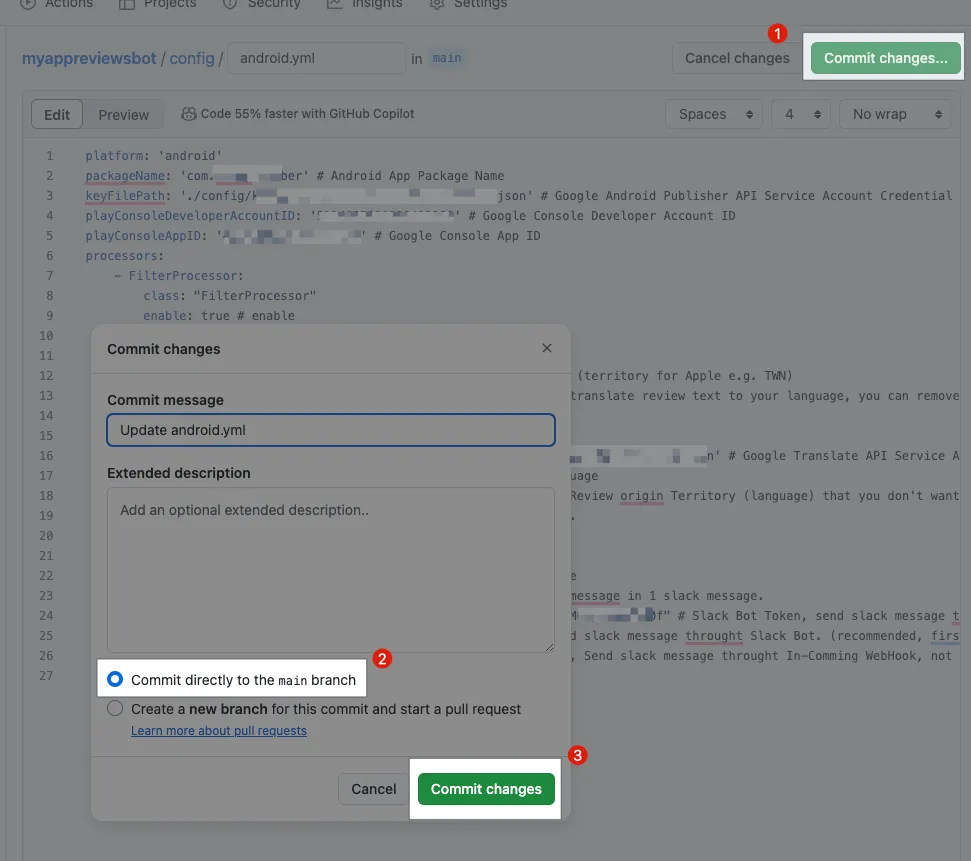
After editing, click “Commit changes…” at the top right corner.
-
Choose “Commit directly to the main branch”
-
Click “Commit changes”
Setting up Android:
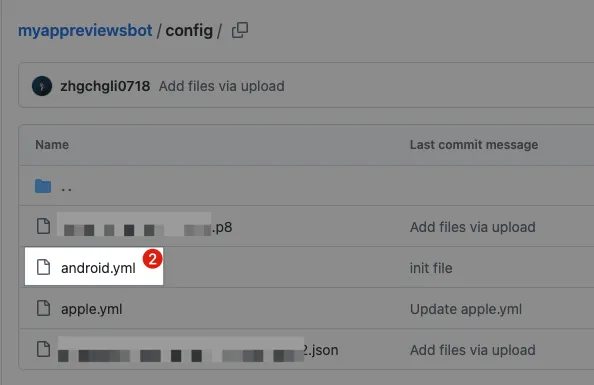
- Go to the
config/directory and click on theandroid.ymlfile.
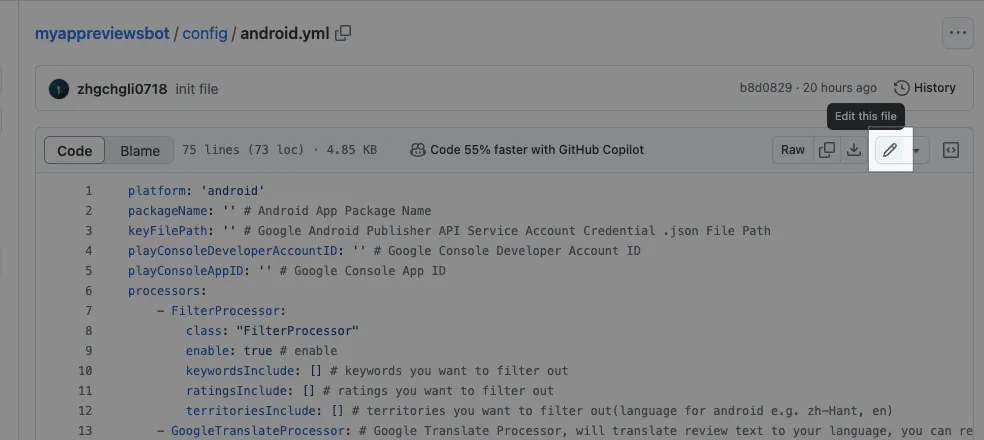
- Click the top right corner “🖊️ Edit”
Edit android.yml, paste the following content, and fill in the information noted from the previous steps:
platform: 'android'
packageName: 'Package Name' # Android App Package Name
keyFilePath: './config/XXXX-XXXX.json' # Google Android Publisher API Service Account Credential .json File Path
playConsoleDeveloperAccountID: 'Developer ID' # Google Console Developer Account ID
playConsoleAppID: 'App ID' # Google Console App ID
processors:
- SlackProcessor: # Slack Processor, resend App Review to Slack.
        class: "SlackProcessor"
        enable: true # enable
        slackTimeZoneOffset: "+08:00" # Review Created Date TimeZone
        slackAttachmentGroupByNumber: "1" # 1~100, how many review messages in 1 Slack message.
        slackBotToken: "Slack App Bot User OAuth Token" # Slack Bot Token, send Slack message through Slack Bot.
        slackBotTargetChannel: "Target Channel ID" # Slack Bot Token, send Slack message through Slack Bot. (recommended, first priority)
        slackInCommingWebHookURL: "" # Slack Incoming WebHook URL, send Slack message through Incoming WebHook, not recommended, deprecated.
-
packageName: Step 2. ThePackage Nameobtained from the Google Play Console backend -
keyFilePath:
Enter./config/XXXX-XXXX.json(Step 2. TheXXXX-XXXX.jsonService Account key file saved from GCP IAM) -
playConsoleDeveloperAccountID: Step 2. TheDeveloper IDobtained from the Google Play Console backend -
playConsoleAppID: Step 2. TheApp IDobtained from the Google Play Console backend -
slackBotToken: Enter theSlack App Bot User OAuth Tokennoted in Step 1. -
slackBotTargetChannel: Enter theChannel IDrecorded in Step 1 as the target channel for sending messages
-
After editing, click “Commit changes…” at the top right corner.
-
Choose “Commit directly to the main branch”
-
Click “Commit changes”
Setup Complete! 🚀🚀🚀🚀
Verify if the setup is successful:
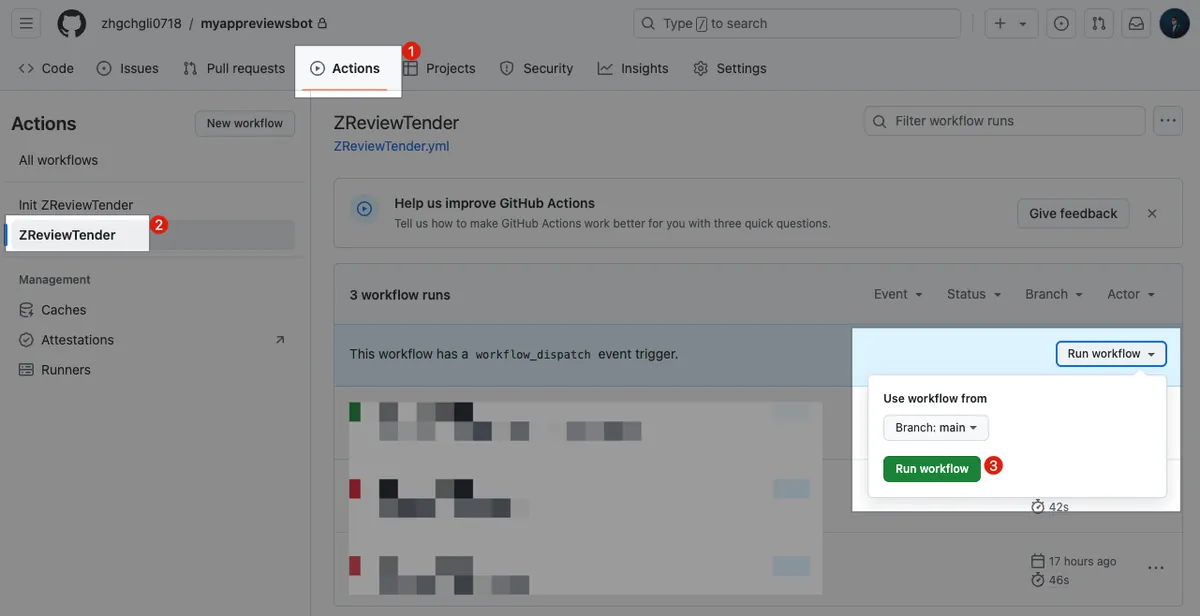
We can run it manually once to confirm the settings are correct.
-
Repo -> Actions
-
Select “ZReviewTender”
-
Select “Run workflow”
-
Click “Run workflow”
-
Refresh the page
Wait for ReviewTender Action to complete:
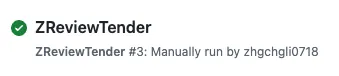
Verification Successful 🎉🎉🎉🎉
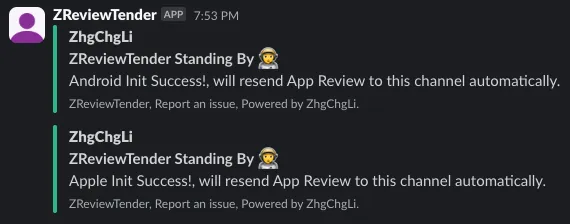
If you see ❌ Error or the Slack Channel does not receive the startup message: please double-check if the previous configuration files are correct.
Done 🎉🎉🎉
Now you can rely on this free and reliable App review bot to keep track of users’ latest reviews at all times!
Buy me coffee ❤️❤️❤️
https://www.paypal.com/ncp/payment/CMALMPT8UUTY2
If this project has helped you, feel free to sponsor me a coffee. Thank you.
Other Settings
Adding Filter Functionality
Only forward reviews that meet the criteria.
    - FilterProcessor:
        class: "FilterProcessor"
        enable: true # enable
        keywordsInclude: [] # keywords you want to filter out
        ratingsInclude: [] # ratings you want to filter out
        territoriesInclude: [] # territories you want to filter out (territory for Apple e.g. TWN)
- You just need to add the
FilterProcessorsetting in theprocessorssection of/config/apple.ymlor/config/android.yml.
Adding Automatic Translation Feature
Automatically translate reviews not in your language using Google Cloud Translation API (may incur costs).
-
Please first ensure that the GCP Project associated with the Service Account created in Step 2 has the “Cloud Translation API” enabled
-
The configurations for
apple.ymlandandroid.ymlhave some differences.
apple.yml:
    - GoogleTranslateProcessor: # Google Translate Processor, will translate review text to your language, you can remove whole block if you don't need it.
        class: "GoogleTranslateProcessor"
        enable: true # enable
        googleTranslateAPIKeyFilePath: './config/XXXX-XXXX.json' # Google Translate API Service Account Credential .json File Path
        googleTranslateTargetLang: 'zh-TW' # Translate to which language
        googleTranslateTerritoriesExclude: ["TWN","CHN"] # Review origin territories you don't want to translate. (territories for Apple e.g. TWN)
./config/XXXX-XXXX.json(Step 2. TheXXXX-XXXX.jsonService Account key file name saved from GCP IAM)
android.yml:
    - GoogleTranslateProcessor: # Google Translate Processor, will translate review text to your language, you can remove whole block if you don't need it.
        class: "GoogleTranslateProcessor"
        enable: true # enable
        googleTranslateAPIKeyFilePath: './config/XXXX-XXXX.json' # Google Translate API Service Account Credential .json File Path
        googleTranslateTargetLang: 'zh-TW' # Translate to what language
        googleTranslateTerritoriesExclude: ["zh-Hant","zh-Hans"] # Review origin territory (language) that you don't want to translate. (language for android e.g. zh-Hant, en)
./config/XXXX-XXXX.json(Step 2. TheXXXX-XXXX.jsonService Account key file name saved from GCP IAM)
Complete Example:
platform: 'android'
packageName: '' # Android App Package Name
keyFilePath: '' # Google Android Publisher API Service Account Credential .json File Path
playConsoleDeveloperAccountID: '' # Google Console Developer Account ID
playConsoleAppID: '' # Google Console App ID
processors:
    - FilterProcessor:
        class: "FilterProcessor"
        enable: true # enable
        keywordsInclude: [] # keywords you want to filter out
        ratingsInclude: [] # ratings you want to filter out
        territoriesInclude: [] # territories you want to filter out (territory for Apple e.g. TWN)
    - GoogleTranslateProcessor: # Google Translate Processor, will translate review text to your language, you can remove whole block if you don't need it.
        class: "GoogleTranslateProcessor"
        enable: true # enable
        googleTranslateAPIKeyFilePath: '' # Google Translate API Service Account Credential .json File Path
        googleTranslateTargetLang: 'zh-TW' # Translate to which language
        googleTranslateTerritoriesExclude: ["zh-Hant","zh-Hans"] # Review origin territory (language) you don't want to translate. (language for android e.g. zh-Hant, en)
    - SlackProcessor: # Slack Processor, resend App Review to Slack.
        class: "SlackProcessor"
        enable: true # enable
        slackTimeZoneOffset: "+08:00" # Review Created Date TimeZone
        slackAttachmentGroupByNumber: "1" # 1~100, how many review messages in one Slack message.
        slackBotToken: "" # Slack Bot Token, send Slack message through Slack Bot.
        slackBotTargetChannel: "" # Slack Bot Target Channel, send Slack message through Slack Bot. (recommended, first priority)
        slackInCommingWebHookURL: "" # Slack Incoming WebHook URL, send Slack message through Incoming WebHook, not recommended, deprecated.
After adjustments, save the .yml file following these steps:
-
After editing, click “Commit changes…” at the top right corner.
-
Choose “Commit directly to the main branch”
-
Click “Commit changes”
Execution Parameter Settings
You can edit the ZReviewTender.yml file to configure the execution parameters.
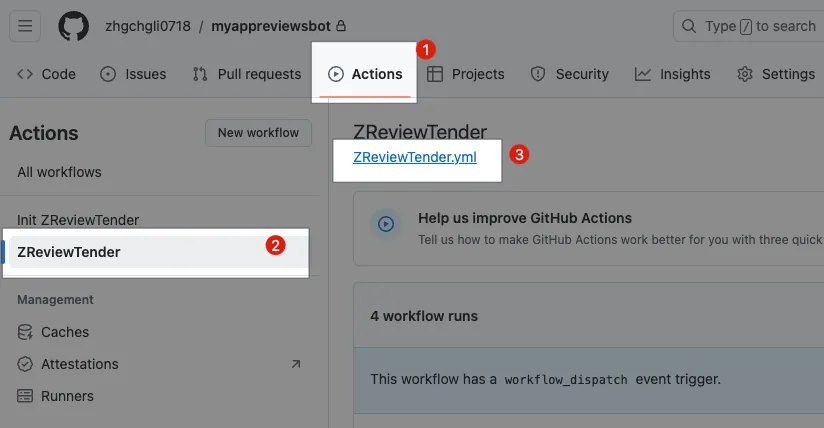
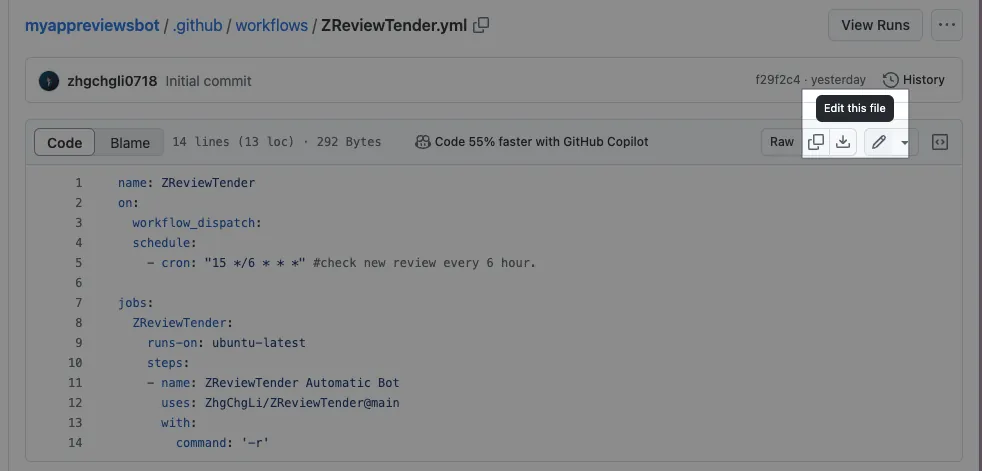
-
Repo -> Actions
-
Click “ZReviewTender”
-
Click “
ZReviewTender.yml” -
Click the top right corner “🖊️ Edit”
name: ZReviewTender
on:
  workflow_dispatch:
  schedule:
    - cron: "15 */6 * * *" # check new review every 6 hours.

jobs:
  ZReviewTender:
    runs-on: ubuntu-latest
    steps:
    - name: ZReviewTender Automatic Bot
      uses: ZhgChgLi/ZReviewTender@main
      with:
        command: '-r'
Adjust Check Frequency (How Often to Crawl and Forward New Reviews?)
Adjust the setting value in cron: "15 */6 * * *".
The parameters use Crontab notation. You can use this website to generate the desired settings:
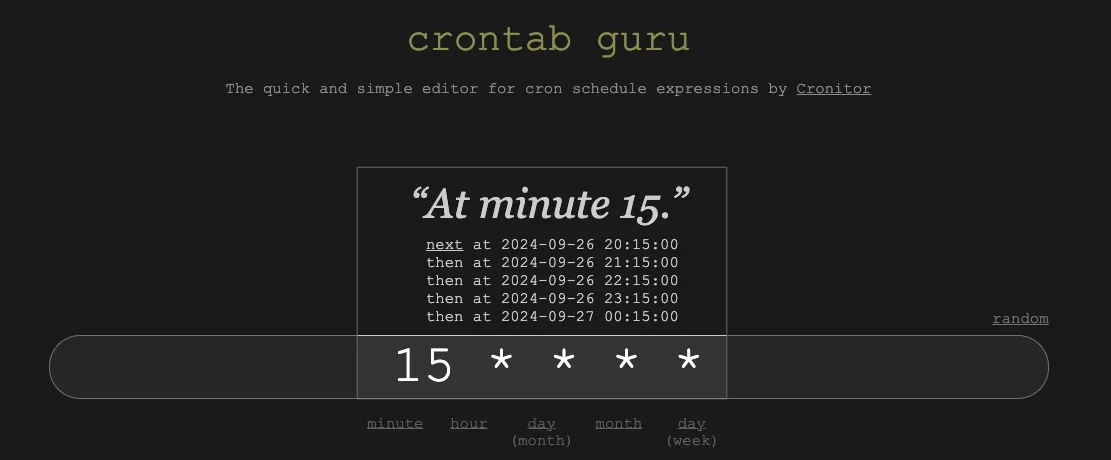
Adjust Execution Script
Adjust the setting value inside command: "-r".
-
-r: Run both Android and Apple (iOS) review checks simultaneously -
-a: Run Apple (iOS) review check only -
-g: Only run Android review checks
Adjustment completed:
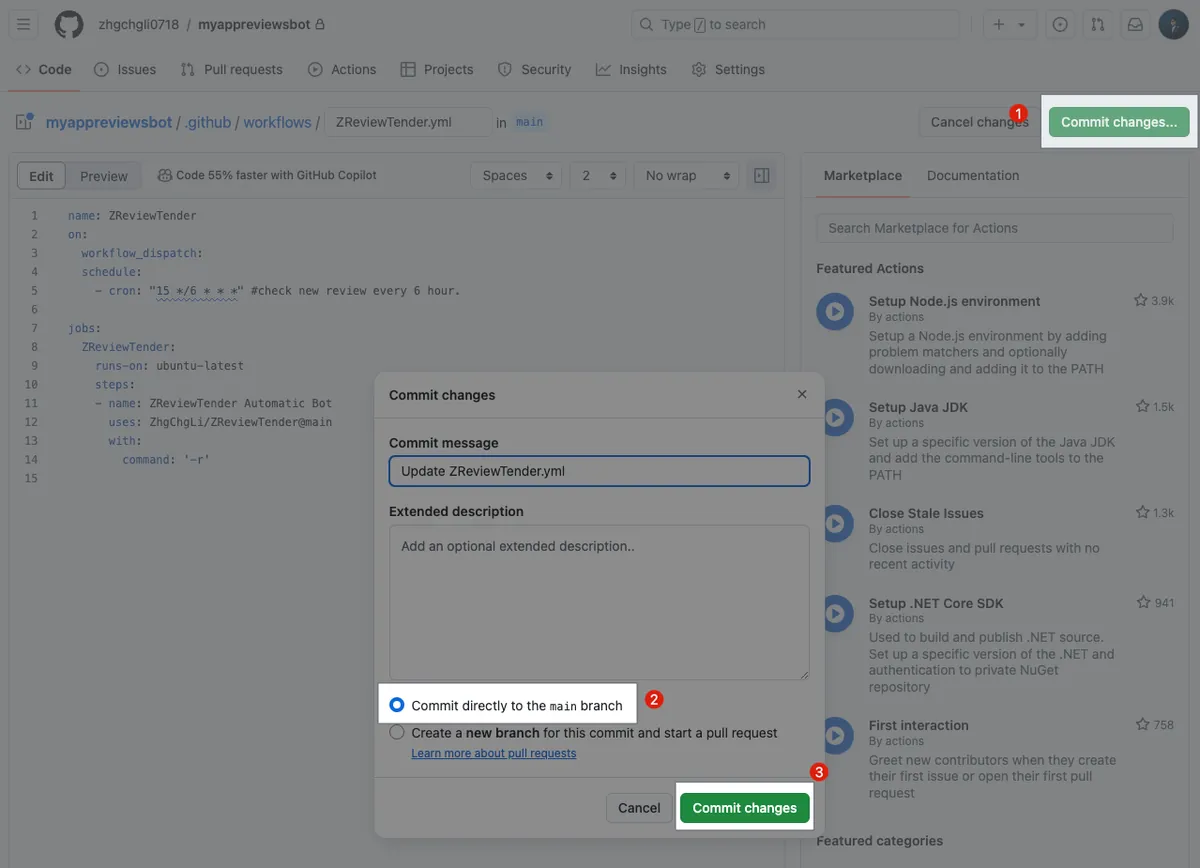
-
After editing, click “Commit changes…” at the top right corner.
-
Choose “Commit directly to the main branch”
-
Click “Commit changes”
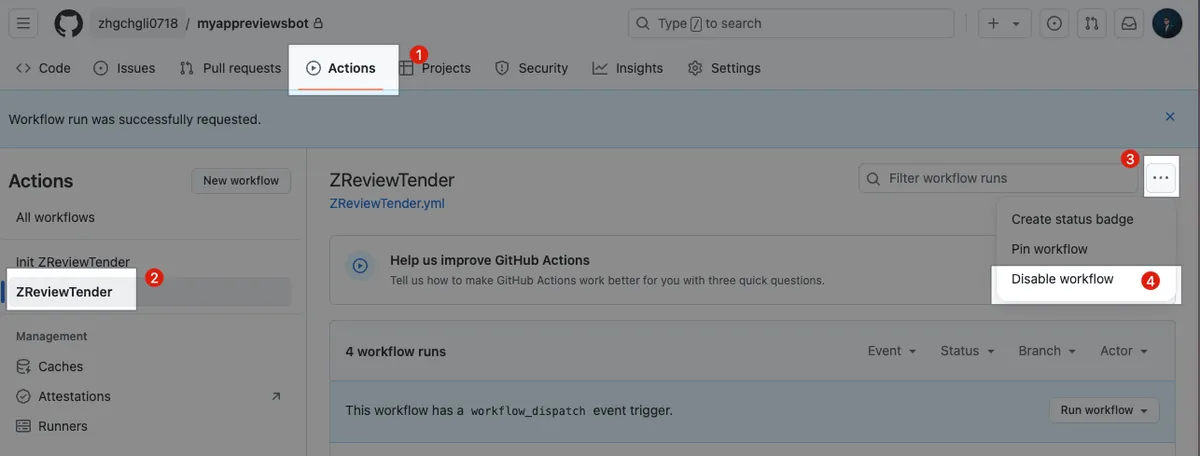
Temporarily Stop Checking
-
Repo -> Actions
-
Select “ZReviewTender”
-
Click the “…” on the right side
-
Select “Disable workflow”
Bug Reports and Feature Requests
If you have any feature suggestions, questions, or bugs, please go to the above Github Repo to create an Issue. Thank you.
Comments