
Apple Watch Series 4 Unboxing: Comprehensive Review from Purchase to Use (Updated 2020-10-24)
Why Buy? Is It Useful? What’s Good About It? How to Use It? & WatchOS App Recommendations
[Latest] Apple Watch Series 6 Unboxing & Two-Year User Experience »> Click Here
Starting from the Purchase…
Personal Background
First, a brief background on my use of Apple products: I am not a loyal Apple fan. My first contact was in 2015 when I used my part-time job salary to buy an iPhone 6. Due to work needs, I only started using MacOS computers (Mac Mini) last year and purchased my own MacBook Pro and upgraded to an iPhone 8 this year. The reasons I entered the Apple ecosystem are mainly:
-
Work Requirements (Developing iOS Apps Requires macOS Devices)
-
Work Efficiency (improved stability, smoother app switching, and better operation experience, combined with seamless integration and data synchronization between the iPhone and macOS ecosystem, simplifies many tasks)
-
Battery Life, Portability, Retina Display
Why I Wanted to Buy an Apple Watch?
-
Track workout data and heart rate status
-
Run without wanting to carry a phone
-
Reduce phone usage time without missing important notifications
-
When carrying many bags, use Apple Pay without taking out your phone
-
Automatically unlock MacBook (My MacBook Pro is the non-Touch Bar version, typing the password is tiring)
-
Use navigation while cycling
-
Cool! Never used one before, want to buy it just for fun
-
Want to develop a WatchOS app
Starting to Choose…
Considering all the above factors, start choosing the right Apple Watch; excluding the strap material, there are three versions of the watch body to choose from:
-
Aluminum case + glass surface that may scratch + GPS = $12,900 (40mm) / $13,900 (44mm)
-
Aluminum case + potentially scratchable glass surface + GPS + cellular = $16,500 (40mm) / $17,500 (44mm)
-
Stainless steel case + sapphire crystal glass + GPS + cellular = $22,900 (40mm) / $24,900 (44mm)
I personally bought 2. Aluminum case + glass surface that may scratch + GPS + cellular 44 mm
Watch Faces:
Size
There are two sizes: 40mm and 44mm. Choose based on your wrist size. Too large may feel uncomfortable and affect heart rate accuracy; too small may look odd when worn.
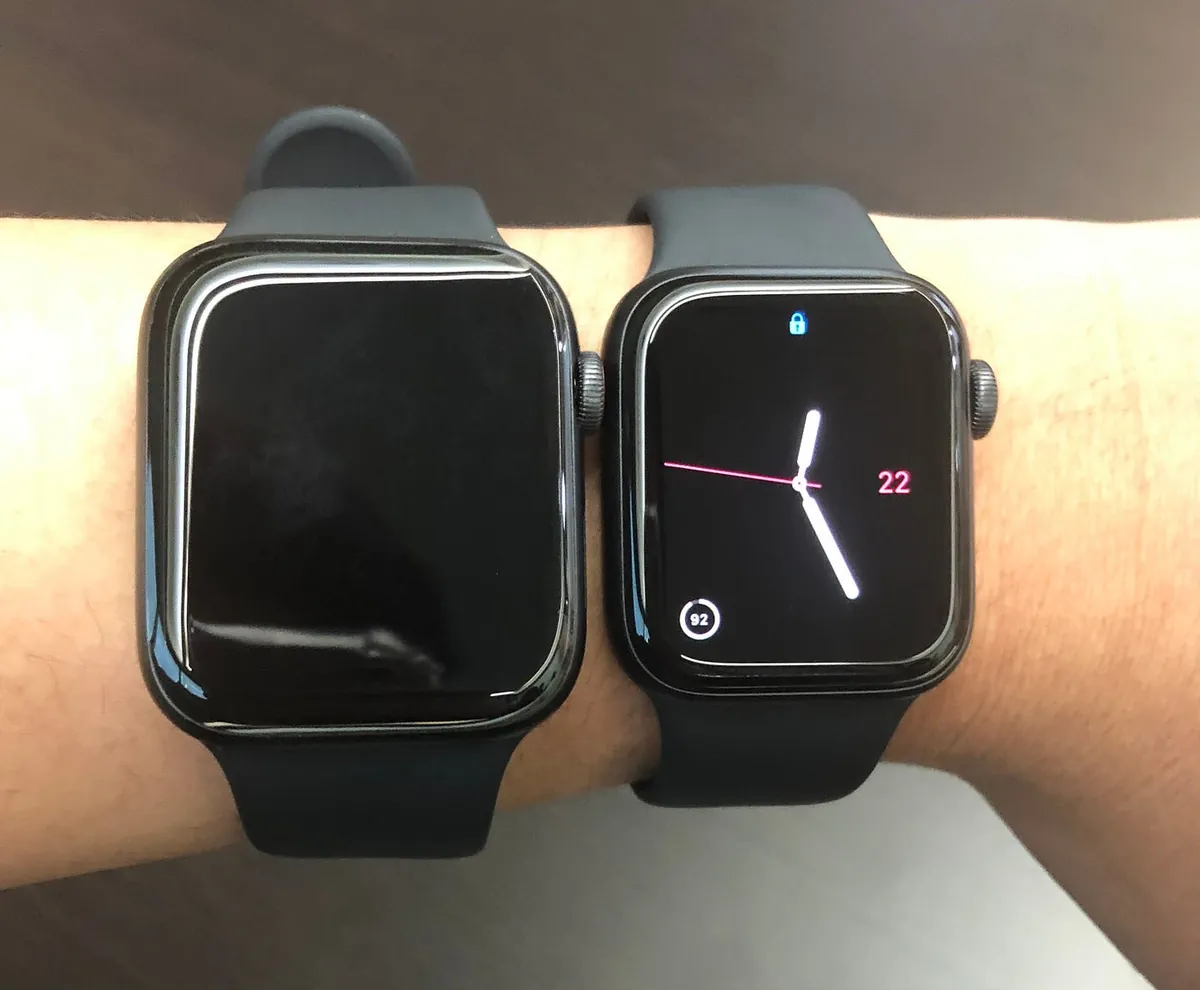
Left 44mm / Right 40mm (Thanks to my colleague for the kind support)
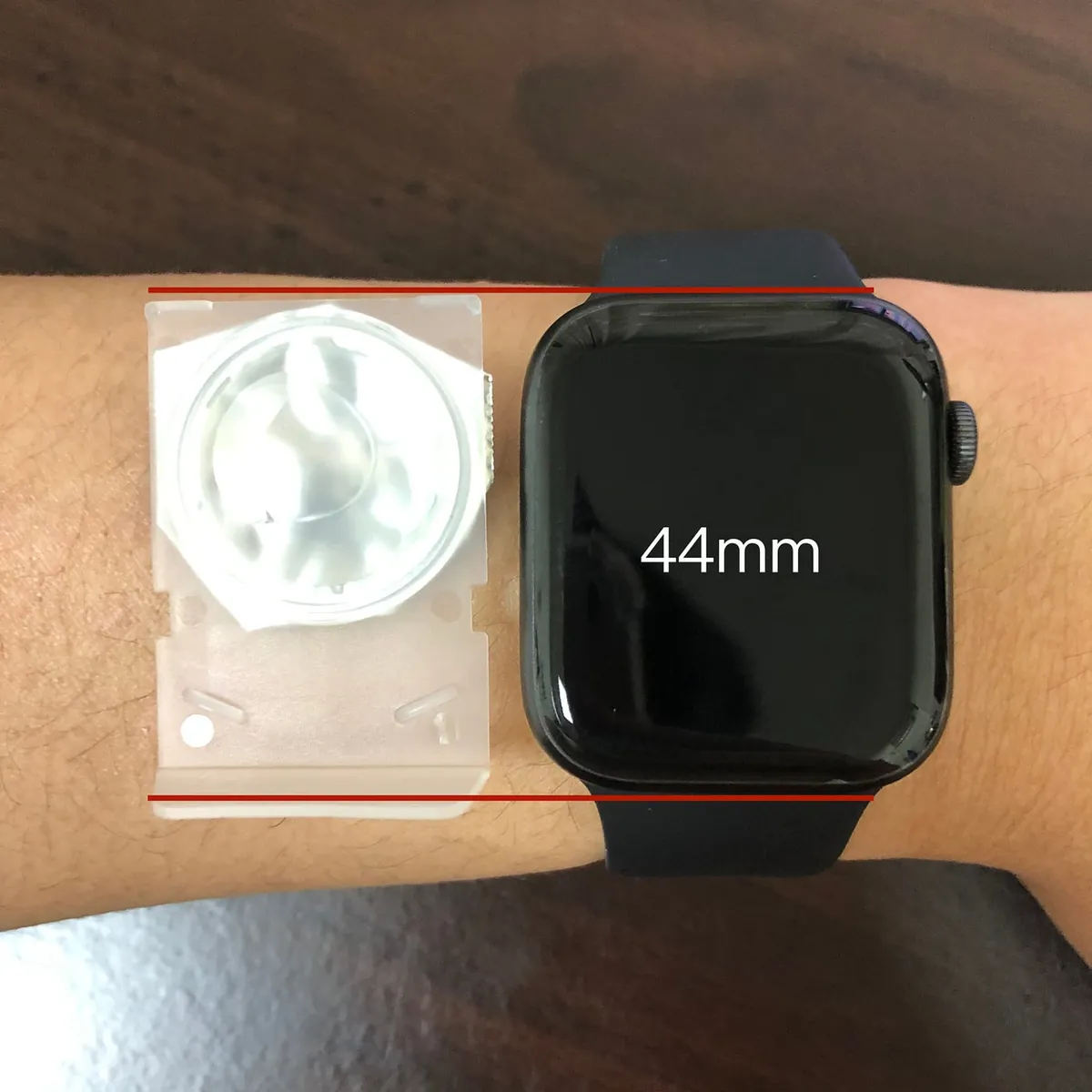
If you can’t find something to compare with, you can use a daily disposable contact lens case, which is about 44mm (actually measured 44.5mm).
Here is a photo of my hand for reference. If you’re still unsure about the size, it’s best to visit the 101 store to try it on (I initially aimed for the 40mm, but after trying it on, I found it too small…).
Apple Watch 3 38mm and Apple Watch 4 40mm are the same size; bands are interchangeable**
**Apple Watch 3 42mm and Apple Watch 4 44mm are the same size; bands are interchangeable
Case Material
There are two options: aluminum case with a glass surface that may scratch, and stainless steel case with a hard sapphire crystal glass. If your budget allows, I definitely recommend choosing the latter. Personally, I chose the former due to budget constraints. So why choose the stainless steel case with sapphire crystal glass version?
-
Although the body is heavier (which may be noticeable during exercise), it is easier to match with outfits in daily life. Leather or metal bands paired with the unpolished body create a more consistent and stylish look with business attire. Switching to sport bands for casual or workout occasions still maintains elegance, offering both active and calm styles!
-
The sapphire crystal glass is very hard, so you don’t need to worry about scratches on the watch face. (Personal experience: My previous iPhone 6 was used without a case for over a year; I didn’t treat it specially, just kept it in my pocket or on the table daily. The screen got scratched badly, but the lens part with sapphire crystal glass remained intact.)
But I bought the standard version… If you search online for articles about Apple Watch screen protectors, you’ll find two camps: one supports using protectors because the screen can get scratched; the other opposes it, believing scratches depend on usage habits, the screen isn’t that fragile, and asking, “Have you ever seen a Rolex with a screen protector?”
Or if you’re a laid-back user who buys it to use it as is, considering it a consumable product, then this isn’t a concern.
I’m a bit obsessive about scratches, so I support using a screen protector. Is it a usage habit issue? I think only impacts count as bad habits; daily dust damage is really hard to avoid.
If you also want to apply a screen protector, here’s a tip: “Spend a bit more to have someone else apply it.” I usually apply screen protectors on my phone myself, so why do I say you should get someone else to do it for the Apple Watch?
This part really exhausted me. First, I bought a tempered glass screen protector for Tokyo use from Pchome ($399). It’s a hard film with adhesive only on the edges. After applying, the center had a hollow gap and didn’t fit well, making the touch extremely unresponsive (I seriously doubt if the manufacturer tested it at all). So I removed it shortly after applying;
The second attempt was buying g*r soft film ($100 for two pieces). It is fully adhesive and fits well, but being soft makes it hard to apply and prone to bubbles. Both pieces had some visible bubbles, which was annoying, and it’s not oleophobic or hydrophobic, making it less smooth to use.
Finally spent $990 to have it professionally applied (x Luxury Film) h*a jelly gel glass screen protector—perfect fit, no bubbles, full coverage, oleophobic and hydrophobic.
If you still want to try applying a screen protector yourself, you can look for hydrogel film.
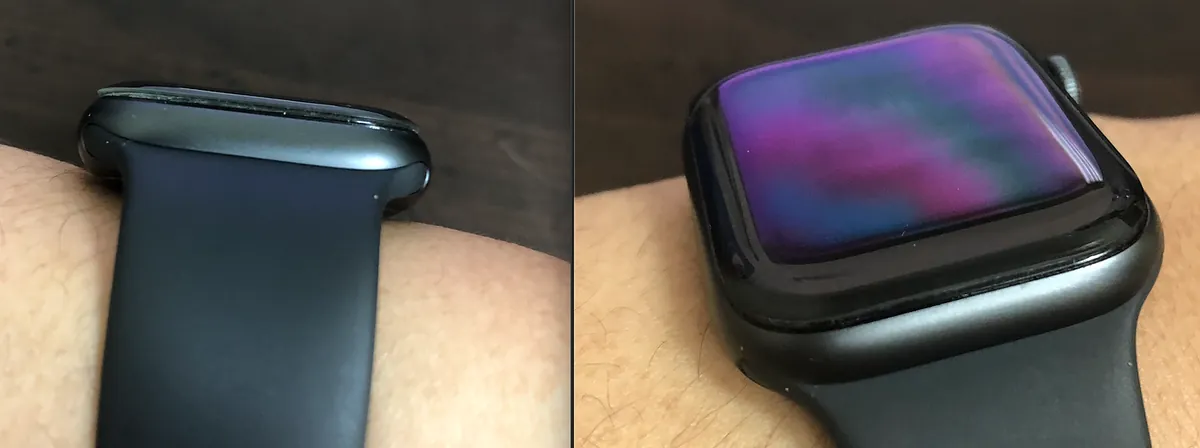
The feel after applying the screen protector is naturally not as good as the original (personally about 97 out of 100), and the screen will be slightly raised. Whether to accept this trade-off depends on personal preference!
- The stainless steel case is more resistant to impacts and scratches, and can be polished to restore its look. I’ve seen a colleague’s stainless steel version still in perfect condition without any scratches. I’m not too concerned about the case, but if you really care, you might consider using a protective film (?
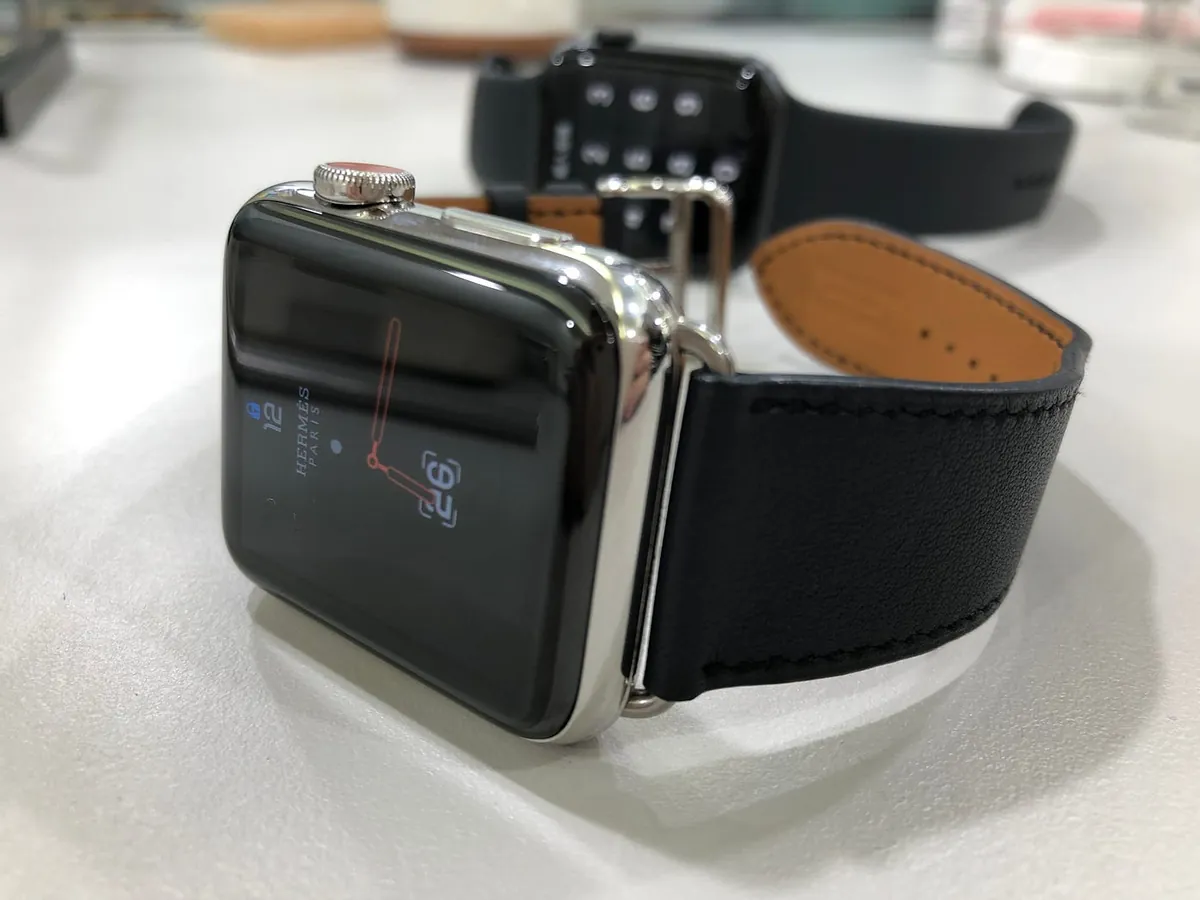
Stainless Steel Version (Thanks to a colleague for the kind support)
So for those with a sufficient budget, I still recommend upgrading to the stainless steel version.
About Choosing a Protective Case:
Screen protectors chip easily. Without a case, the edges usually chip within a month for some unknown reason. Each protector costs $990… I’ve replaced three so far, which is quite frustrating. Since using a case, it’s been 4 months and the protector is still intact!
It is recommended to use at least a bumper case; any brand is fine.
My hard-learned lesson can be summed up in one phrase: I wish I had known about protective cases earlier. I wouldn’t have wasted money!
Should I buy the cellular version?
I am somewhat reserved on this; I personally bought the cellular version so I don’t have to bring my phone when running or exercising. Considering I plan to wear it for 2–3 years and am unsure about the future, I upgraded. But if your budget is tight and you won’t leave home without your phone, the WiFi-only version is fine (a $3600 price difference).
Please consider the following points:
-
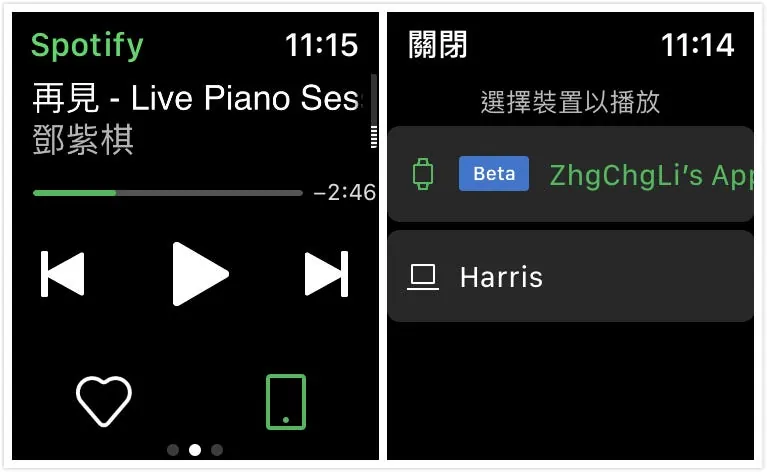
Currently, Spotify does not support offline playback, so you still need to bring your phone to listen to music while exercising (2018/11/21)
p.s. Apple Music and KKBOX support offline playback, so they don’t have this issue. -
Apple Watch apps are limited, and the main functions are making calls, replying to messages, replying on Line, replying on Fb Messenger, and Apple Pay—nothing more.
*Apple Pay can be used offline without the cellular version. -
Cellular service requires a separate subscription and a monthly fee of $199 (Chunghwa/~$149 promotional price before 2018/12/31). Data usage counts toward your existing phone plan.
-
The cellular network works by the watch sending data through the carrier to the phone, which then transmits it out. Therefore, your phone must be turned on for the watch to work.
So if your phone is dead or powered off, the watch won’t work even if it has cellular service.
Purchase
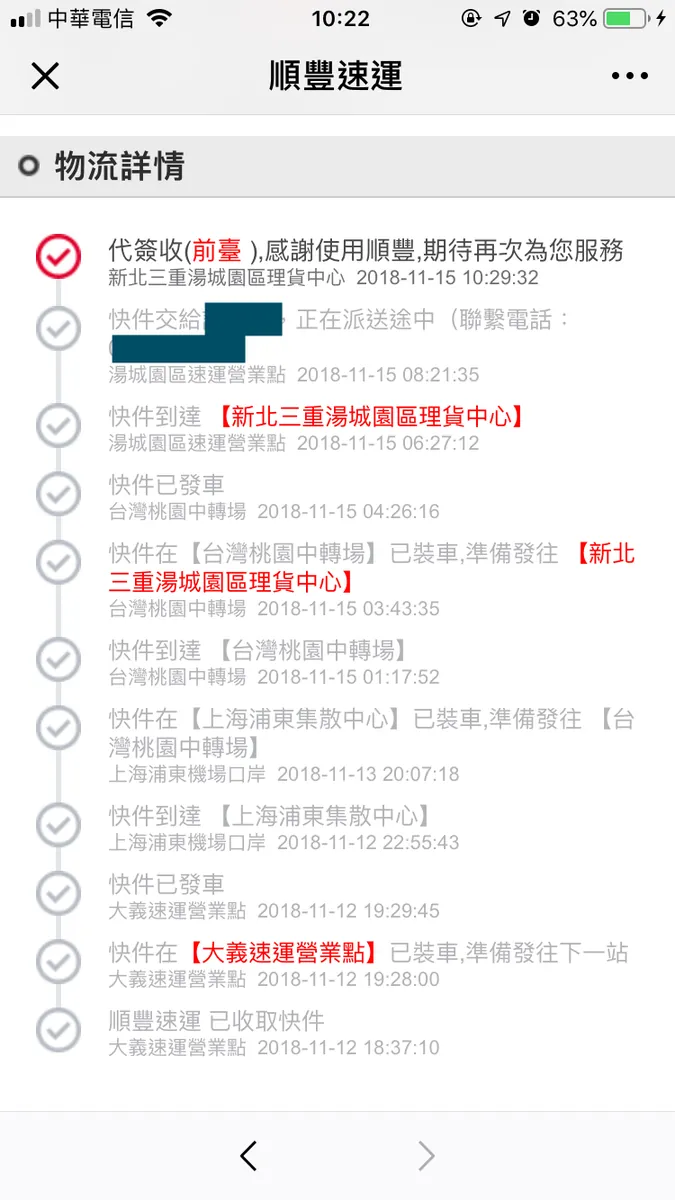
Last week (2018/11/11), I went to 101 but couldn’t find the item I wanted. So I ordered online from Mainland China. Ordered on 11/11, shipped on 11/12, and delivered on 11/15 as scheduled:
Unboxing
I was so excited to start using it right away that I didn’t document the unboxing. For the unboxing, you can refer to these online videos: Apple Watch Series 4 Experience Full-Screen Watch, Is It You? (Mainland China), Apple Watch Series 4 Complete Unboxing! Three Features Are Really Impressive (Taiwan)
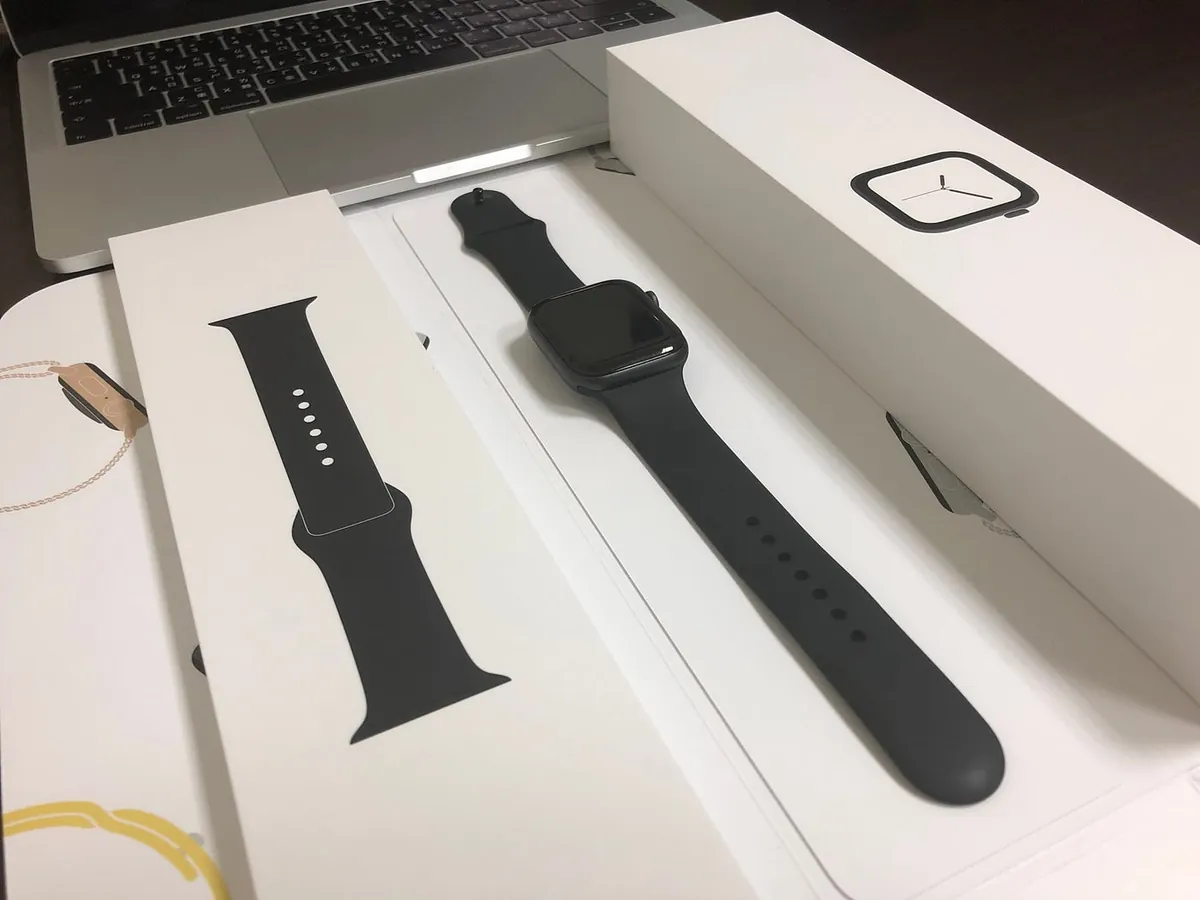
Add an unboxing photo
The purchase section ends here….
Getting Started
Pairing and basic setup will not be repeated here; please refer to the unboxing article above. This assumes you have already completed the setup and started using the Apple Watch.
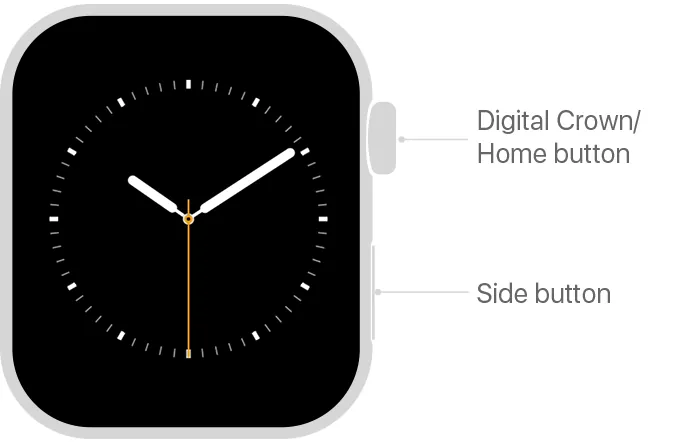
Button image attached — Apple Official Support
請提供您需要翻譯的 Markdown 文章段落內容,我會依照您的指示進行翻譯。
Button Operations:
-
Press the Digital Crown to switch between the Home screen and the watch face.
-
Double-click the Digital Crown to switch to the most recently opened app.
-
Tap the side button to open the Dock (multitasking view). You can set it to show recent apps or your favorites (open the “Watch” app on your iPhone -> “My Watch” tab -> Dock -> Dock layout).
- Double-click the side button to bring up Apple Pay and make a payment immediately.
p.s. To change the default Apple Pay card, open the “Watch” app on your iPhone -> “My Watch” tab -> Wallet & Apple Pay -> Transaction Defaults -> Default Card -> Select your preferred card.- You cannot reorder cards; only one can be set as the default to appear first.
- Press and hold the side button to open the system menu for “Power Off,” “Power On,” show Medical ID, or make an SOS emergency call.
Apple Watch Screenshot Function
Very important, so placed first: How to take a screenshot on Apple Watch:
Open the “Watch” app on your iPhone -> “My Watch” tab -> go to “General” -> turn on “Enable Screenshots”
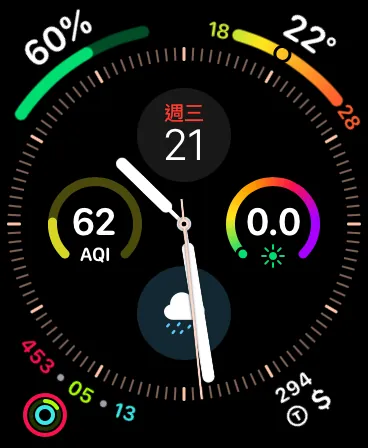
Press the Digital Crown and the side button on the Apple Watch at the same time. When the screen flashes, the screenshot is taken. You can then open your iPhone to view the screenshot!
Speaker
The built-in speaker on the watch can only be used for calls and playing notification sounds; it cannot play music. If you feel uncomfortable talking on the watch because others can hear, you can use Bluetooth headphones.
Explanation of Each Icon Status
Please refer to the official document
Connection Between Apple Watch and iPhone
When the watch is near the phone, it uses Bluetooth; when the distance is too far, it uses WiFi.
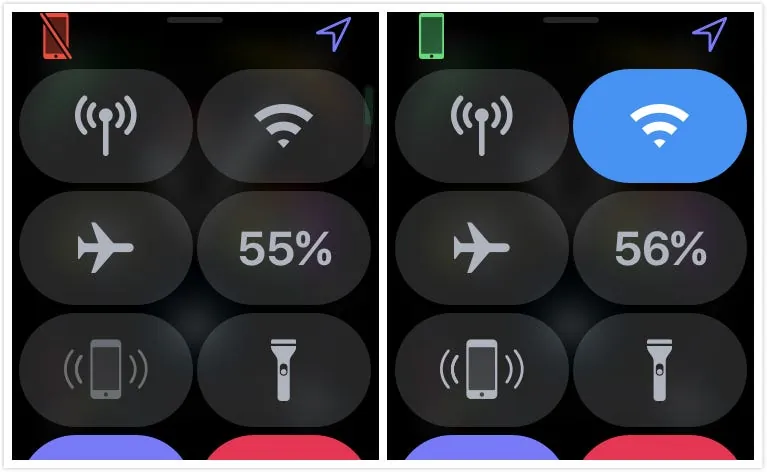
The left side indicates a disconnected status, while the right side indicates a connected status.
Notifications from iPhone Apps Sent to Apple Watch
By default, the watch follows the notification settings of the iPhone apps. You can also specifically disable notifications from certain apps on the watch (open the “Watch” app on your iPhone -> “My Watch” tab -> “Notifications” -> scroll to the bottom to adjust settings for each app).
-
If the app does not appear in this list, it means the app’s notifications are not enabled on the iPhone (please go to “Settings” -> “Notifications” on your iPhone and enable notifications for that app).
-
Why do some notifications have sounds/vibrations while others don’t?
This setting depends on the notification settings of the app on your iPhone. If the app’s “Notifications” have “Sounds” enabled, you will get sound and vibration alerts. -
Most app notifications only support viewing, while some allow interactions (e.g., Line notifications can be replied to directly on the watch).
-
New notification alerts on the watch only when the phone is not in use and the watch is worn / The phone will not ring but notifications still appear in the notification center; this prevents both the phone and watch from ringing simultaneously
When the APP Supports Apple Watch
-
By default, when installing an app that supports Apple Watch, the app will also be installed on the Apple Watch (you can disable this in the iPhone’s “Watch” app -> “My Watch” tab -> “General” -> turn off “Automatic App Install”).
-
Can I install only the Apple Watch app?
No, currently you cannot install an Apple Watch app independently; there must always be a corresponding app on the iPhone. -
Don’t want to install the Apple Watch version of the app
Go to the “Watch” app on your iPhone -> “My Watch” tab -> scroll down to the “Installed on Apple Watch” section -> tap it -> turn off “Show App on Apple Watch” -
Supporting “complex functions” in an app means supporting watch face complications
Watch Face Design
Put whatever you want and arrange it however you like; which information is important or what design looks better is up to personal preference. I put the information I want to see anytime on the watch face, and you can also add multiple watch faces for switching.
Flashlight
You read that right, Apple Watch also has a flashlight; swipe up from the bottom on the watch face to open the control center and find the “Flashlight” icon. Once inside, you can swipe left or right to change the screen color; yes, it’s just a bright screen color!
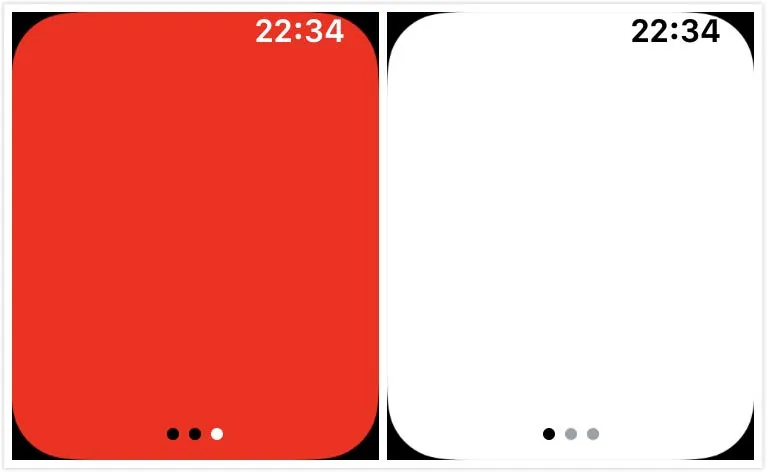
A special feature is the Flash Mode:
Make nighttime activities safer!
Modes
“Silent Mode” - All notifications are muted, no vibrations, no screen wake-up alerts, only shown in the Notification Center
“Theater Mode” - Raising your wrist won’t wake the screen; you need to tap the screen to wake it up.
“Water Lock” – Locks the touchscreen; you need to turn the Digital Crown to unlock. After unlocking, the speaker will automatically play sounds to expel water.
“Airplane Mode” - Turn off all external connections
“Power Saving Mode” – Really saves battery! Only the digital crown press shows the time; all other functions are completely off, almost like the watch is powered down. To exit power saving mode, press and hold the side button (same as powering on).
All the above modes, including alarm and countdown, will still sound as usual. “Low Power Mode will force the device to turn on.”
Raise Wrist to Directly Call Siri
Simply raise your wrist to light up the screen and start speaking to use Siri! No need to say “Hey Siri” (e.g., after raising your wrist, just say “What’s the weather tomorrow?”).
You can also use Siri when your phone is a bit far from you (e.g., while hanging clothes).
AQI Air Quality Not Displaying?
The built-in AQI does not seem to support Taiwan. You need to search for “在意空氣” in the App Store, download and open it. Then, go to the watch face customization section and select “在意空氣” for the complication.
Unlock Mac with Apple Watch
-
Make sure your iPhone, Apple Watch, and Mac are all signed in with the same Apple ID.
-
Make sure your Apple ID has Two-Factor Authentication enabled.
-
Once the system detects your Apple account has an Apple Watch device, it will add a new option under “System Preferences” -> “Security & Privacy” -> “General” -> “Allow Apple Watch to unlock your Mac” -> just check the box.
If activation keeps failing, please first make sure your Apple account has Two-Factor Authentication enabled (not Two-Step Verification) or try restarting your computer!
p.s My company’s Mac Mini could never activate properly, but it works fine after a restart.
Photos open blank?
By default, it shows your favorite items from the iPhone. Open the iPhone “Photos” app and tap the “heart” on the photos you want to sync to the watch.
Activity Tracking and Fitness Training
Activity records have three rings and three daily goals:
-
Stand (Blue): Achieved once by standing for 1 minute each hour
-
Exercise (Green): Only activities exceeding the intensity of brisk walking will be counted
-
Activity (Red): The number of active calories burned, increases when you are moving
For more details, you can check the “Health” app on your iPhone for a thorough explanation.
Daily achievement reminders will notify you. You can also press firmly on the “Activity” app on Apple Watch to adjust your activity goal (the default is 360 calories per day).
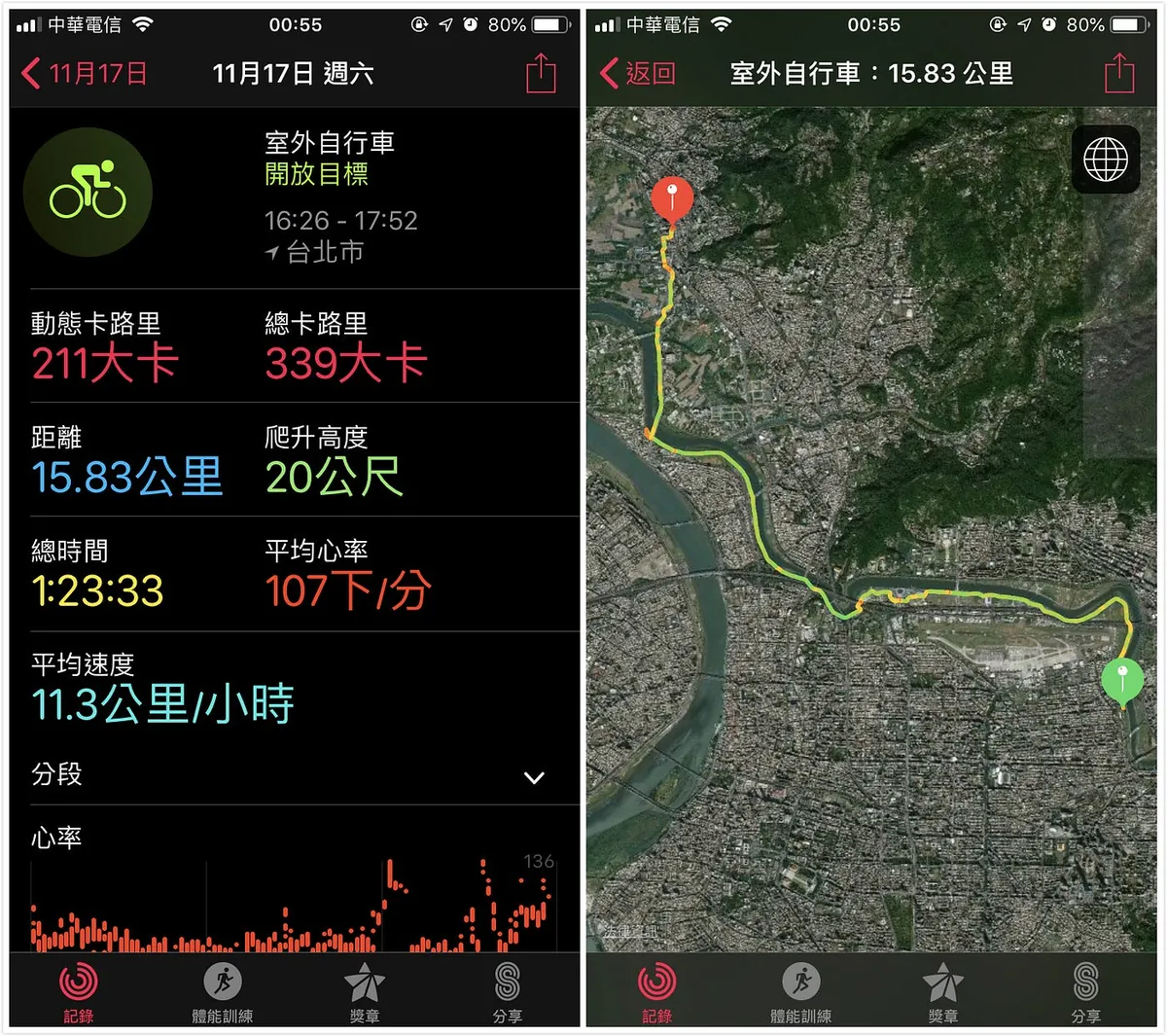
For fitness training, I use Nike Run Club for running instead of the built-in app. Last week, I tried the built-in workout for cycling -> “Outdoor Cycle” to record my ride. It tracks elevation, distance, time, route, and heart rate. Awesome!
Map Function?
Currently, only Apple Maps is supported; Google Maps is not supported yet. Open “Maps” to search or select your home or company address set in your personal info (source: Contacts -> My Card), or enter a destination manually. After starting navigation, each turn is shown as a card that automatically flips based on your movement. You can rotate to view, tap to see the map details, and when you are 40 meters away, it will vibrate to alert you. Press firmly to end navigation.
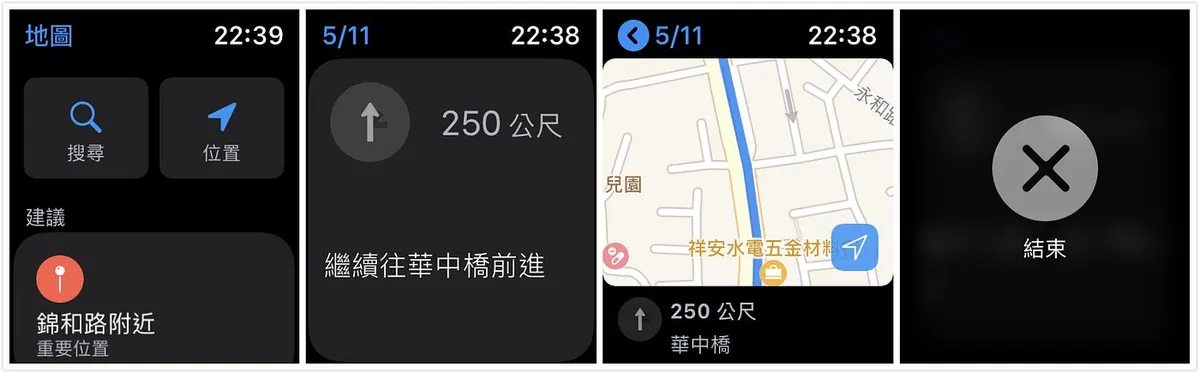
This part simply sends your phone’s Apple Maps information to the watch (when navigating on the watch, the phone’s navigation will automatically start as well).
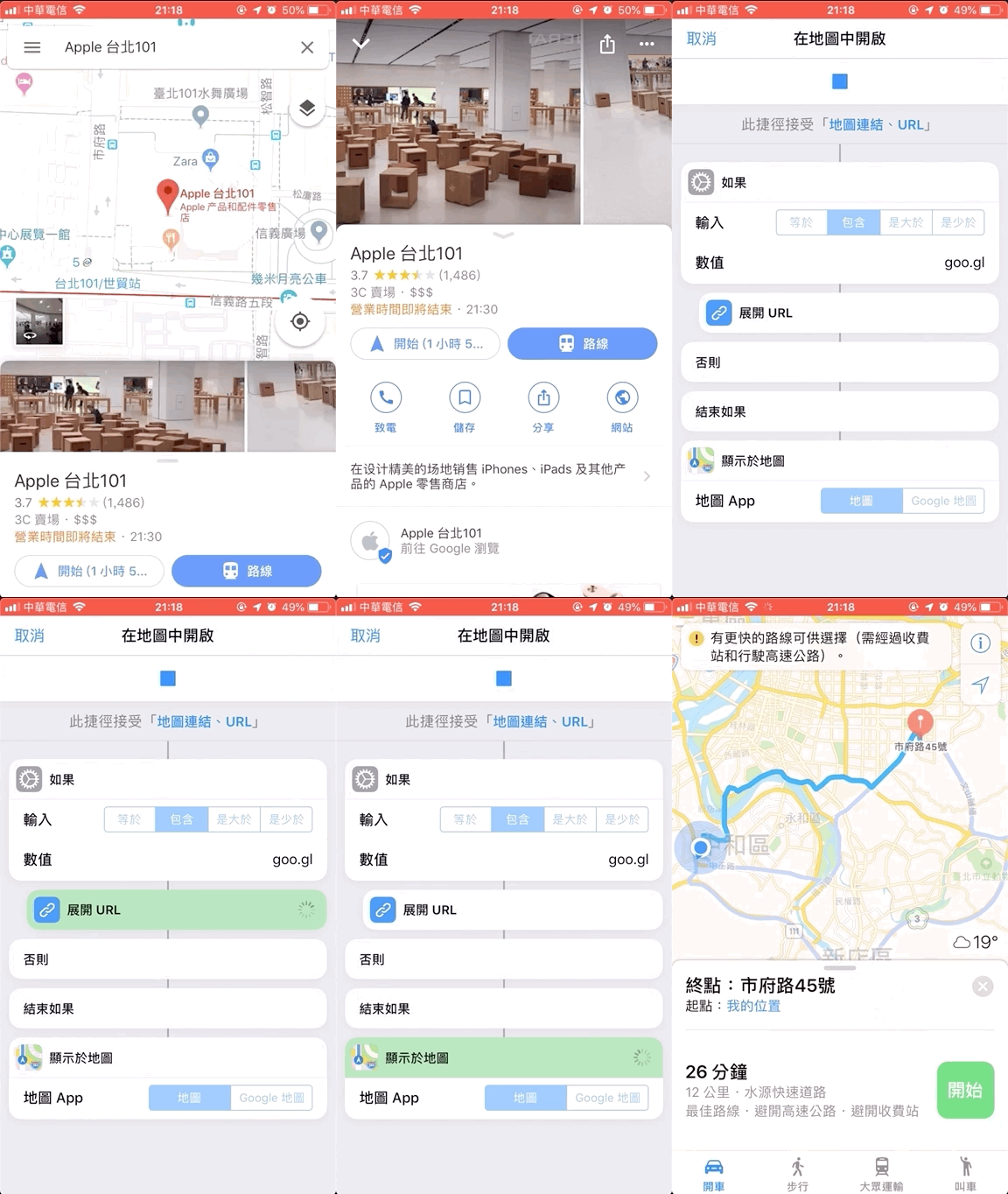
Actual Usage Impressions: Apple Maps has few landmarks, making it hard to search. It seems to only guide you on main roads, ignoring faster, less congested dual-lane routes. So I’m still hoping for Google Maps updates. For now, I’m just making do with this.
Here is a Siri Shortcut: Open Google Map item using Apple Map
Bluetooth Camera Button
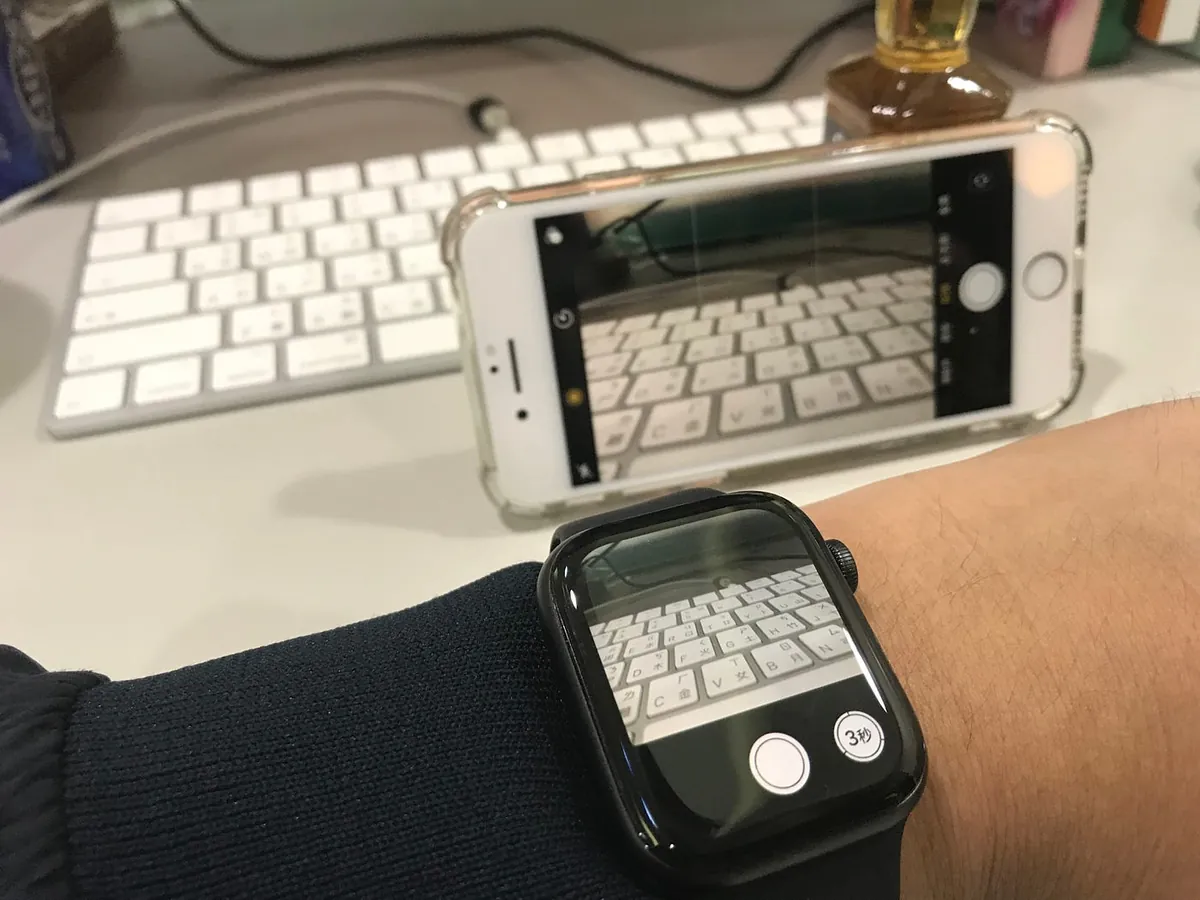
Apple Watch opens the “Camera,” and the phone’s camera will also turn on. You can use the watch to control the phone’s camera for taking photos and recording videos. Press firmly to switch lenses or adjust camera settings.
Where is my phone?
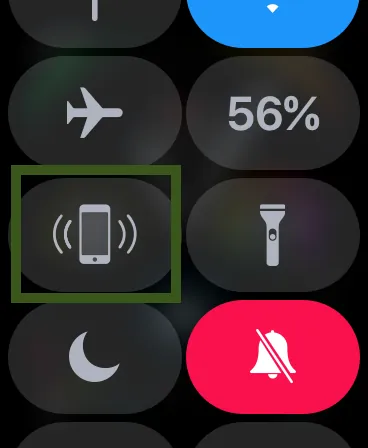
On the watch face screen, swipe up from the bottom to open the menu and find the “phone vibrating icon.” Tap it, and your phone will make a sound!
-
The phone still makes sounds even when in silent or Do Not Disturb mode
-
Pressing the icon firmly on the phone will trigger both a sound and the flashlight.
p.s. The reverse—using the phone to find the watch—is not available. If lost, please use the “Find iPhone” app to locate it.
Message input cannot recognize handwritten Chinese characters, and voice input does not understand Chinese either
I think this is a bug…
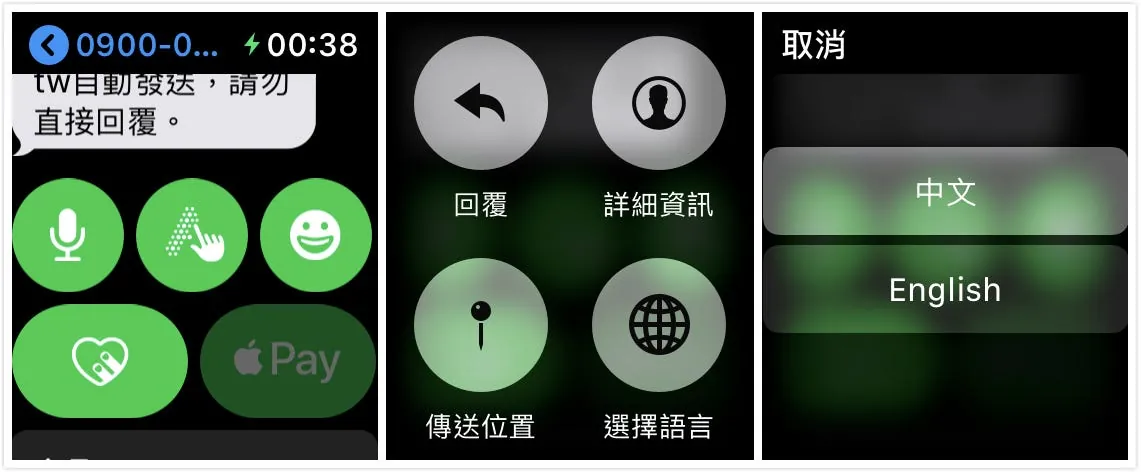
Press and hold the “Microphone” or “Handwriting” icon in the message to open the menu > “Select Language” -> “Chinese”
Another method is to open “iPhone” -> “Settings” -> “General” -> “Keyboard” -> “Dictation” -> “Dictation Languages” -> select only “Mandarin”.
This way, your voice input will only recognize Mandarin, and the phone will also be affected.
Turn Off Breathe Reminders / Turn Off Stand Reminders
Open the “Watch” app on your iPhone -> “My Watch” tab -> Breathe -> Turn off Breathe reminders
Open the “Watch” app on your iPhone -> “My Watch” tab -> Activity -> Turn off Stand Reminders
Want to set a more complex passcode on the watch
Open the “Watch” app on your iPhone -> “My Watch” tab -> Passcode -> Simple Passcode -> Turn off -> Then you can set a 6-digit passcode
Can incoming calls show Whoscall information on the watch?
No.
Does it lag?
Compared to a colleague’s Apple Watch S3, the S4 opens apps almost instantly with no loading, and it boots up very quickly.
You can check the actual test in this video: 【最新】4代 Apple Watch Series 4 速度實測 音量比較
Battery life?
I only wear it from waking up until before showering. I don’t wear it to bed (worried about accidentally hitting the wall since my bed is against it). I take it off to charge before showering.
-
Fully charged at midnight and removed, about 95% remained by 8 AM the next morning.
-
Fully charged at midnight and taken off, switched to Airplane Mode, about 98% remained by 8 AM the next morning.
Worn for about 15 hours throughout the day, with no constant use, it still has around 65% battery left. It lasts well and can barely make it two days on a single charge.
*The first charge may take longer time
*Battery performance may not be optimal in the first few days, causing higher power consumption
Recommended Practical Apps
-
Air Matters (Free): Supports watch face complication with AQI information
-
1 Second Money ($60): A fast expense tracking app that supports watch face complications. I tried this and CMoney, but CMoney costs $120 and has a too complex interface, which I found hard to use. So I personally recommend this one.
-
Bus+ (Free): Used to check bus information. I originally used Taipei Bus, but it doesn’t support Apple Watch, so I had to give it up. Bus+ works differently from Taipei Bus; it is station-based. My personal setup is to categorize frequently used locations (home/work/MRT station) and add bus routes that pass through these stations.
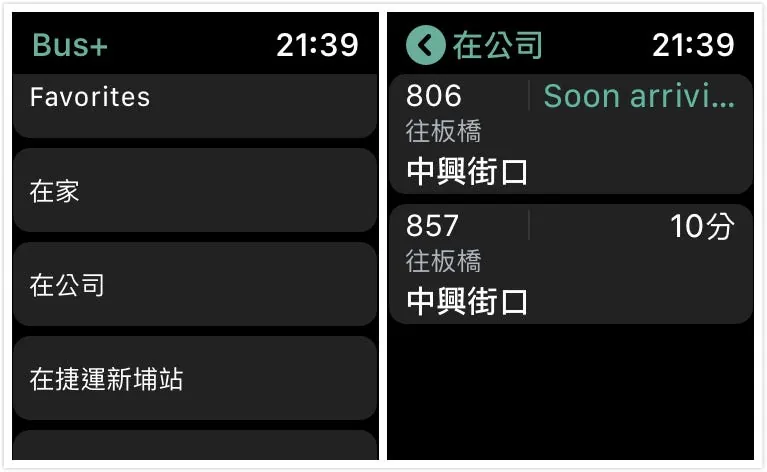
Bus+
-
Nike+ Run Club (Free): Running tracking app
-
Shazam (Free): Tap to identify music (though you can also ask Siri directly). There’s another app called SoundHound, but in my experience, Shazam is faster.
-
Taipei & New Taipei City Ubike+ (Free): Check nearby or favorite Ubike stations for available bikes and parking spots.
-
Voice Recorder (Free): Quickly record on Apple Watch and transfer to phone
-
Countdown Days (Free): View countdowns to anniversaries or upcoming events
-
Advanced Calculator For Apple Watch OS (Free): Use a mini calculator on Apple Watch
Line, Spotify, etc.
Summary and One-Week Usage Review
Wearing it for almost two weeks now, what started as a novelty has smoothly integrated into daily life. So far, the noticeable benefits are: unlocking my Mac without typing long passwords (company policy requires logging out when leaving the desk), checking the weather instantly, viewing navigation, receiving app notifications, and monitoring heart rate for health—basically just these. The supported apps and features are quite limited.
Has my phone usage decreased? Not really, because when I get notifications, I still prefer to reply on my phone. Replying via the watch requires voice input, which is awkward in public, and handwriting is very slow. Also, many apps do not support Apple Watch.
Starting at $12,900, is it really worth it? There are many great watches over ten thousand, but only one that integrates with the entire Apple ecosystem. If you just want a luxury watch, there’s no need to use an Apple Watch. If you want a watch that helps with daily tasks, it’s worth considering. If you want luxury plus daily functionality, consider the stainless steel or even the Hermès version!
Since buying it, I have thought about returning it. I feel like $17,500 can be spent on many things, and spending that much on a watch doesn’t seem very worthwhile. However, it does help with daily life. Is that help worth $17,500? I don’t think so at the moment. I’ll reassess when the Apple Watch app ecosystem grows bigger. For now, it’s a luxury item XD—I bought it because it’s cool, trendy, and impulsive.
Other features are left for everyone to discover on their own.
-
[Latest] Apple Watch Series 6 Unboxing & Two-Year User Experience »> Click Here
You’ve bought the watch, aren’t you considering the AirPods 2?
Next article » AirPods 2 Unboxing and First Impressions
Developing Your Own Apple Watch App:
Please see Build an Apple Watch App! (Swift)
Want to control smart home devices with your watch?
Please see Smart Home First Experience — Apple HomeKit & Xiaomi Mijia
Thoughts After Three Months of Use:
For details, please see this article
- The full-coverage screen protector cracked once after bumping it while doing housework (so frustrating).
- Purchased an additional leather watch band:
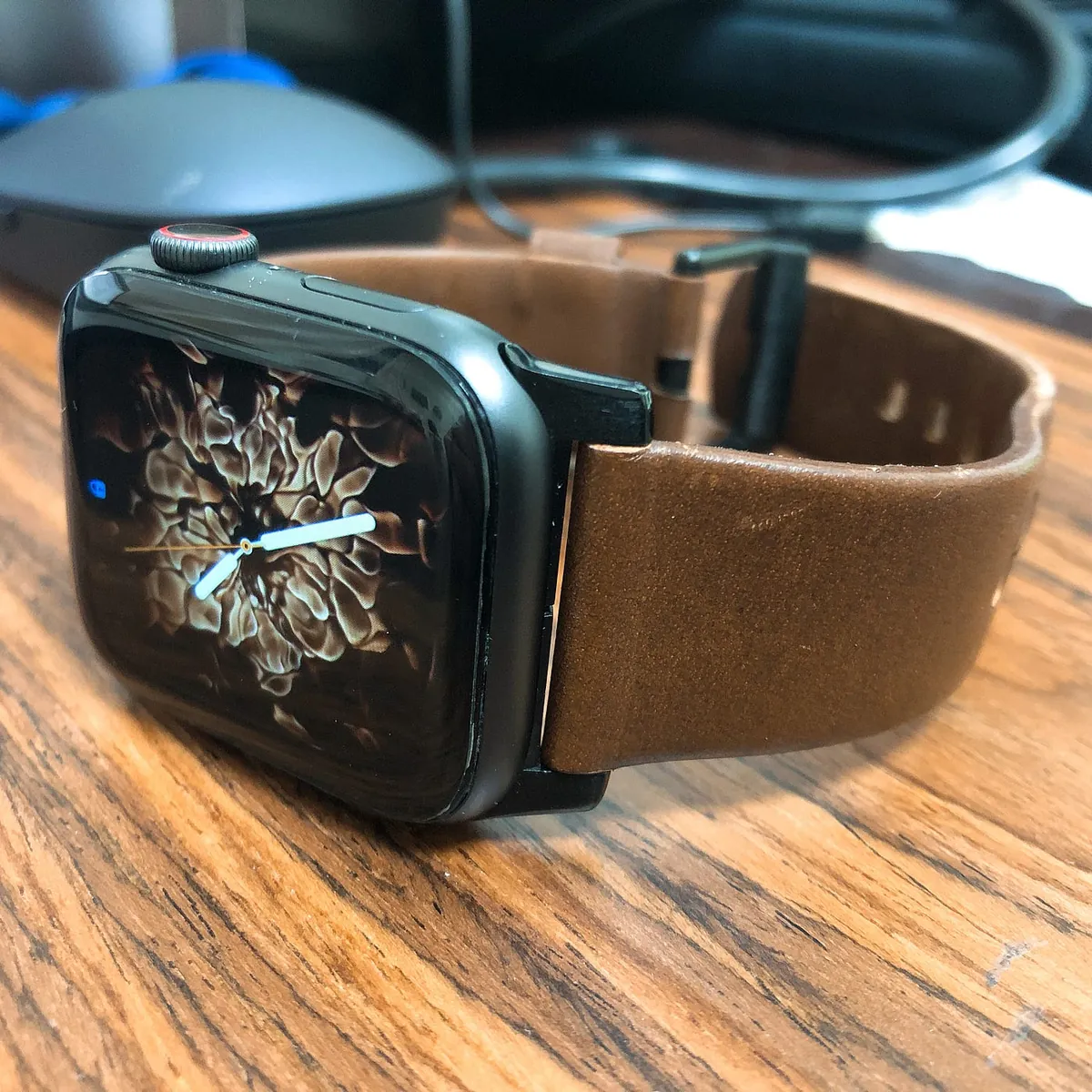
nomad Apple Watch strap

Comments