
Let’s Build an Apple Watch App! (Swift)
watchOS 5 Step-by-Step Guide to Developing an Apple Watch App from Scratch
[Latest] Apple Watch Series 6 Unboxing & Two-Year Usage Experience »> Click Here
Preface:
It has been almost three months since the previous article Apple Watch Unboxing, and I finally found the opportunity to start developing an Apple Watch App.
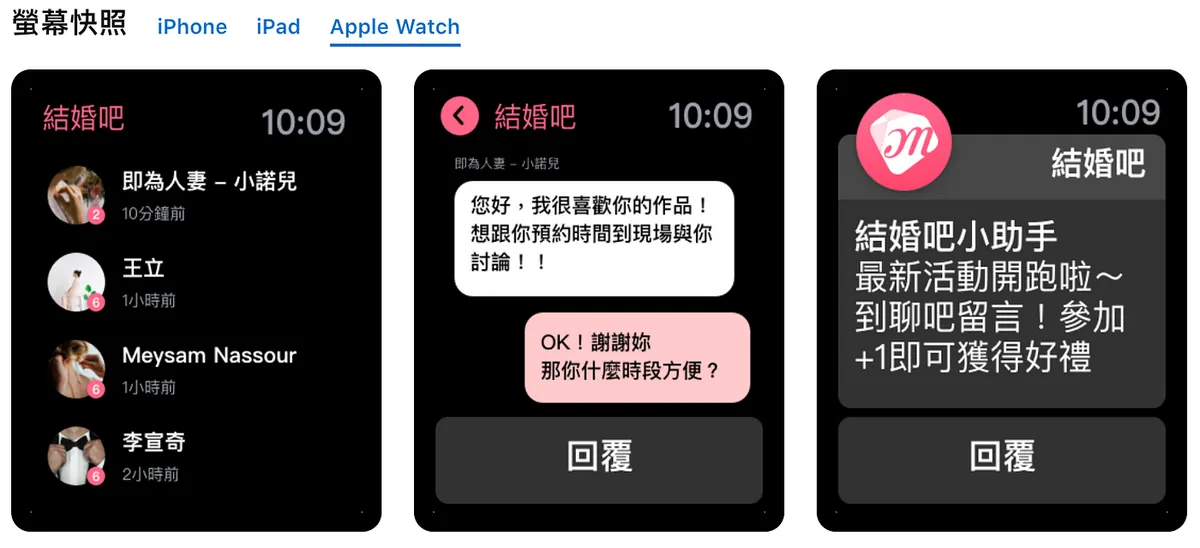
Wedding Planner — The Largest Wedding Preparation App
Here is my feedback after using it for three months:
-
- e-SIM (LTE) is still something I can’t see myself using anytime soon, so I haven’t applied for or used it yet.
- Common features: unlocking my Mac when nearby, raising my wrist to check notifications, Apple Pay.
- Health reminders: after three months, I’ve started to slack off; I glance at the notifications but feel indifferent if I don’t close the rings.
- Third-party app support is still very poor.
- Watch faces can be freely changed to match my mood, adding freshness.
- More detailed workout tracking: for example, if I walk a bit farther to buy dinner, the watch automatically detects it and asks if I want to record the workout.
After using it for three months, overall it remains as described in the original unboxing review—like several small life assistants helping you handle trivial tasks.
Third-Party App Support Is Still Poor
Before I actually developed an Apple Watch App, I was puzzled why the apps on Apple Watch were so basic or just “barely usable,” including LINE (messages not syncing and never updated) and Messenger (just barely usable); only after I developed an Apple Watch App did I understand the developers’ struggles….
First, Understand the Positioning of Apple Watch Apps and Simplify
Apple Watch’s Positioning “is not to replace the iPhone, but to assist it.” This direction is reflected in official introductions, official apps, and watchOS APIs; that’s why third-party apps often feel basic and have limited features (sorry, I was too greedy Orz).
Taking Our A app as an example, it includes features like searching merchants, viewing columns, discussion forums, and online inquiries. Online inquiries are valuable to bring to Apple Watch because they require real-time and faster responses, increasing the chance of securing orders. Features like searching merchants, viewing columns, and discussion forums are relatively complex and less meaningful on the watch (the screen can display limited information and these features do not require immediacy).
The core concept is still “assistive first,” so not every feature needs to be moved to the Apple Watch. After all, users rarely spend time wearing only the watch without their phone, and in such cases, their needs are limited to essential functions (for example, reading column articles is not important enough to require immediate access on the watch).
Let’s get started!
This is also my first time developing an Apple Watch App, so the content may not be very in-depth. I welcome any feedback!!
This article is only suitable for readers with iOS App/UIKit development experience
This article uses: iOS ≥ 9, watchOS ≥ 5
Creating a watchOS Target for an iOS Project:
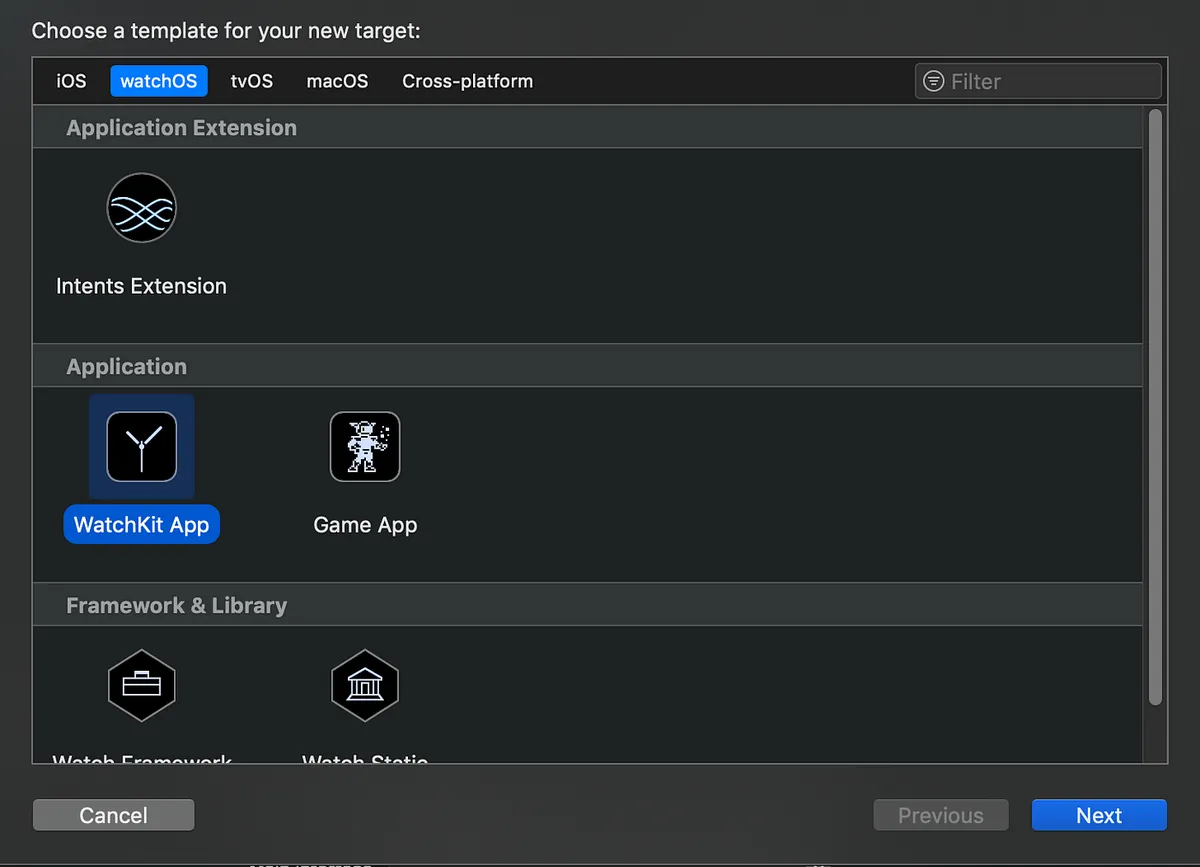
File -> New -> Target -> watchOS -> WatchKit App
Apple Watch Apps cannot be installed independently; they must be bundled with an iOS App
After creating it, the directory will look like this:
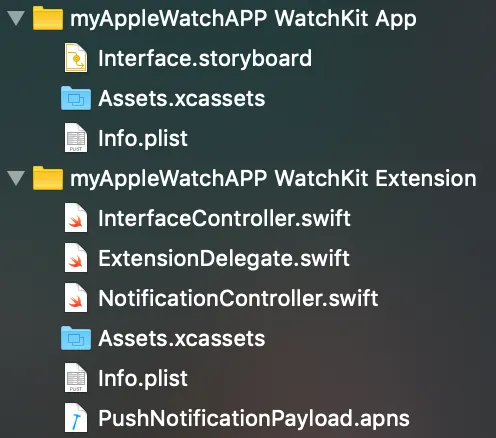
You will find two Target items, both essential:
-
WatchKit App: Responsible for storing resources and UI display
/Interface.storyboard: Same as iOS, contains system-created view controllers
/Assets.xcassets: Same as iOS, stores used resource items
/info.plist: Same as iOS, WatchKit App related settings -
WatchKit Extension: Handles program calls and logic processing (*.swift)
/InterfaceController.swift: Default view controller code
/ExtensionDelegate.swift: Similar to Swift’s AppDelegate, the entry point for the Apple Watch App
/NotificationController.swift: Manages push notification display on the Apple Watch App
/Assets.xcassets: Not used here; all assets are placed under WatchKit App’s Assets.xcassets
/info.plist: Like iOS, settings related to WatchKit Extension
/PushNotificationPayload.apns: Push notification data used to test push notifications on the simulator
Details will be introduced later; for now, just get a general understanding of the table of contents and document features.
View Controller:
In Apple Watch, view controllers are called InterfaceController instead of ViewController. You can find the Interface Controller Scene in WatchKit App/Interface.storyboard, and its controlling code is placed in WatchKit Extension/InterfaceController.swift (same concept as iOS).
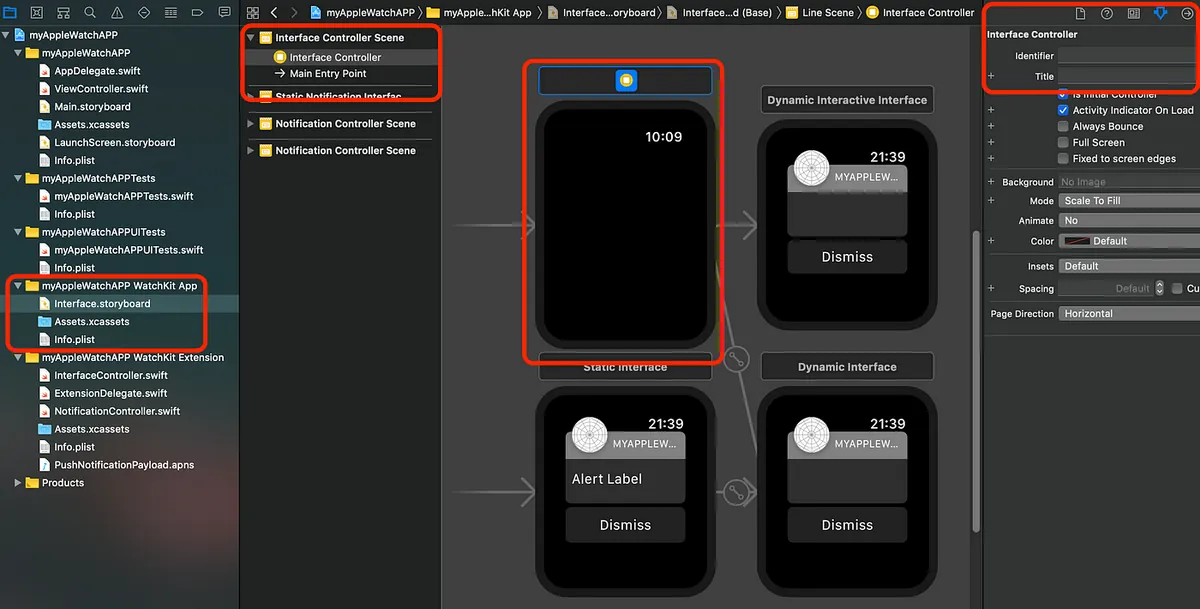
The Scene is set by default to be grouped with the Notification Controller Scene (I will move it up a bit to separate them).
You can set the title text of the InterfaceController on the right side.
The title color is controlled by the Interface Builder Document/Global hint settings, ensuring a consistent color style throughout the entire app.
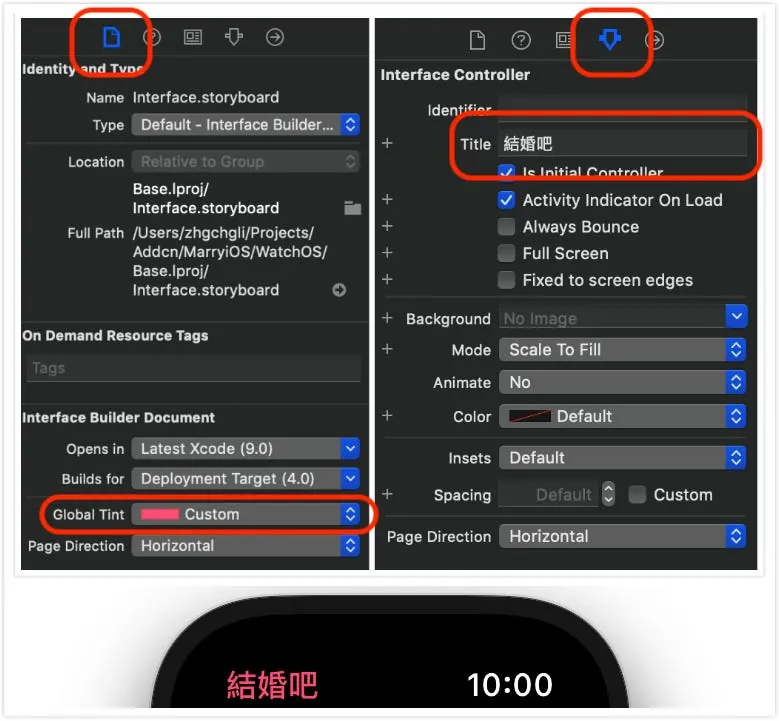
Component Library:
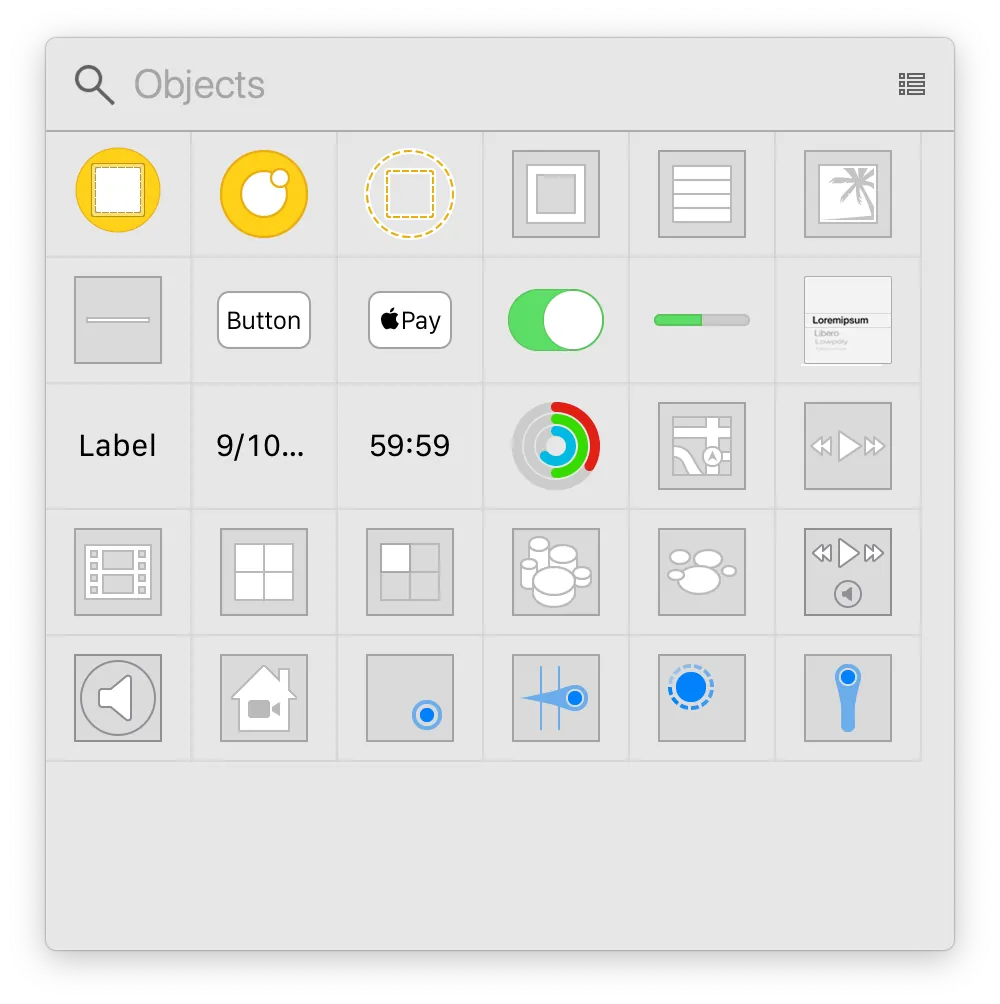
There are not many complex components, and their functions are simple and clear.
UI Layout:
A towering building starts from the View. The layout part does not use Auto Layout, constraints, or layers as in UIKit (iOS); instead, all layout settings are done through parameters, making it simpler and more efficient (the layout is somewhat like UIStackView in UIKit).
All layouts are made up of Groups, similar to UIStackView in UIKit but with more layout options
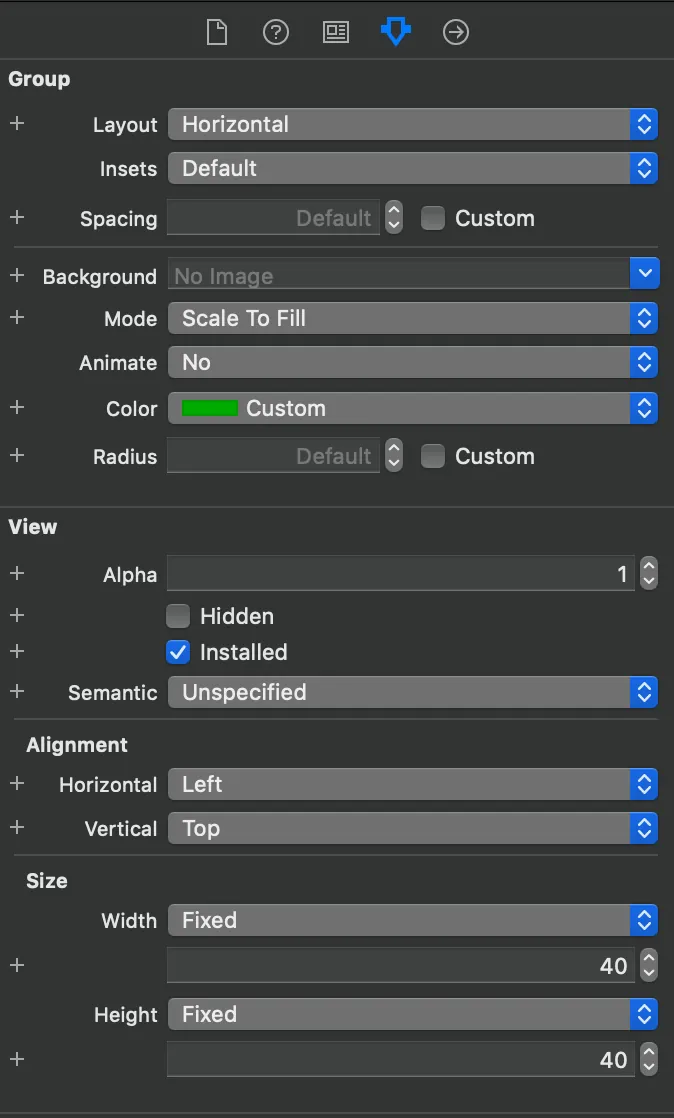
Group Parameter Settings
-
Layout: Sets the arrangement method of the enclosed subviews (horizontal, vertical, layer stacking).
-
Insets: Sets the top, bottom, left, and right spacing of the Group.
-
Spacing: Sets the spacing between the enclosed subviews.
-
Radius: Sets the corner radius of the Group. That’s right! WatchKit includes a built-in corner radius parameter.
-
Alignment/Horizontal: Sets the horizontal alignment (left, center, right) and interacts with neighboring and outer container views.
-
Alignment/Vertical: Sets vertical alignment (top, center, bottom) and interacts with neighboring and outer wrapping Views.
-
Size/Width: Sets the size of the Group with three modes available: “Fixed: specify width,” “Size To Fit Content: width depends on the size of child views,” and “Relative to Container: width based on the outer container view (can set % or +/- offset).”
-
Size/Height: Same as Size/Width, this sets the height.
Font/Font Size Settings:
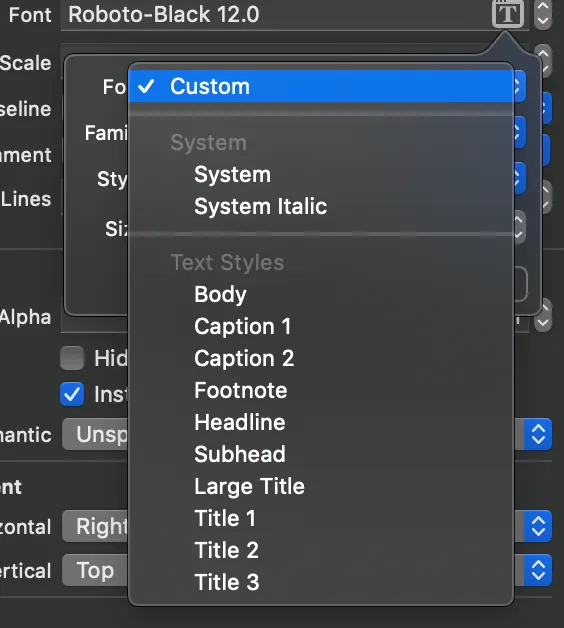
You can directly apply the system Text Styles or use Custom (but I tested that Custom cannot set font size here); so I am using System to customize the font size of each display Label.
Learning by Doing: Using Line Layout as an Example
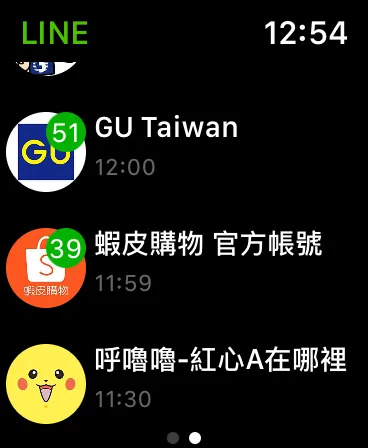
The layout is not as complex as iOS, so I’ll demonstrate with an example to help you get started quickly; using the Line app’s main page layout as an example:
Find the Interface Controller Scene in WatchKit App/Interface.storyboard:
- The entire page is equivalent to UITableView used in iOS App development, but simplified in Apple Watch App and renamed to “WKInterfaceTable”.
First, drag a Table into the Interface Controller Scene.
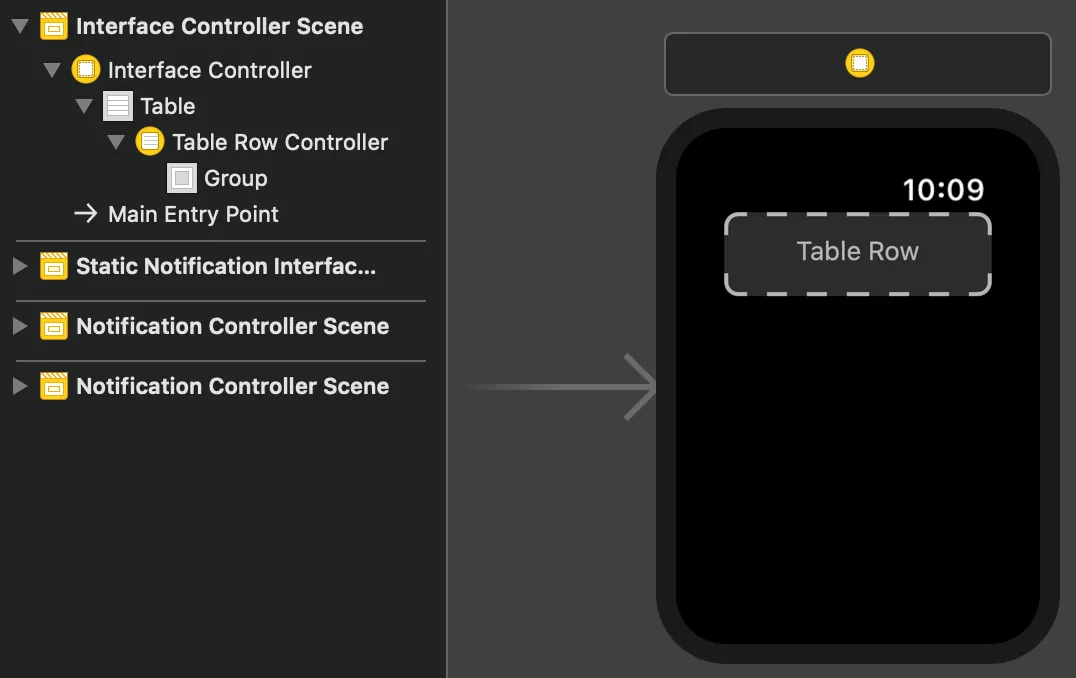
Similar to UIKit’s UITableView, there is the Table itself and Cells (called Rows on Apple Watch); usage is much simpler, you can directly design and layout the Cells on this interface!
- Analyze the layout structure and design the Row display style:
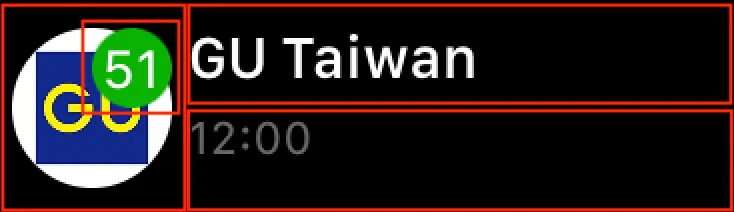
To layout an image with rounded corners filling the left side and stacked with a label, and on the right side evenly divide two blocks vertically with a label on the top block and another label on the bottom block.
2–1: Layout of Left and Right Sections Structure
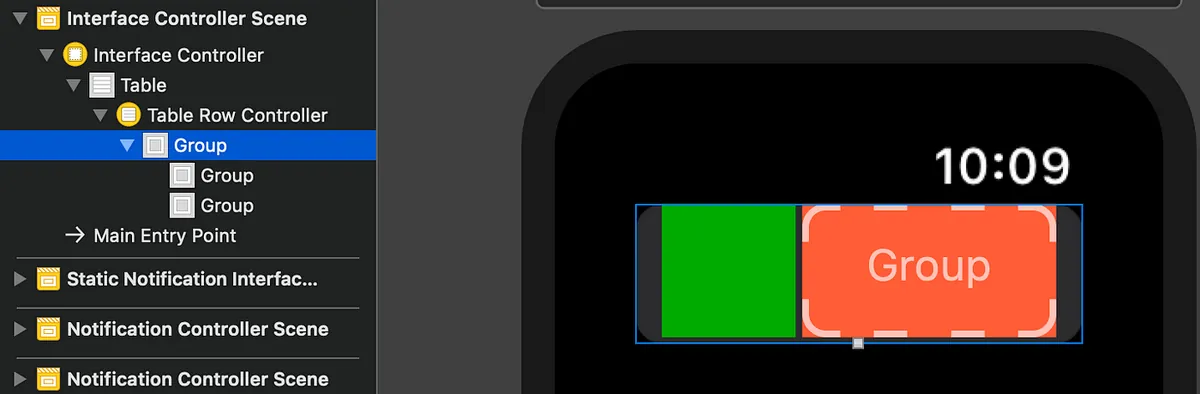
Drag two Groups into a Group, and set the Size parameters for each:
Left green section:

Layout set to Overlap, with child Views stacked to display unread message Labels.
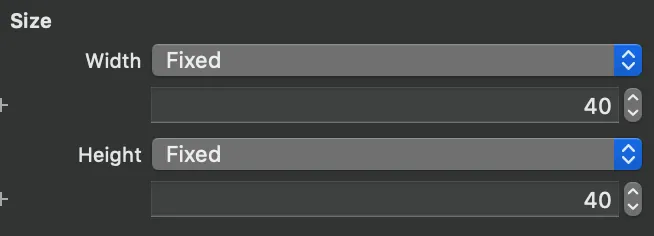
Set a fixed width and height of 40 for the square
Right red part:

Layout set to Vertical, with two child Views displayed vertically (top and bottom)
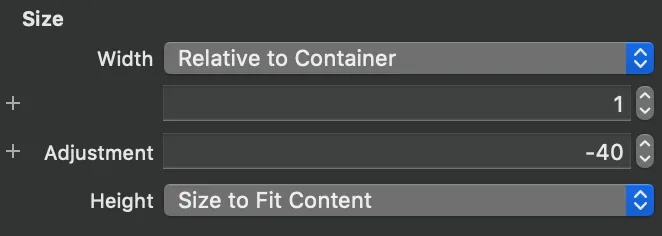
Set the width relative to the outer layer, 100% minus 40 for the green section on the left.
Layout inside left and right containers:
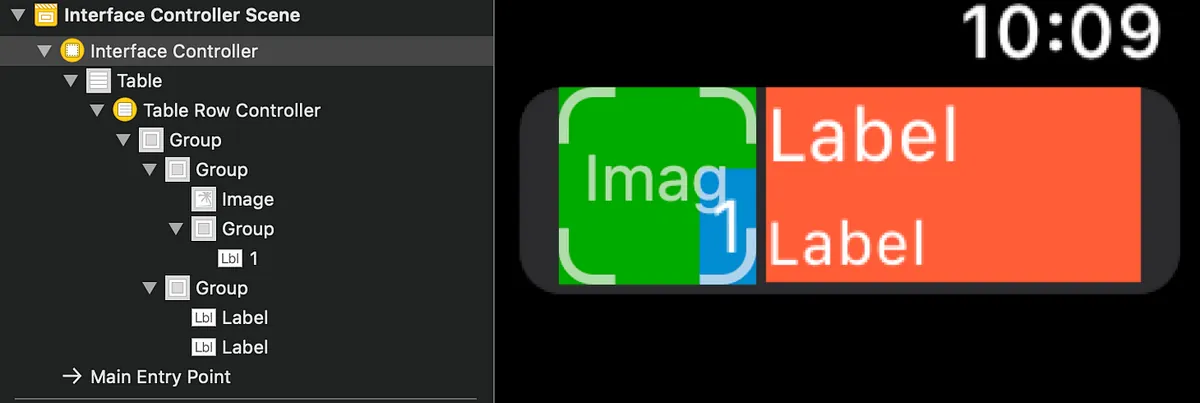
Left side: Drag in an Image, then drag in a Group containing a Label aligned to the bottom right (set the Group’s background color, spacing, and corner radius).
Right side: Drag in two Labels, align one to the top left and the other to the bottom left.
Naming Rows (Setting identifiers for Cells like UITableView in UIKit):
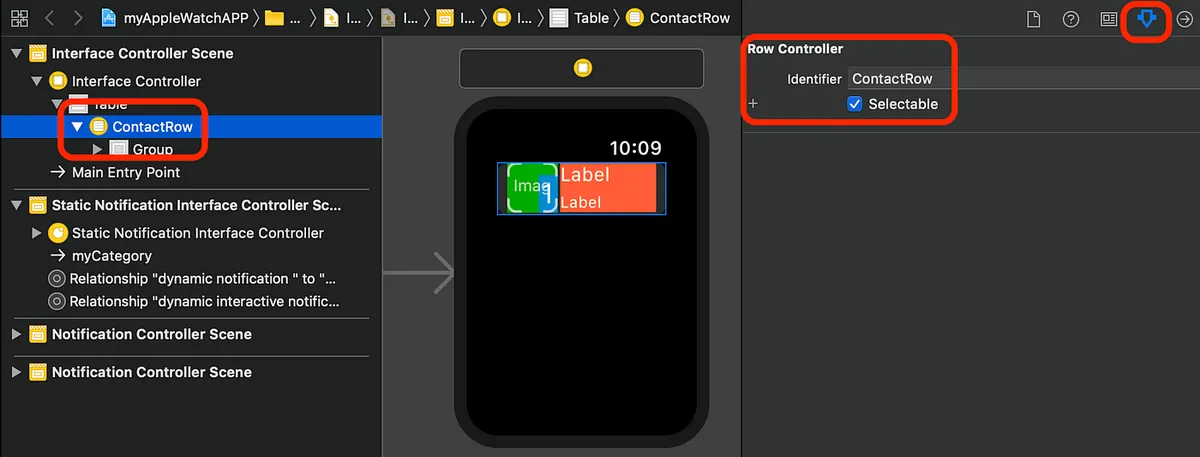
Select Row -> Identifier -> Enter a custom name
There is more than one way to display a Row?
Very simple, just drag a Row into the Table (the actual Row style to display is controlled by the code) and enter an Identifier name.
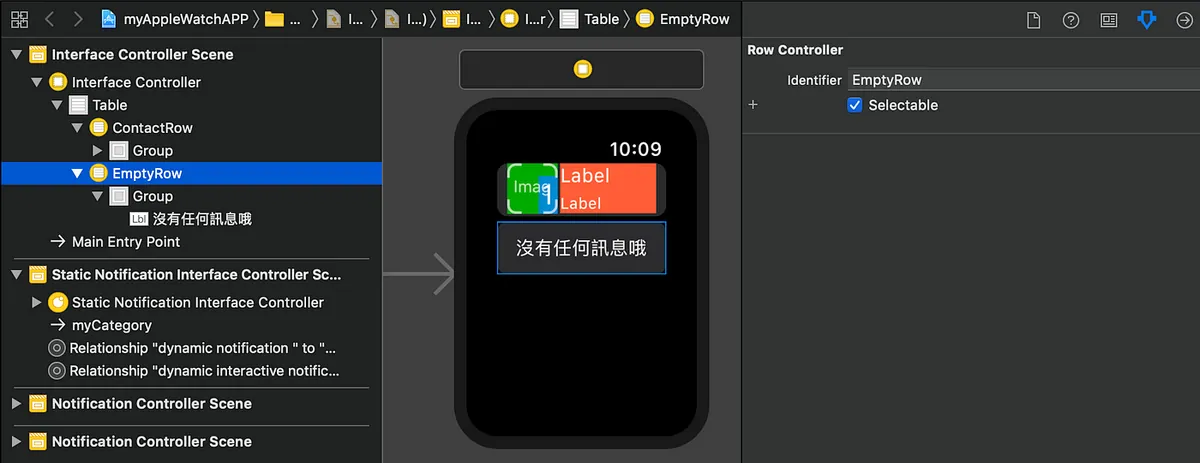
Here, I add another Row to display a message when there is no data.
Layout Related Information
watchKit’s hidden does not take up space, so it can be used for interactive purposes (show Table only when logged in; show prompt Label when not logged in)
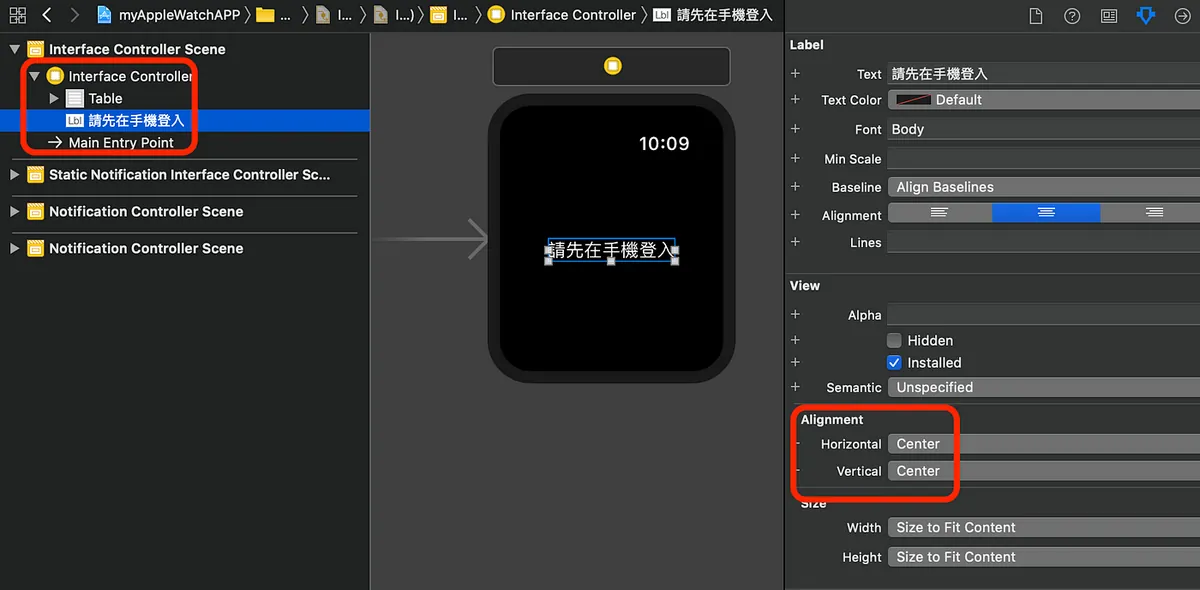
Layout is concluded here; you can modify it according to your design. It’s easy to get started—just try arranging it a few more times and play with alignment parameters to get familiar!
Program Control Section:
Continuing with Row, we need to create a Class to reference and operate on the Row:
class ContactRow:NSObject {
}
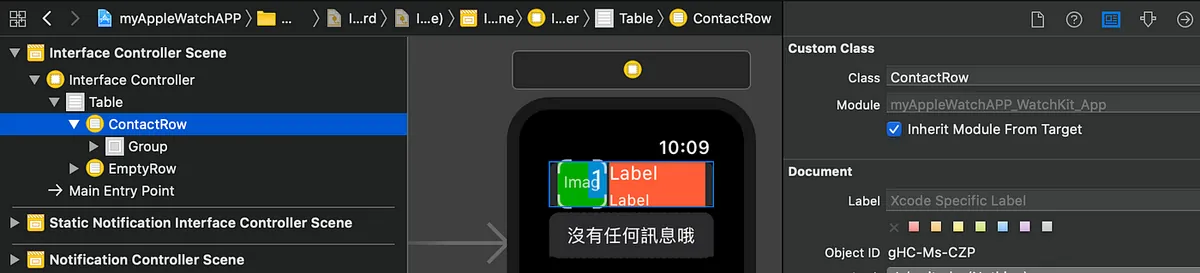
class ContactRow:NSObject {
    var id:String?
    @IBOutlet var unReadGroup: WKInterfaceGroup!
    @IBOutlet var unReadLabel: WKInterfaceLabel!
    @IBOutlet weak var imageView: WKInterfaceImage!
    @IBOutlet weak var nameLabel: WKInterfaceLabel!
    @IBOutlet weak var timeLabel: WKInterfaceLabel!
}
Create outlet, store variable
For the Table section, similarly connect the Outlet to the Controller:
class InterfaceController: WKInterfaceController {

    @IBOutlet weak var Table: WKInterfaceTable!
    override func awake(withContext context: Any?) {
        super.awake(withContext: context)

        // Configure interface objects here.
    }

    override func willActivate() {
        // This method is called when the watch view controller is about to be visible to the user
        super.willActivate()
    }

    struct ContactStruct {
        var name:String
        var image:String
        var time:String
    }

    func loadData() {
        //Get API Call Back...
        //postData {
        let data:[ContactStruct] = [] //api returned data...

        self.Table.setNumberOfRows(data.count, withRowType: "ContactRow")
        //If you have multiple row types to display, use:
            //self.Table.setRowTypes(["ContactRow","ContactRow2","ContactRow3"])
        //
        for item in data.enumerated() {
            if let row = self.Table.rowController(at: item.offset) as? ContactRow {
                row.nameLabel.setText(item.element.name)
                //assign value to label/image......
            }
        }

        //}
    }

    override func didDeactivate() {
        // This method is called when the watch view controller is no longer visible
        super.didDeactivate()
        loadData()
    }

    //Handle row selection:
    override func table(_ table: WKInterfaceTable, didSelectRowAt rowIndex: Int) {
        guard let row = table.rowController(at: rowIndex) as? ContactRow,let id = row.id else {
            return
        }
        self.pushController(withName: "showDetail", context: id)
    }
}
Table operations are greatly simplified without delegate/datasource. To set data, just call setNumberOfRows/setRowTypes to specify the number and type of rows, then use rowController(at:) to set the content for each row!
The Table’s row selection event can be handled simply by overriding func table(_ table: WKInterfaceTable, didSelectRowAt rowIndex: Int)! (This is the only event for Table)
How to Navigate Between Pages?
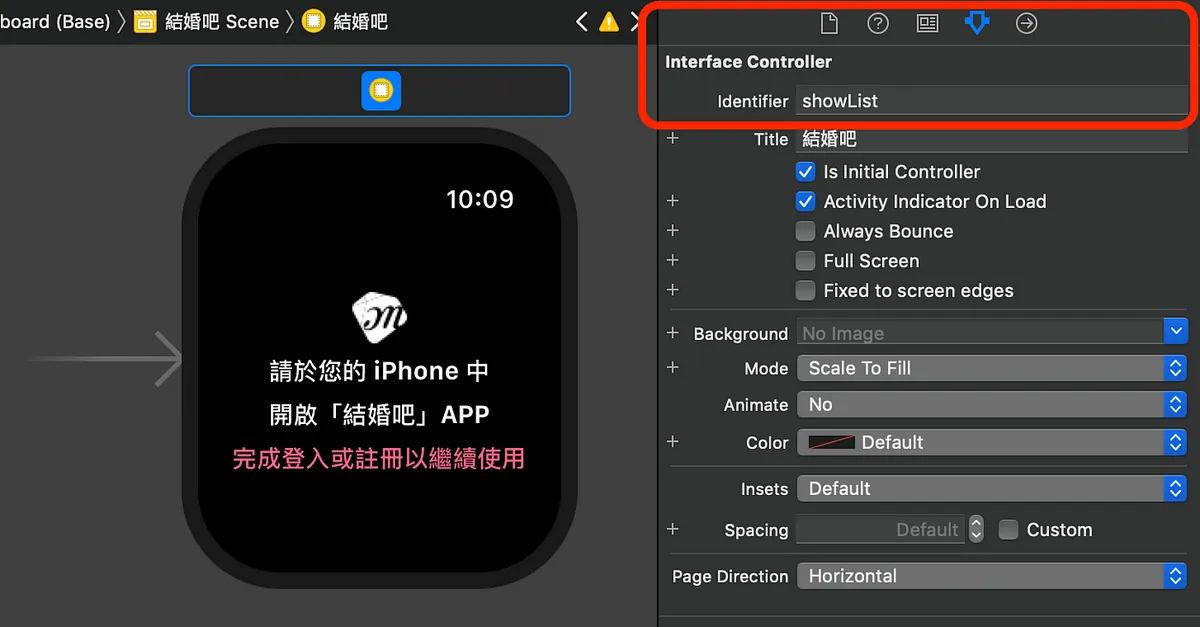
First, set the Identifier for the Interface Controller
watchKit has two navigation modes:
- Similar to iOS UIKit push
self.pushController(withName: Interface Controller Identifier, context: Any?)
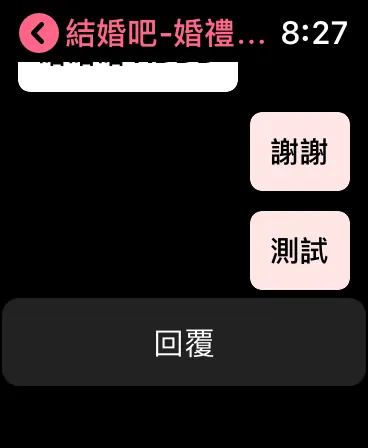
Push navigation allows returning via the top-left back button.
Go back to the previous page in iOS UIKit: self.pop()
Return to the root page: self.popToRootController()
Open a new page: self.presentController()
- Tab Display Style WKInterfaceController.reloadRootControllers(withNames: [ Interface Controller Identifier ], contexts: [ Any? ])
Alternatively, on the Storyboard, you can Control+Click and drag from the first page’s Interface Controller to the second page and select “next page”.
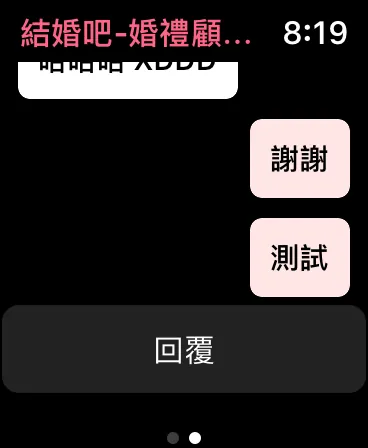
The tab display allows switching pages left and right.
The two navigation methods should not be mixed.
Navigation Parameters?
Unlike iOS, which requires custom delegates or segues to pass parameters, watchKit passes parameters during page navigation simply by placing them into the contexts parameter of the method above.
Receiving Parameters in InterfaceController’s awake(withContext context: Any?)
For example, when I want to navigate from page A to page B and pass an id:Int:
Page A:
self.pushController(withName: "showDetail", context: 100)
Page B:
override func awake(withContext context: Any?) {
        super.awake(withContext: context)
        guard let id = context as? Int else {
           print("Parameter error!")
           self.popToRootController()
           return
        }
        // Configure interface objects here.
}
Program Control Components Section
Compared to iOS UIKit, it is also greatly simplified, so developers with iOS experience should pick it up quickly!
For example, label uses setText()
p.s. Also, there is no getText() method; you can only use an extension variable or store it in an external variable.
Synchronization/Data Transfer with iPhone
If you have developed iOS-related Extensions before, you would instinctively use App Groups to share UserDefaults. I was excited to do the same but got stuck for a long time because the data wouldn’t transfer. It wasn’t until I searched online that I found out watchOS 2 and later no longer support this method…
To use the new WatchConnectivity method for communication between the iPhone and Apple Watch (similar to a socket concept), both iOS and watchOS sides need to be implemented. We write it as a singleton pattern as follows:
iPhone Side:
import WatchConnectivity

class WatchSessionManager: NSObject, WCSessionDelegate {
    @available(iOS 9.3, *)
    func session(_ session: WCSession, activationDidCompleteWith activationState: WCSessionActivationState, error: Error?) {
        // Session activation completed on the iPhone side
    }

    func session(_ session: WCSession, didReceiveUserInfo userInfo: [String : Any] = [:]) {
        // iPhone received UserInfo sent back from the watch
    }

    func session(_ session: WCSession, didReceiveMessage message: [String : Any], replyHandler: @escaping ([String : Any]) -> Void) {
        // iPhone received Message sent back from the watch
    }

    // There are also didReceiveMessageData and didReceiveFile for handling data received from the watch
    // Choose based on your data transfer and reception needs

    func sendUserInfo() {
        guard let validSession = self.validSession, validSession.isReachable else {
            return
        }

        if userDefaultsTransfer?.isTransferring == true {
            userDefaultsTransfer?.cancel()
        }

        var list:[String:Any] = [:]
        // Put UserDefaults into the list....

        self.userDefaultsTransfer = validSession.transferUserInfo(list)
    }

    func sessionReachabilityDidChange(_ session: WCSession) {
        // When the connection status with the watch app changes (watch app opened/closed)
        sendUserInfo()
        // Sync UserDefaults once when the watch app opens upon status change
    }

    func session(_ session: WCSession, didFinish userInfoTransfer: WCSessionUserInfoTransfer, error: Error?) {
        // Completed syncing UserDefaults (transferUserInfo)
    }

    func sessionDidBecomeInactive(_ session: WCSession) {

    }

    func sessionDidDeactivate(_ session: WCSession) {

    }

    static let sharedManager = WatchSessionManager()
    private override init() {
        super.init()
    }

    private let session: WCSession? = WCSession.isSupported() ? WCSession.default : nil
    private var validSession: WCSession? {
        if let session = session, session.isPaired && session.isWatchAppInstalled {
            return session
        }
        // Return a valid session that is connected and the watch app is installed and active
        return nil
    }

    func startSession() {
        session?.delegate = self
        session?.activate()
    }
}
WatchConnectivity Code on the iPhone Side
Add WatchSessionManager.sharedManager.startSession() in iOS/AppDelegate.swift inside application(_ application: UIApplication, didFinishLaunchingWithOptions launchOptions: [UIApplicationLaunchOptionsKey: Any]?) to connect the session after launching the iPhone app.
Watch Side:
import WatchConnectivity

class WatchSessionManager: NSObject, WCSessionDelegate {
    func session(_ session: WCSession, activationDidCompleteWith activationState: WCSessionActivationState, error: Error?) {
    }

    func sessionReachabilityDidChange(_ session: WCSession) {
        guard session.isReachable else {
            return
        }

    }

    func session(_ session: WCSession, didFinish userInfoTransfer: WCSessionUserInfoTransfer, error: Error?) {

    }

    func session(_ session: WCSession, didReceiveUserInfo userInfo: [String : Any] = [:]) {
        DispatchQueue.main.async {
            // UserDefaults:
            // print(userInfo)
        }
    }

    static let sharedManager = WatchSessionManager()
    private override init() {
        super.init()
    }

    private let session: WCSession? = WCSession.isSupported() ? WCSession.default : nil

    func startSession() {
        session?.delegate = self
        session?.activate()
    }
}
WatchConnectivity Code on the Watch Side
Add the following in WatchOS Extension/ExtensionDelegate.swift inside applicationDidFinishLaunching(): WatchSessionManager.sharedManager.startSession() to connect the session after the watch app launches.
WatchConnectivity Data Transfer Methods
Sending data: sendMessage, sendMessageData, transferUserInfo, transferFile
Receiving data: didReceiveMessageData, didReceive, didReceiveMessage
The sending and receiving methods are the same on both ends.

You can see that data transfer from the watch to the phone works fine, but sending data from the phone to the watch is limited to when the watch app is open.
watchOS Push Notification Handling
The PushNotificationPayload.apns file under the project directory comes in handy here. It is used to test push notifications on the simulator. After deploying the Watch App target on the simulator and launching the app, you will receive a push notification with the content from this file, making it easier for developers to test push notification functionality.
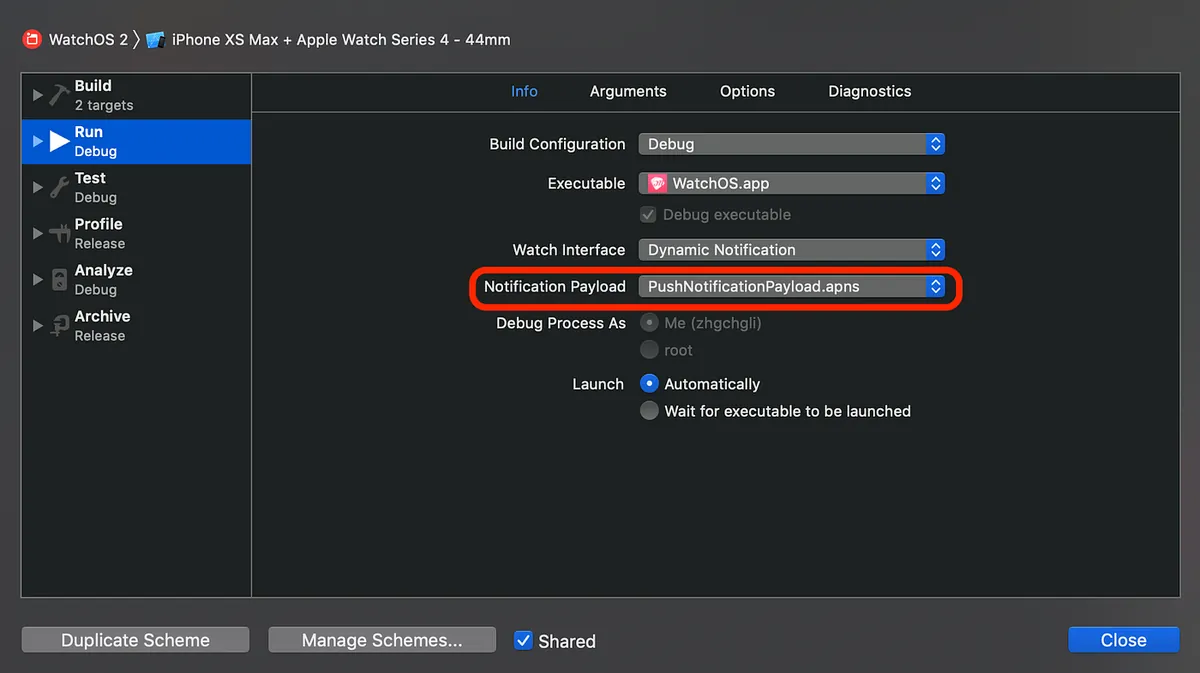
To modify/enable/disable PushNotificationPayload.apns, select the Target and then Edit Scheme.
watchOS Push Notification Handling:
Like in iOS, we implement UNUserNotificationCenterDelegate. In watchOS, we also implement the same methods in watchOS Extension/ExtensionDelegate.swift.
import WatchKit
import UserNotifications
import WatchConnectivity

class ExtensionDelegate: NSObject, WKExtensionDelegate, UNUserNotificationCenterDelegate {

    func applicationDidFinishLaunching() {

        WatchSessionManager.sharedManager.startSession() // Start the WatchConnectivity session mentioned earlier

        UNUserNotificationCenter.current().delegate = self // Set UNUserNotificationCenter delegate
        // Perform any final initialization of your application.
    }

    func userNotificationCenter(_ center: UNUserNotificationCenter, willPresent notification: UNNotification, withCompletionHandler completionHandler: @escaping (UNNotificationPresentationOptions) -> Void) {
        completionHandler([.sound, .alert])
        // Same as iOS, this allows notifications to show when the app is in the foreground
    }

    func userNotificationCenter(_ center: UNUserNotificationCenter, didReceive response: UNNotificationResponse, withCompletionHandler completionHandler: @escaping () -> Void) {
        // When tapping the notification
        guard let info = response.notification.request.content.userInfo["aps"] as? NSDictionary,
              let alert = info["alert"] as? Dictionary<String,String>,
              let data = info["data"] as? Dictionary<String,String> else {
            completionHandler()
            return
        }

        // response.actionIdentifier gives the tapped action identifier
        // Default tap action: UNNotificationDefaultActionIdentifier

        if alert["type"] == "new_ask" {
            WKExtension.shared().rootInterfaceController?.pushController(withName: "showDetail", context: 100)
            // Get the current root interface controller and push
        } else {
           // Other handling...
           // WKExtension.shared().rootInterfaceController?.presentController(withName: "", context: nil)

        }

        completionHandler()
    }
}
ExtensionDelegate.swift
watchOS push notification display is divided into three types:
- static: Default push notification display style
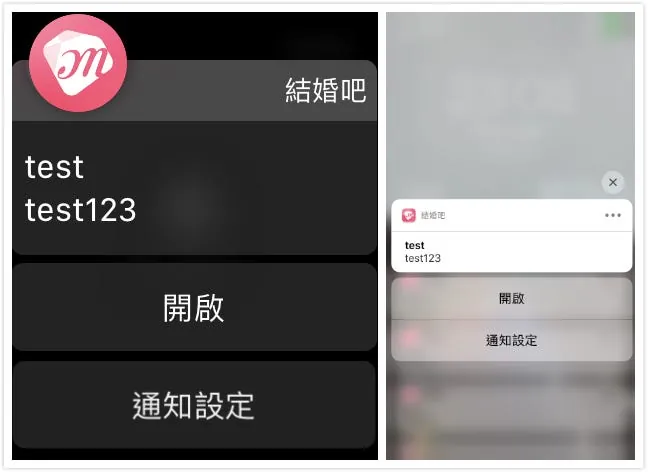
Along with phone push notifications, the iOS side implements UNUserNotificationCenter.setNotificationCategories to add buttons below the notification; Apple Watch also shows these buttons by default.
-
dynamic: dynamically handle push notification display style (rearrange content, show images)
-
interactive: Supported on watchOS ≥ 5, adds button support based on dynamic notifications
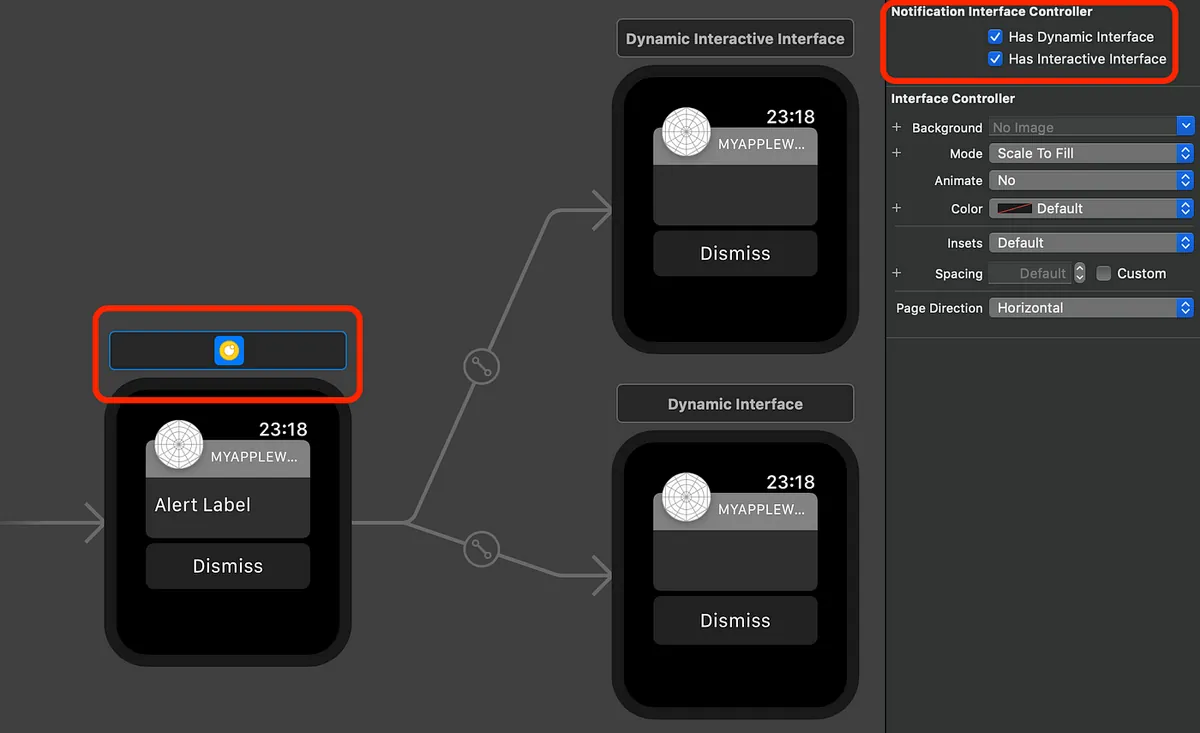
You can set the notification handling method in the Static Notification Interface Controller Scene within Interface.storyboard.
There’s not much to say about static; it uses the default display style. Here, we introduce dynamic. After checking “Has Dynamic Interface,” the “Dynamic Interface” option appears, where you can design your custom notification layout (Buttons cannot be used):
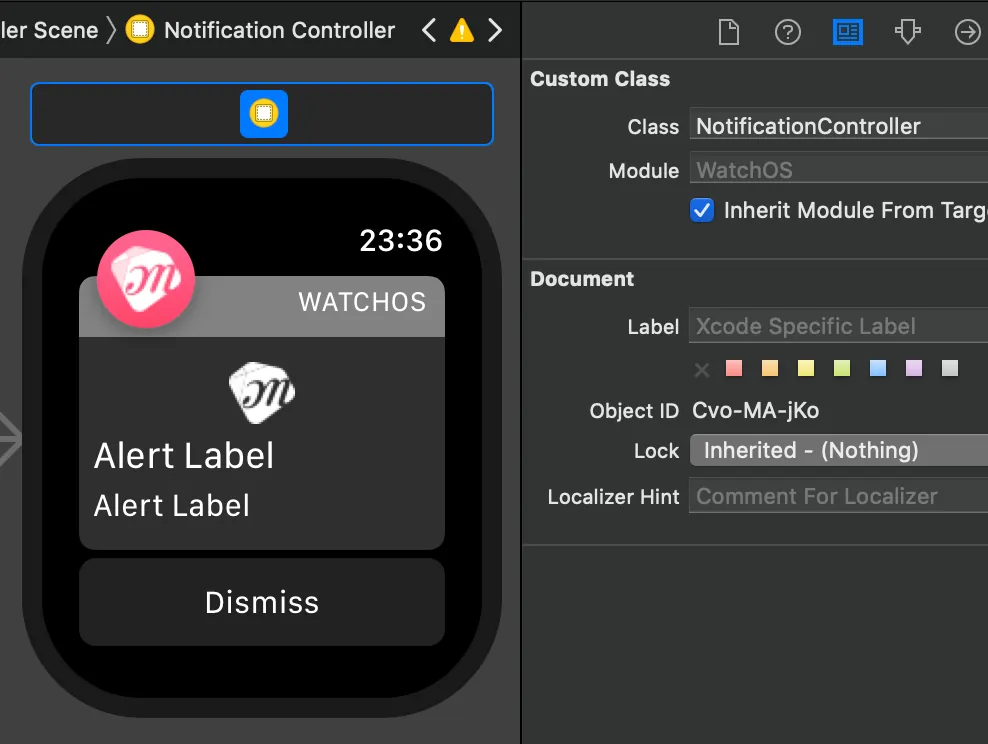
My Custom Notification Presentation Design
import WatchKit
import Foundation
import UserNotifications

class NotificationController: WKUserNotificationInterfaceController {

    @IBOutlet var imageView: WKInterfaceImage!
    @IBOutlet var titleLabel: WKInterfaceLabel!
    @IBOutlet var contentLabel: WKInterfaceLabel!

    override init() {
        // Initialize variables here.
        super.init()
        self.setTitle("Get Married") // Set the top-right title
        // Configure interface objects here.
    }

    override func willActivate() {
        // This method is called when watch view controller is about to be visible to user
        super.willActivate()
    }

    override func didDeactivate() {
        // This method is called when watch view controller is no longer visible
        super.didDeactivate()
    }

    override func didReceive(_ notification: UNNotification) {

        if #available(watchOSApplicationExtension 5.0, *) {
            self.notificationActions = []
            // Clear buttons added below notification by iOS implementation of UNUserNotificationCenter.setNotificationCategories
        }

        guard let info = notification.request.content.userInfo["aps"] as? NSDictionary, let alert = info["alert"] as? Dictionary<String,String> else {
            return
        }
        // Notification info

        self.titleLabel.setText(alert["title"])
        self.contentLabel.setText(alert["body"])

        if #available(watchOSApplicationExtension 5.0, *) {
            if alert["type"] == "new_msg" {
              // If it's a new message notification, add a reply button below
              self.notificationActions = [UNNotificationAction(identifier: "replyAction", title: "Reply", options: [.foreground])]
            } else {
              // Otherwise, add a view button
              self.notificationActions = [UNNotificationAction(identifier: "openAction", title: "View", options: [.foreground])]
            }
        }


        // This method is called when a notification needs to be presented.
        // Implement it if you use a dynamic notification interface.
        // Populate your dynamic notification interface as quickly as possible.

    }
}
For the code part, similarly connect the outlet to the controller and implement the functionality.
Next, let’s talk about interactive notifications. Like dynamic ones, they can have additional buttons and can share the same Class to control the logic. I didn’t use interactive because I added buttons programmatically with self.notificationActions. The differences are as follows:
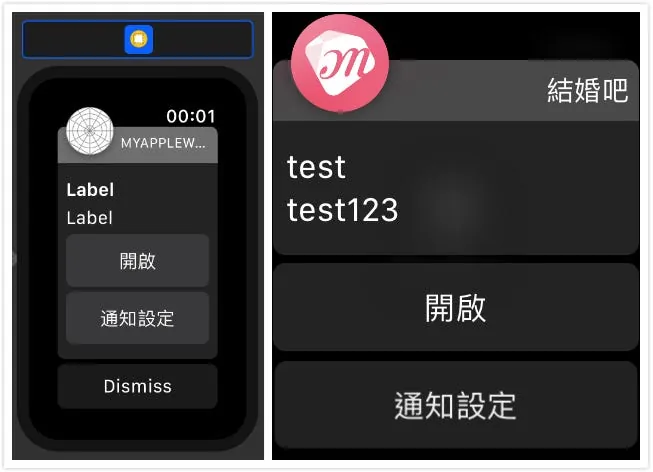
Left uses interactive, right uses self.notificationActions
Both methods require watchOS ≥ 5 support.
Use self.notificationActions to add buttons, and handle button events in the ExtensionDelegate’s userNotificationCenter(_ center: UNUserNotificationCenter, didReceive response: UNNotificationResponse, withCompletionHandler completionHandler: @escaping () -> Void) method, identifying actions by their identifier.
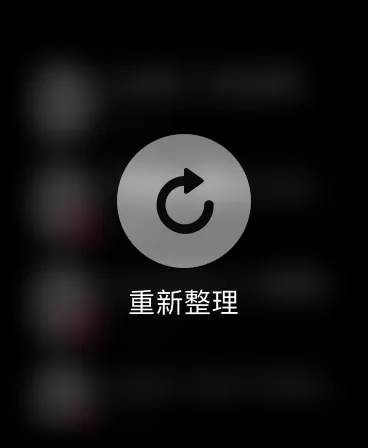
Menu Function?
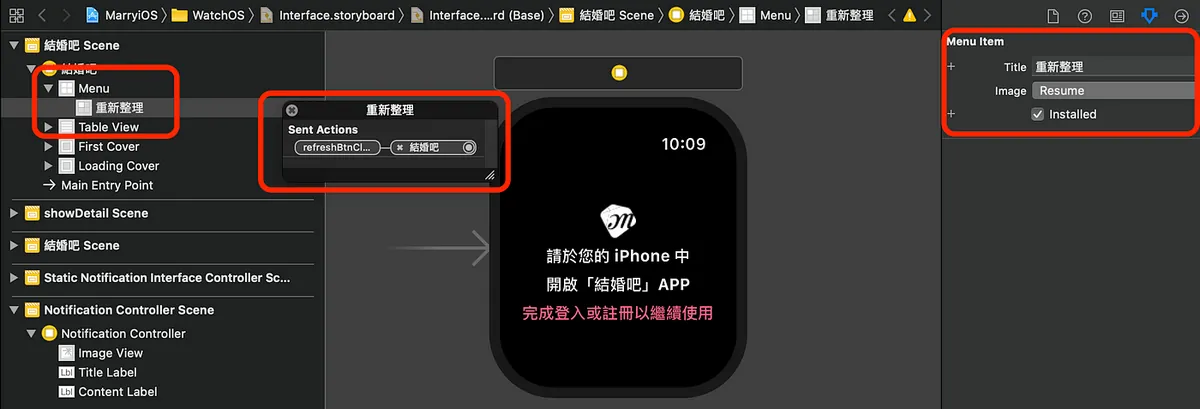
Drag Menu from the component library, then drag Menu Item, and finally drag an IBAction to the code controller.
Pressing hard on the page will display:
Content Input?
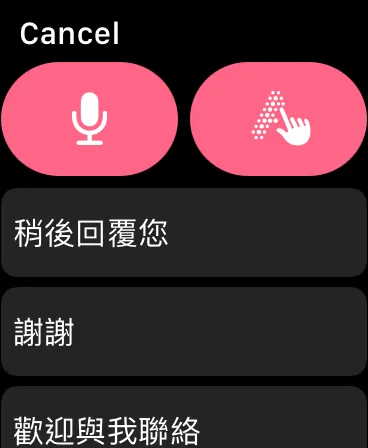
You can simply use the built-in presentTextInputController method!
@IBAction func replyBtnClick() {
    guard let target = target else {
        return
    }

    self.presentTextInputController(withSuggestions: ["Reply later","Thank you","Feel free to contact me","Okay","OK!"], allowedInputMode: WKTextInputMode.plain) { (results) in

        guard let results = results else {
            return
        }
        // When there is input

        let txts = results.filter({ (txt) -> Bool in
            if let txt = txt as? String, txt != "" {
                return true
            } else {
                return false
            }
        }).map({ (txt) -> String in
            return txt as? String ?? ""
        })
        // Preprocess input


        txts.forEach({ (txt) in
            print(txt)
        })
    }
}
Summary
Thank you for reading this! Much appreciated!
This concludes the article, briefly covering UI layout, programming, notifications, and interface applications. If you have iOS development experience, you’ll pick it up quickly since it’s quite similar and many methods have been simplified for easier use. However, the available features are indeed limited (for example, there’s currently no known way to implement load more for Tables). The current capabilities are quite few, so hopefully, Apple will open up more APIs for developers in the future ❤️❤️❤️
MurMur:

Deploying Apple Watch App Target to the watch is really slow — Narcos
Comments