
iOS Shortcut Automation Scenarios — Auto Forward SMS and Auto Create Reminders
iOS Using Shortcuts: Simple Steps to Automatically Forward Specific SMS to Line and Create Package Delivery Pickup & Credit Card Payment Reminders
Photo by Jakub Żerdzicki
Background

Shortcut (formerly Workflow) is a new feature introduced in iOS 12; it allows you to create a series of tasks that can be executed with one tap or set to trigger automatically in the background.
Besides the built-in Shortcuts feature in iOS apps, Apple has also opened Siri Shortcut / App Intents to developers in recent years, allowing third-party apps to integrate some functions into Shortcuts for users to combine and use.
The automatic trigger conditions are currently limited to iOS itself or its own apps, such as specific time, arriving at or leaving a location, detecting NFC, receiving messages or emails, connecting to Wi-Fi, battery level, Do Not Disturb mode, detecting sounds, and so on.
Apple’s own services no longer require jailbreaking to forward messages like in the past; the Shortcuts feature works without jailbreaking or installing strange third-party apps.
There are already many online resources explaining how to use Shortcuts and offering ready-made scripts, so this article will not go into detail.
iOS’s cross-device message forwarding feature (Settings -> Messages -> Text Message Forwarding) only works for devices with the same Apple ID, so we use Shortcuts to forward specific messages for us.
This article introduces only 3 practical, convenient, and simple use cases that I find very useful.
Scenario 1 — Auto Forward SMS
In this era full of scam text messages, it’s worrisome that elderly family members or children might receive scam texts and accidentally input information, leading to fraud. Also, elders may not understand SMS verification for account security and need remote help to receive messages and complete verification. Additionally, there’s concern about children using their phones for unauthorized activities.
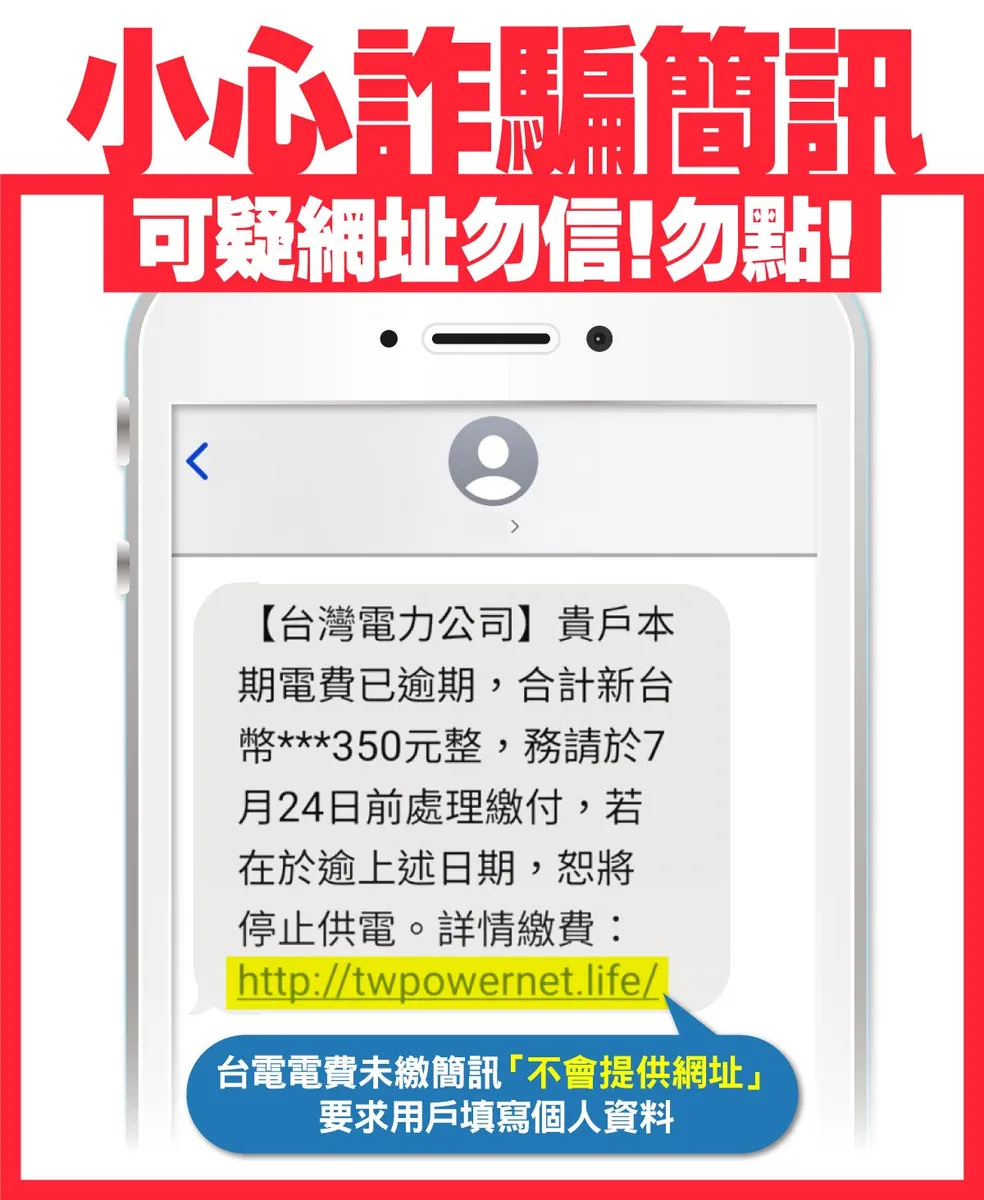
https://branch.taipower.com.tw/d112/xmdoc/cont?xsmsid=0M242581319225466606&sid=0N209616847897374705
Effect
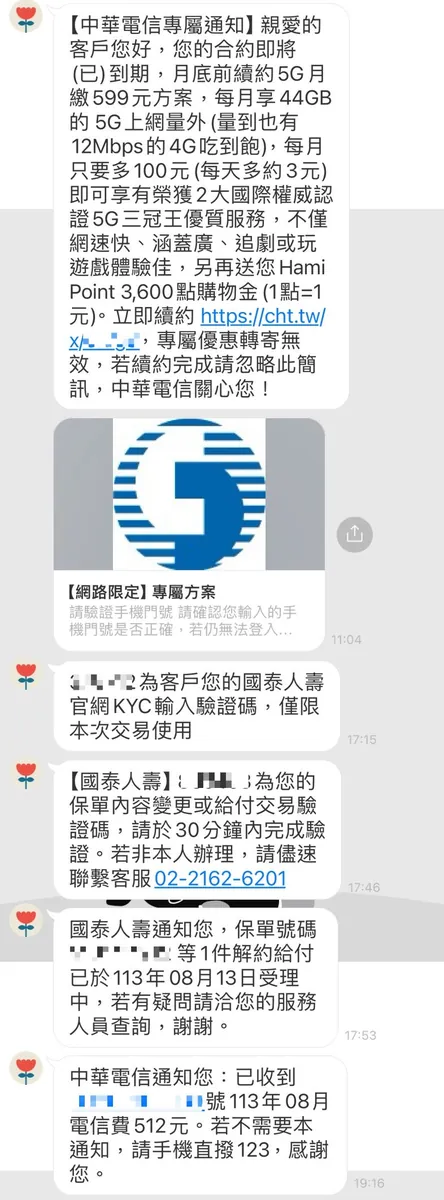
Set the conditions as follows:
-
When receiving an SMS containing “http”, forward the message “content” to me on Line
-
Forward the message “content” to Line when receiving an SMS containing “Notification”
-
When receiving an SMS containing “verification code,” forward the message “content” to me on Line
-
Forward the message “content” to Line when receiving an SMS containing “verification code”
Tested and confirmed that the sending works correctly even when the phone is locked and on standby.
Setup Instructions
1. Install & Open the Shortcuts App
2. Switch to the “Automation” tab, tap the “+” at the top right, then scroll down to find “Messages”
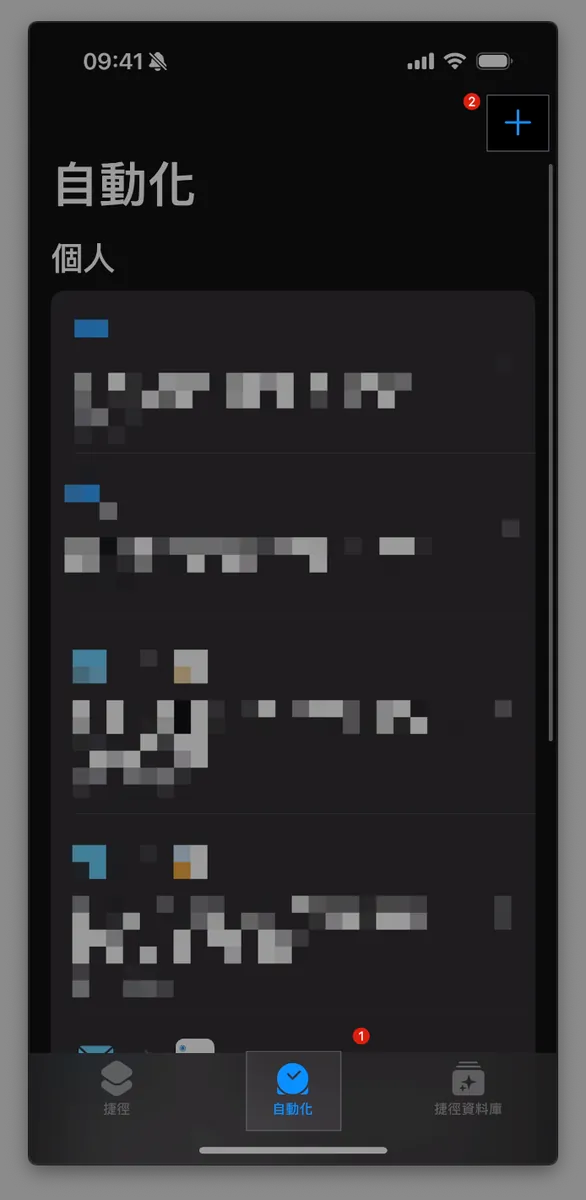
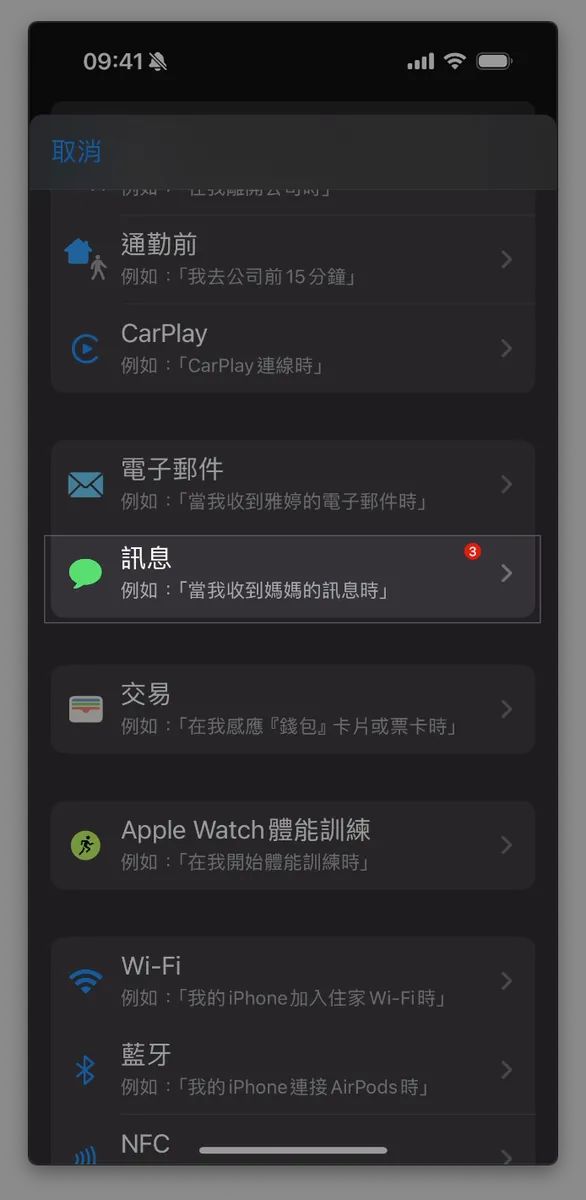
3. Set Message Conditions
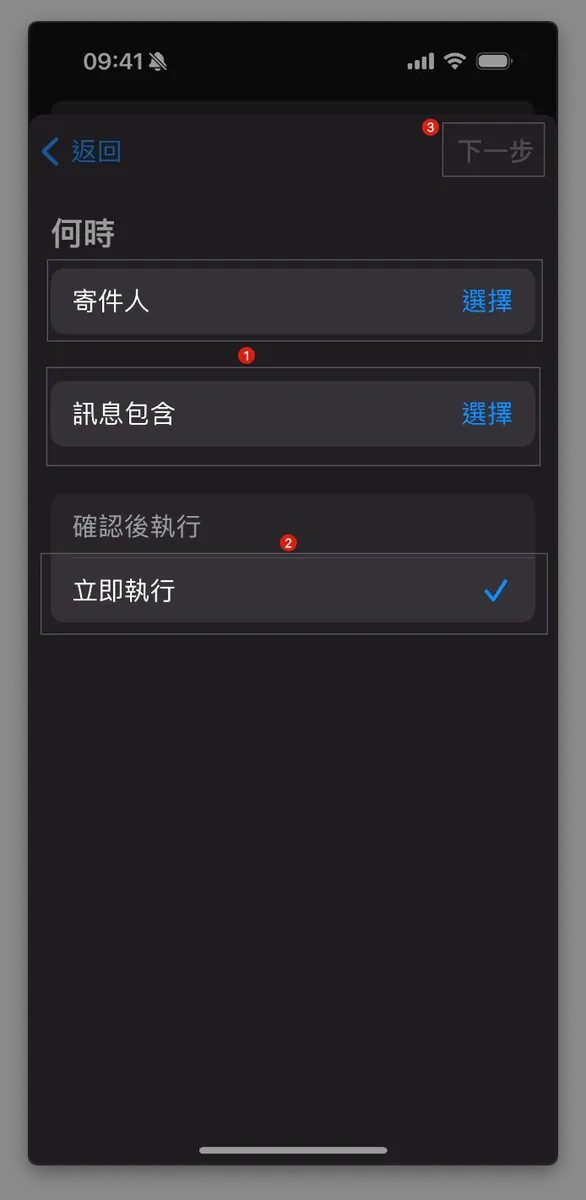
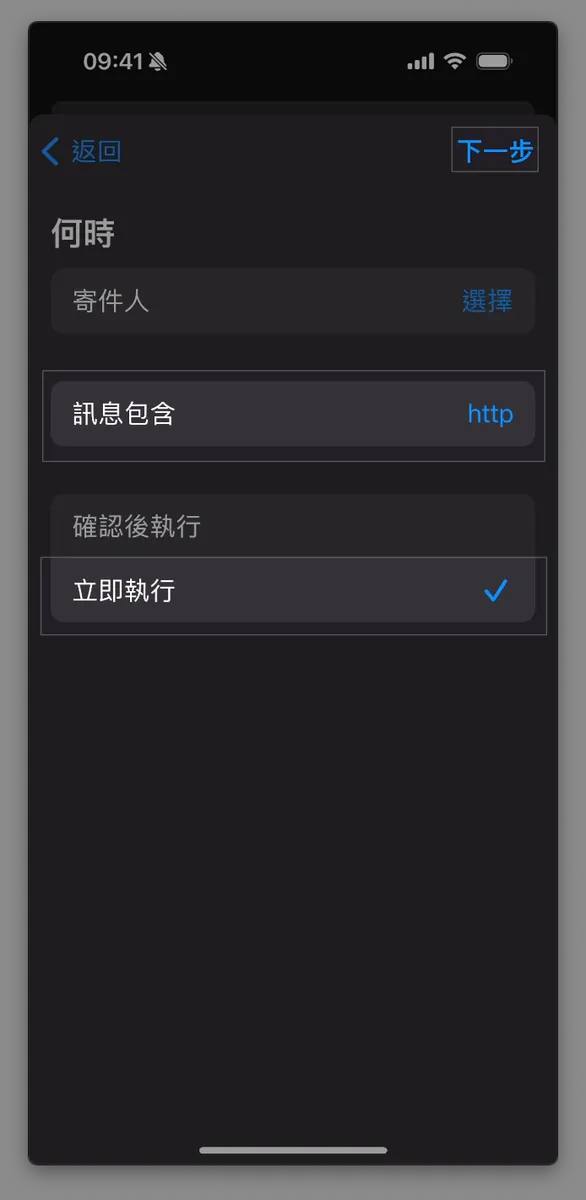
-
“Message contains”:
http( = All messages with URLs will be forwarded )
Create separate shortcuts for multiple keywords. -
Change
「Confirm Before Running」to「Run Immediately」 -
Click
Next
When — Other Settings:
-
“Sender”: Multiple, but need to add to contacts
-
At least one of the two conditions, “Message contains” or “Sender,” must be set; therefore, you cannot handle all messages without setting any condition.
4. Add Automation Actions
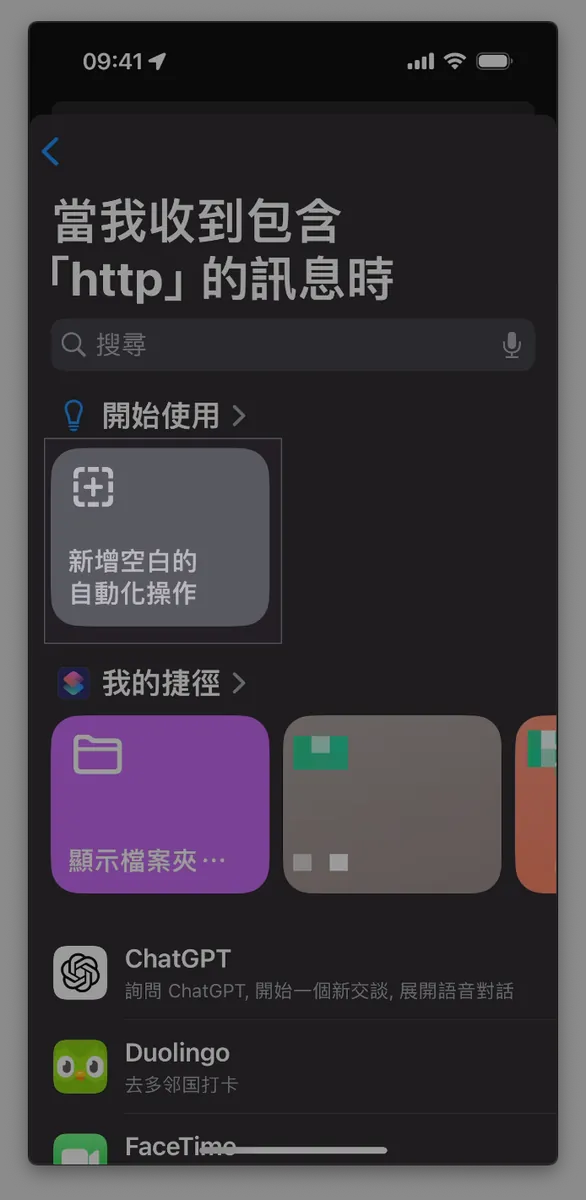
-
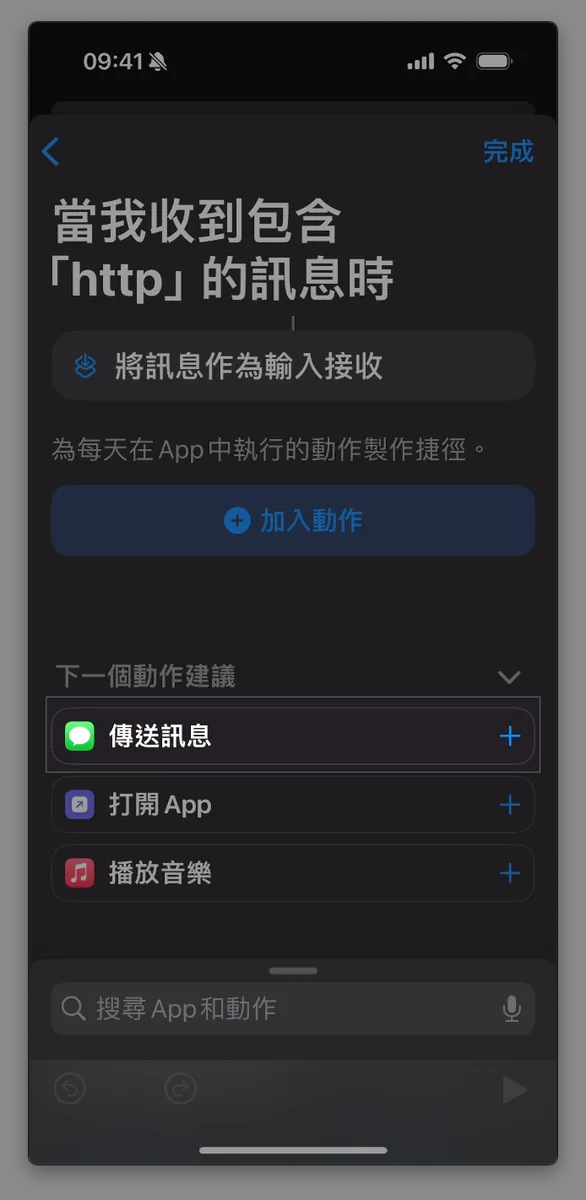
Select
“Create Blank Automation” -
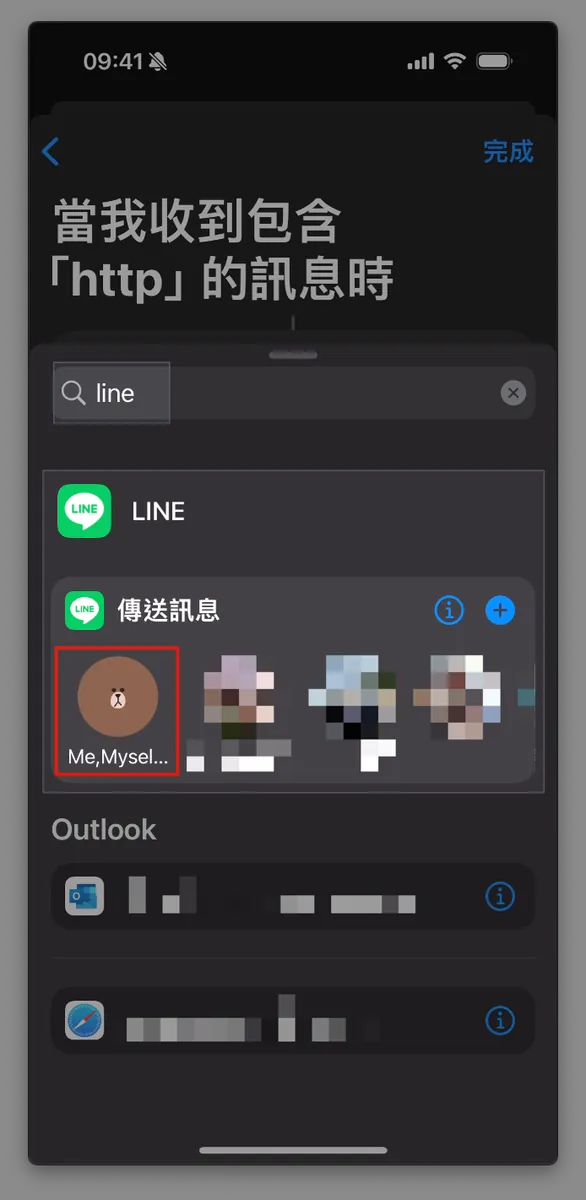
If you want to forward messages to Line, enter
「line」in the search box to find the shortcut function provided by Line, then select Line’s「Send Message」and choose the target recipient.
Here, only the most recent four chat contacts or groups will appear. If your desired target does not show up, you can first go back to Line and send a few messages to the target contact or group, then return to check again and it will appear.
The option to select contacts’ phone numbers does not work for sending messages in Line.
- Similarly, you can use the “Send Message” or “Send Email” action (as shown in the third image) to forward the received message content via SMS (if iCloud Messages is not enabled, SMS fees may apply) or Email.
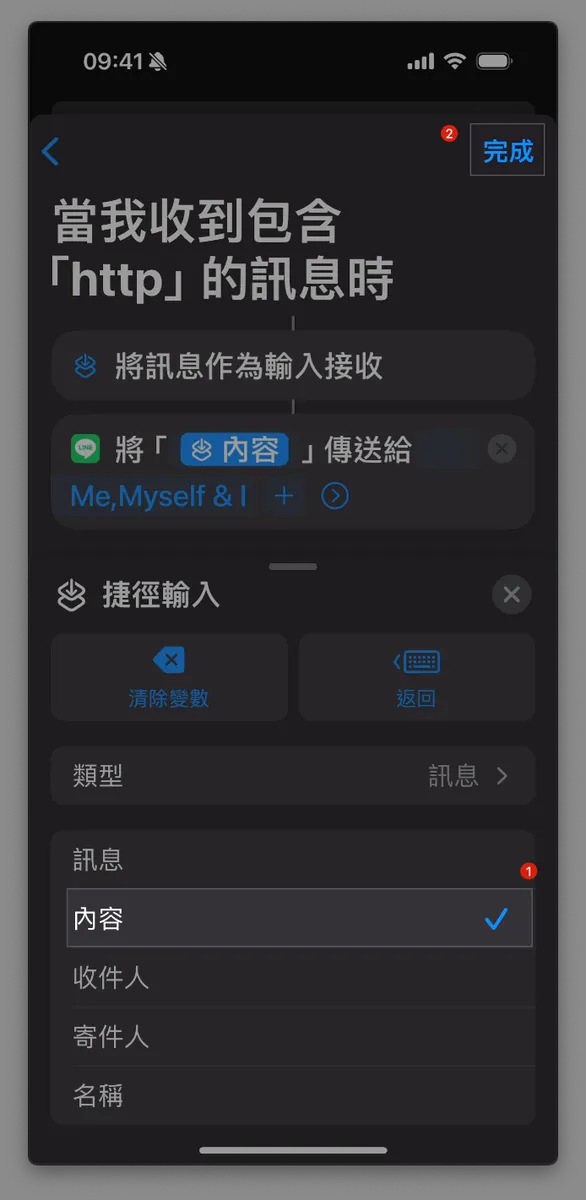
After adding the recipient
-
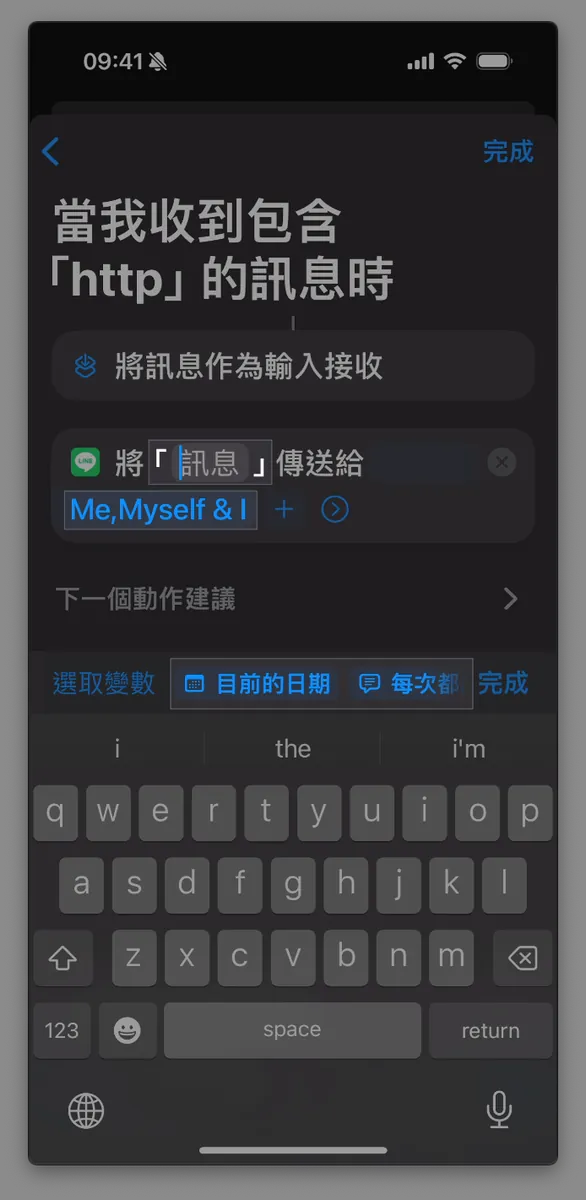
First, click on the
Send "Message" to "XXX"action, then the"Message"input box. -
Swipe right to find and tap
「Shortcut Input」 -
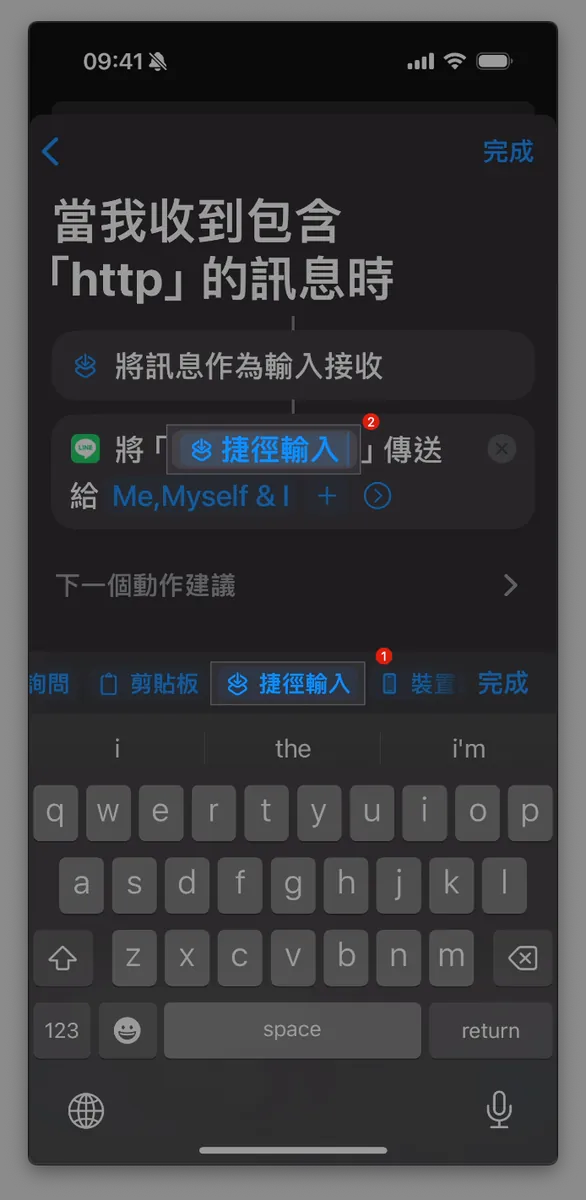
Go back to the top and click the
“Shortcut Input”field in“Send ‘Shortcut Input’ to ‘XXX’”. -
Open the menu below and change the original selection from
「Messages」to「Content」 -
Click the “X” next to the menu to close it
-
Tap “Done” at the top right corner
If you want to change the recipient to XXX, first click the X on the right to delete the entire Line action, then add the Line send message action again with the new recipient.
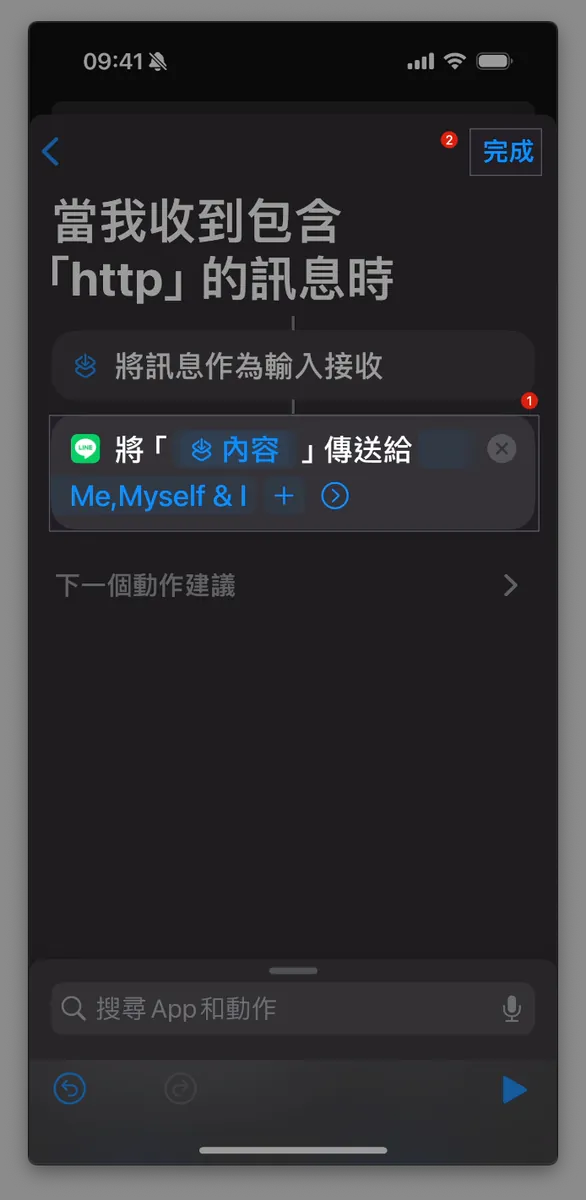
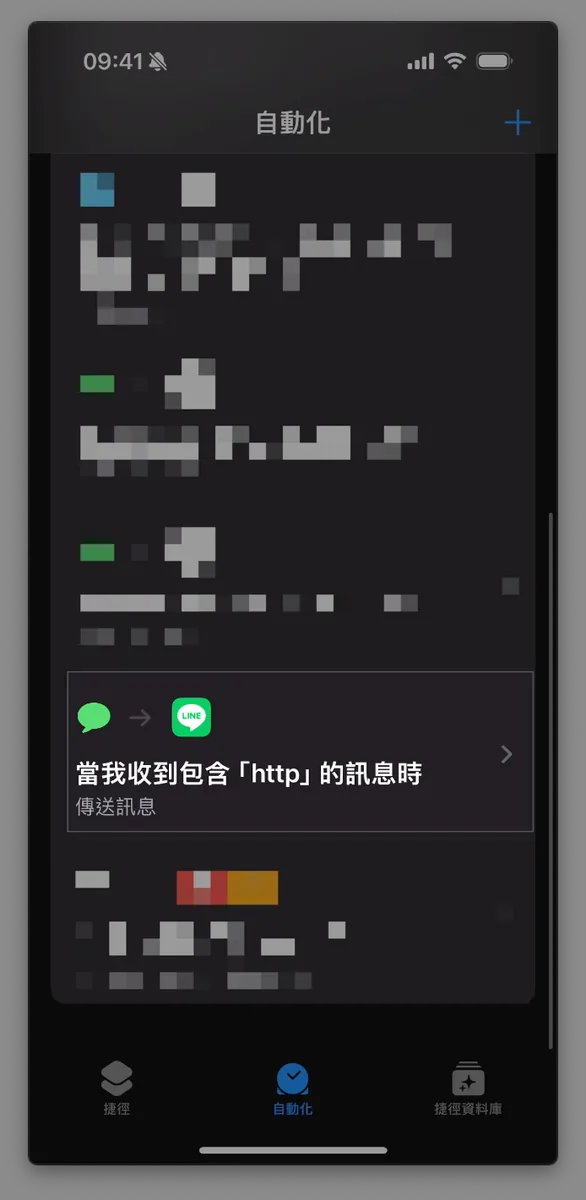
-
Confirm the final setup result as:
When I receive a message containing "XXX", take the message as input, and Line sends the "content" to "XXX" -
No problem, tap “Done” at the top right corner.
If tapping Done does nothing, it might be an iOS bug. You can ignore it and just tap Back to return to the home screen. -
Go back to the Shortcuts automation home to view, pause, or edit this shortcut.
Done!
As long as you wait for a new message to arrive, it will be automatically forwarded if it contains the specified keyword (even if the phone is locked). Due to current feature limitations, you need to create a shortcut for each keyword, and the same message containing multiple keywords will be sent multiple times.
Scenario 2 — Automatically Create Reminder When Package Arrives at Convenience Store
I currently use Apple’s built-in Reminders app to manage my to-do tasks, so I also want to integrate other reminders into it, such as package arrivals at convenience stores and credit card payment notifications.
Effect

Set the conditions as follows:
-
Add Reminder When Receiving SMS Containing “已在” (Coupang Uses “已在”)
-
Add a Reminder When Receiving an SMS Containing “Delivered” (Usually “Delivered”)
Setup Instructions
1. Install & Open the Shortcuts App
2. Switch to the “Automation” tab, tap the “+” at the top right, then scroll down to find “Messages”
3. Set Message Conditions
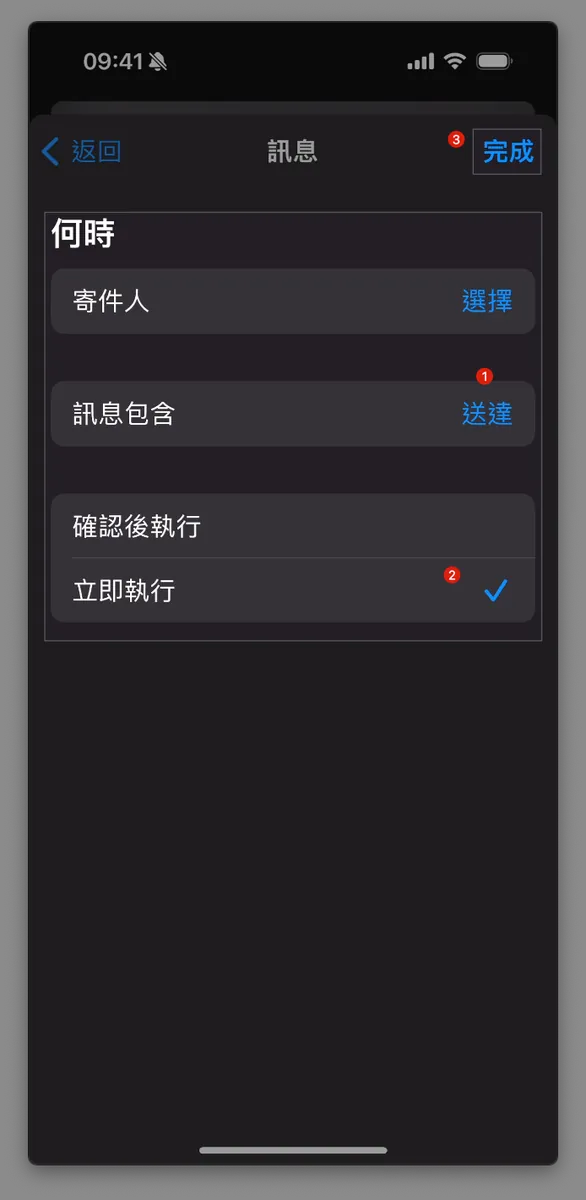
Following the previous SMS auto-forwarding introduction on the timing condition, here set the condition to Message contains "delivered" and change to Run Immediately.
4. Add Automation & Set Reminder Time
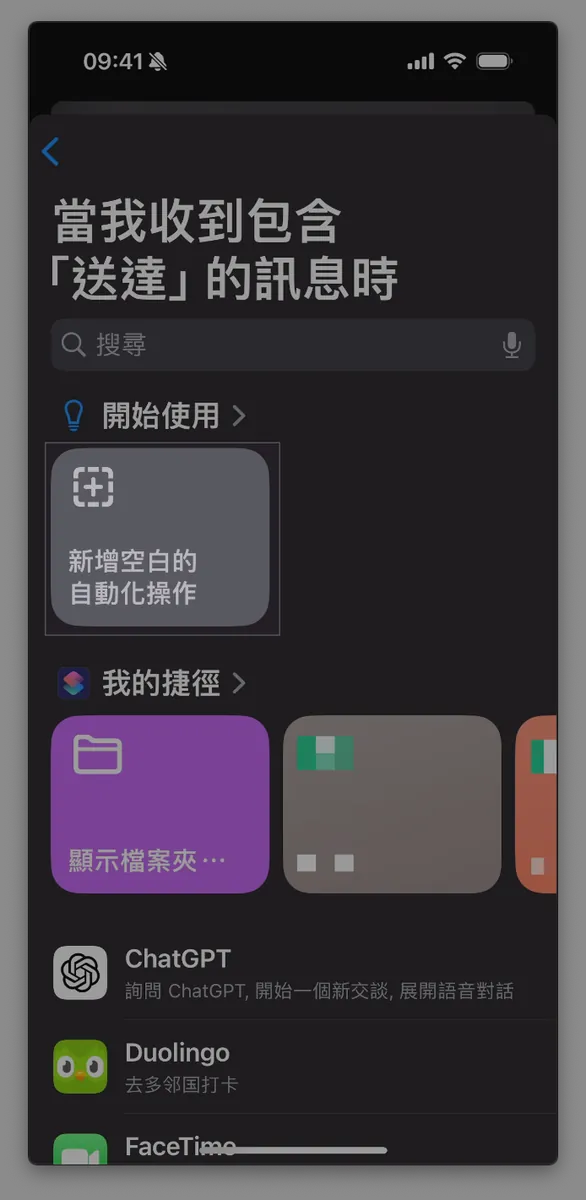
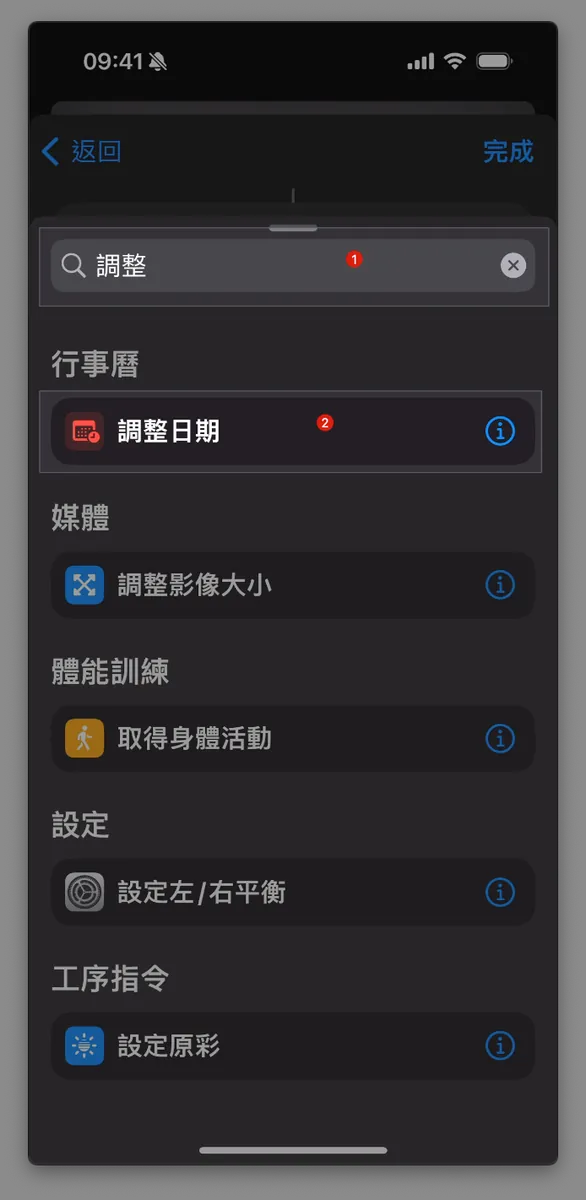
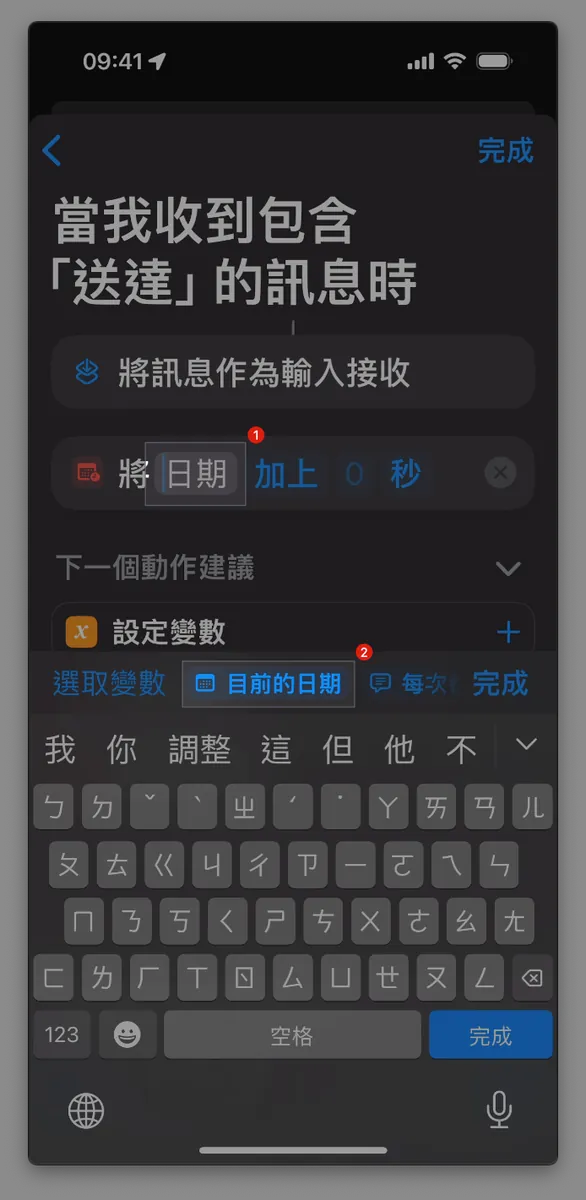
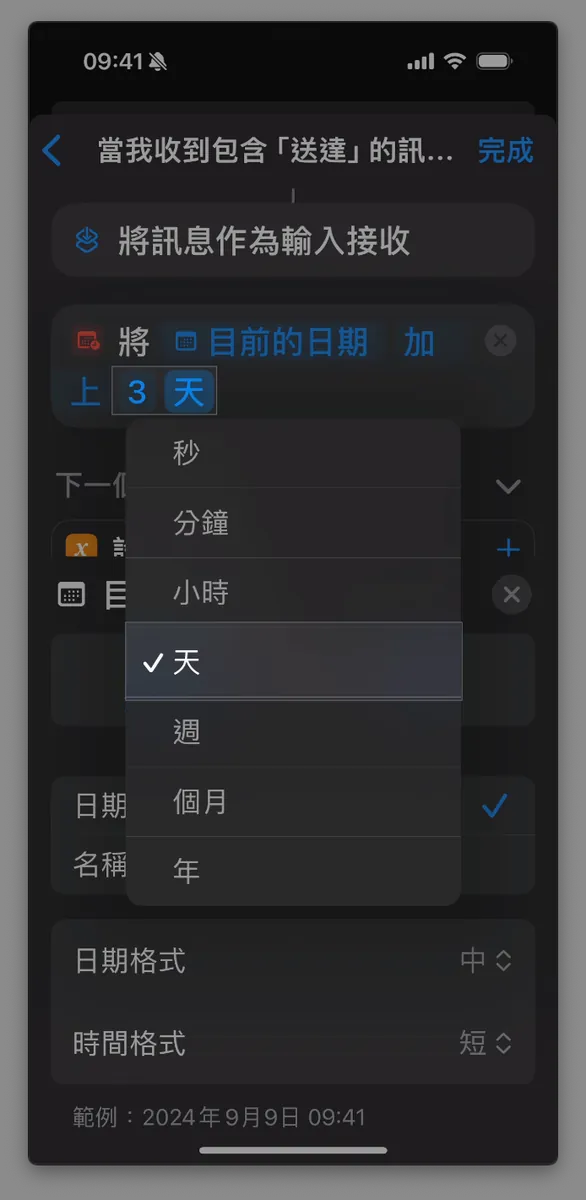
First, we need to set the due date for the reminder by adding a date variable that calculates the reminder time as the received message time plus a certain duration.
-
Select
“Create Blank Automation” -
Search for
“Adjust Date”in the box below. -
Select
Adjust Date -
Select the
Dateinput box forAdd 0 seconds to Date -
In the variable selection below, choose
“Current Date” -
Change the “seconds” input box in
Add 0 "seconds"to"days" -
Enter the number of days before expiration you want to be reminded; here I enter 3 days
-
Click the “X” next to the menu to close it
5. Add Reminder Action
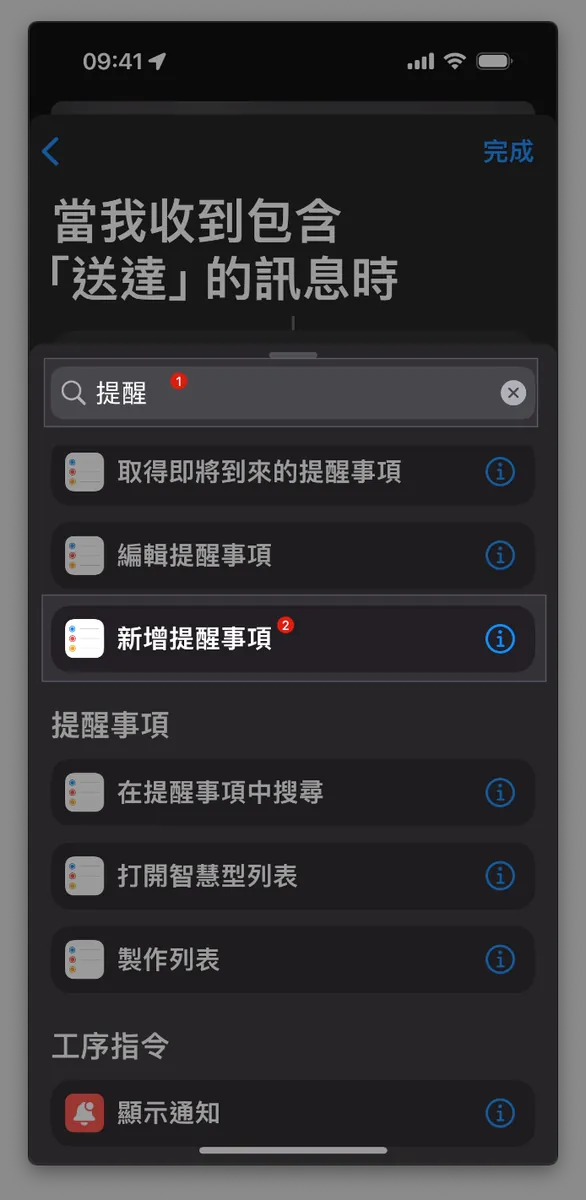
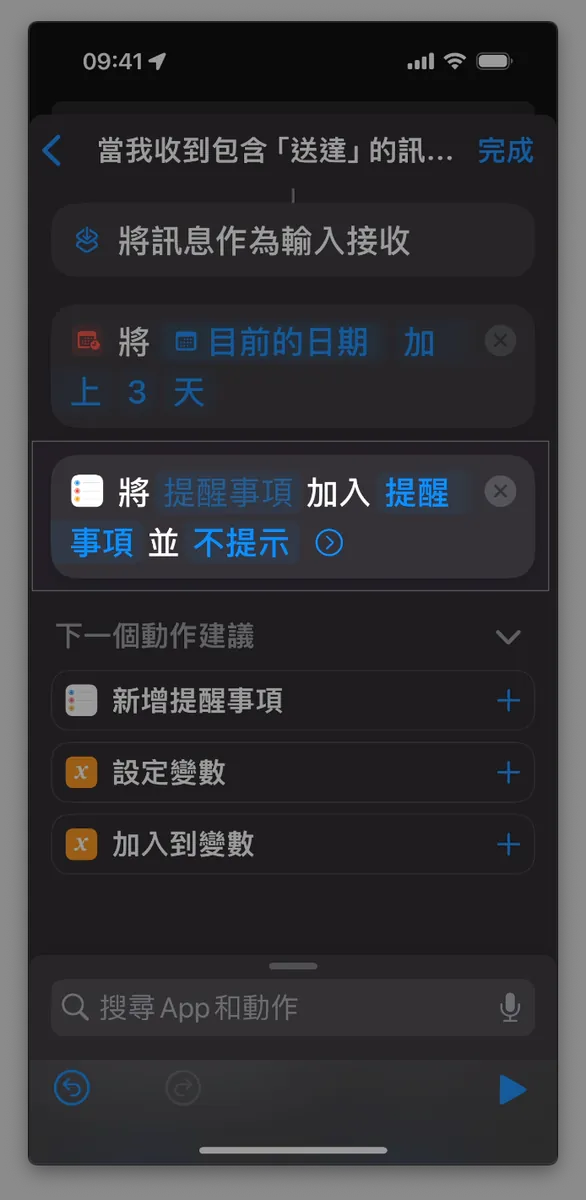
- In the search bar, type
「Reminder」, scroll down, and tap「Add Reminder」.
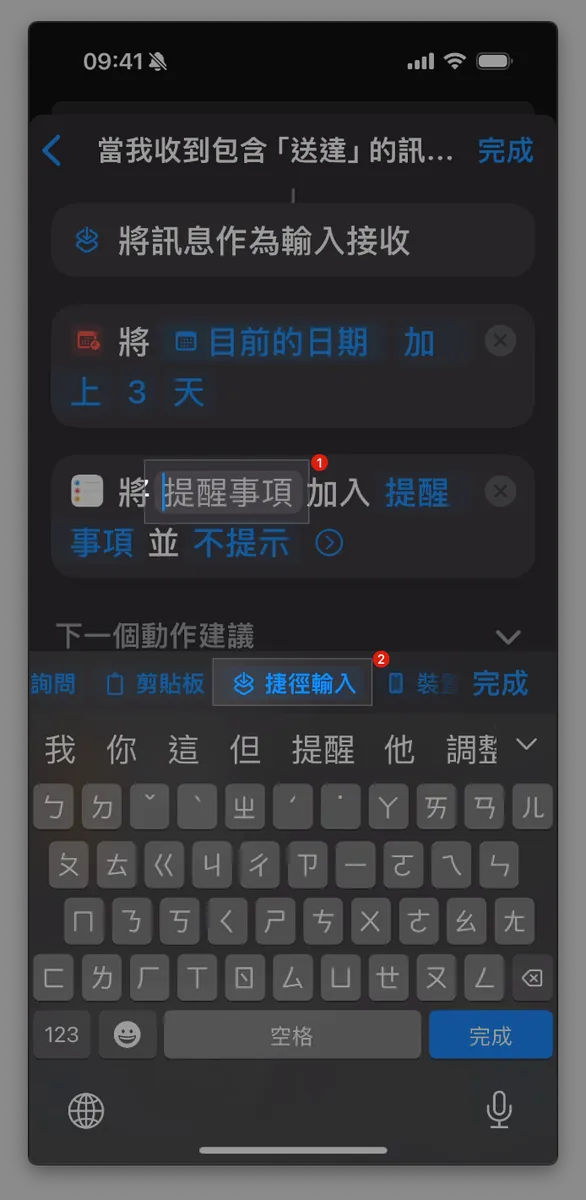
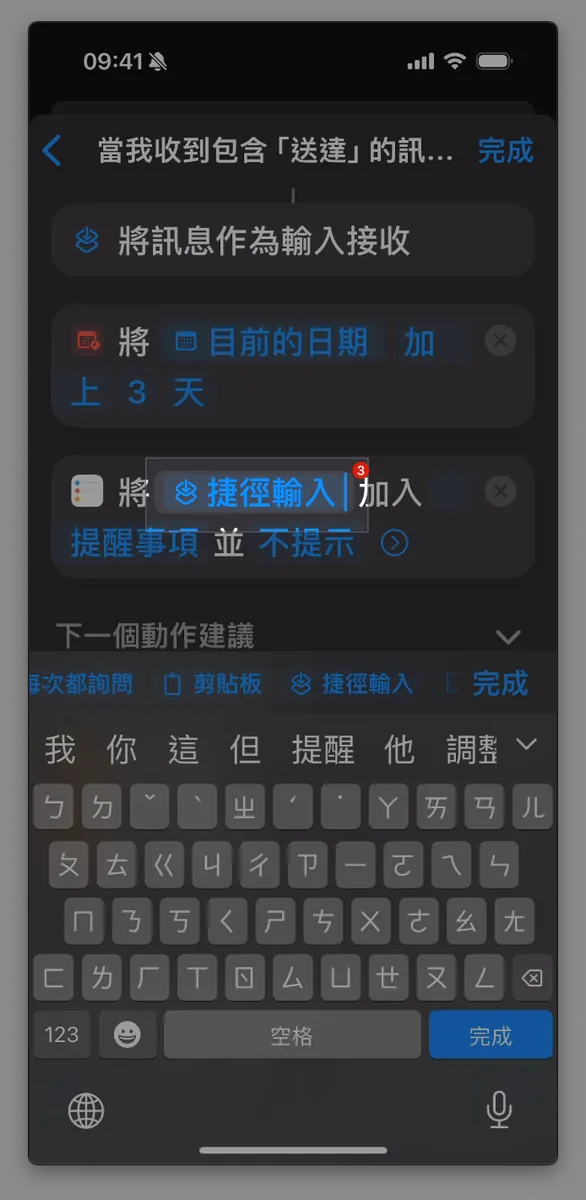
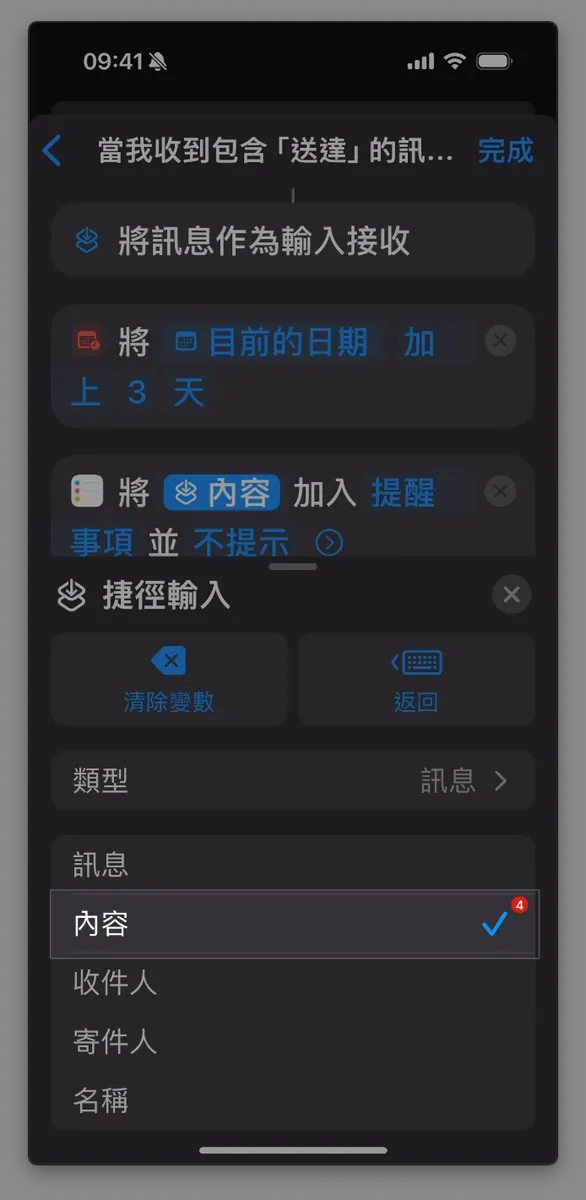
After adding “Add Reminder”
-
First, click the first
「提醒事項」input box inAdd "Reminder" to "Reminders" without prompting. -
Swipe right to find and tap
「捷徑輸入」 -
Click the input box of
Shortcut InputinAdd "Shortcut Input" to Reminders without Prompt. -
Open the menu below and change the original selection from
「Messages」to「Content」 -
Click the “X” next to the menu to close it
6. Set Reminder Notifications
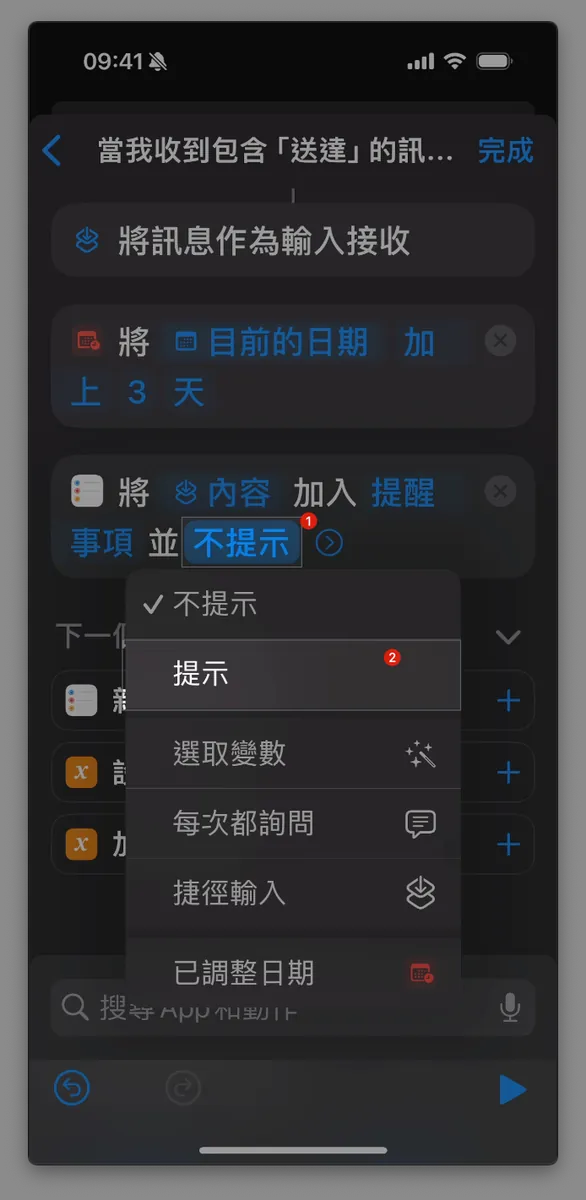
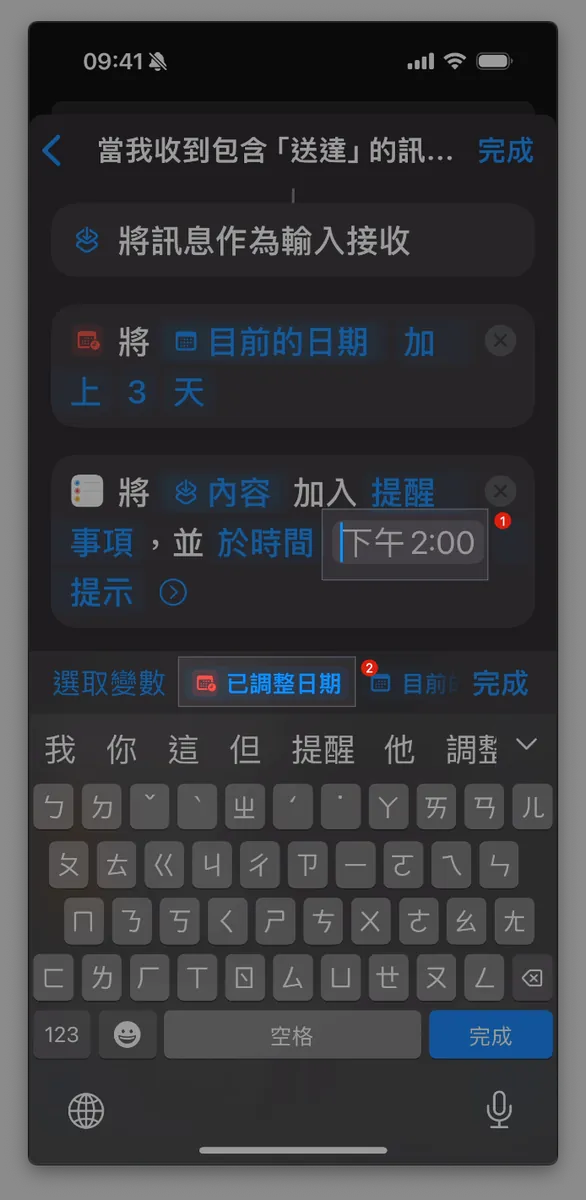
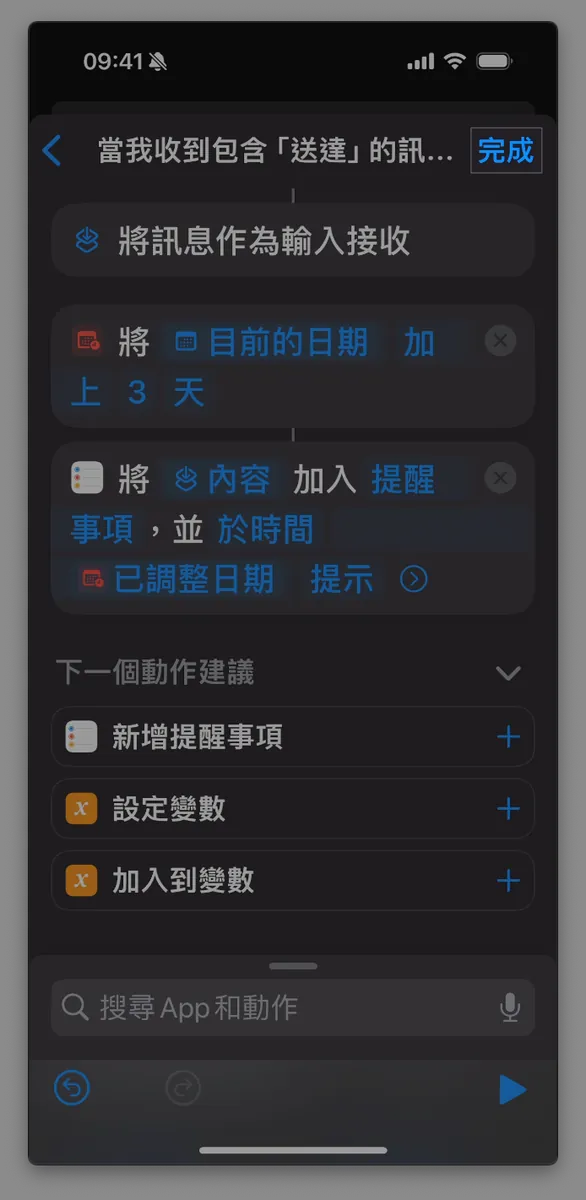
-
Change
「不提示」to select「提示」 -
Select the
At Time "2:00 PM"input box for"2:00 PM"and choose the variable"Adjusted Date" -
Click the “X” next to the menu to close it
-
After confirming everything is correct, tap “Done” at the top right corner.
If tapping Done does nothing, it might be an iOS bug. You can ignore it and just tap Back to return to the home screen.
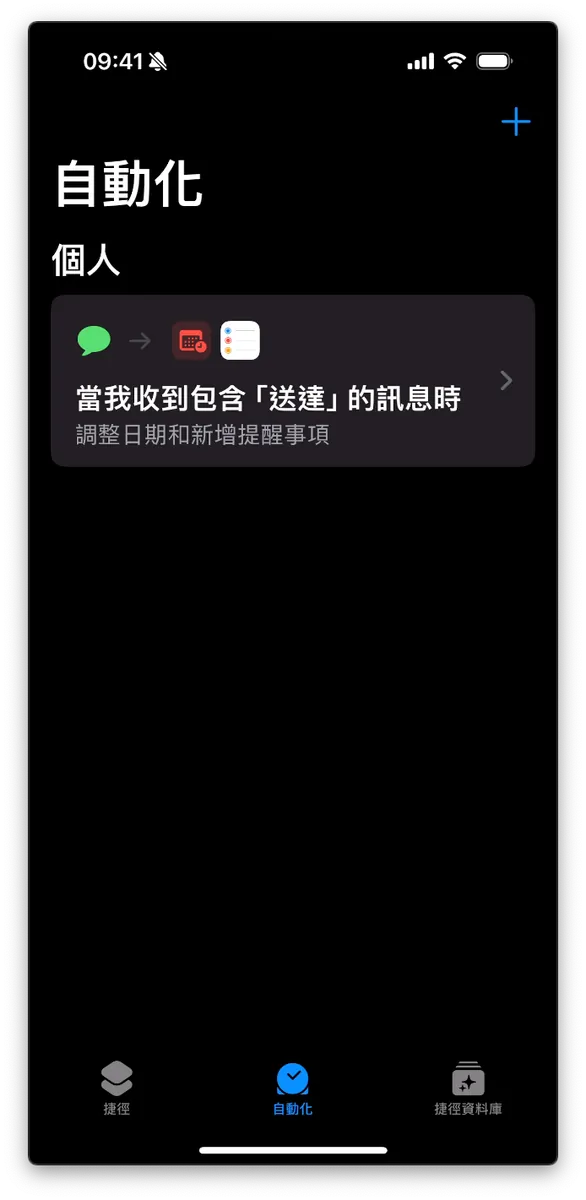
- Go back to the Shortcuts automation home to view, pause, or edit this shortcut.
Done!
As mentioned earlier, once a new message arrives containing the specified keyword, a reminder will be automatically created (even if the phone is locked). Due to current feature limitations, a separate shortcut must be created for each keyword, and if a single message contains multiple keywords, reminders will be created multiple times.
Scenario 3 — Automatically Create Reminder Tasks When Receiving Credit Card Billing Emails
Another life notification is the credit card bill alert; set up similarly to SMS, the shortcut automation can add a reminder when an email is received. However, since automation is not yet available for third-party apps, only Apple’s Mail app can trigger it.
Effect
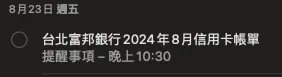
Set the conditions as follows:
- Add a Reminder When Receiving an Email with the Subject Containing “Credit Card Statement”
Please note that each company has a different format Orz, some call it “Credit Card Electronic Statement,” “Credit Card Electronic Reconciliation Statement,” and Cathay even names it “Credit Card XXXX Year X Month Electronic Statement.”
Because Regex is not supported yet, only text matching can be used. As mentioned before, each keyword requires a separate shortcut.
1. Make sure you have installed the Mail App and completed mailbox account login (Gmail is also supported)
2. Confirm Mail Fetch Settings
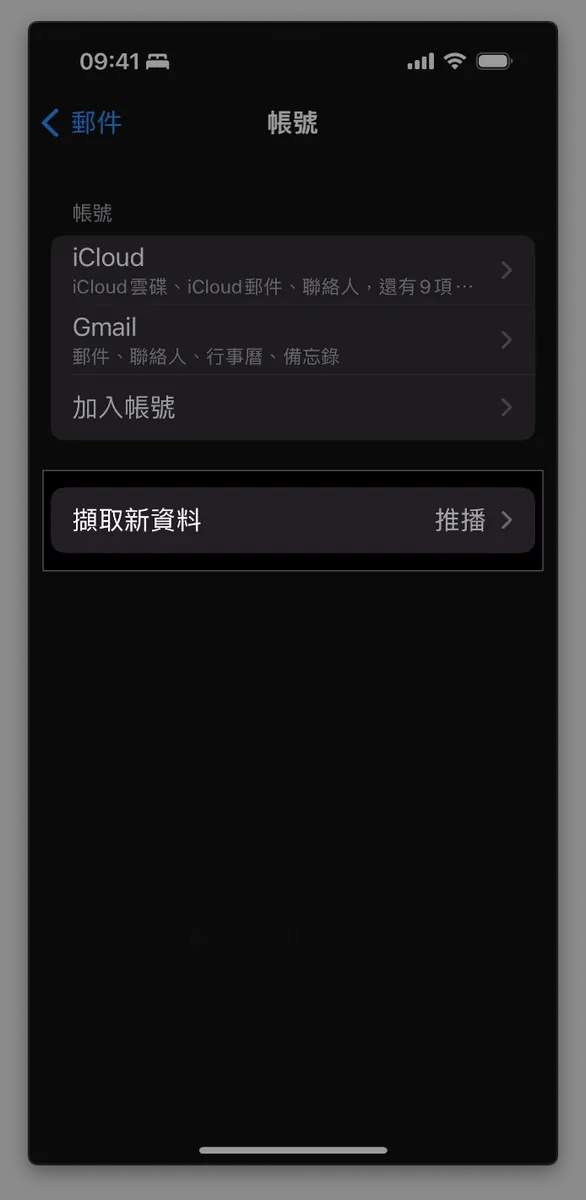
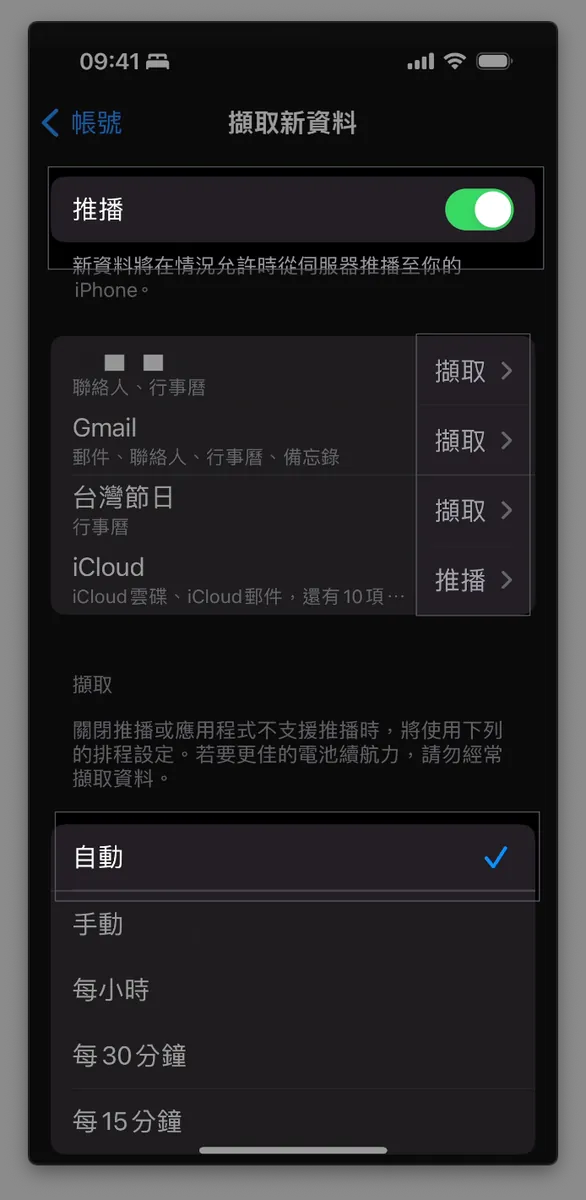
Confirm that “Settings” -> “Mail” -> “Accounts” -> “Fetch New Data” is set to Fetch or Push.
3. Install & Open the Shortcuts App
4. Switch to the “Automation” tab, tap the “+” at the top right, then scroll down to find “Email”
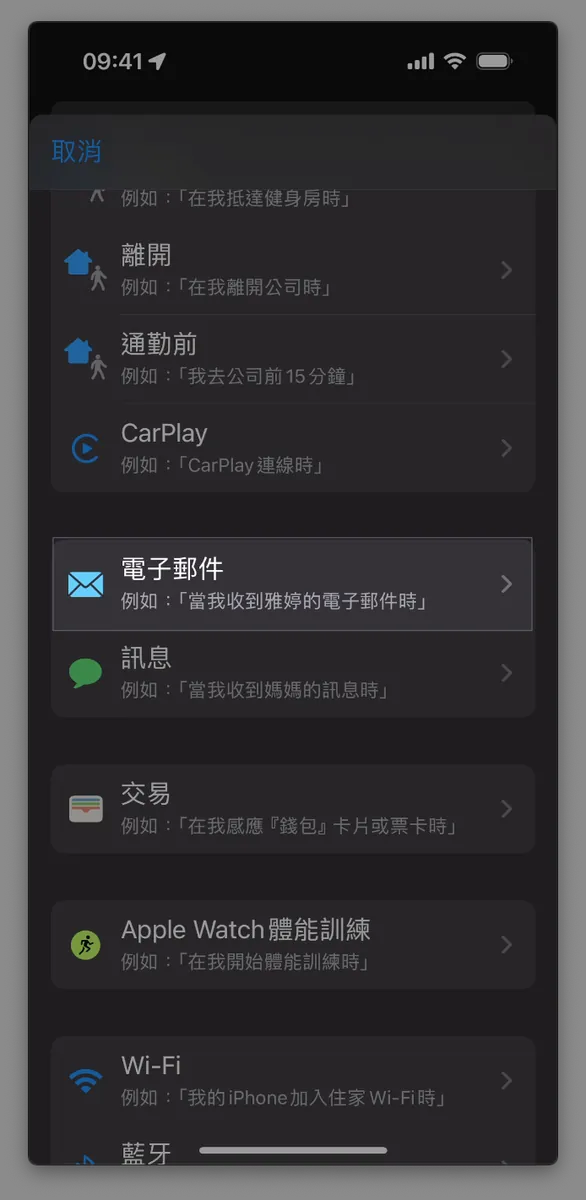
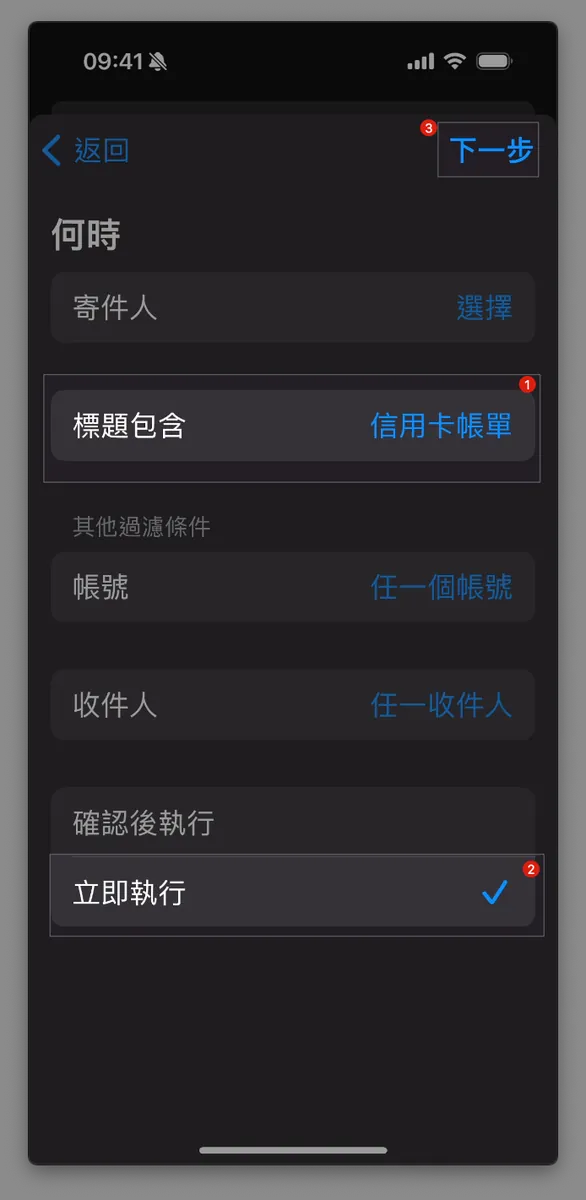
3. Set Email Conditions
-
“Title contains”:
Credit Card StatementMultiple keywords require creating separate shortcuts. -
Change “Confirm Before Running” to
Run Immediately -
Click “Next”
When — Other Settings:
-
“Sender”: Multiple, but need to add to contacts
-
Other filter criteria — Account: can filter sources from iCloud or Gmail
-
Other Filter Conditions — Recipients: Multiple, but must be added to Contacts, usually your own multiple accounts
4. Add Automation & Set Reminder Time
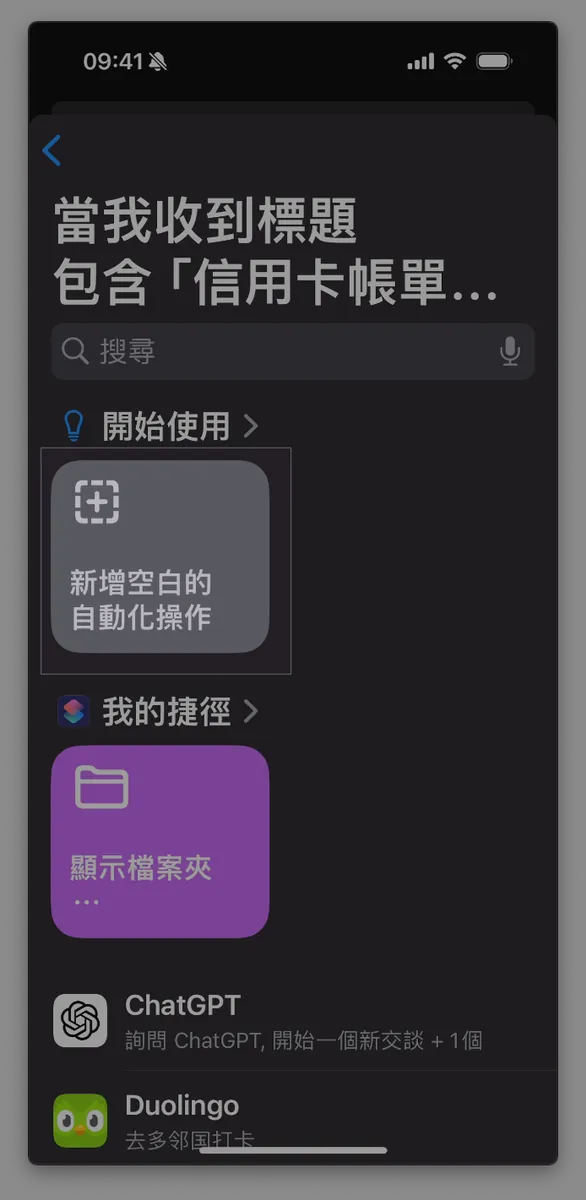
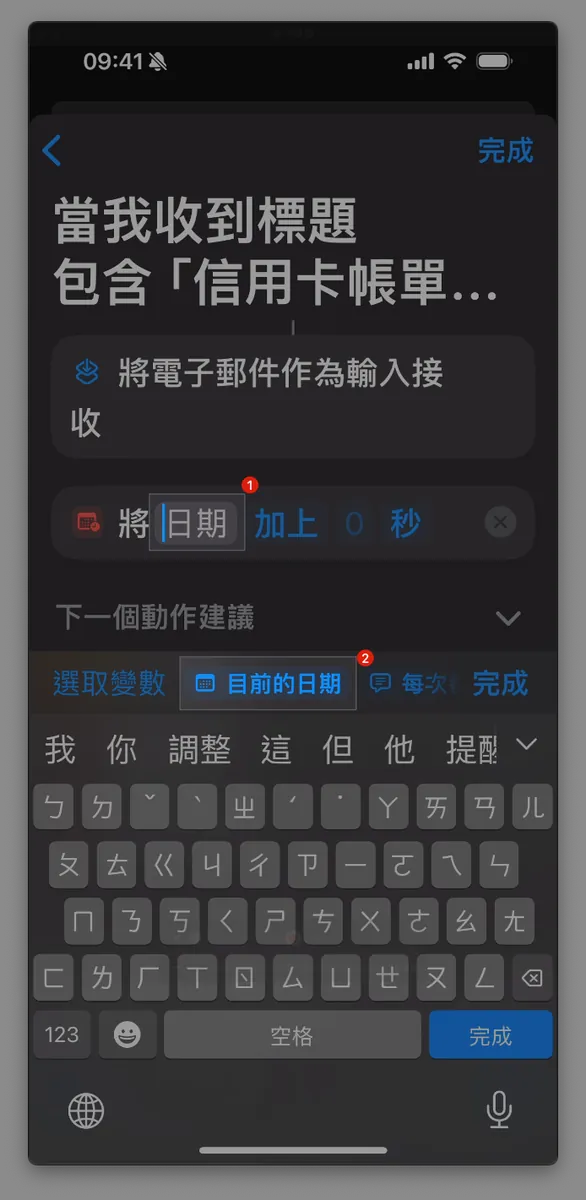
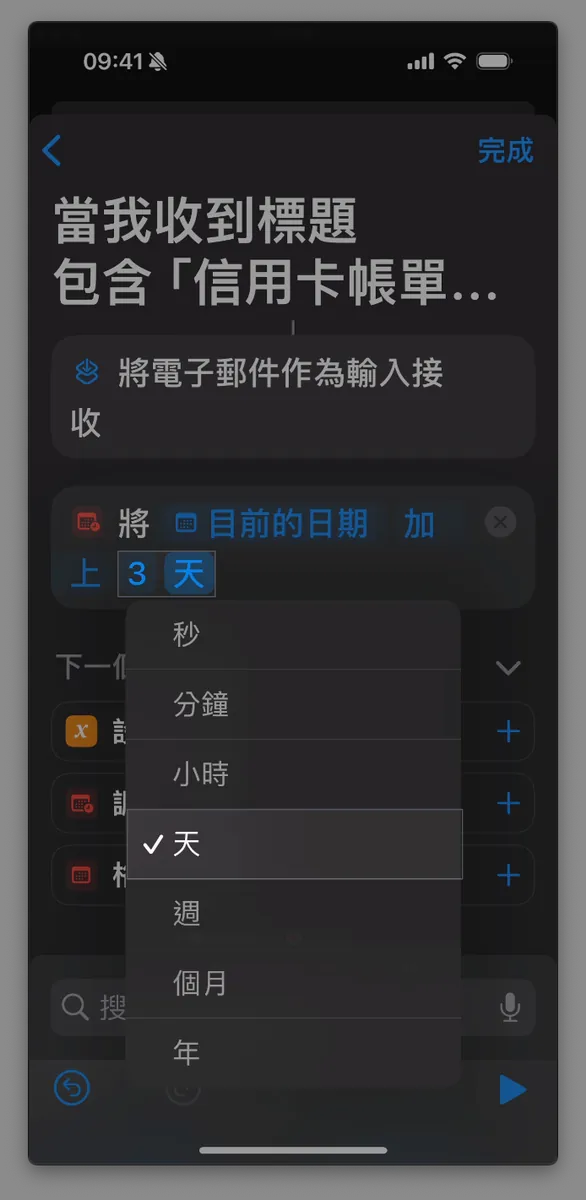
First, set the reminder’s due date by adding a date variable that calculates the received message time plus the desired reminder interval.
-
Select
“Create Blank Automation” -
Search for
“Adjust Date”in the box below. -
Select
Adjust Date -
Select the
Dateinput box forAdd 0 seconds to Date -
In the variable selection below, choose
“Current Date” -
Add 0 "seconds"change"seconds"to"days" -
Enter the number of days before expiration you want to be reminded; here I enter 3 days
-
Click the “X” next to the menu to close it
5. Set Up Email Filtering
Unlike messages triggered one by one, email triggers work in batches. So, as long as the batch contains emails with the keyword in the subject, all those new emails will be included together.
Not sure if this is a Shortcut bug, but this is the result anyway.
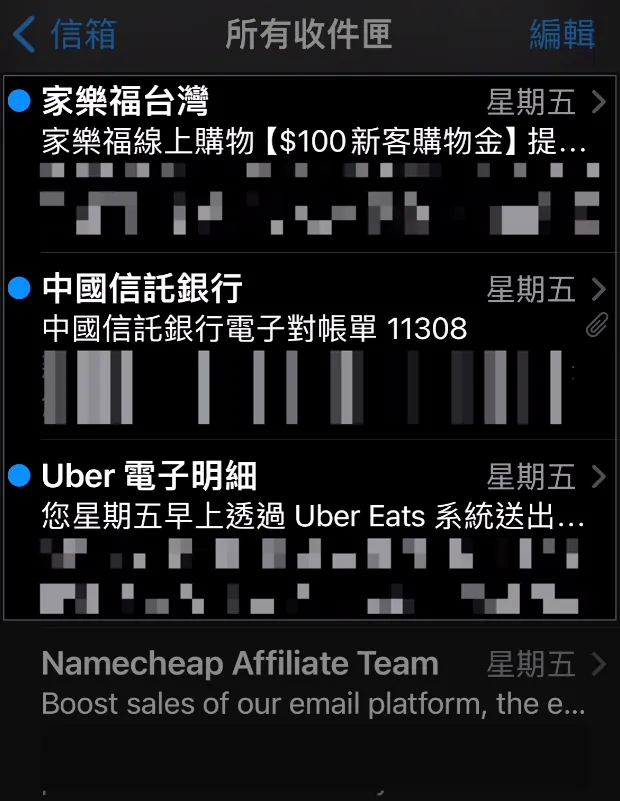
Example: When batch fetching three emails—one from Carrefour, one credit card statement, and one Uber notification—all are input into the shortcut; therefore, we need an additional step to filter out the emails with the keywords we want.
Virtual Logic:
for emailTitle in emails
  if emailTitle.contain("Credit Card Statement") then
    Add Reminder
  else
  end
end
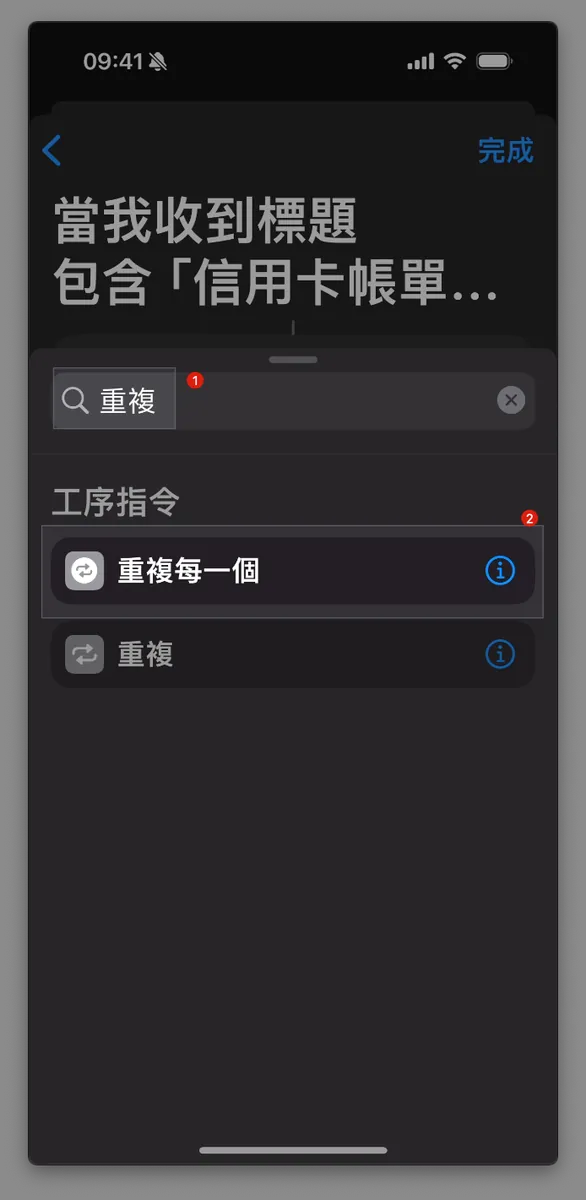
-
In the search bar, type
“Repeat”, scroll down and tap“Repeat Each” -
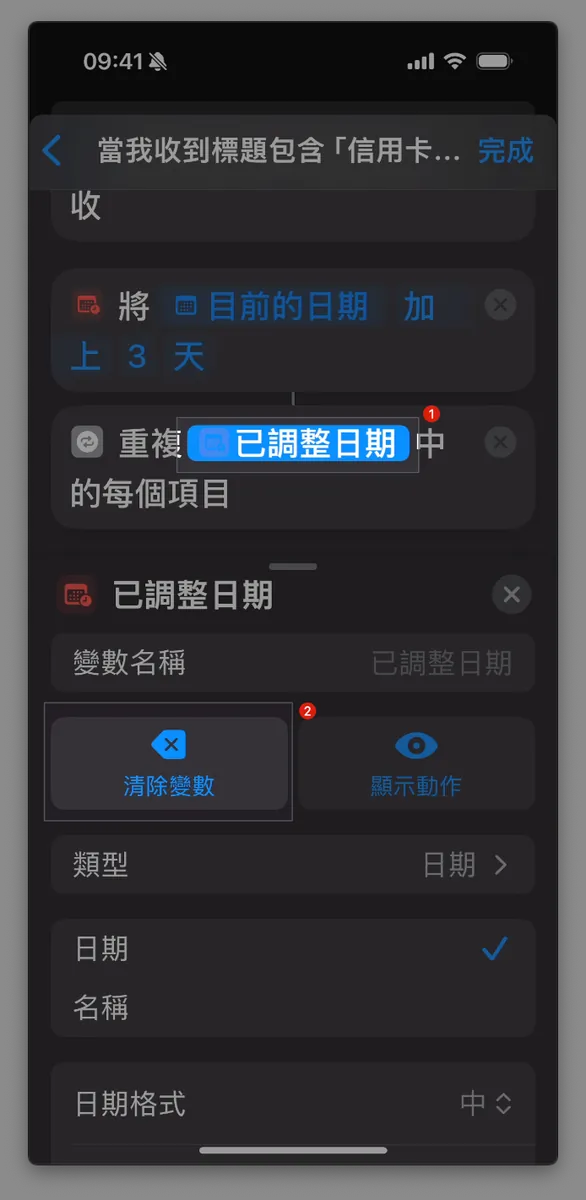
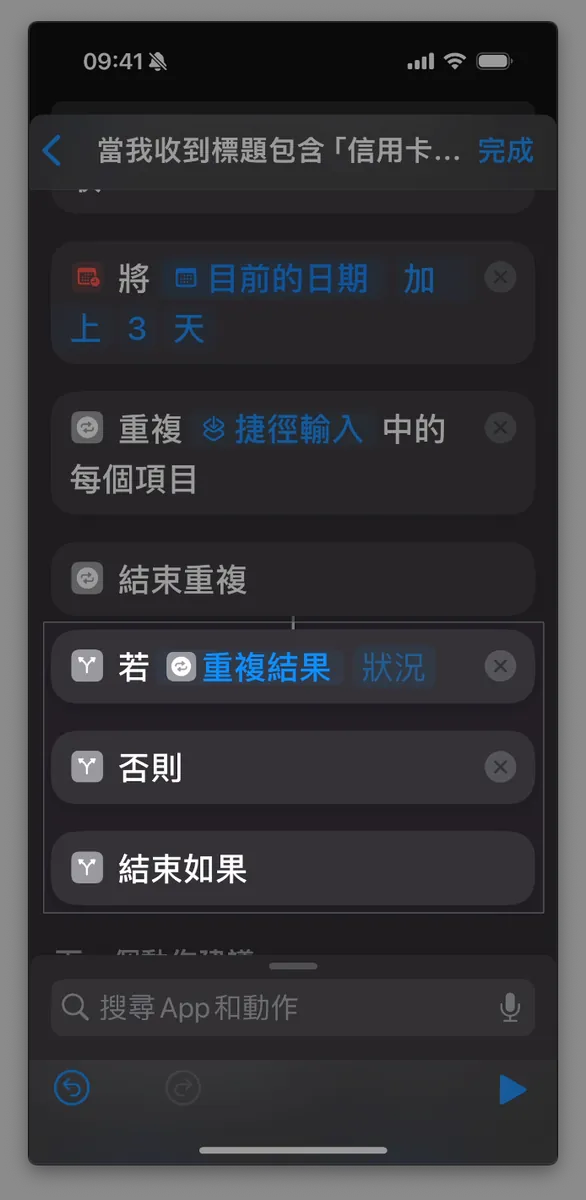
After adding, it will pick the wrong variable. In the input box for
Repeat with Each Item in "Adjusted Date", selectClear Variablefor"Adjusted Date". -
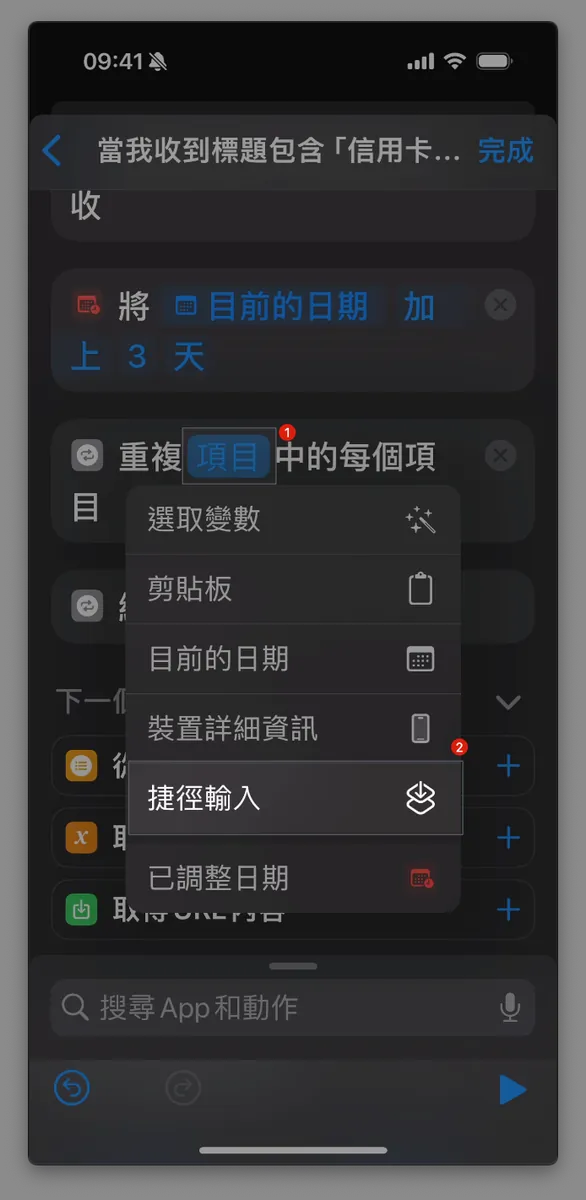
After clearing, select
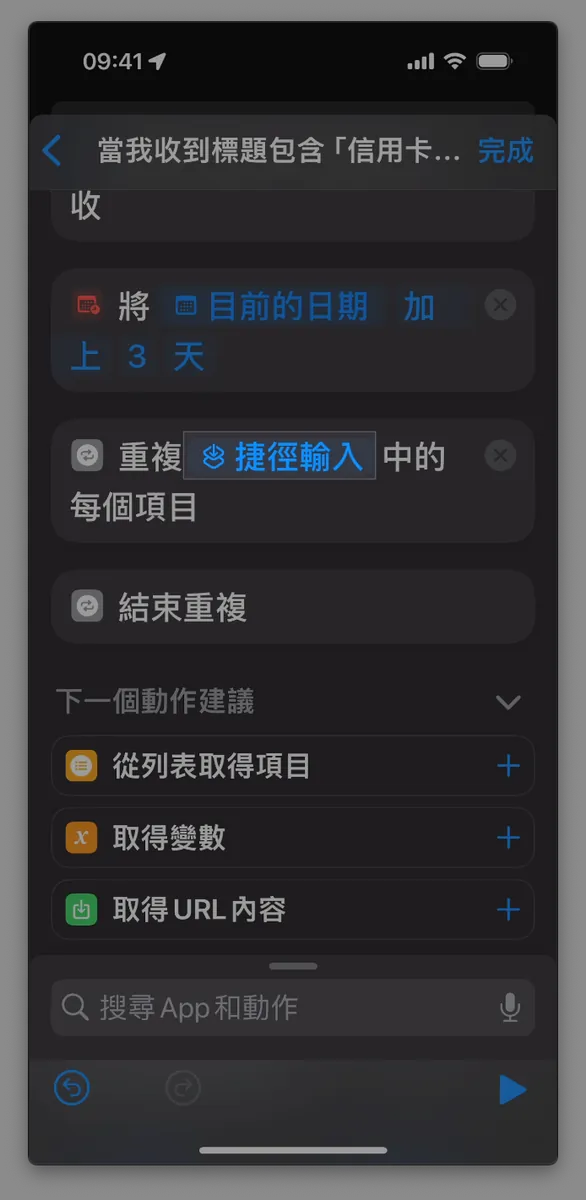
Repeat Each Item in "Items"and in the"Items"input box, chooseShortcut Input
-
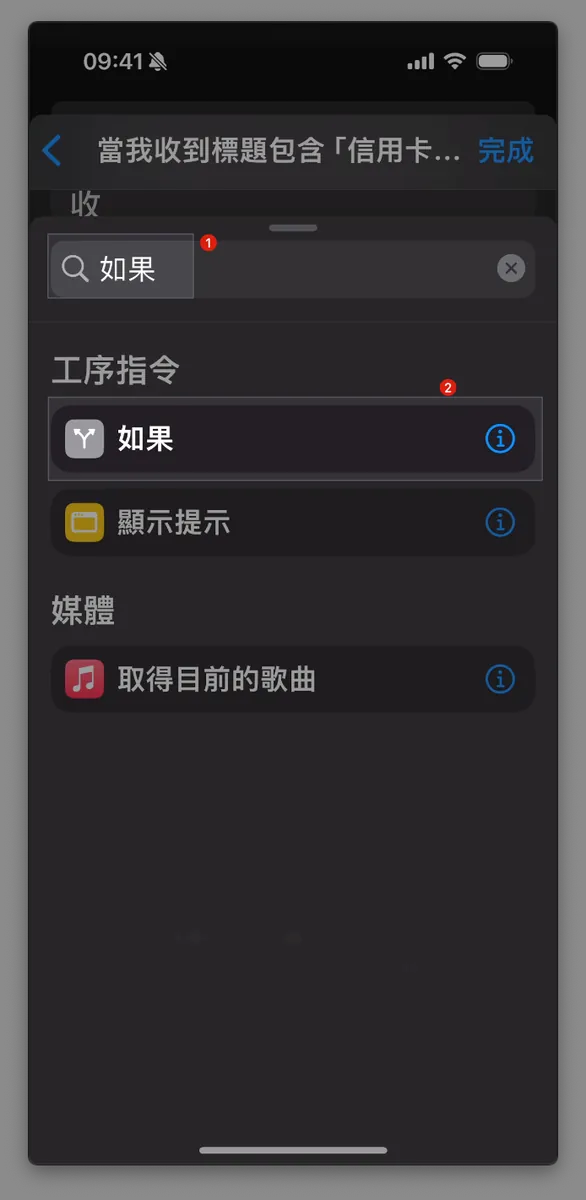
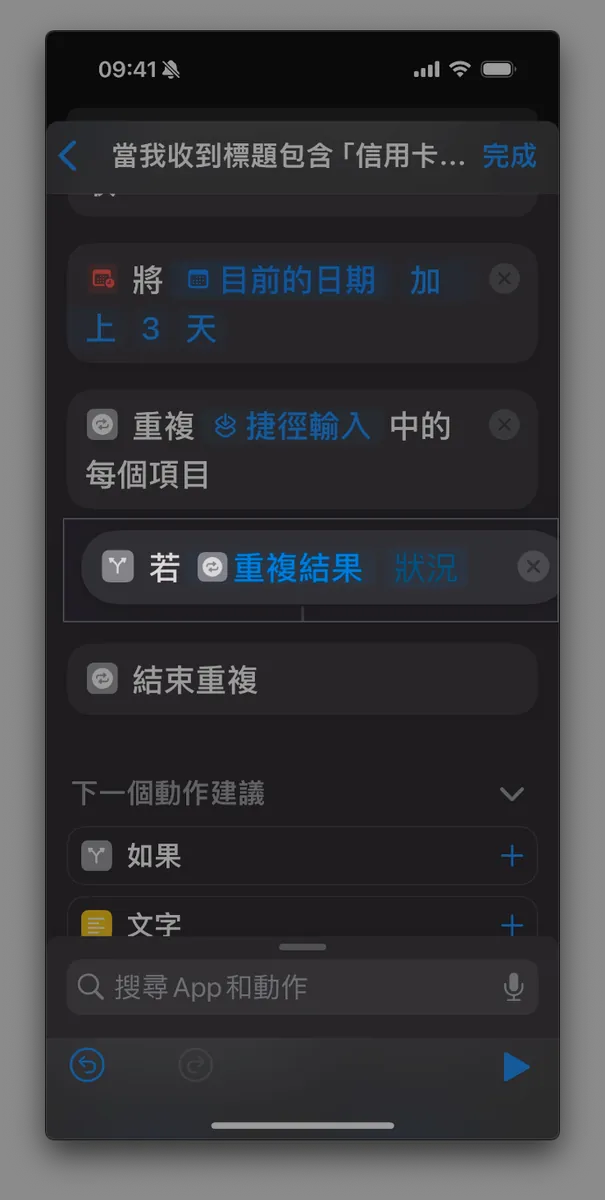
In the search box, type
「If」, scroll down and tap「If」 -
The location will be incorrect at this time.
-
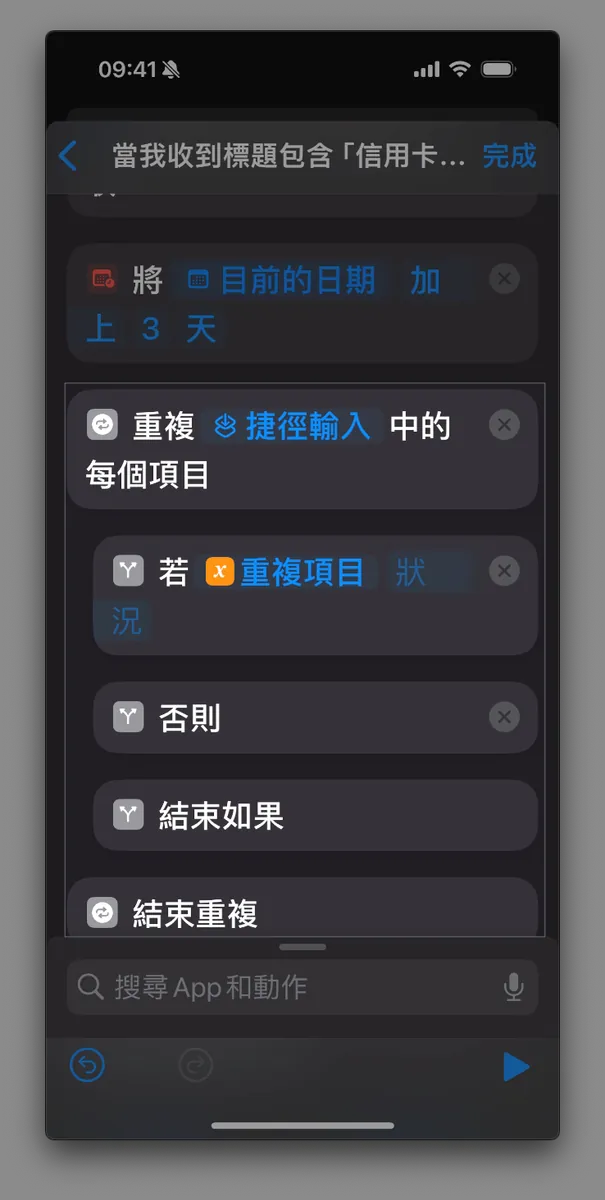
Drag the
If "Repeat Result" "Condition"action inside and belowRepeat Each Item in "Shortcut Input" -
Confirm the final location map as shown in Figure 2 above. If it is incorrect, please delete duplicates and redo from the previous step.
-
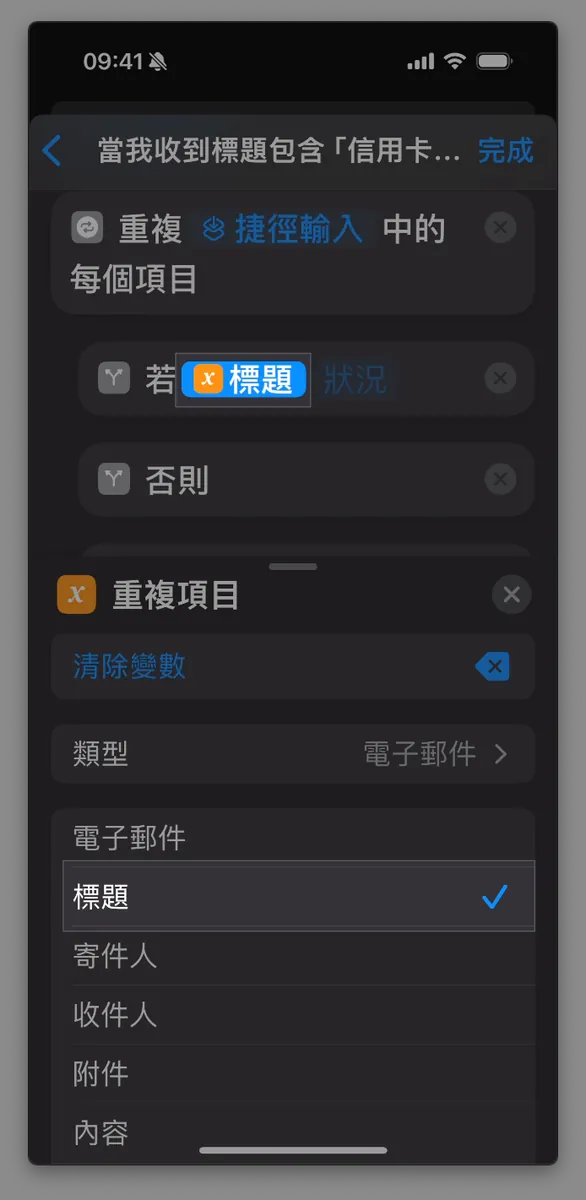
Click the
“Repeat Results”input box next toIf “Repeat Results” “Condition”, then change the selection below to“Title”. Click the “X” next to the menu to close it.
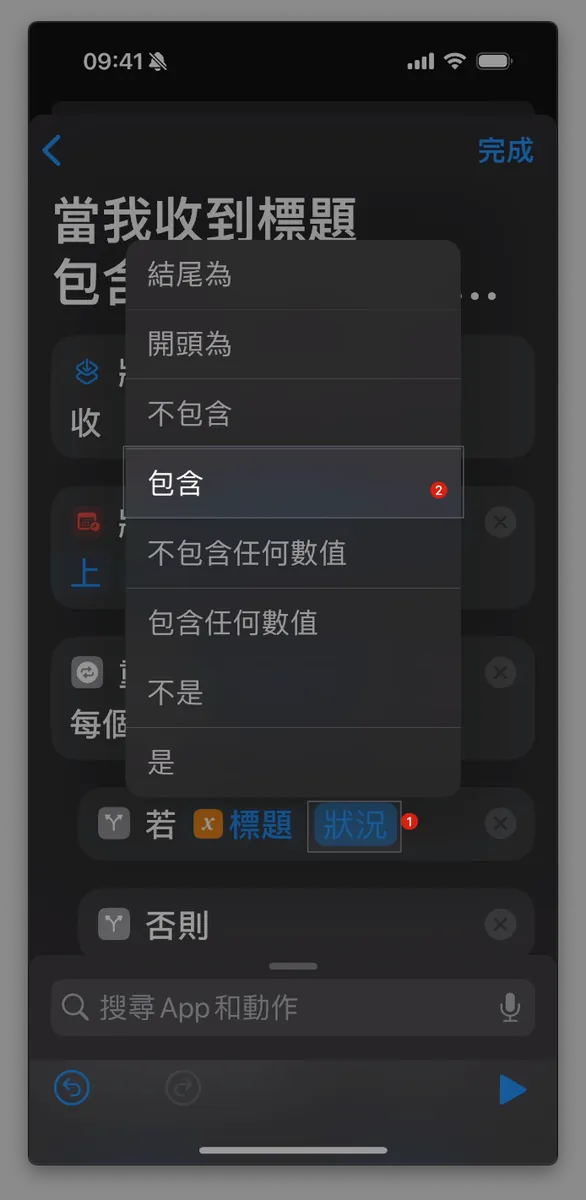
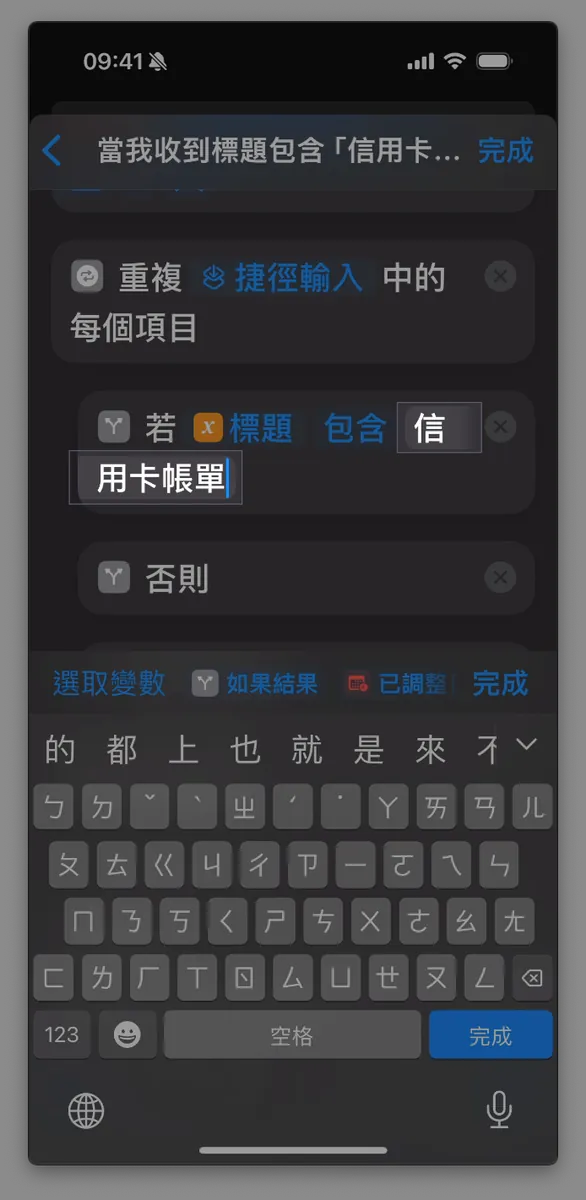
- Click the
Titleinput box in theIf "Title" "Condition"section, change the condition toContains, enterCredit Card Statement, and tap “Done” on the keyboard.
6. Set Up Email Filtering
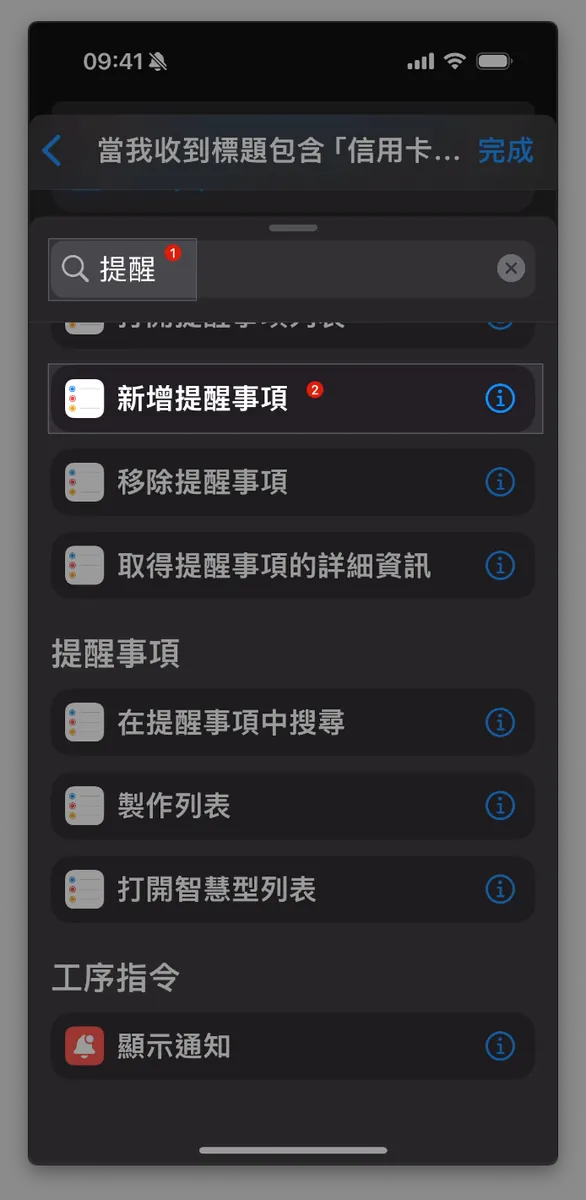
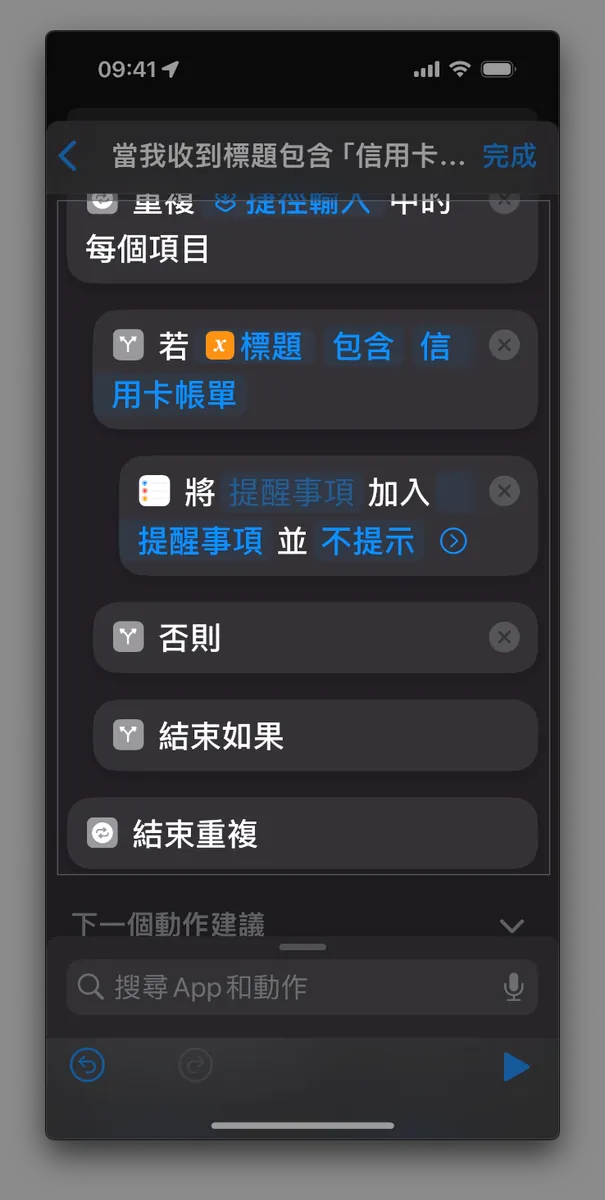
-
In the search bar, type “Reminder,” scroll down, and tap “Add Reminder.”
-
The position will still be incorrect at this time.
-
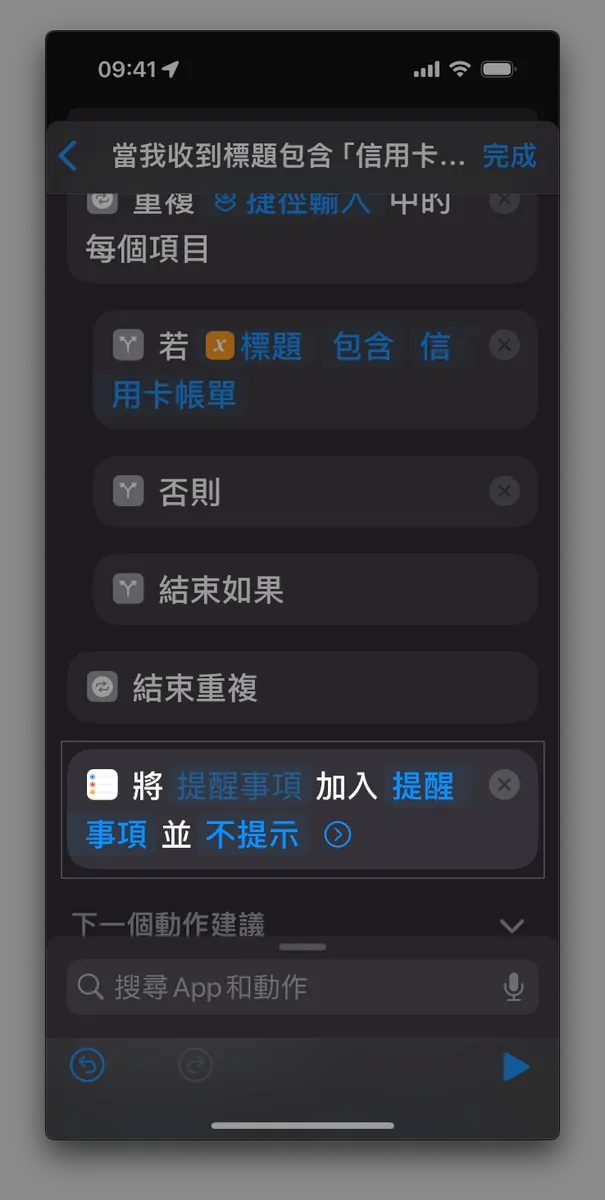
Drag the action
Add "Reminder" to "Reminders" and "Do Not Notify"underIf "Title" "Contains" "Credit Card Statement"(inside) -
Confirm the final location map as shown in Figure 3 above. If incorrect, please delete duplicates and “if” conditions, then redo from the previous step.
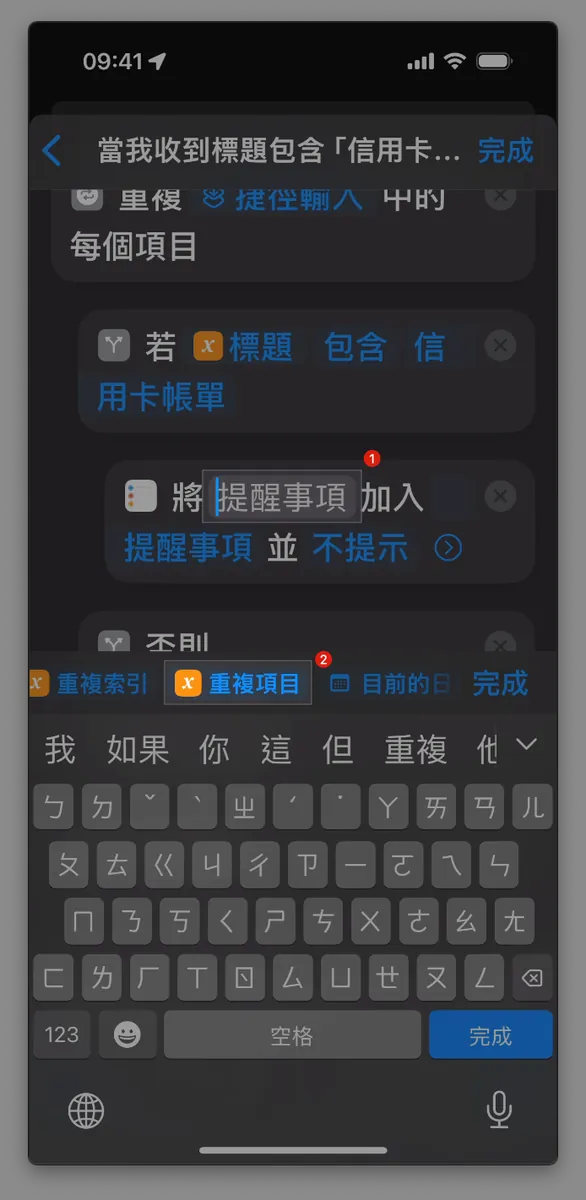
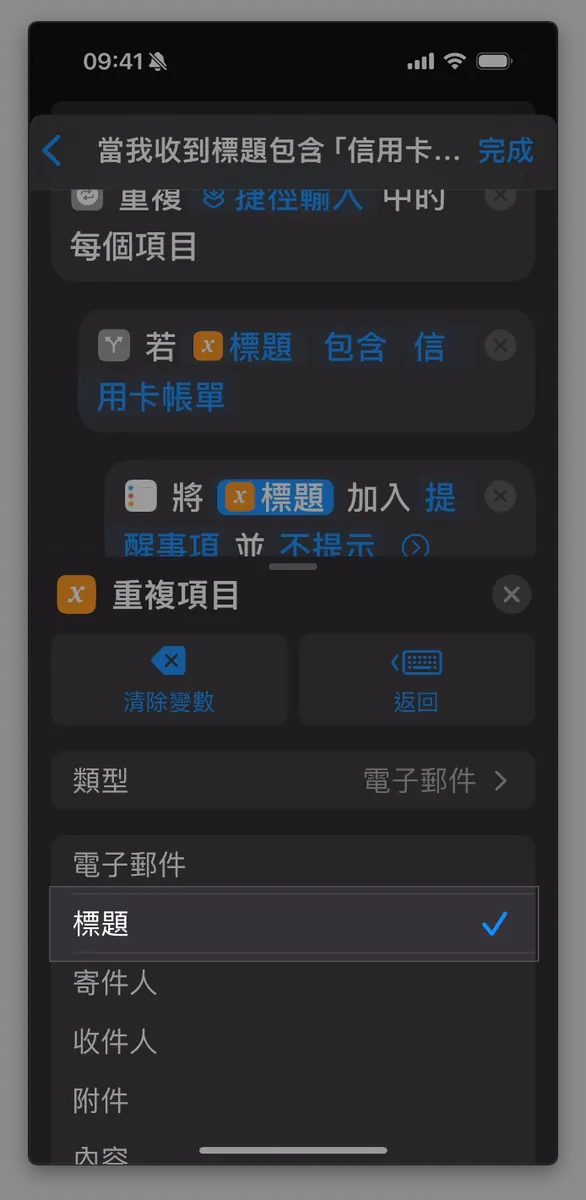
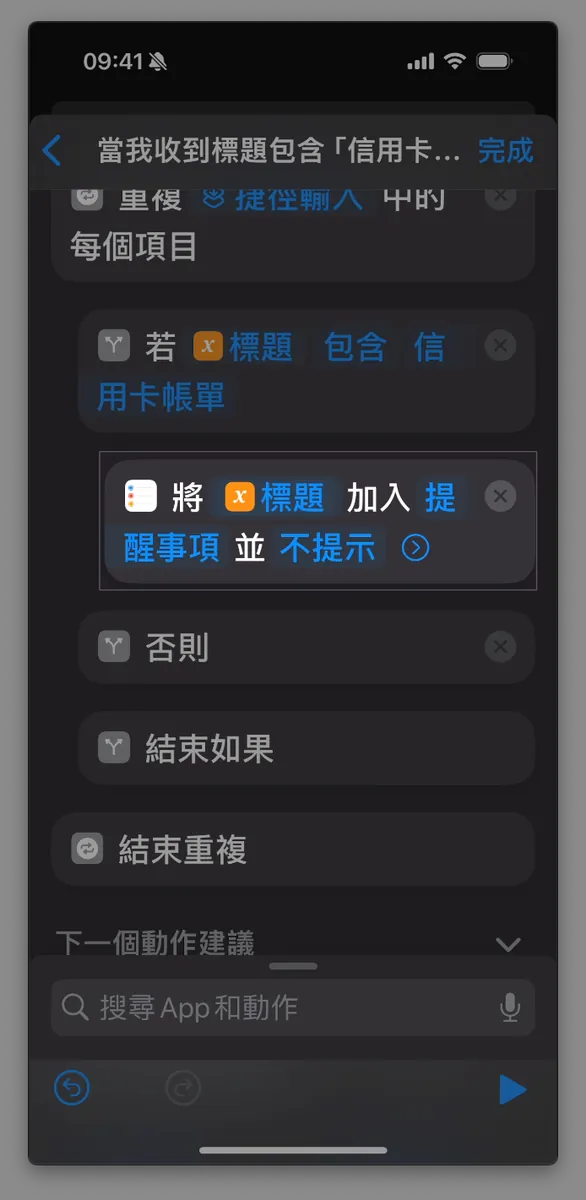
After adding “Add Reminder”
-
Click the first
「Reminder」input box inAdd "Reminder" to "Reminders" and "Do Not Notify". -
Swipe right to find and tap
「Repeat Items」. -
Go back to the
Repeat Itemsinput box above and change the originally selectedEmailtoTitle. -
Click the “X” next to the menu to close it.
6. Set Reminder Notifications
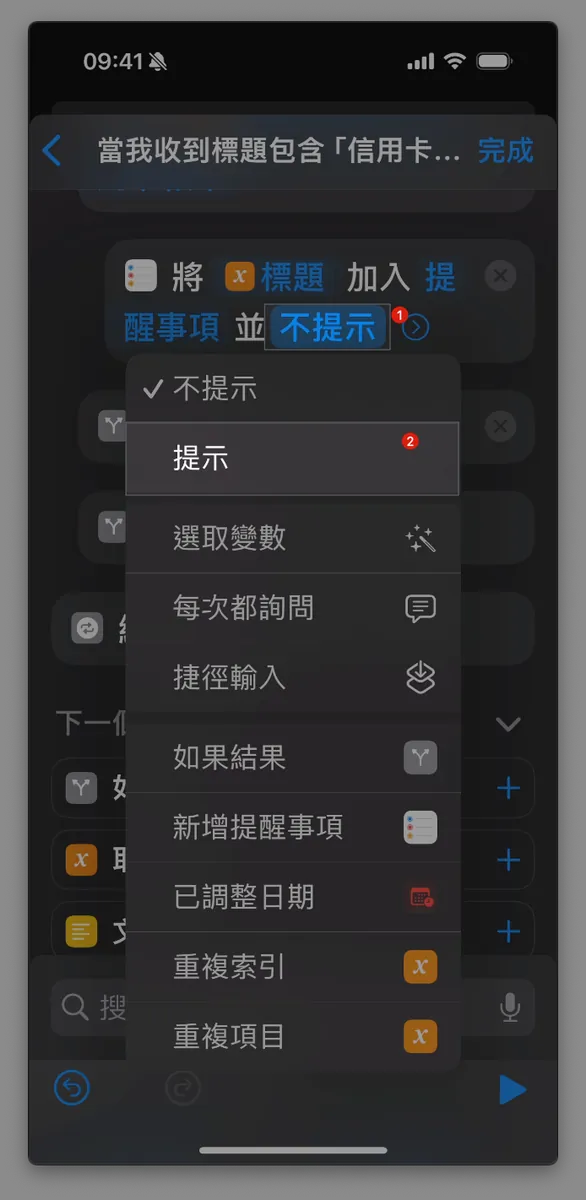
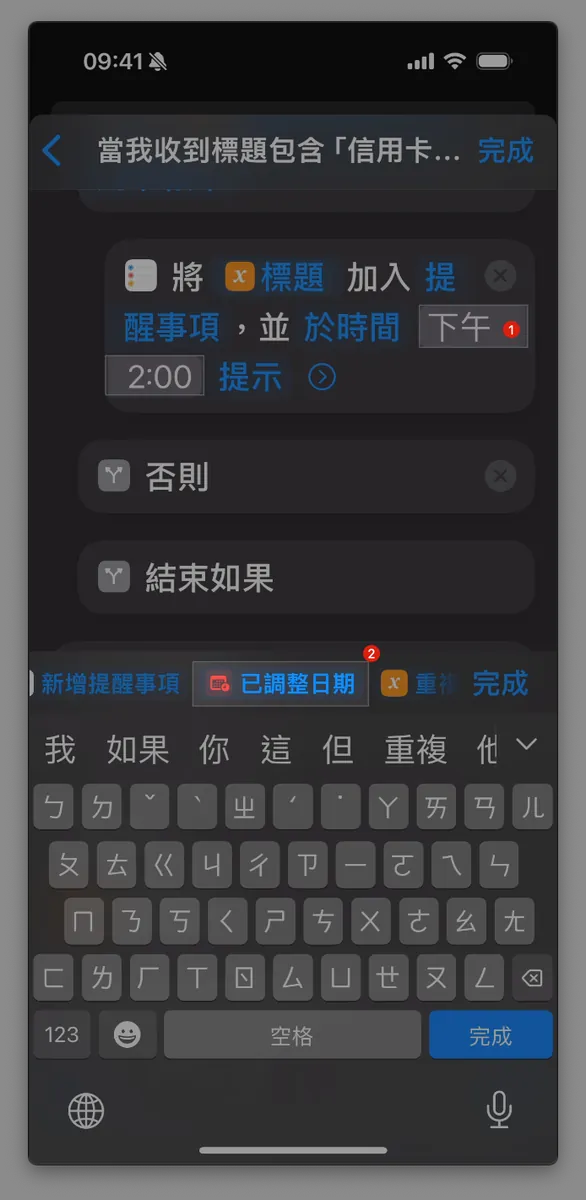
-
Change
「不提示」to select「提示」 -
Select the
At Time 2:00 PM“2:00 PM”input box, then choose the variable“Adjusted Date” -
Click the “X” next to the menu to close it
-
No problem, tap “Done” at the top right corner.
If tapping Done does nothing, it might be an iOS bug. You can ignore it and just tap Back to return to the home screen.
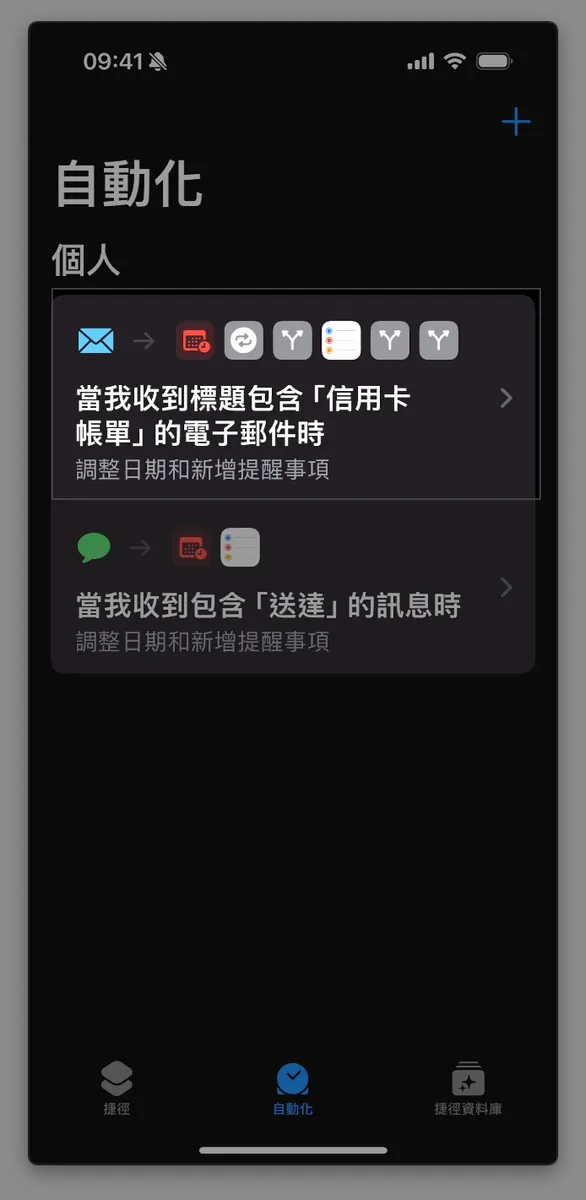
- Go back to the Shortcuts automation home to view, pause, or edit this shortcut.
Done!
The email setup is relatively more complex because it involves batch fetching, requiring an additional filtering step before creating reminders from the filtered results.
-
When there is a new email and Apple Mail has finished fetching, if it contains a credit card statement title, a reminder will be created automatically!
-
Because Apple Mail uses fetching (if not iCloud), email retrieval is not immediate and will be delayed for a while.
Others
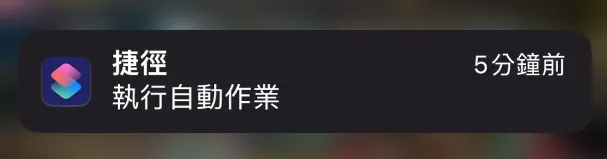
Shortcut automation execution will trigger a notification that cannot be disabled.
End
Several basic automation integrations have been completed, saving you daily effort with just a few simple steps. More advanced connections, such as calling APIs to integrate with Notion or more complex setups, are also technically feasible. It’s not the technology that’s lacking, but your imaginative automation ideas!
Comments