Google Apps Script Web App|Integrate Forms with GitHub Actions CI/CD for Streamlined Workflows
Developers facing complex CI/CD workflows can streamline GitHub Actions by integrating Google Apps Script Web App forms, enhancing automation with Jira, Asana, and Slack for faster, more efficient deployments.
This post was translated with AI assistance — let me know if anything sounds off!
Table of Contents
Using Google Apps Script Web App Form to Integrate with Github Action CI/CD Workflows
Github Action Workflow form optimization and integration with other workflow tools (Jira, Asana, Slack, etc.) to improve development efficiency.
{:target="_blank"}](/assets/4cb4437818f2/1*TiGXBQdPaCM6r2J1RHrgnA.webp)
Left: Original Github Action Workflow Form / Right: Final Result (GAS Web App Form)
2025/07 Update:
This feature has been integrated into the actual packaging tool. Please refer to the latest article case: “CI/CD Practical Guide (4): Using Google Apps Script Web App to Connect GitHub Actions and Build a Free and Easy Packaging Tool Platform”
Background
The previous team used GitHub Actions & Self-hosted GitHub Runner + Slack to build a complete CI/CD service; the overall effect was good. For app developers, setting up and maintaining it was relatively easy. Just follow the official documentation to configure the YAML parameters, and it would trigger automatically. On the machine side, it was also easy to use your own machine as a runner. The service itself is maintained by GitHub, so we didn’t have to worry about version upgrades. The runner actively pulls tasks from GitHub, so there was no need to open external network ports.
It offers the benefits of a Bitrise-like GUI YAML build system along with the flexibility and lower build costs of using self-hosted machines like Jenkins, without the need to spend time maintaining the service itself like Jenkins requires.
Will write a complete guide on App CI/CD with GitHub Actions when I have time in the future.
Problem: Github Action CI/CD GUI Form
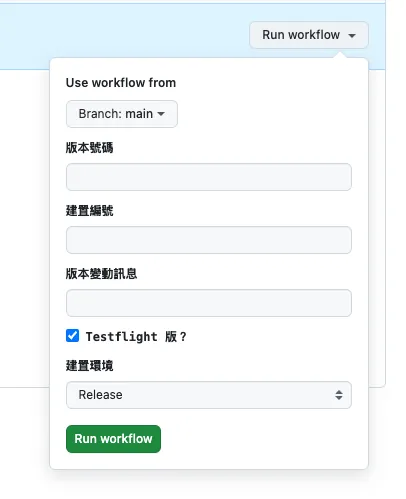
Github Action GUI Form
In app development, when triggering CD to build a test version, release version, or submit for review, it usually requires providing some external parameters or selecting the environment and branch according to needs before starting the workflow.
Unlike Jenkins, which is a self-hosted service with a complete Web GUI, GitHub Actions does not have one. The only Web GUI form is the simple form you can customize under Actions by clicking Run workflow, allowing users to input external parameters and trigger the CI/CD workflow.
Users who typically use this CD packaging are not necessarily the app developers themselves, nor do they always have permissions for the project. For example, QA may need to package a specific version, or PM/Backend may need to package a development version for testing. The GitHub Action Form requires project permissions to use, but users may not have project permissions or even an engineering background.
And we cannot perform dynamic forms or data validation here.
Therefore, we need to create a separate GUI service for other users to operate.
Building a Custom Slack App Solution
Previously, team members passionate about automation built a complete Slack App web service using Kotlin+Ktor. It integrated Slack messages, forms, commands, and more to receive and forward CD packaging requests, trigger GitHub Actions, and send results back to Slack.
Currently, there are no development resources to build the service using Kotlin+Ktor as before
Writing Your Own Web/iOS/macOS App Tool
The team originally used Jenkins, which has a basic web interface for other users to log in and use. Additionally, they developed an app that connects to Jenkins, packaging some parameters to make it easier for non-engineering users.
However, this whole system was abandoned after migrating to GitHub Actions.
❌ Private Github Pages
It is possible to directly build GitHub Pages as a CI/CD Web GUI, but currently only GitHub Enterprise allows setting access permissions for GitHub Pages. Other options, even with Private Repos, will be public and lack security.
❌ Slack App, but built with Google Apps Script
At first, we considered using a Slack App as the CI/CD GUI form service based on our team’s previous experience. However, we currently lack the resources to build the service with Kotlin+Ktor as before; so we decided to quickly try building it using a Function as a Service platform.
There are many types of Function as a Service. Cloud Functions offers more flexibility, but due to organizational IT restrictions, creating public cloud functions freely is not allowed and there are cost concerns. Therefore, we return to our old friend — Google Apps Script.
Previously, I have written several articles about automation with Google Apps Script. Interested readers can refer to them:
1. “Automate Daily Data Reports with Google Apps Script RPA“
2. “Simple 3 Steps — Build a Free GA4 Automated Data Notification Bot “
3. “Crashlytics + Google Analytics Automatic Query for App Crash-Free Users Rate”
4. Crashlytics + Big Query to Build a More Real-Time and Convenient Crash Tracking Tool
In summary, Google Apps Script is another Function as a Service offered by Google, mainly featuring free usage and fast integration with Google services. However, it has more limitations, such as only supporting its own language, a maximum execution time of 6 minutes, limits on the number of executions, no support for multithreading, and more. For details, please refer to my previous article.
The conclusion is that it is not feasible, because:
Function as a Service cold start issue.
If the service is idle for a while, it goes to sleep, and the next call takes longer to start (3 to ≥ 5 seconds). Slack App is very strict about API response time; the service must respond within 3 seconds or it is considered a failure. Slack will then throw an error, and event listening will be considered lost, causing repeated sends.Google Apps Script doGet, doPost methods cannot access Headers.
This causes failure to use official security verification and inability to disable Slack Retry.Google Apps Script single-threading issue.
If connecting to other services takes more than 3 seconds to respond, Slack will directly mark it as failed.
I reluctantly tried using Slack messages, Block Kit, and Forms to connect the entire process, but it was too prone to the issues mentioned above, so I eventually gave up.
If you want to build this system, you still need to run your own server and services; do not use Function as a Service!
❌ Slack Workflow Form
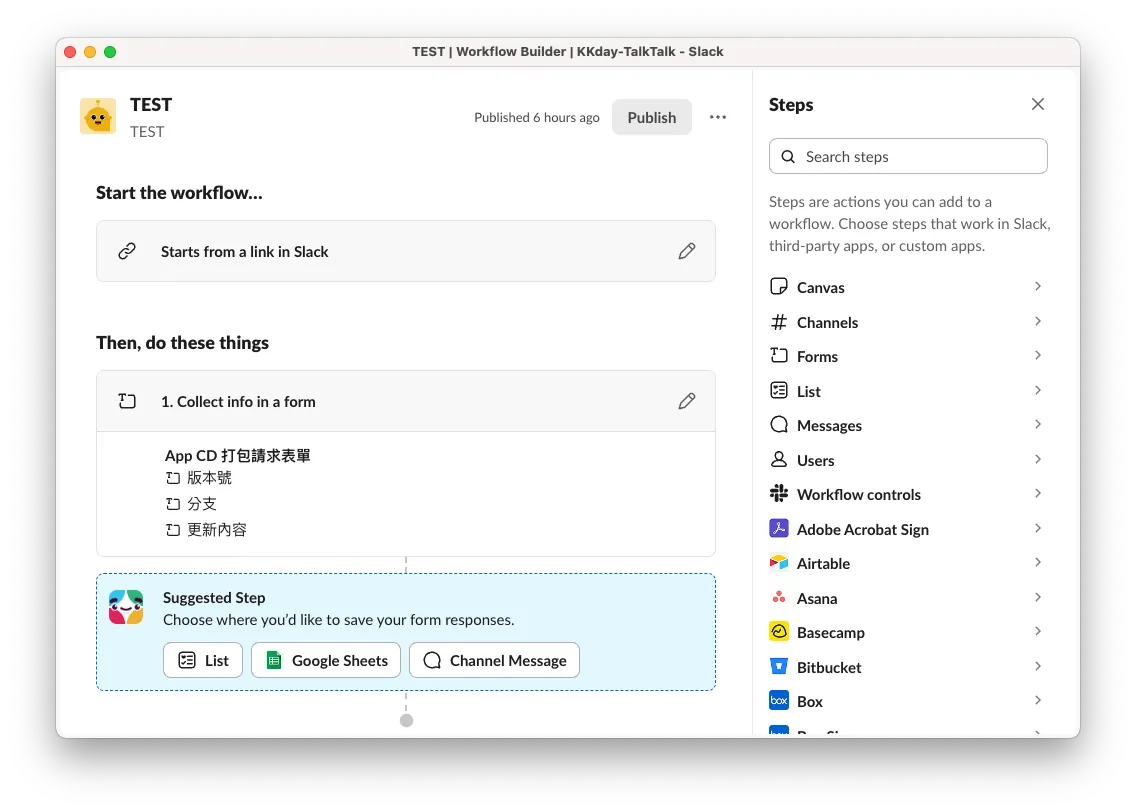
{:target="_blank"} (❌ Not customizable)](/assets/4cb4437818f2/1*hnDPyOfGCTW_yJf71krMnA.webp)
Slack Workflow Form (❌ Not customizable)
Also tried Slack’s built-in automation feature Workflow Form, but it cannot support dynamic form content (e.g., fetching branches for user selection). The only customizable part is the subsequent data submission step.
✅ Google Apps Script Web App GUI Form
If the mountain doesn’t move, the road will. On second thought, there’s no need to insist on integrating with Slack. Slack integration is the best solution since it fits directly into the existing team collaboration tool without requiring learning a new tool. However, due to resource constraints, we have to settle for other stable and easy-to-use methods.
Looking back, Google Apps Script itself can be deployed as a Web App, responding with a GUI form during the Web doGet. After submitting the form, it triggers subsequent GitHub integration processes.
Final Result 🎉
{:target="_blank"}](/assets/4cb4437818f2/1*pzW-Yki-4HbE2nYXC4q-Aw.webp)
Workflow
We use Google Apps Script Web App to build a CI/CD form, directly linked to Google Workspace accounts, restricting access to users within the organization. It automatically obtains the current logged-in user’s email, uses a shared GitHub Repo account (or borrows a personal access token from an authorized account) to call the GitHub API to get the branch list. Upon submission, it also calls the API to trigger GitHub Actions to start the CI/CD workflow.
Additionally, we can use the user’s email to call the Slack API via the Slack App to get the user’s Slack ID, then send messages through the Slack App to notify the CI/CD task execution status.
It can also be integrated with other tools and development processes, such as retrieving tasks from Asana or Jira, selecting them, then using the GitHub API to find branches and trigger GitHub Actions, and finally notifying users through Slack.
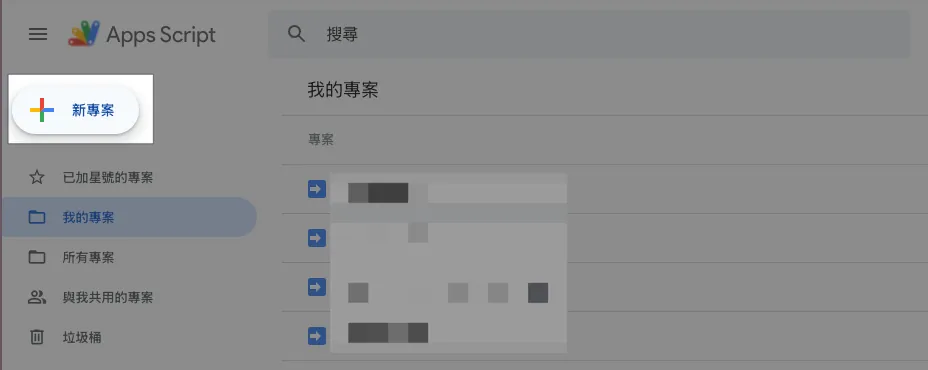
Step 1. Create Google Apps Script Web App Form
Go to > Google Apps Script and create a new project.
Step 2. Create Form Content and GAS Script
Haven’t written HTML for a long time and too lazy to design styles myself, so I asked ChatGPT to generate a slightly styled HTML form template directly.
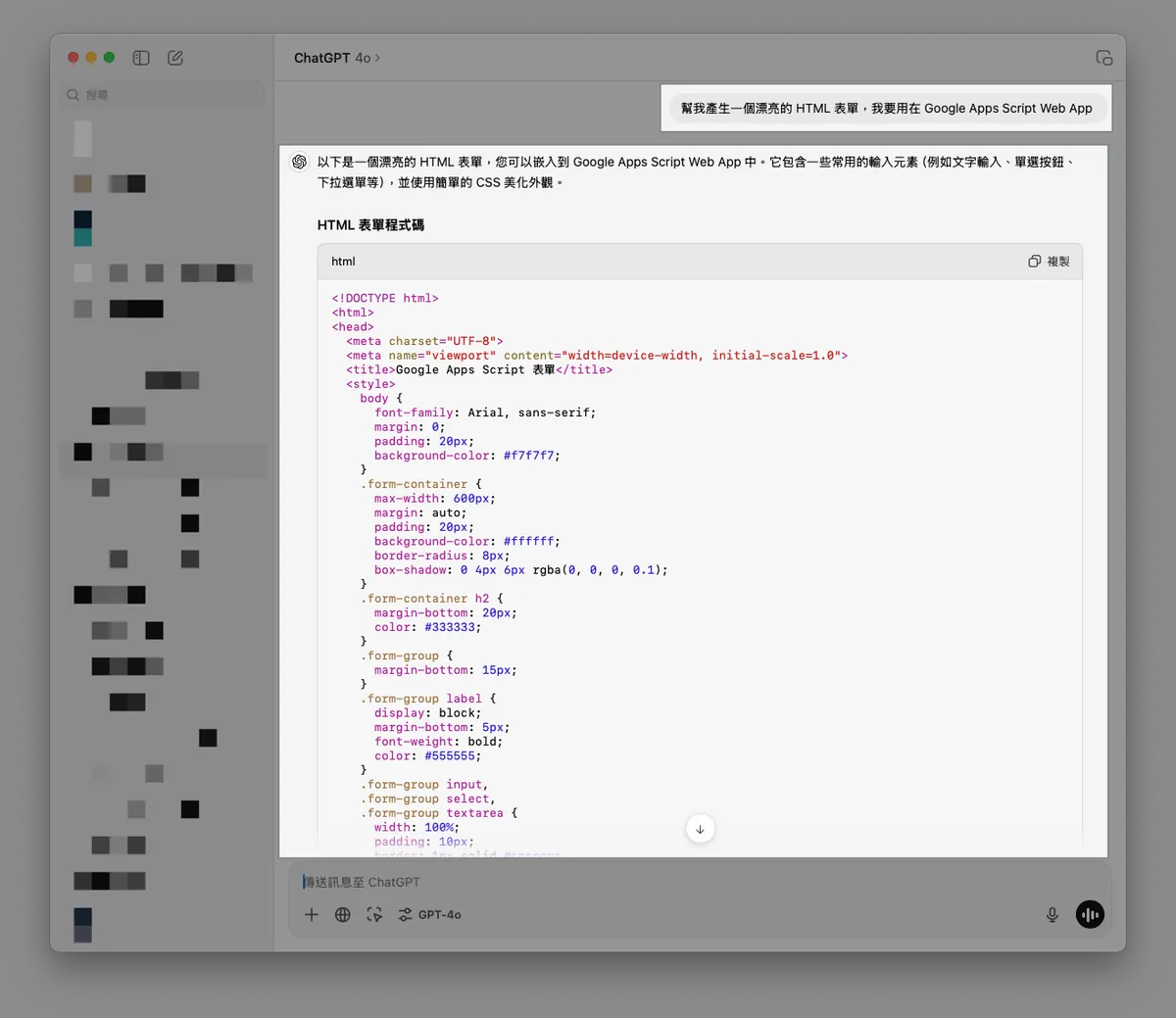
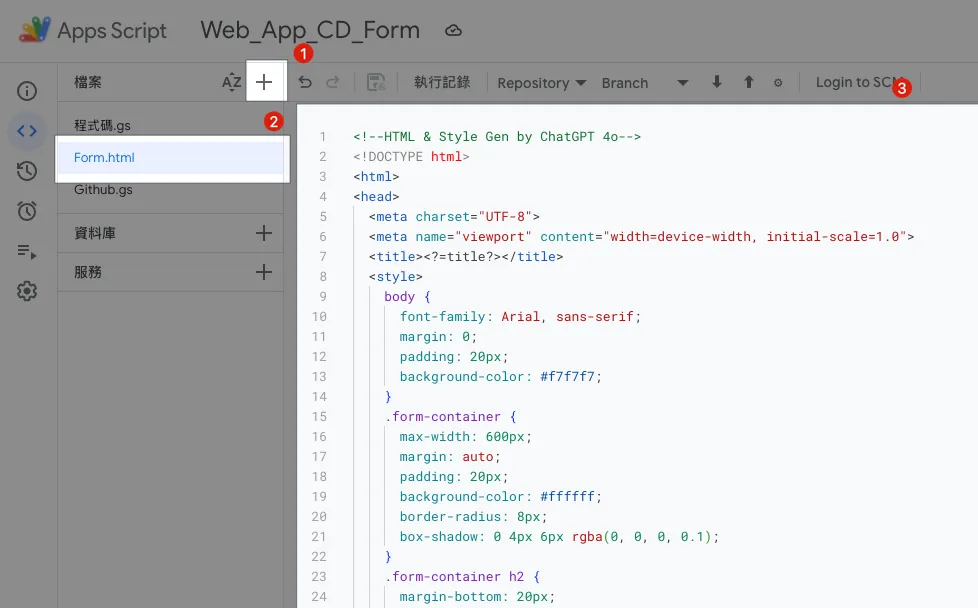
In the GAS file list on the left, click “+” to add a new file, enter the file name Form.html, and paste the GPT-generated HTML form template content.
Form.html:
1
2
3
4
5
6
7
8
9
10
11
12
13
14
15
16
17
18
19
20
21
22
23
24
25
26
27
28
29
30
31
32
33
34
35
36
37
38
39
40
41
42
43
44
45
46
47
48
49
50
51
52
53
54
55
56
57
58
59
60
61
62
63
64
65
66
67
68
69
70
71
72
73
74
75
76
77
78
79
80
81
82
83
84
85
86
87
88
89
90
91
92
93
94
95
96
97
98
99
100
101
102
103
104
105
106
107
108
109
110
111
112
113
114
115
116
117
118
119
120
121
122
123
124
125
126
127
128
129
130
131
132
133
134
135
136
<!--HTML & Style Gen by ChatGPT 4o-->
<!DOCTYPE html>
<html>
<head>
  <meta charset="UTF-8">
  <meta name="viewport" content="width=device-width, initial-scale=1.0">
  <title><?=title?></title>
  <style>
    body {
      font-family: Arial, sans-serif;
      margin: 0;
      padding: 20px;
      background-color: #f7f7f7;
    }
    .form-container {
      max-width: 600px;
      margin: auto;
      padding: 20px;
      background-color: #ffffff;
      border-radius: 8px;
      box-shadow: 0 4px 6px rgba(0, 0, 0, 0.1);
    }
    .form-container h2 {
      margin-bottom: 20px;
      color: #333333;
    }
    .form-group {
      margin-bottom: 15px;
    }
    .form-group label {
      display: block;
      margin-bottom: 5px;
      font-weight: bold;
      color: #555555;
    }
    .form-group input,
    .form-group select,
    .form-group textarea {
      width: 95%;
      padding: 10px;
      border: 1px solid #cccccc;
      border-radius: 4px;
      font-size: 16px;
    }
    .form-group input[type="radio"] {
      width: auto;
      margin-right: 10px;
    }
    .form-group .radio-label {
      display: inline-block;
      margin-right: 20px;
    }
    .form-group button {
      background-color: #4CAF50;
      color: white;
      padding: 10px 20px;
      border: none;
      border-radius: 4px;
      cursor: pointer;
      font-size: 16px;
    }
    .form-group button:hover {
      background-color: #45a049;
    }
    .message {
      margin-top: 20px;
      padding: 15px;
      border-radius: 5px;
      font-size: 1em;
      text-align: center;
    }
    .message.success {
      background-color: #d4edda;
      color: #155724;
      border: 1px solid #c3e6cb;
    }
    .message.error {
      background-color: #f8d7da;
      color: #721c24;
      border: 1px solid #f5c6cb;
    }
    .hidden {
      display: none;
    }
  </style>
</head>
<body>
  <div class="form-container">
    <h2><?=title?></h2>
    <form id="myForm">
      <div id="message-block" class="hidden"></div>
      <div class="form-group">
        <label for="email">Email:</label>
        <input type="email" value="<?=email?>" readonly/>
      </div>
      <div class="form-group">
        <label for="buildNumber">Build Number:</label>
        <input type="number" value="<?=buildNumber?>"/>
      </div>
      <div class="form-group">
        <label for="branch">PRs Under Review:</label>
        <select id="branch" name="branch">
          <option>Please select</option>
          <? pullRequests.forEach(pullRequest => { ?>
            <option value="<?=pullRequest.head.ref?>">[<?=pullRequest.state?>] <?=pullRequest.title?></option>
          <? }); ?>
        </select>
      </div>
      <div class="form-group">
        <label for="message">Update Details:</label>
        <textarea id="message" name="message" rows="4" placeholder="Please enter your message"></textarea>
      </div>
      <div class="form-group">
        <button type="submit">Submit</button>
      </div>
    </form>
  </div>
  <script>
    function displayMessage(ok, message) {
      const messageBlock = document.getElementById('message-block');
      messageBlock.className = ok ? 'message success' : 'message error';
      messageBlock.innerHTML = message;
      messageBlock.classList.remove('hidden');
    }

    document.getElementById("myForm").addEventListener("submit", function(e) {
      e.preventDefault();
      const formData = new FormData(this);
      const formObject = Object.fromEntries(formData);
      google.script.run.withSuccessHandler((response) => {
        displayMessage(response.ok, response.message);
      }).processForm(formObject);
    });
  </script>
</body>
</html>
The form content can be adjusted according to your needs.
code.gs:
1
2
3
4
5
6
7
8
9
10
11
12
13
14
15
16
17
18
19
20
21
22
23
24
25
26
27
28
29
30
31
32
33
function doGet(e) {
  // Corresponds to the file Form.html on the left
  const htmlTemplate = HtmlService.createTemplateFromFile('Form');

  const email = Session.getActiveUser().getEmail();
  // Get user email, valid only for execution identity: user accessing the web app

  const title = "App CD Packaging Request Form";

  const buildNumber = genBuildNumber();

  htmlTemplate.email = email;
  htmlTemplate.title = title;
  htmlTemplate.pullRequests = []; // Next step: connect with Github...
  htmlTemplate.buildNumber = buildNumber;

  const html = htmlTemplate.evaluate();
  html.setTitle(title);
  //html.setWidth(600) // Set page width

  return html
}

function processForm(object) {
  return {"ok": true, "message": "Request submitted successfully!"};
}

function genBuildNumber() {
  const now = new Date();
  const formattedDate = Utilities.formatDate(now, "Asia/Taipei", "yyyyMMddHHmmss");
  const milliseconds = now.getMilliseconds().toString().padStart(3, '0'); // Ensure milliseconds are 3 digits
  return `${formattedDate}${milliseconds}`;
}
In this step, we first complete the form GUI. Next, we will connect to the GitHub API to get the list of PR branches.
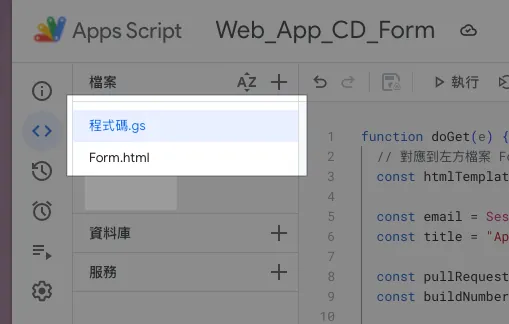
Step 2. Deploy Google Apps Script Web App Form
Let’s first deploy the content we just created and check the results.
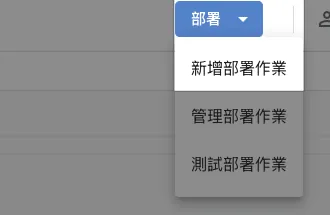
In the top right corner of GAS, select “Deploy” -> “New deployment” -> “Web app”:
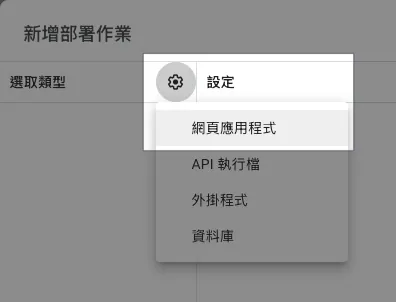
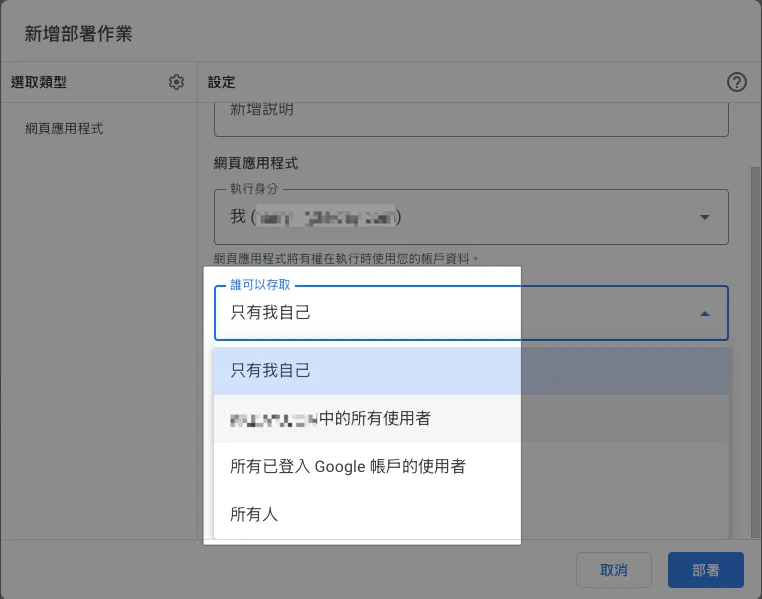
The execution identity and access permissions can be set separately as:
Execution Identity:
I run the script consistently using your account identity.
The user accessing the web app
will run the script as their currently logged-in Google account.
Who can access:
Only myself
XXX All users within the same organization
Only users in the same organization with a logged-in Google account can access.All signed-in Google account users
Signed-in Google account users can access.Everyone does
not need to sign in with a Google account; access is open to all.
We choose “Who has access: All users in the same organization XXX” + “Execute as: User accessing the web app” to automatically restrict access to organization accounts only, and run with their own identity!
It’s a very convenient feature for permission management!
After selection, click “Deploy” at the bottom right.
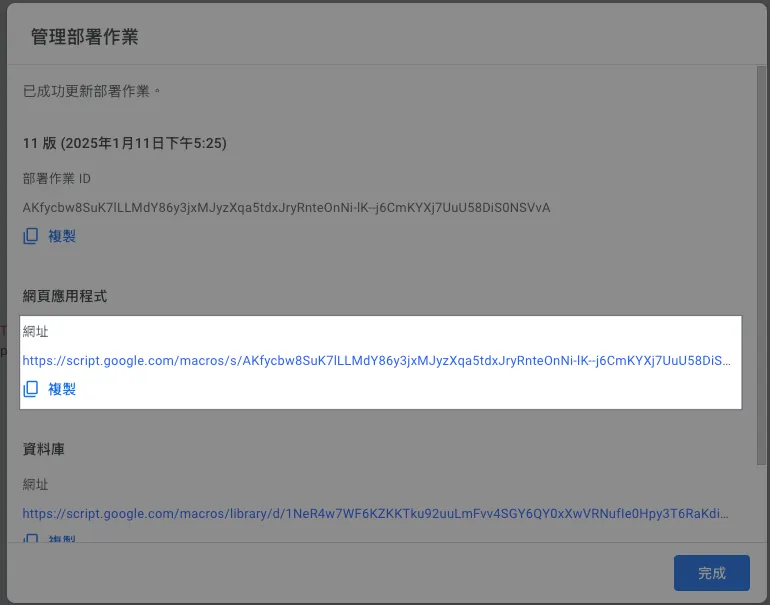
The URL in the web application is the access URL for the Web App.
1
https://script.google.com/macros/s/AKfycbw8SuK7lLLMdY86y3jxMJyzXqa5tdxJryRnteOnNi-lK--j6CmKYXj7UuU58DiS0NSVvA/exec
The URL is very long and ugly, but there is no choice; you have to use a URL shortener tool.
Click the link to open the page and see the effect:
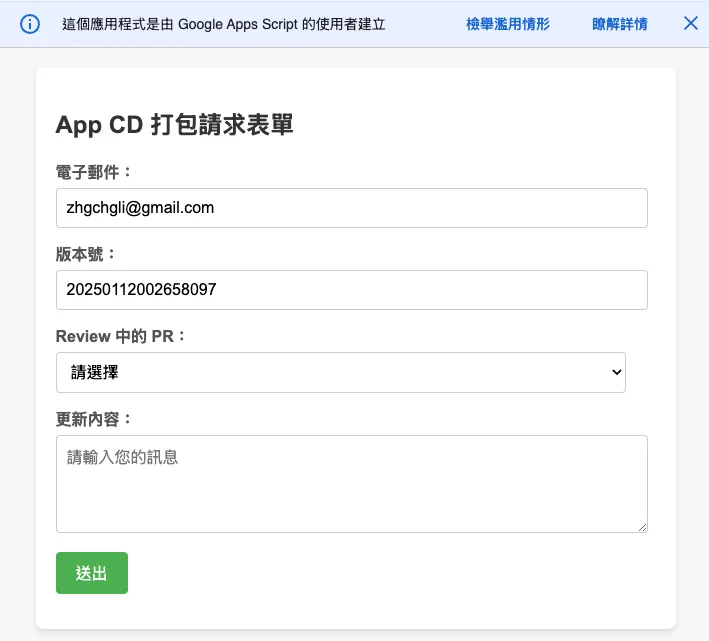
Here are two more limitations of GAS:
Warning message at the top of GAS Web App cannot be hidden by default
GAS Web App uses an IFrame to embed our page, making it difficult to achieve 100% RWD (Responsive Web Design) effect.
You can only use.setWidth()to adjust the window width.
Google Apps Script Authorization Warning
First time use, clicking “Debug” or “Run” may trigger the following authorization warning:
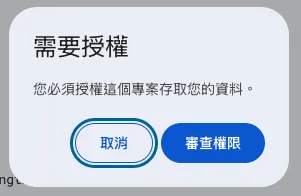
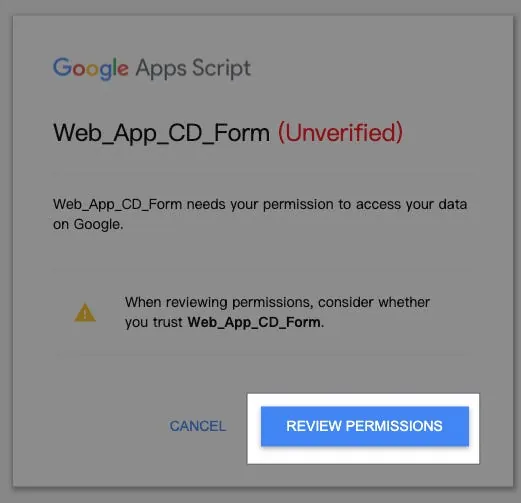
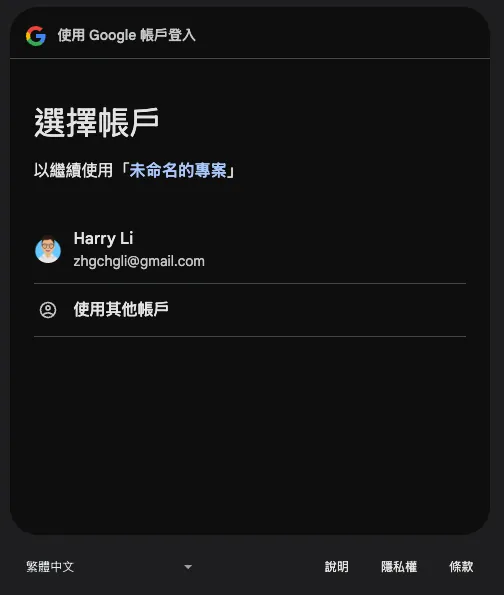
Select the account you want to use. If you see “This app isn’t verified by Google,” click “Advanced” -> “Go to XXX (unsafe),” then choose “Allow”:
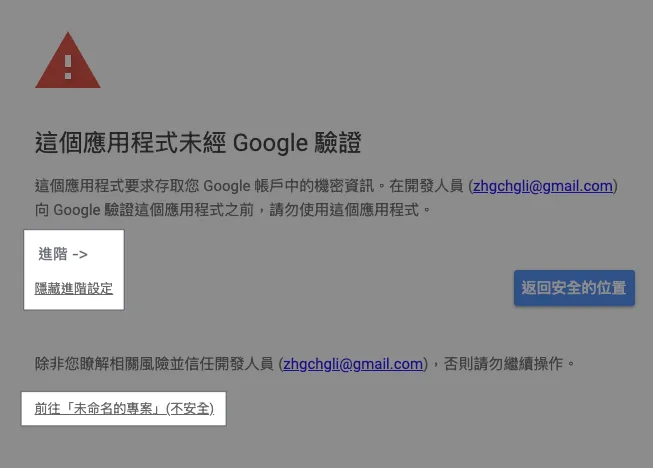
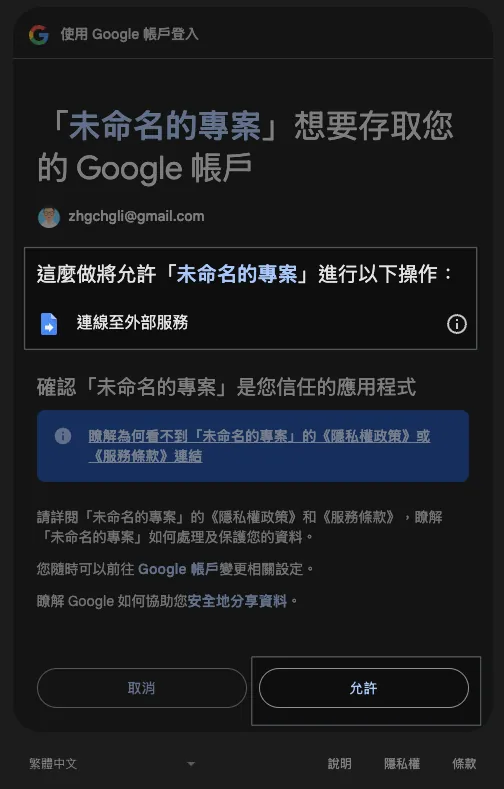
If the GAS script permissions change (e.g., adding access to Google Sheets, etc.), re-authorization is required; otherwise, once authorized, it will not prompt again.
If you encounter: Access to “XXX” is blocked due to incomplete Google verification, please refer to my latest article on GCP settings.
Step 3. Connect to GitHub API to Get PR Branch List
We add a new Github.gs file to store the GitHub API related logic.
Github.gs:
1
2
3
4
5
6
7
8
9
10
11
12
13
14
15
16
17
18
19
20
21
22
23
24
25
26
27
28
29
30
31
32
33
34
35
36
37
38
39
40
41
42
43
44
45
46
47
48
49
50
51
52
53
54
55
56
57
58
59
60
61
62
63
64
65
66
67
68
69
70
71
72
73
74
75
76
77
78
79
80
81
82
83
84
85
86
87
88
89
90
// SECRET
const githubPersonalAccessToken = ""
// Use your GitHub account or a shared GitHub account within your organization to create a PAT
// https://docs.github.com/en/authentication/keeping-your-account-and-data-secure/managing-your-personal-access-tokens

// Method 1: Access via Restful API
function githubAPI(method, path, payload = null) {
  try {
    const url = "https://api.github.com"+path;
    var options = {
      method: method,
      headers: {
        "Accept": "application/vnd.github+json",
        "Authorization": `Bearer ${githubPersonalAccessToken}`,
        "X-GitHub-Api-Version": "2022-11-28"
      }
    };

    if (method.toLowerCase().trim() == "post") {
      options.payload = JSON.stringify(payload);
    }

    const response = UrlFetchApp.fetch(url, options);
    const data = JSON.parse(response.getContentText());
    return data;
  } catch (error) {
    throw error;
  }
}

// Method 2: Access via GraphQL
// Some detailed queries are only available via GitHub's GraphQL API
// https://docs.github.com/en/graphql
function githubGraphQL(query, variables) {
  const url = "https://api.github.com/graphql";
  const payload = {
    query: query,
    variables: variables
  };

  const options = {
    method: "post",
    contentType: "application/json",
    headers: {
      "Accept": "application/vnd.github+json",
      "Authorization": `Bearer ${githubPersonalAccessToken}`,
      "X-GitHub-Api-Version": "2022-11-28"
    },
    payload: JSON.stringify(payload)
  };

  try {
    const response = UrlFetchApp.fetch(url, options);
    const data = JSON.parse(response.getContentText());
    return data;
  } catch (error) {
    throw error;
  }
}

// GraphQL Example:
// const query = `
//   query($owner: String!, $repo: String!) {
//     repository(owner: $owner, name: $repo) {
//       pullRequests(states: OPEN, first: 100, orderBy: { field: CREATED_AT, direction: DESC }) {
//         nodes {
//           title
//           url
//           number
//           createdAt
//           author {
//             login
//           }
//           headRefName
//           baseRefName
//           body
//         }
//         pageInfo {
//           hasNextPage
//           endCursor
//         }
//       }
//     }
//   }
// `;
// const variables = {
//   owner: "swiftlang",
//   repo: "swift"
// };
// const response = githubGraphQL(query, variables);
There are two ways to access the GitHub API: the traditional Restful method and the more flexible GraphQL; this article uses Restful as an example.
code.gs:
1
2
3
4
5
6
7
8
9
10
11
12
13
14
15
16
17
18
19
20
21
22
23
24
25
26
27
28
29
30
31
32
33
34
35
36
37
38
39
40
41
42
43
44
45
46
47
48
49
50
51
52
function doGet(e) {
  // Corresponds to the Form.html file on the left
  const htmlTemplate = HtmlService.createTemplateFromFile('Form');

  const email = Session.getActiveUser().getEmail();
  // Get user email, valid only if execution identity is the user accessing the web app

  const title = "App CD Packaging Request Form";

  const pullRequests = githubAPI("get", "/repos/swiftlang/swift/pulls");
  // Example: https://github.com/swiftlang/swift/pulls

  const buildNumber = genBuildNumber();

  htmlTemplate.email = email;
  htmlTemplate.title = title;
  htmlTemplate.pullRequests = pullRequests;
  htmlTemplate.buildNumber = buildNumber;

  const html = htmlTemplate.evaluate();
  html.setTitle(title);
  //html.setWidth(600) // Set page width

  return html
}

function processForm(object) {
  if (object.buildNumber == "") {
    return {"ok": false, "message": "Please enter the build number!"};
  }
  if (object.branch == "") {
    return {"ok": false, "message": "Please select a branch version!"};
  }

  // Parameters to pass to GitHub Action
  const payload = {
    ref: object.branch,
    inputs: {
      buildNumber: object.buildNumber
    }
  };

  //
  try {
    const response = githubAPI("post", "/repos/zhgchgli0718/ios-project-for-github-action-ci-cd-demo/actions/workflows/CD-Job.yml/dispatches", payload);
    // Example: https://github.com/zhgchgli0718/ios-project-for-github-action-ci-cd-demo/blob/main/.github/workflows/CD-Job.yml

    return {"ok": true, "message": `Packaging request sent successfully!<br/>Branch: <strong>${object.branch}</strong><br/>Build Number: <strong>${object.buildNumber}</strong>`};
  } catch (error) {
    return {"ok": false, "message": "An error occurred: "+error.message};
  }
}
The processForm method handles the form submission and can also include additional processing.
GAS x Github API x Github Action
Here is some additional information corresponding to the Github Action.
CD-Job.yml:
1
2
3
4
5
6
7
8
9
10
11
12
13
14
15
16
17
18
19
20
21
# CD Packaging Job

name: CD-Job

on:
  workflow_dispatch:
    inputs:
      buildNumber: # Corresponds to GAS payload.inputs.xxx
        description: 'Version number'
        required: false
        type: string
      # ...More
      # For input types, refer to official docs: https://docs.github.com/en/actions/writing-workflows/workflow-syntax-for-github-actions#onworkflow_dispatchinputs

jobs:
  some-job:
    runs-on: ubuntu-latest
    steps:
      - name: Print Inputs
        run: \\|
          echo "Release Build Number: ${{ github.event.inputs.buildNumber }}"
Step 4. Redeploy Google Apps Script Web App Form
⚠️Please note that any changes to the GAS code require redeployment to take effect.⚠️
⚠️ Please note that any changes to the GAS code require redeployment to take effect. ⚠️
⚠️Please note that any changes to the GAS code require redeployment to take effect.⚠️
In GAS, click “Deploy” at the top right -> select “Edit” at the top right -> choose “Create new version” under Versions
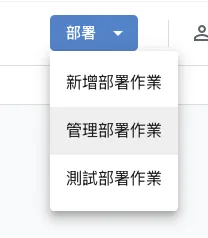
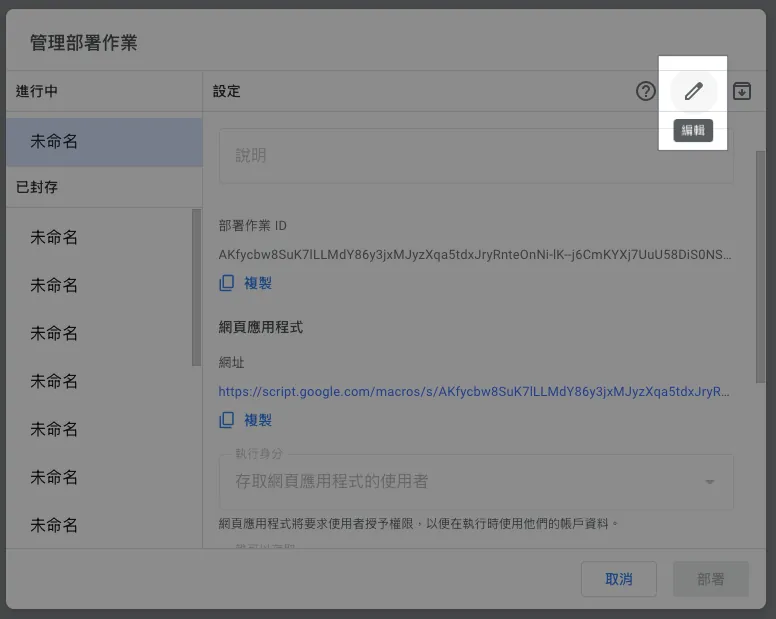
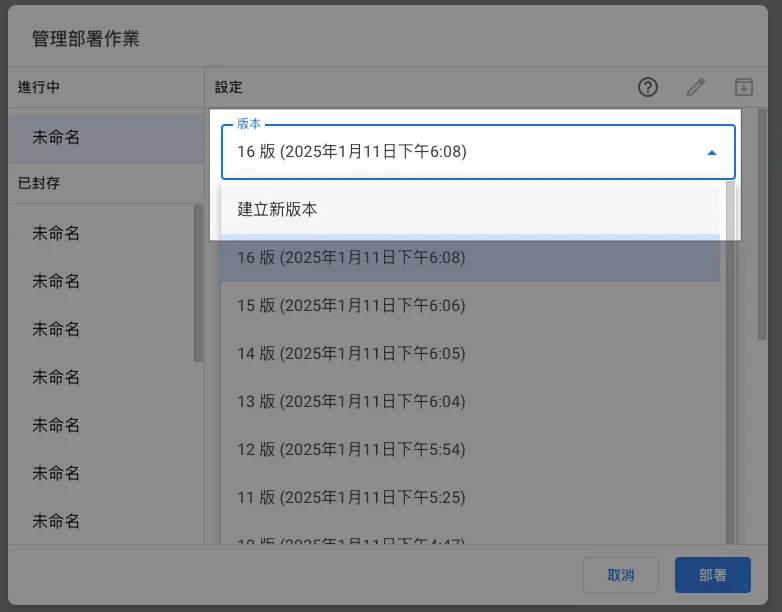
Click “Deploy” -> Done.
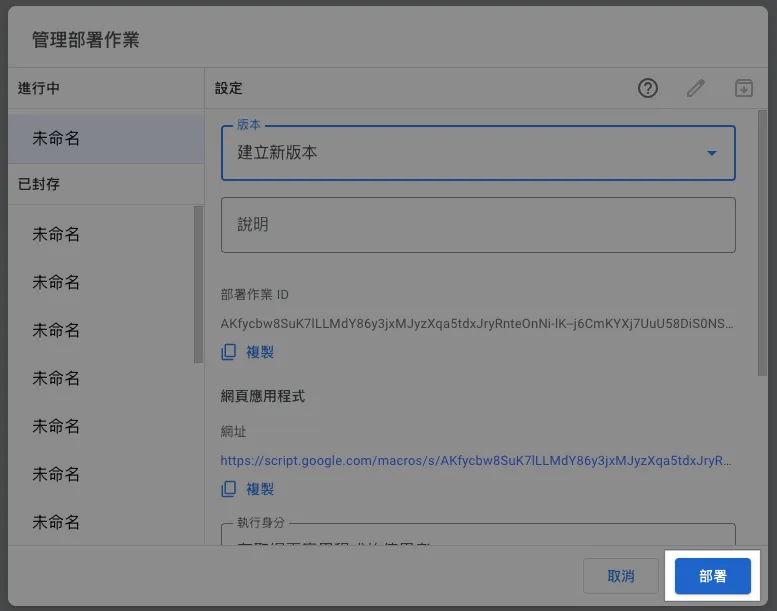
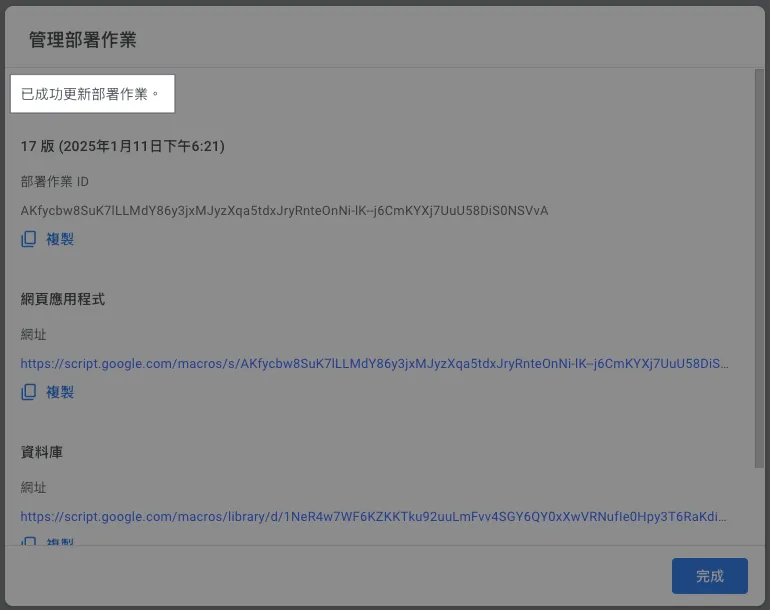
Go back to the webpage and refresh to see the updated results:
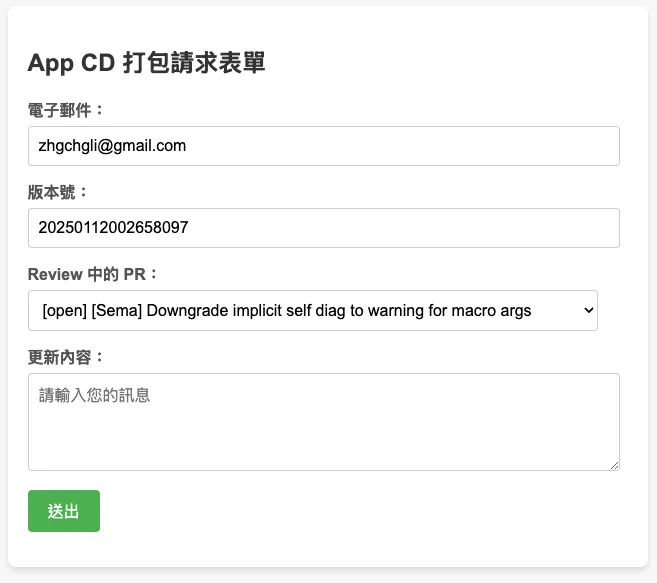
⚠️ Please note that any changes to the GAS code require redeployment to take effect. ⚠️
⚠️Please note that any changes to the GAS code require redeployment to take effect.⚠️
⚠️Please note that any changes to the GAS code require redeployment to take effect.⚠️
Done! 🎉🎉🎉
{:target="_blank"}](/assets/4cb4437818f2/1*9aaNeemezNPRlSgbLFrseA.webp)
You can now share this link within your organization, allowing your teammates to directly use this web GUI to execute CI/CD tasks.
Extension (1) — Query Slack User ID Using User’s Email & Send/Update Progress Notifications
As mentioned earlier, we want to notify users promptly about the CI/CD execution status. We can use the email provided by the user to look up their Slack User ID.
Slack.gs:
1
2
3
4
5
6
7
8
9
10
11
12
13
14
15
16
17
18
19
20
21
22
23
24
25
26
27
28
29
30
31
32
33
34
35
36
37
38
39
40
41
42
43
44
45
46
47
48
49
50
51
52
53
54
55
56
57
58
59
60
61
62
63
64
65
66
67
const slackBotToken = ""
// https://medium.com/zrealm-robotic-process-automation/slack-chatgpt-integration-bd94cc88f9c9

function slackRequest(path, content) {
  const options = {
    method: "post",
    contentType: "application/json",
    headers: {
      Authorization: `Bearer ${slackBotToken}`, // Use the bot token for authorization,
      'X-Slack-No-Retry': 1
    },
    payload: JSON.stringify(content)
  };

  try {
    const response = UrlFetchApp.fetch("https://slack.com/api/"+path, options);
    const responseData = JSON.parse(response.getContentText());
    if (responseData.ok) {
      return responseData
    } else {
      throw new Error(`Slack: ${responseData.error}`);
    }
  } catch (error) {
    throw error;
  }
}

// Look up Slack UID by email
function getSlackUserId(email) {
  return slackRequest(`users.lookupByEmail?email=${encodeURIComponent(email)}`)?.user?.id;
}

// Send message to target Slack UID (channelID)
function sendSlackMessage(channelId, ts = null, value)  {
  var content = {
    channel: channelId
  };

  if (ts != null) {
    content.thread_ts = ts;
  }

  if (typeof value === "string") {
    content.text = value;
  } else {
    content.blocks = value;
  }
  return slackRequest("chat.postMessage", content);
}

// Update sent message content
function updateSlackMessage(channelId, ts = null, value)  {
  var content = {
    channel: channelId
  };

  if (ts != null) {
    content.ts = ts;
  }

  if (typeof value === "string") {
    content.text = value;
  } else {
    content.blocks = value;
  }
  return slackRequest("chat.update", content);
}
For Slack API usage, please refer to the official documentation.
GitHub Action YAML can use this Action to continuously update messages and send Slack notifications:
1
2
3
4
5
6
7
8
9
10
11
12
13
14
15
16
17
18
19
20
21
22
23
24
25
26
27
28
29
30
31
32
33
34
# ...
on:
  workflow_dispatch:
    inputs:
      buildNumber: # Corresponds to GAS payload.inputs.xxx
        description: 'Version number'
        required: false
        type: string
      # ...More
      SLACK_USER_ID:
        description: 'Slack User Id for receiving action notification'
        type: string
      SLACK_CHANNEL_ID:
        description: 'Slack Channel Id for receiving action notification'
        type: string
      SLACK_THREAD_TS:
        description: 'Slack message ts'
        type: string

jobs:
  # some jobs...

  if-deploy-failed-message:
    runs-on: ubuntu-latest
    if: failure()
      - name: update slack message
        uses: slackapi/[email protected]
        with:
            method: chat.update
            token: ${{ secrets.SLACK_BOT_TOKEN }}
            payload: \\|
              channel: ${{ github.event.inputs.SLACK_CHANNEL_ID }}
              ts: ${{ github.event.inputs.SLACK_THREAD_TS }}
              text: "❌ Packaging task failed, please check the execution status or try again later.\n<${{ github.server_url }}/${{ github.repository }}/actions/runs/${{ github.run_id }}\\|Click here to view the status> cc'ed <@${{ github.event.inputs.SLACK_USER_ID }}>"
Effect:
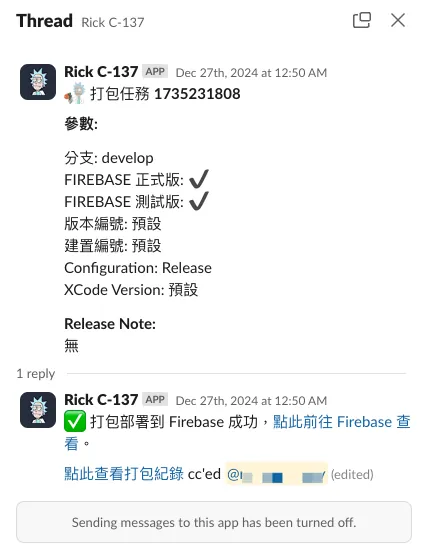
For details on Slack App integration, please refer to my previous article: Slack & ChatGPT Integration .
Extension (2) — Query Jira Tickets
Jira.gs:
1
2
3
4
5
6
7
8
9
10
11
12
13
14
15
16
17
18
19
20
21
22
23
24
25
26
27
28
29
30
31
32
33
34
const jiraPersonalAccessToken = ""
// https://confluence.atlassian.com/enterprise/using-personal-access-tokens-1026032365.html

function getJiraTickets() {
  const url = `https://xxx.atlassian.net/rest/api/3/search`;

  // JQL query
  const jql = `project = XXX`;
  const queryParams = {
    jql: jql,
    maxResults: 50, // Adjust as needed
  };

  const options = {
    method: "get",
    headers: {
      Authorization: "Basic " + jiraPersonalAccessToken,
      "Content-Type": "application/json",
    },
    muteHttpExceptions: true,
  };

  const queryString = Object.keys(queryParams).map(key => `${encodeURIComponent(key)}=${encodeURIComponent(queryParams[key])}`).join("&");
  const response = UrlFetchApp.fetch(url + "?" + queryString + "&fields=", options);
  // could specify only return some fields

  if (response.getResponseCode() === 200) {
    const issues = JSON.parse(response.getContentText()).issues;
    return issues;
  } else {
    Logger.log(`Error: ${response.getResponseCode()} - ${response.getContentText()}`);
    throw new Error("Failed to fetch Jira issues.");
  }
}
For other Jira API usages, please refer to the official documentation .
Extension (3) — Query Asana Tasks
Asana.gs:
1
2
3
4
5
6
7
8
9
10
11
12
13
14
15
16
17
18
19
20
21
22
23
24
const asanaPersonalAccessToken = ""
// https://developers.asana.com/docs/personal-access-token

function asanaAPI(endpoint, method = "GET", data = null) {
    var options = {
      "method" : method,
      "contentType" : "application/json",
      "headers": {
          "Authorization":  "Bearer "+asanaPersonalAccessToken
      }
    };

    if (data != null) {
      options["payload"] = JSON.stringify({"data":data});
    }

    const url = "https://app.asana.com/api/1.0"+endpoint;
    const res = UrlFetchApp.fetch(url, options);
    const data = JSON.parse(res.getContentText());
    return data;
}

// Find tasks in project
// asanaAPI("/projects/PROJECT_ID/tasks");
For other Asana API usage, please refer to the official documentation.
Summary
Automation, work, and development process optimization never lack technology, but ideas; as long as we have ideas, we can find the right technology to realize them. Let’s encourage each other!
2025/07 Update:
This feature has been integrated into the actual packaging tool. Please refer to the latest article case: “CI/CD Practical Guide (4): Using Google Apps Script Web App to Connect GitHub Actions and Build a Free and Easy Packaging Tool Platform”
If you have any questions or suggestions, feel free to contact me .
This post was originally published on Medium (View original post), and automatically converted and synced by ZMediumToMarkdown.