
Complete Guide to Applying and Using the Citizen Digital Certificate: Fees, PIN, Card Reader, Mobile NFC, Mobile Citizen Certificate, and Uses Explained
You might need it for online tax filing, applying for government documents, checking labor and health insurance data, or in situations like I encountered while preparing a LINE Bank tutorial: to increase transfer limits or set up a designated account, the bank requires online verification using the Natural Person Certificate.
Whether you are “hearing about the Natural Person Certificate for the first time” or “already have the card but don’t know how to use it,” this article breaks down the entire process in detail: application, essential steps after receiving the card, how to use it on computer/mobile, what the mobile Natural Person Certificate is, its applications, and how to troubleshoot common issues.
This article is compiled from official information and practical experience. Content may change with policy or website updates, so please refer to MOICA (Ministry of the Interior Certificate Authority) and official service websites for the latest announcements.
Further reading (bank case study): LINE Bank Deposit to Firstrade, Account Upgrade, and Designated Account Tutorial
1. What is the Citizen Digital Certificate? Explain Clearly in One Sentence
Citizen Digital Certificate is a card with an IC chip (or its “mobile version”) that allows two functions online:
-
Identity Verification: Proves “you are who you are” for login, inquiry, or application purposes
-
Digital Signature: Signing documents online (widely accepted as equivalent to a personal signature or seal)
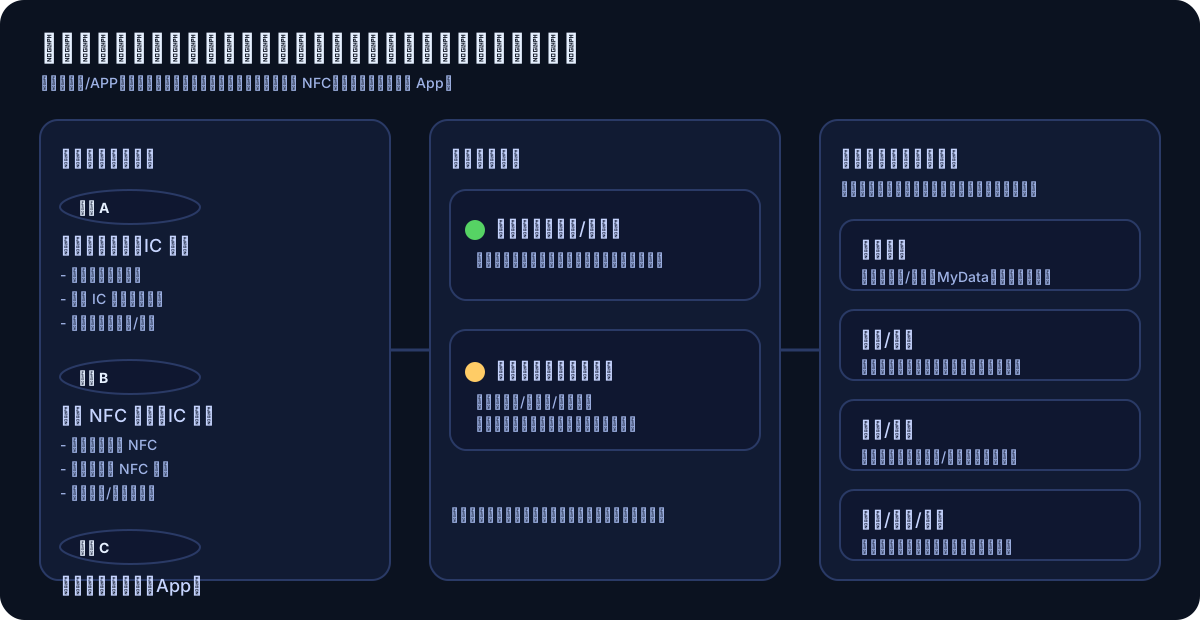
The image below separates “How to Use” and “What It Can Do,” making it easier to understand why sometimes a card reader is needed and other times a phone is enough:
2. Citizen Digital Certificate vs Mobile Citizen Digital Certificate: What’s the Difference?
There are two common types you often see:
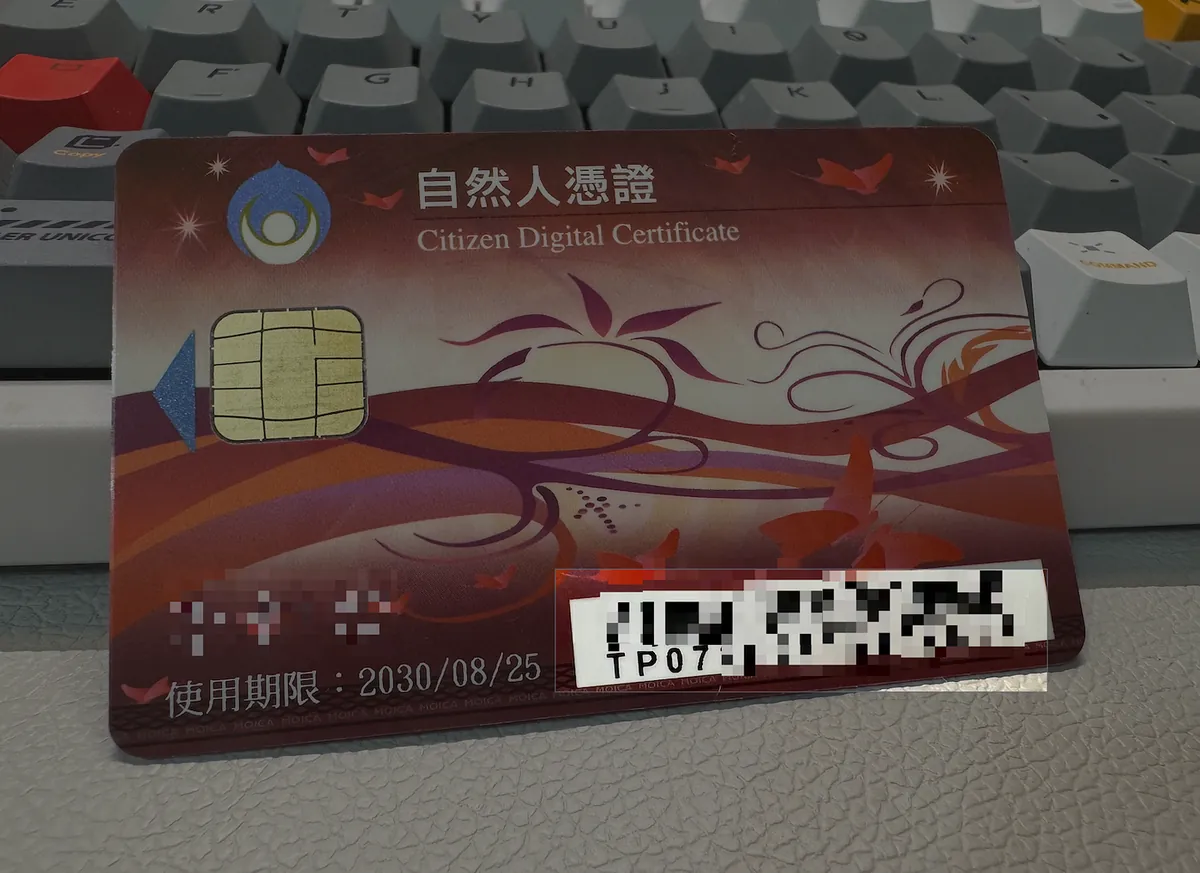
1) Citizen Digital Certificate IC Card (Physical Card)
-
You will receive a physical card.
-
Common Usage Methods:
-
Computer + Card Reader
-
Mobile NFC (provided that the “website/app supports it” + “your card version supports it”)
-
2) Mobile Natural Person Certificate (App Version)
-
Not “using the phone to scan the physical card,” but binding the certificate within the mobile app and completing verification via biometric recognition or the phone’s security features.
-
Advantages: No need to carry a card reader or insert a card
-
Restrictions:
-
Mobile devices that support biometric authentication
-
Usually, “one certificate can only be bound to one device.”
-
Key updates/renewals are required periodically (according to official regulations).
-
3. Must-Read Before Applying: Eligibility, Fees, and What to Bring
This part is very important because if you forget to bring even one item, your trip will be wasted.
Eligibility for Application (Common Requirements)
-
At least 18 years old
-
Registered household
-
In-person application (original ID card required)
Fees (Subject to Official Announcement)
-
Citizen Digital Certificate IC Card: Processing Fee 250 NTD
-
Mobile Natural Person Certificate: Mobile Device Binding Fee 30 NTD
-
Card Reader: Purchase Separately
What Do You Need to Prepare?
I suggest you follow this most reliable checklist:
-
Original National ID Card
-
Processing Fee (Cash)
-
Email + Mobile Number (mainly used for receiving notifications)
4. Natural Person Certificate Application Process: Online Form → In-Person at Household Registration Office → Card Collection
One sentence: Online is only for “filling in information first,” the final step always requires visiting the household registration office in person.
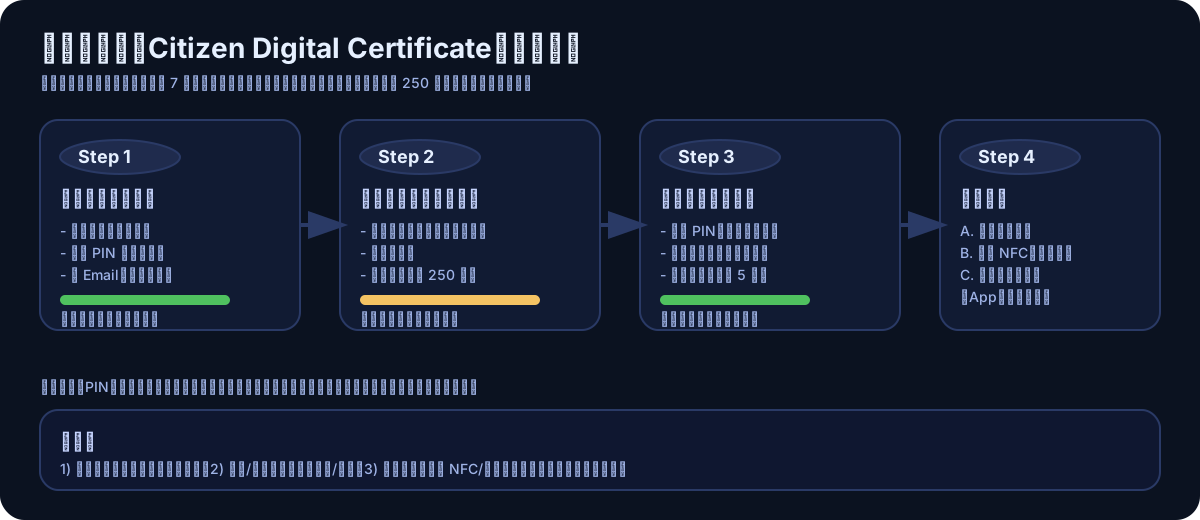
Step 1: Fill in the Application Online (RAC)
The official portal is usually at MOICA:
You will see a form containing fields for Name, ID Number, Email, Mobile Phone, PIN Code (Card Password), and User Code:
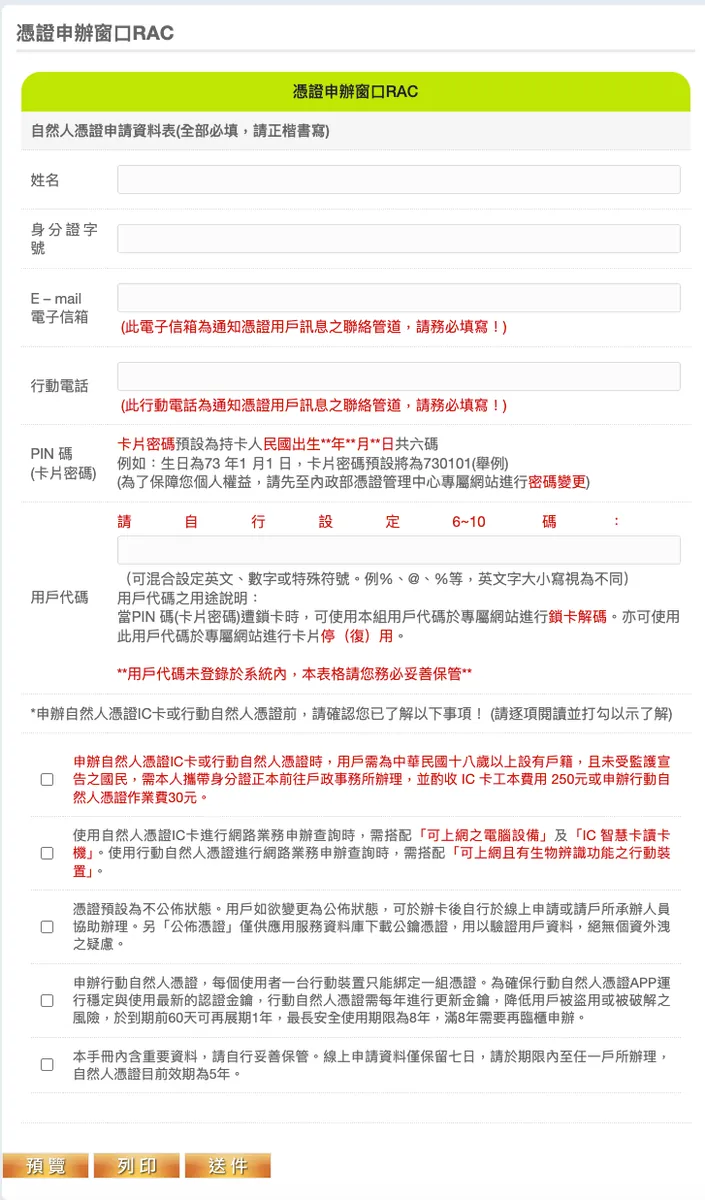
Two Key Reminders for Online Form Filling:
-
Online application data is usually kept for only 7 days: After filling it out, don’t leave it pending—make sure to visit the household registration office in time.
-
The “User Code” you fill in the form usually needs to be properly kept by yourself (explained later why).
Step 2: Go to Any Household Registration Office for In-Person Application
The key point is “any household registration office”: usually, you don’t need to return to your registered domicile.
The on-site process is roughly: identity verification → payment → set/confirm password → receive card.
Step 3: After receiving the card, first perform “Activation and Security Settings”
Don’t rush to log into websites right after getting the card; first, finish reading the next chapter (PIN / User Code / Security).
5. What Exactly Are the PIN Code/User Code? (Read This Chapter to Avoid 80% of Common Mistakes)
The most common issue when using the Natural Person Certificate is not “how to apply,” but:
-
Forgot PIN
-
PIN entered incorrectly causing card lock
-
Don’t know what the user code is for
1) PIN Code (Card Password)
You can think of it as: the unlock password you enter each time you want to “use the card.”
Many processes require entering the PIN to complete verification or signing.
Common explanation on MOICA forms: The PIN may have a default rule (e.g., the last 4 digits of the ID number + birth month and day MMDD), and it is recommended that you change the password on the dedicated website after completion.
This also means: The default PIN can be guessed, so be sure to change it.
2) User Code
User codes are usually used for management operations such as “unlocking/deactivating (reactivating)” according to official rules.
The official reminder is: User codes are not registered in the system, so you must keep them safe yourself.
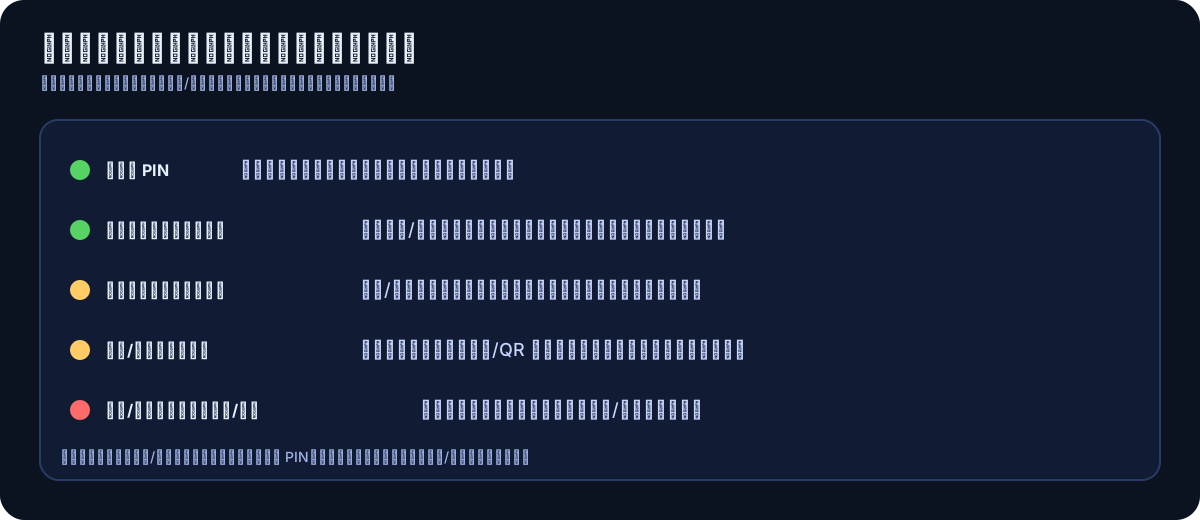
3) Security Management Checklist (Follow Exactly)
6. How to Use the Natural Person Certificate on a Computer? (Common Concepts for Windows/macOS)
Just remember one formula:
Citizen Digital Certificate IC Card + Card Reader + Computer (with internet) + Required components/drivers for the service = Usable
1) How to Choose a Card Reader?
Generally, a USB card reader that supports “Smart Card” will work.
If you only need it for tax filing or occasional use, a common model is enough; for long-term office use, choose one with better quality and compatibility.
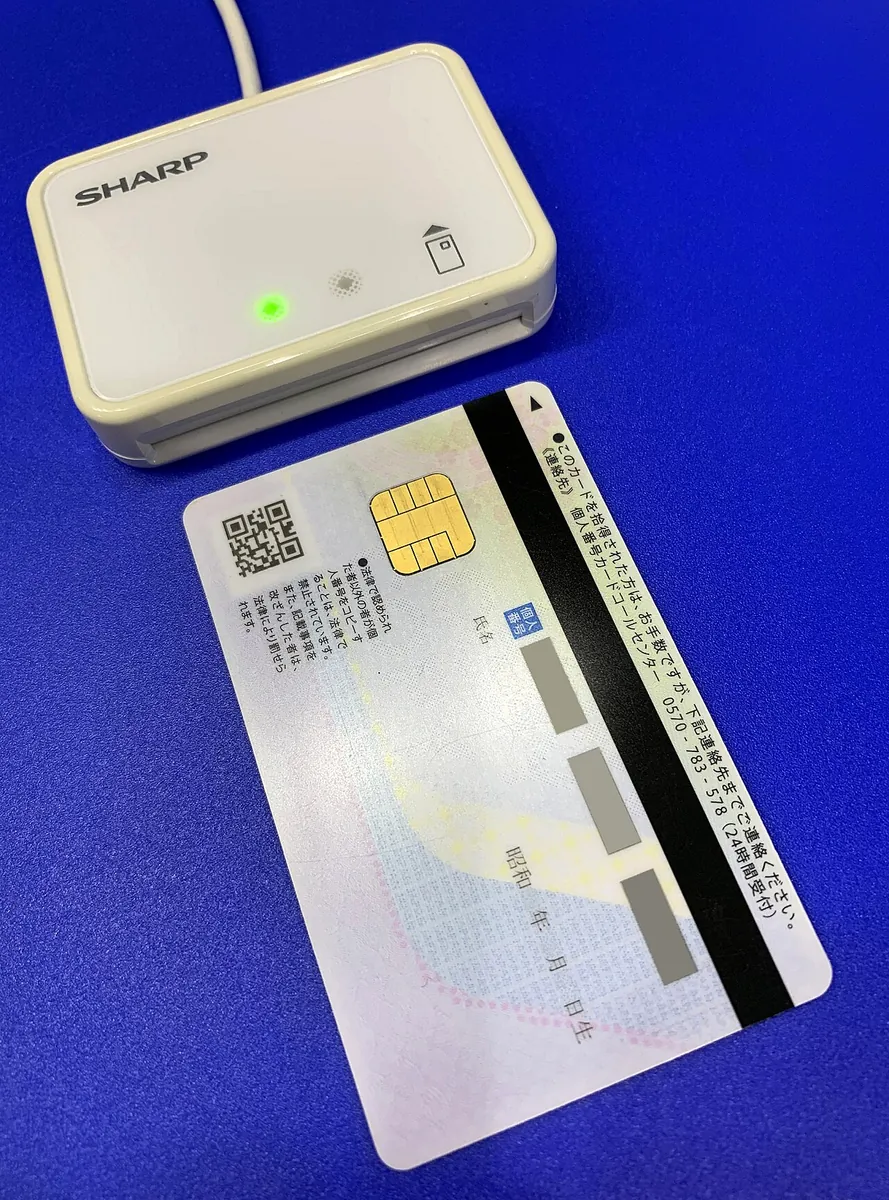 (Image source: Wikimedia Commons / CC BY-SA 4.0 / Project Kei / https://commons.wikimedia.org/wiki/File:IC_Card_Reader_Writer_RW-5100W.jpg)
2) What software should be installed?
Different websites require different components (such as cross-platform web components, drivers, or card management tools).
The most reliable approach is to follow the download page of the specific website you want to use and install accordingly.
You can find the “Cross-Platform Web Component Download” entry on MOICA:
Reminder: Some components may require browser permissions or restarting the browser/computer. Following the steps usually resolves the issue.
3) Standard Procedure for Use (Almost All Websites Are Similar)
-
Insert the Citizen Digital Certificate into the card reader
-
Open the website and select “Natural Person Certificate” to log in/sign
-
Enter the PIN as prompted
-
Remove the card after completing login/signature
4) Common Troubleshooting (Computer)
-
Website can’t read the card: Try changing the USB port, reconnecting the card reader, swapping the cable, or testing on a different computer.
-
Keeps prompting component not installed: Check if the browser/component versions match (especially after macOS updates).
-
PIN Always Incorrect: Stop immediately! Do not keep trying to avoid locking the card; first confirm if this is the PIN you changed.
7. How to Verify the Natural Person Certificate Using Mobile NFC? (A Common Pain Point)
If your goal is “online verification for banks/apps,” you will likely encounter NFC mode.
For example, when I was organizing a tutorial for LINE Bank, I found that “setting up a designated account requires Natural Person Certificate verification.”
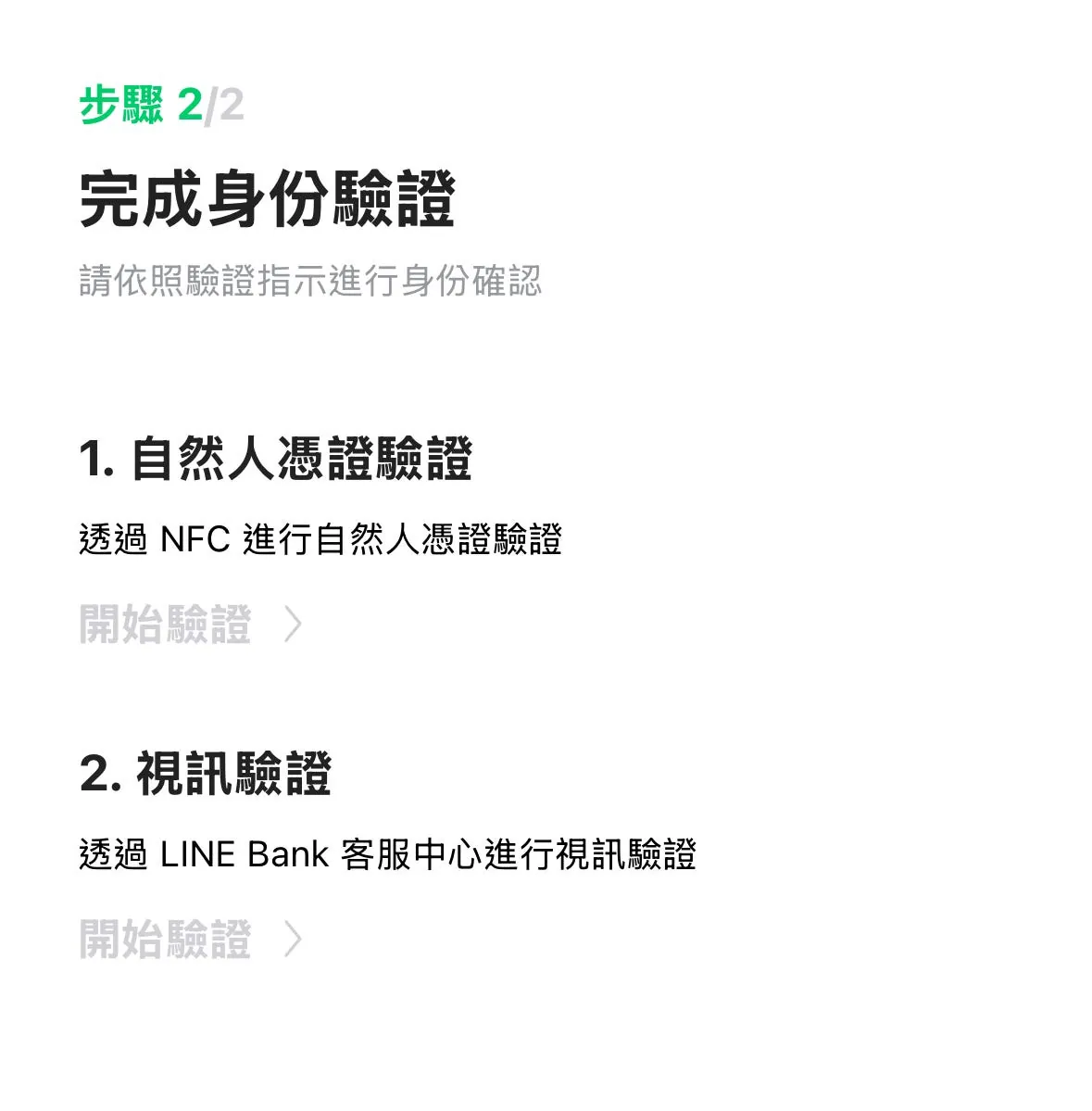
1) First Clarify: You Need to Meet “Three Conditions” Simultaneously
-
Your phone supports NFC
-
Server-side (APP/Website) Support for Reading Natural Person Certificate via NFC
-
Your Citizen Digital Certificate Card Version Supports NFC
For example, based on your experience: some services limit NFC sensing to certain card number prefixes (e.g., TP07).
2) iPhone / Android NFC Tips (Very Useful)
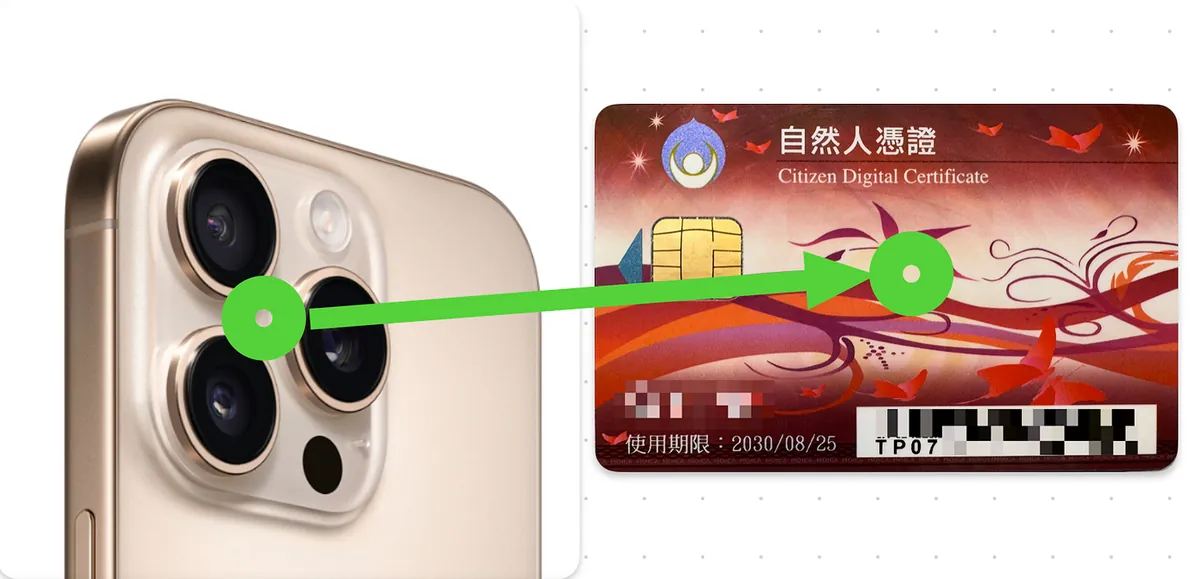
I completely agree with your original comment: the NFC range for the Citizen Digital Certificate is sometimes very short and requires precise alignment.
-
iPhone: First, place the card near the upper back area of the phone or near the camera, then slowly move it to find the sensing point.
-
Android: Usually located at the upper middle or center on the back, depending on the brand.
-
Common Tips: Keep the card flat, move it slowly left/right or up/down, and don’t rush to remove it.
8. Mobile Natural Person Certificate: When Should You Switch to It?
If you meet any of the following conditions, the Mobile Natural Person Certificate might be more suitable for you:
-
You don’t have a card reader and don’t want to buy one
-
You often need to complete government or financial verifications on your mobile phone
-
You want to minimize the hassle of “inserting the card + installing components”
According to MOICA form FAQs, mobile natural person certificates usually have these features (based on official announcements):
-
A mobile device with internet access and biometric authentication is required.
-
A user can usually bind only one set of credentials per device.
-
You may need to periodically update the keys or renew the credentials (for example, renewal is possible 60 days before expiration for 1 year).
-
There is a security validity period (e.g., up to 8 years), after which you must apply again in person.
9. What Can the Citizen Digital Certificate Be Used For? (List All Possible Uses)
The core value of the Natural Person Certificate is “trusted identity verification/signature,” so its applications are very broad. Below is a categorized list to help you quickly reference when needed.
1) Government/Public Services (Most Common)
-
Online Tax Filing (Login/Declaration/Inquiry)
-
MyData Platform Online Personal Data Access and Authorized Data Exchange
-
Household Registration/Land Administration Related Applications (Depending on support from each city/county or system)
-
Login to Various Government Portal Websites (According to website announcements)
2) Finance/Banking/Securities (Common Reason: Risk Control)
-
Increase Transfer Limit
-
Set Up Designated Account (Whitelist)
-
Online Signing of Consent Forms/Contracts
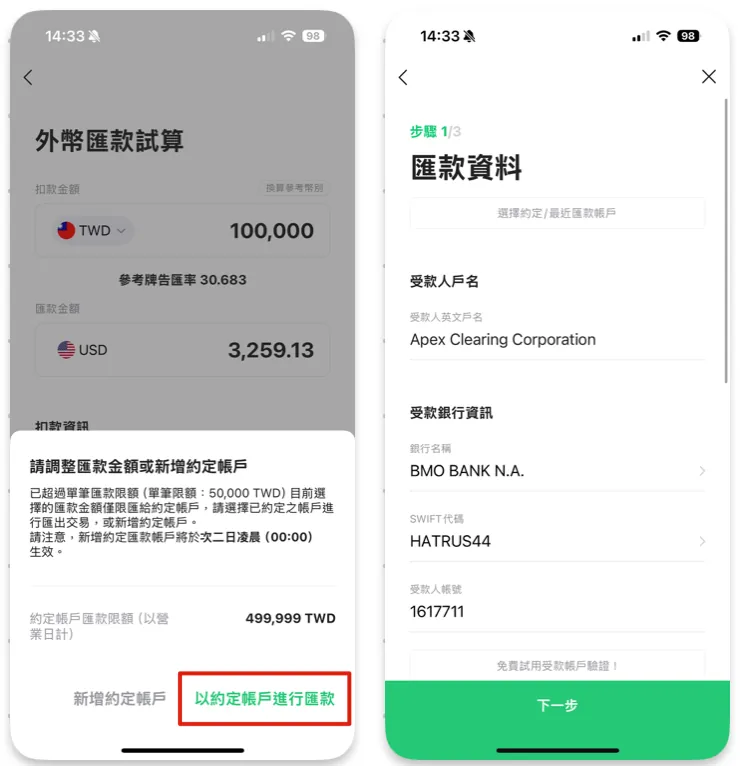
Use the LINE Bank operation screenshots you provided to create a “Practical Case”: The same natural person certificate is commonly used in financial scenarios to “change high-risk operations to require strong personal authentication.”
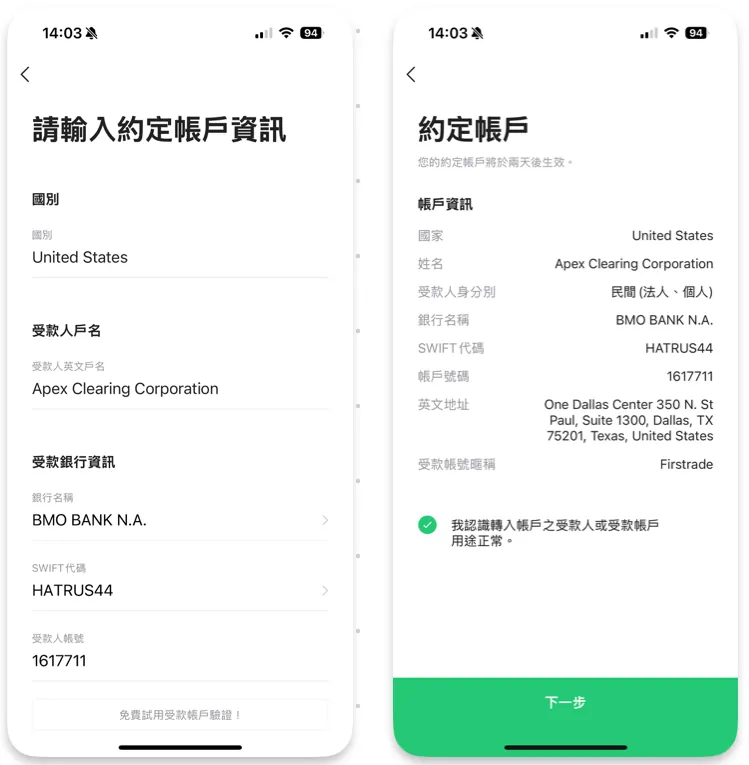
Case: LINE Bank “Add Remittance Designated Account” Requires Natural Person Certificate Verification
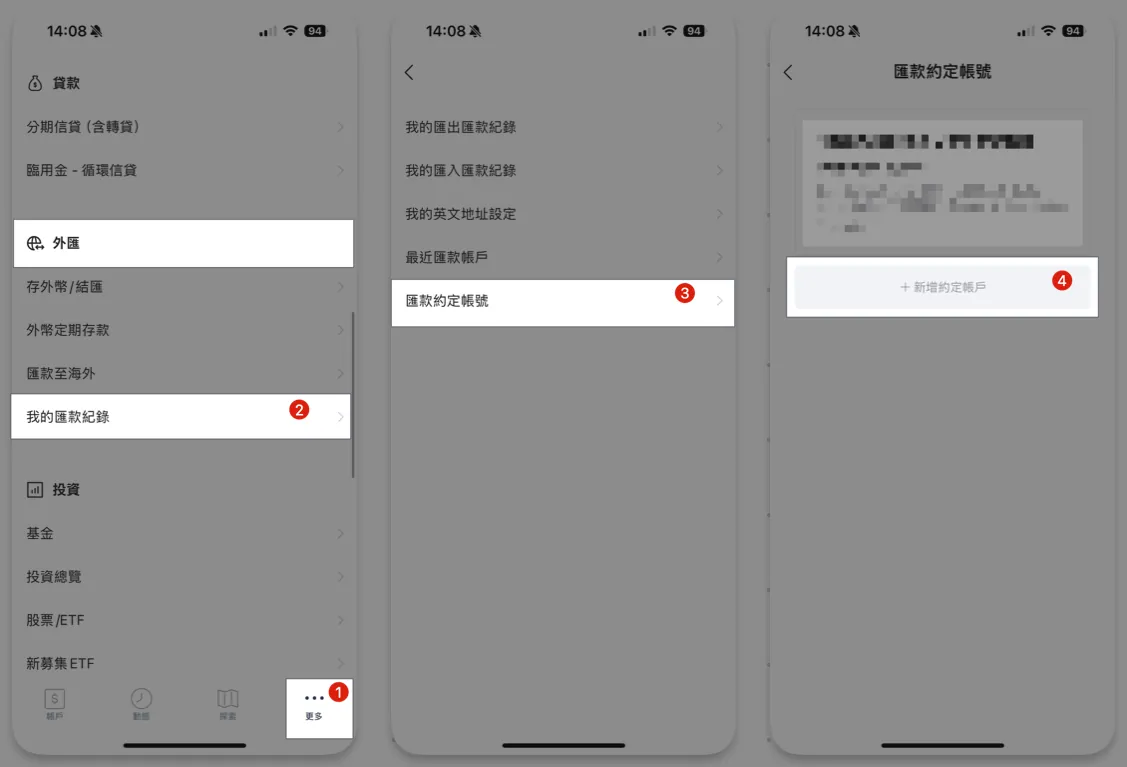
First-time users usually start with “Natural Person Certificate Verification + Video Verification.” After completion, you can add a designated account:
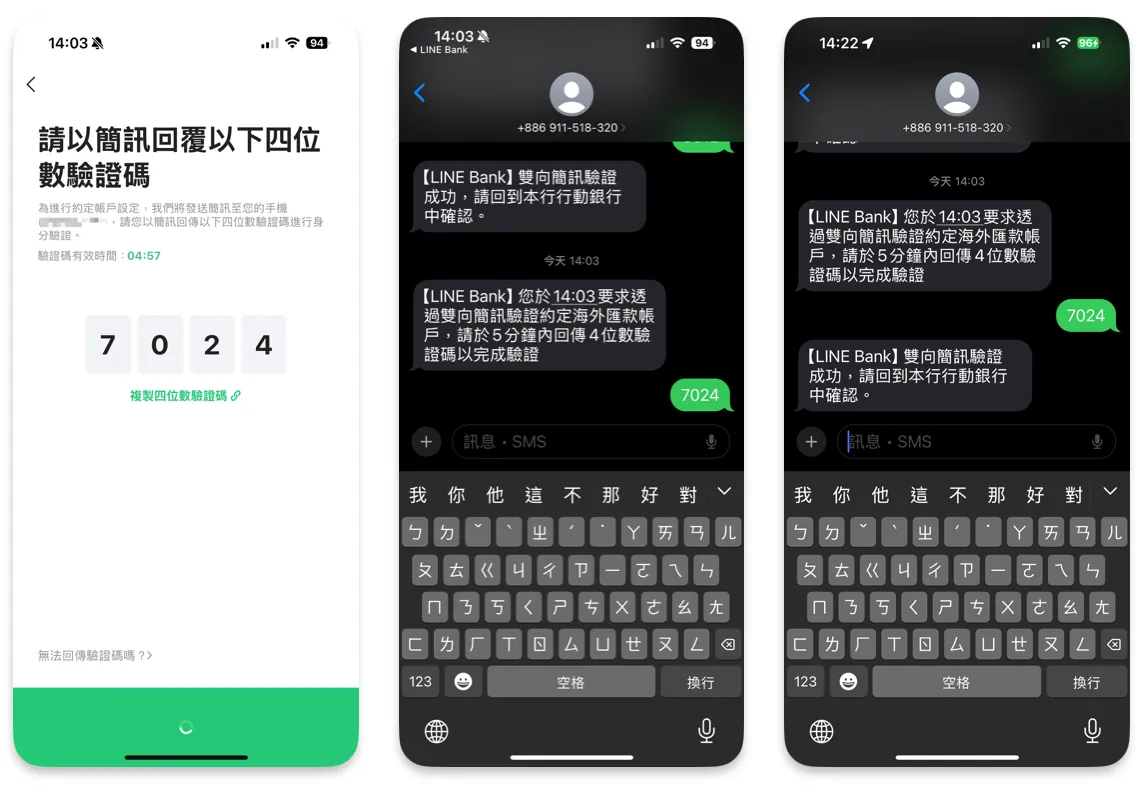
After completing the SMS verification, you will see the addition successful message:
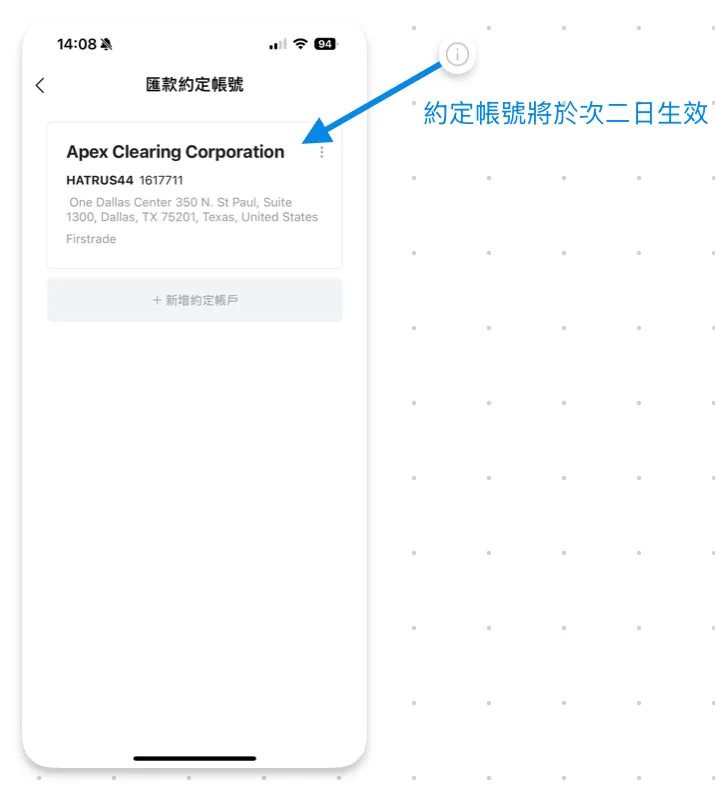
Next time you make a transfer, you can choose “Transfer via designated account,” making the process faster and more secure:
3) Medical/Insurance/Personal Data Inquiry
These services often offer multiple login options (such as Natural Person Certificate, Health Insurance Card, mobile verification, etc.). The differences you usually encounter are:
-
Depth of Available Information
-
Scope of Application Eligibility
-
Is a digital signature required?
10. Frequently Asked Questions (The Most Common Issues You Encounter with the Natural Person Certificate)
Q1: Is a card reader always required for the Citizen Digital Certificate?
Not necessarily. It depends on which method is supported by the service you use:
-
Computer Card Reader (Most Common)
-
Mobile NFC (Requires Server Support)
-
Mobile Citizen Digital Certificate (App)
Q2: What should I do if I forget my PIN code?
Do not try randomly to avoid locking the card. According to official rules, most cases have an “unlock/reset” process (possibly via user code or in-person service). It is recommended to handle it directly through MOICA’s official channels.
Q3: What should I do if I forget my user code?
The official reminder is that “the user code is not recorded by the system,” so losing it usually leads to more complicated procedures (possibly requiring an in-person visit). This is why I always emphasize keeping it offline.
Q4: Why does the phone keep failing to sense the card?
Based on your experience, start by adjusting the “position/angle/duration”:
-
For iPhone, start near the camera and slowly move left and right.
-
Place the card flat, do not swipe it quickly.
-
The server may sometimes require “Do not move the card until the process is complete” after sensing.
Q5: How long is the validity period of the Citizen Digital Certificate?
According to MOICA form FAQs, the physical Citizen Digital Certificate typically has a validity period of 5 years (please refer to the card surface or official announcements for confirmation).
Q6: Can I lend my Citizen Digital Certificate to others?
Not recommended and very dangerous. The Natural Person Certificate has identity verification and digital signature capabilities, so lending it is equivalent to handing over your “online ID card + seal.”
Q7: What should I do if my Citizen Digital Certificate is lost?
Principle: Deactivate or revoke the certificate first, then proceed with reissuance. This prevents misuse if the certificate is found by someone else.
11. Official Resources and Important Links (Recommended to Bookmark)
Further Reading (Practical Cases)
If you started looking into the Natural Person Certificate because of “bank verification/increasing transfer limits/setting up designated accounts,” we recommend you continue with this practical operation guide:
Comments