
What are iOS Certificates, Identifiers & Profiles and Some Notes on Unified Management of Certificates and CI/CD with Fastlane Match
Introduction to the Relationship Between Certificates, Identifiers & Profiles and Using Fastlane Match to Centralize Certificate Issuance Management and Integrate into CI/CD Workflows

Photo by marcos mayer
Preface
In mid-2025, a series of articles was written about building a complete App CI/CD process from scratch using GitHub Actions:
Recently, I set up a new environment and went through the process again. Each time, I learn something new. This time, I focused on iOS Codesigning: the relationship between Certificates, Profiles, and Devices, and how I use Fastlane Match to connect certificate management with CI/CD.
What are Certificates, Identifiers & Profiles, and Devices?
In the Apple ecosystem, app development is based on managing certificates and provisioning profiles, unlike Android where having the .apk file is enough to install and use. Apple enforces strict certificate matching rules; if these are not met, the app cannot be installed or used.
Main Components and Their Functions:
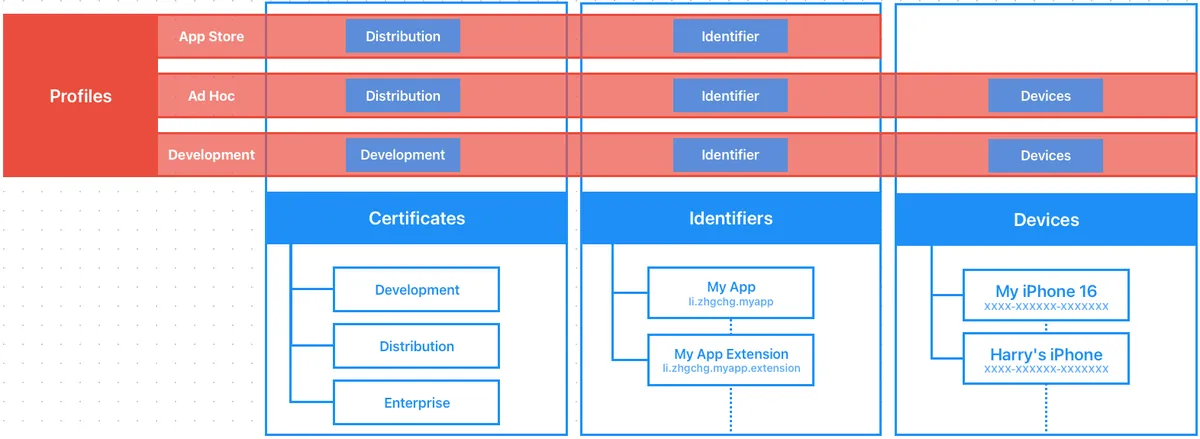
Certificates: The identity used to sign the App (Signing Identity)
-
Development — Used on physical devices during development (no certificates needed for simulators), associated with a person or API Key (with quantity limits).
-
Distribution — Packaging for App Store, TestFlight, or Ad Hoc internal testing (limited to registered devices), with quantity limits, belonging to the Team.
-
Enterprise — Apps for internal use within the company.
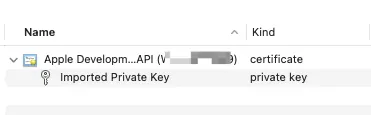
Format : Requires both
Private KeyandCertificate .certo use, or exporting from the original creating computer’s Keychain as a.p12file will include both.
Identifiers: Which App/Extension (Bundle ID)
App’s Bundle ID registration and the required Capabilities to enable (such as Push Notifications, App Groups…), App Services.
Extensions also have their own Identifier.
Devices: Registered Devices (iPhone/iPad..)
Development running on physical devices and Distribution Ad Hoc internal testing can only be used on registered devices.
Limit: 100; including cancellations, the quota will only refresh after each annual billing cycle.
Provisioning Profile (hereafter Profile): Description File
Combination of Certificates + Identifiers + Devices Relationships.
-
Development — Provisioning profiles used during the development phase. Required for testing on physical devices. Profiles include the relationship between Certificates, Identifiers, and Devices.
-
Ad Hoc — A provisioning profile for internal testing (e.g., Deploy to Firebase App Distribution), which includes the relationship between Certificates, Identifiers, and Devices.
-
App Store — Provisioning profiles used for packaging and uploading to the App Store / TestFlight, containing the relationship between Certificates and Identifiers.
Format:
.mobileprovision
Note: A Profile is simply a description file that defines relationships; it does not contain the actual certificate.
Summary
In summary, to build for a physical device (Development Certificate) or perform Archive packaging (Distribution Certificate) on a clean machine without logging into the Xcode Apple Account, you must have two files:
-
.mobileprovisionProvisioning Profile: Describes the relationship between Certificates, Identifiers, and Devices. -
.p12Certificate: The actual certificate file (exported from the original machine where the certificate was created).
Also, starting from macOS ≥ 15, the Keychain has moved to:
open /System/Library/CoreServices/Applications/Keychain\ Access.app
Looked for it for a long time..
Common Errors
⚠️⚠️⚠️ Certificates and Profiles are confirmed correct but errors still occur:
Most likely, you still have leftover old certificates or multiple certificates, causing Xcode to get confused.
This issue is very common!
-
Close Xcode
-
Open macOS keychain:
open /System/Library/CoreServices/Applications/Keychain\ Access.app -
login keychain -> All items -> Search
apple development-> Delete all Certificates -
Finder -> Go -> Go to ->
~/Library/MobileDevice/Provisioning\ Profiles-> Delete all Profiles files -
Re-pull Certificates
-
Restarting Xcode should fix the issue.
No signing certificate “iOS Distribution” found / No signing certificate “iOS Development” found:
No "iOS Distribution" signing certificate matching team ID "" with a private key was found.
No "iOS Development" signing certificate matching team ID "" with a private key was found.
Reason:
-
Missing iOS Distribution/iOS Development Certificate
-
Have an iOS Distribution/iOS Development Certificate but no corresponding Private Key
Solution:
-
Delete all old Certificates and Profiles in the Keychain
-
Find the certificate in the Keychain of the computer where the Certificate was originally created, export it as a
.p12file, and install it on the problematic computer. -
Go to Certificates, Identifiers & Profiles to revoke the old Certificate and generate a new one
(Don’t worry, this won’t affect the live App; it only impacts development and packaging stages)
Provisioning profile “” doesn’t include signing certificate “Apple Development: XXX”. / Provisioning profile “” doesn’t include signing certificate “Apple Distribution: XXX”.:
Reason:
- The currently selected Provisioning Profile does not match the current Certificate.
Solution:
-
Delete all old Certificates and Profiles in the Keychain
-
Go to Certificates, Identifiers & Profiles Profiles to confirm that the provisioning profile has the corresponding certificate checked or recreate the profile for use.
No profile for team ‘’ matching ‘’ found: Xcode couldn’t find any provisioning profiles matching ‘’.:
Reason:
- Provisioning profile not found
Solution:
-
Delete all old Certificates and Profiles in the Keychain
-
Go to Certificates, Identifiers & Profiles to download the corresponding Profile for use.
Provisioning profile “” has app ID “”, which does not match the bundle ID “”. / Provisioning profile doesn’t match the bundle identifier:
Reason:
- Provisioning profile does not include the current Bundle Identifier
Solution:
-
Delete all old Certificates and Profiles in the Keychain
-
Go to Certificates, Identifiers & Profiles Identifiers to confirm the Bundle Identifier is registered.
-
Go to Certificates, Identifiers & Profiles to download the corresponding Profile for use.
Provisioning profile “” doesn’t include the currently selected device “” (identifier ).:
Reason:
- Provisioning profile does not include the selected physical device’s Device Identifier
Solution:
-
Go to Certificates, Identifiers & Profiles Devices to verify that the physical device’s Identifier is registered.
-
Go to Certificates, Identifiers & Profiles and make sure the corresponding Profile has the physical device enabled.
-
Re-download the Profile for use
Could not create another Development/Distribution certificate, reached the maximum number of available Development/Distribution certificates. :
Reason:
Indicates that the created Development/Distribution Certificates have reached the maximum limit.
Solution:
- Go to Certificates, Identifiers & Profiles to delete unused certificates.
Xcode certificates are correct and packaging works fine, but signing errors occur when running packaging commands via CLI (Fastlane):
Reason:
Here I also ran into another issue because I carelessly placed the project in the iCloud sync folder. For some reason, Fastlane kept showing certificate problems (suspected keychain access issues).
Solution:
Simply remove it from the iCloud sync directory.
Common Daily Usage Scenarios
Development Certificate
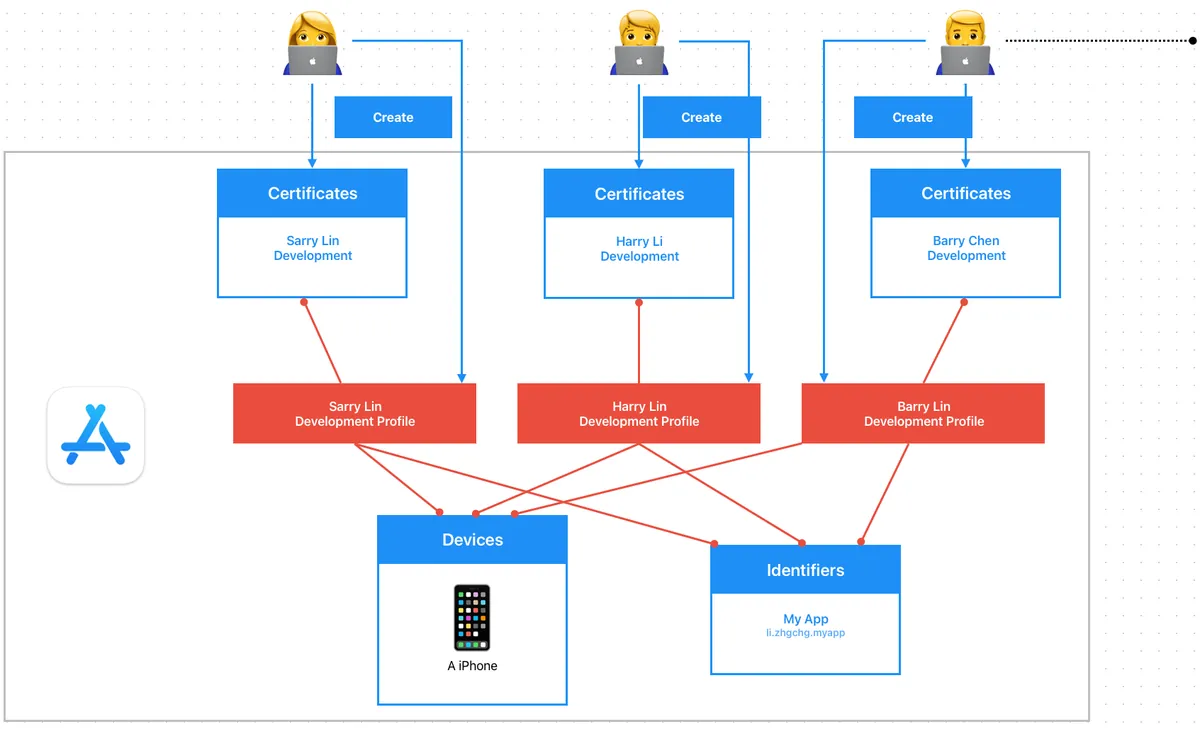
-
Before adopting Match for unified certificate management, each developer creates their own
Development CertificateandDevelopment Profile; if there are 1,000+ developers in the organization, the backend of Certificates, Identifiers & Profiles, Devices becomes extremely chaotic and unmanageable. -
If there is an outsourced team responsible only for development, they still need to be added to the Apple Developer Program portal to generate their own development certificates and profiles.
Distribution Certificate
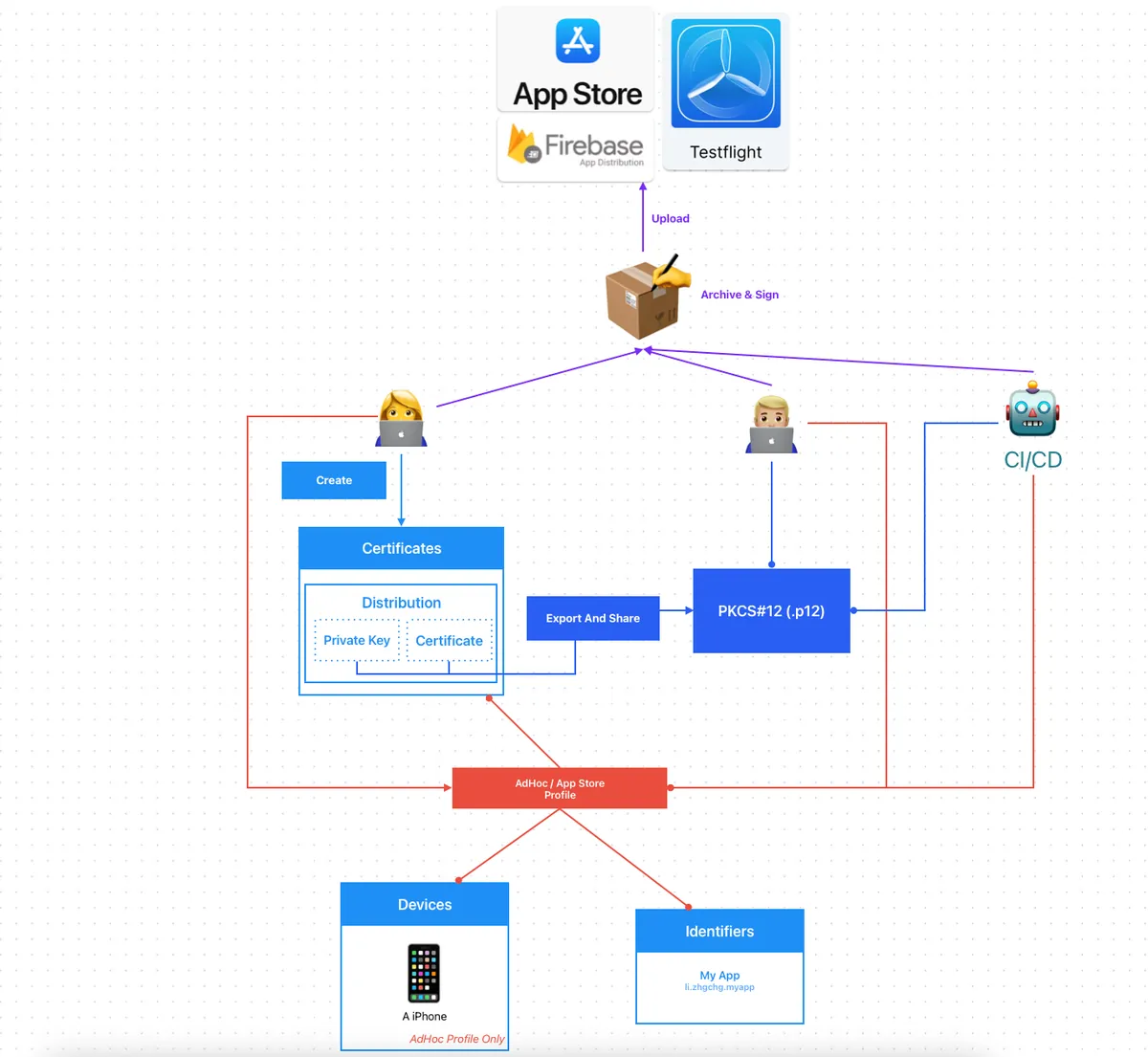
-
Distribution Certificates are created by the Team, so each development plan’s Team can only create a limited number of distribution certificates.
-
A common practice is for one engineer to create the Distribution Certificate and then export the .p12 file to other developers who need to publish the app or to use it on the CI/CD machines.
-
When the team is large and there are many apps, sending files back and forth becomes very troublesome, and they need to be renewed every year.
-
When packaging Ad Hoc builds, if a new device is registered, everyone and the CI/CD must re-download the Profile for the new device to take effect.
Fastlane Match
To address the above issues, we want a platform to manage everything related to certificates on our behalf. All developers and CI/CD services will pull and update data uniformly from this platform. The storage of this platform must be secure, and that is — Fastlane Match .
Easily sync your certificates and profiles across your team
A new approach to iOS and macOS code signing: Share one code signing identity across your development team to simplify your code signing setup and prevent code signing issues.
match is the implementation of the codesigning.guide concept. match creates all required certificates & provisioning profiles and stores them in a separate git repository, Google Cloud, or Amazon S3. Every team member with access to the selected storage can use those credentials for code signing. match also automatically repairs broken and expired credentials. It’s the easiest way to share signing credentials across teams
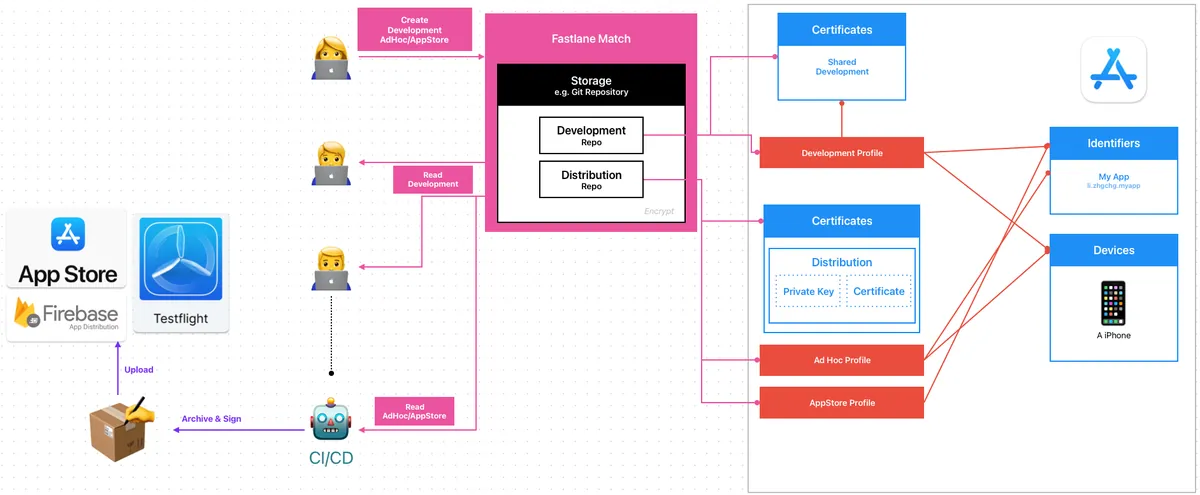
Fastlane Match:
-
Interact with App Store Connect (via App Store Connect API or Apple Developer Login Session) to generate or update certificates
-
Encrypt and upload the three certificate files (
.mobileprovisionProfiles,.p12Certificate,.cerCertificate) to the Git Repo (or other storage).
The.cerCertificate is also stored separately to verify the certificate’s validity. -
If you want to separate permissions, you can use two Repos: one to manage Development certificates and another to manage Distribution certificates.
-
The
certsfolder contains all certificates along with their private keys -
The
profilesfolder contains all provisioning profiles
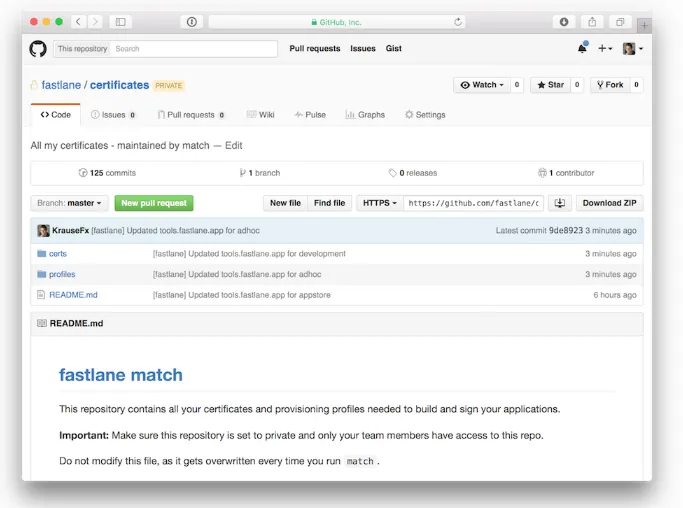
https://docs.fastlane.tools/actions/match/
Encryption Algorithm: AES-256-GCM
Developers, CI/CD Services:
-
Use the Fastlane match command consistently to manage certificates.
-
Fastlane Match will first retrieve the certificate files from the Git Repo and decrypt them for use. If it detects any expired or invalid certificates and has Create/Write permissions, it will automatically regenerate and push them back to the Repo; if it only has Read permission, it will report an error.
Create/Write:
-
Only the person responsible for managing certificates can generate, update, and push certificates.
-
It is best to store important Distribution Certificates in a separate repo accessible only to CI/CD services or administrators
Read:
-
Other developers and CI/CD services have read-only permission to pull certificates.
-
The CI/CD service pulls the latest certificates before each task execution.
-
Everyone shares the same Development & Distribution Certificate.
-
After personnel changes, access to the Match Repo will be lost. You can revoke the old certificates and regenerate them; others just need to pull again (it’s even smoother if integrated into the make project script).
Fastlane Match Setup and Usage
Let’s take Git Storage as an example for all certificates.
1. Create an Empty Git Private Match Repo to Store Certificates
Although all Certificates and Profiles are stored encrypted, you still need to set proper access permissions for the repo.
- Confirm that Git SSH access is set up locally by running
git clone [email protected]:xxx/certificates.git
It is recommended to consistently use SSH Git Clone Repo, as CI/CD will also use the same method.
If running fastlane match gets stuck at
If cloning the repo takes too long, you can use theclone_branch_directlyoption in match., it is most likely an SSH permission issue.
- Run
bundle exec fastlane match initin the project directory to complete the setup
[21:54:32]: fastlane match supports multiple storage modes, please select the one you want to use:
1. git
2. google_cloud
3. s3
4. gitlab_secure_files
# Enter 1 to use git
?   1

[22:04:40]: Please create a new, private git repository to store the certificates and profiles there
[22:04:40]: URL of the Git Repo: git@github.com:xxx/certificates.git
# Enter the SSH URL of your created Git Private Match Repo

[22:04:47]: Successfully created './fastlane/Matchfile'. You can open the file using a code editor.
[22:04:47]: You can now run `fastlane match development`, `fastlane match adhoc`, `fastlane match enterprise` and `fastlane match appstore`
[22:04:47]: On the first run for each environment it will create the provisioning profiles and
[22:04:47]: certificates for you. From then on, it will automatically import the existing profiles.
[22:04:47]: For more information visit https://docs.fastlane.tools/actions/match/
- After completion, a
fastlane/Matchfile: will be generated.
# Your Git Private Match Repo SSH URL
git_url("[email protected]:xxxx/certificates.git")

storage_mode("git")

type("development") # The default type, can be: appstore, adhoc, enterprise or development

# app_identifier(["tools.fastlane.app", "tools.fastlane.app2"])
# username("[email protected]") # Your Apple Developer Portal username

# For all available options run `fastlane match --help`
# Remove the # at the beginning of the line to enable the other options

# The docs are available on https://docs.fastlane.tools/actions/match
5. Generate the App Store Connect API .p8 Key, and use the API Key uniformly to create certificates:
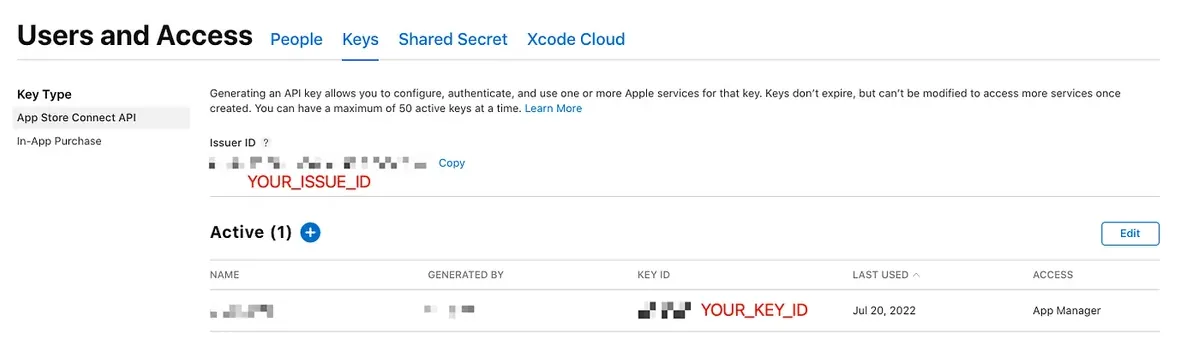
⚠️️️️ App Store Connect API .p8 Key has extensive permissions, enabling management of certificates, app submissions, reviews, users, and financial reports.
Whether to include it in the team’s .git for everyone to access can be decided based on the team’s situation.
A higher security approach is to allow only authorized personnel to manage the certificates, while storing them encrypted for use in the CI/CD system (which will be introduced later in the article).
For demo convenience, it is placed directly under the fastlane directory for access.
Additionally, the Fastlane script in this article is simplified for demonstration purposes, without considering code repetition or structure.
Certificate Management
platform :ios do
  lane :match_development do \\|options\\|
    # Replace with your App Identifier ID
    app_identifier = "li.zhgchg.myApp"

    type = options.fetch(:type, "development")
    isRead = options.fetch(:isRead, true)
    if isRead
      readonly = true
      force = false
    else
      readonly = false
      force = true

      # App Store Connect API Key is required to manage certificates on Apple's backend
      # Assuming the App Store Connect API .p8 Key is in the ./fastlane/ directory
      app_store_connect_api_key(
        key_id: "XXXXXX",
        issuer_id: "XXXXXX-XXXXXX-XXXXXX-XXXXXX-XXXXXX",
        key_filepath: "./fastlane/AuthKey_XXXXXX.p8",
      )
    end

    # Fetch Development certificates for the app_identifier
    match(
      type: type,
      app_identifier: app_identifier,
      readonly: readonly, # Whether to update/upload cert/profile when needed
      force: force # Whether to forcibly recreate the provisioning profile
    )
  end
end
Create Development Certificate & Profile and Upload to Match Repo:
bundle exec fastlane match_development type:development isRead:false
[22:22:38]: Creating new provisioning profile for 'li.zhgchg.myApp' with name 'match Development li.zhgchg.myApp' for 'ios' platform
[22:22:39]: Downloading provisioning profile...
[22:22:39]: Successfully downloaded provisioning profile...
[22:22:39]: Installing provisioning profile...
/var/folders/pk/978f3gws7ml0bkmrw245cg_c0000gn/T/d20260103-5010-v6r6w2/profiles/development/Development_li.zhgchg.myApp.mobileprovision
[22:22:39]: Installing provisioning profile...
[22:22:39]: 🔒  Successfully encrypted certificates repo
[22:22:39]: Pushing changes to remote git repo...
[22:22:42]: Finished uploading files to Git Repo [[email protected]:xxxx/certificates.git]
- No errors mean the Development Certificate & Profile were successfully created, installed, and pushed to the Match Repo.
The first time you set it up, you will need to configure a Passphrase:
[23:29:12]: Enter the passphrase that should be used to encrypt/decrypt your certificates
[23:29:12]: This passphrase is specific per repository and will be stored in your local keychain
[23:29:12]: Make sure to remember the password, as you'll need it when you run match on a different machine
[23:29:12]: Passphrase for Match storage:
-
This value is used as a reference to encrypt all the files in your Match Repo (passphrase + random salt).
-
It is recommended to generate a random string, then set and record it.
-
In future updates or when others pull the Match Repo certificates, this string is required to decrypt back to the original files.
Other team members uniformly pull Development Certificate & Profile from Match Repo:
bundle exec fastlane match_development type:development
The first time you use it, you will be asked for your login keychain password because the certificate needs to be installed into the keychain. Enter it twice to confirm:
[16:52:59]: Installing certificate...
[16:53:00]: There are no local code signing identities found.
You can run security find-identity -v -p codesigning to get this output.
This Stack Overflow thread has more information: https://stackoverflow.com/q/35390072/774.
(Check in Keychain Access for an expired WWDR certificate: https://stackoverflow.com/a/35409835/774 has more info.)
[16:53:00]: Enter the password for /Users/zhgchgli/Library/Keychains/login.keychain-db
[16:53:00]: This passphrase will be stored in your local keychain with the name fastlane_keychain_login and used in future runs
[16:53:00]: This prompt can be avoided by specifying the 'keychain_password' option or 'MATCH_KEYCHAIN_PASSWORD' environment variable
[16:53:00]: Password for login keychain: ********
[16:53:24]: Type password for login keychain again: ********
If Match Development finishes pulling certificates, but Xcode keeps showing errors or invalid status:
You can refer to the common errors mentioned earlier. Most are caused by old, corrupted certificates. Clearing all certificates and re-downloading them should resolve the issue.
—
Create AdHoc Distribution Certificate & Profile and Upload to Match Repo:
bundle exec fastlane match_development type:adhoc isRead:false
Create AppStore Distribution Certificate & Profile and Upload to Match Repo:
bundle exec fastlane match_development type:appstore isRead:false
CI/CD services uniformly pull Distribution Certificate & Profile ( isRead:true ) from the Match Repo, then execute the build and release tasks.
Register a New Device
platform :ios do
  desc "Register a new device and refresh profiles"
  lane :registerDevice do \\|options\\|
    # Replace with your App Identifier ID
    app_identifier = "li.zhgchg.myApp"

    # App Store Connect API Key is required to manage certificates on Apple backend
    # Assume the App Store Connect API .p8 Key is in the ./fastlane/ directory
    app_store_connect_api_key(
      key_id: "XXXXXX",
      issuer_id: "XXXXXX-XXXXXX-XXXXXX-XXXXXX-XXXXXX",
      key_filepath: "./fastlane/AuthKey_XXXXXX.p8",
    )
    # Input: UDID and device name
    udid = options[:udid] \\|\\| UI.input("Enter device UDID:")
    device_name = options[:name] \\|\\| UI.input("Enter device name:")
    UI.message("📱 Registering device #{device_name} (#{udid})")
    register_device(
      name: device_name,
      udid: udid,
      platform: 'ios'
    )

    # Update Development certificates for app_identifier
    match(
      type: "development",
      app_identifier: app_identifier,
      readonly: false, # Update/upload cert/profile if needed
      force_for_new_devices: true # Recreate provisioning profile for new devices
    )

    # Update AdHoc certificates for app_identifier
    match(
      type: "adhoc",
      app_identifier: app_identifier,
      readonly: false, # Update/upload cert/profile if needed
      force_for_new_devices: true # Recreate provisioning profile for new devices
    )
  end
end
After registration, other developers or CI/CD services pulling the Profile (Development or AdHoc) from the Match Repo will include the new devices.
Fastlane Match x CI/CD Workflow Integration
After a general introduction to how Fastlane Match generates and pulls certificates, next is to explain how to integrate it into the CI/CD process.
Question 1 — How to Clone Private Match Repo
The most common issue is how to clone the Private Match Repo project on CI/CD. During local development, we use ssh git clone with our own account’s ssh key, so there is no problem. However, CI/CD does not have this key. Although you can use a personal key, it is not secure.
GitHub — Repo Deploy Key:
-
First, generate the private/public key locally:
ssh-keygen -t rsa -b 4096 -f ./id_rsa( do NOT enter a passphrase ) -
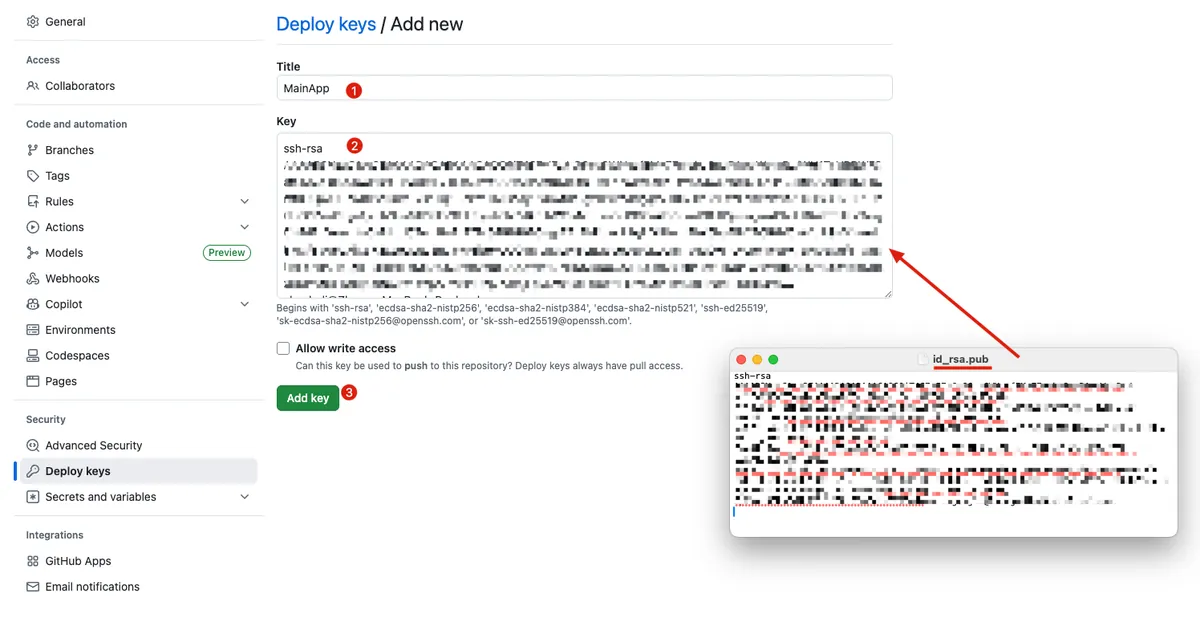
Go to Match Private Repo -> Settings -> Security -> Deploy keys -> Add deploy key:
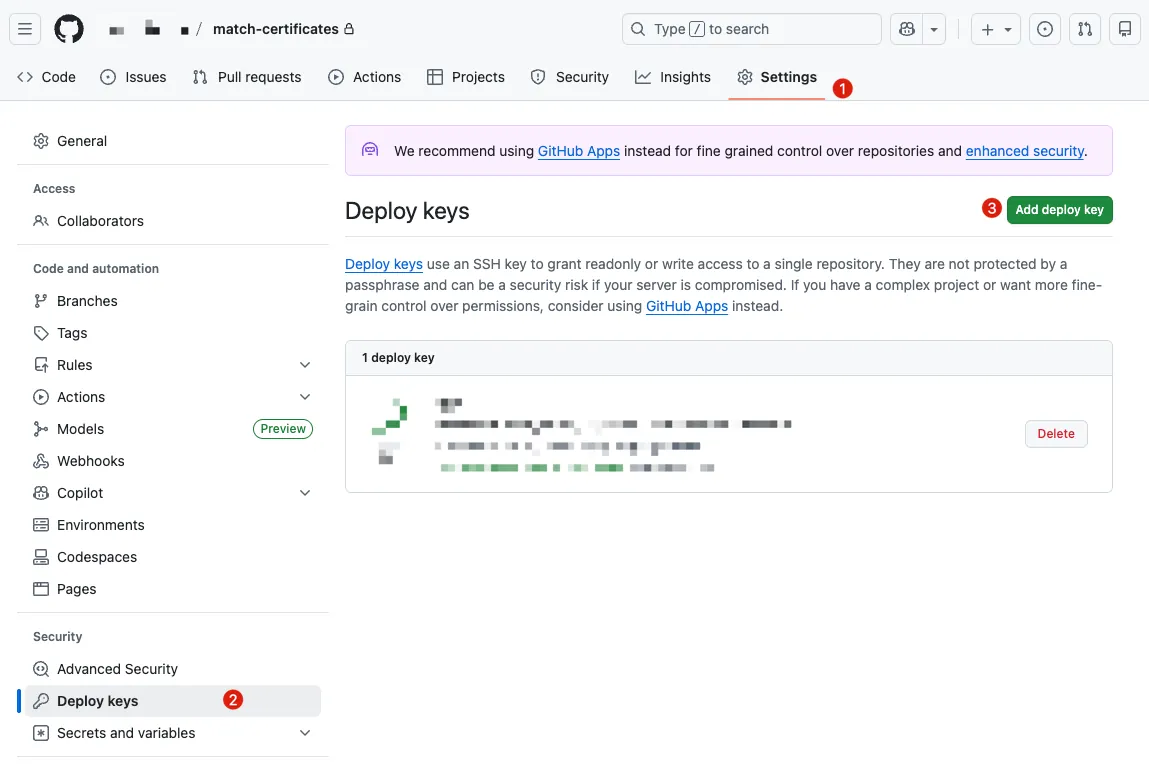
- Open
id_rsa.pubwith a text editor, copy the content, and paste it into Key -> “Add key”
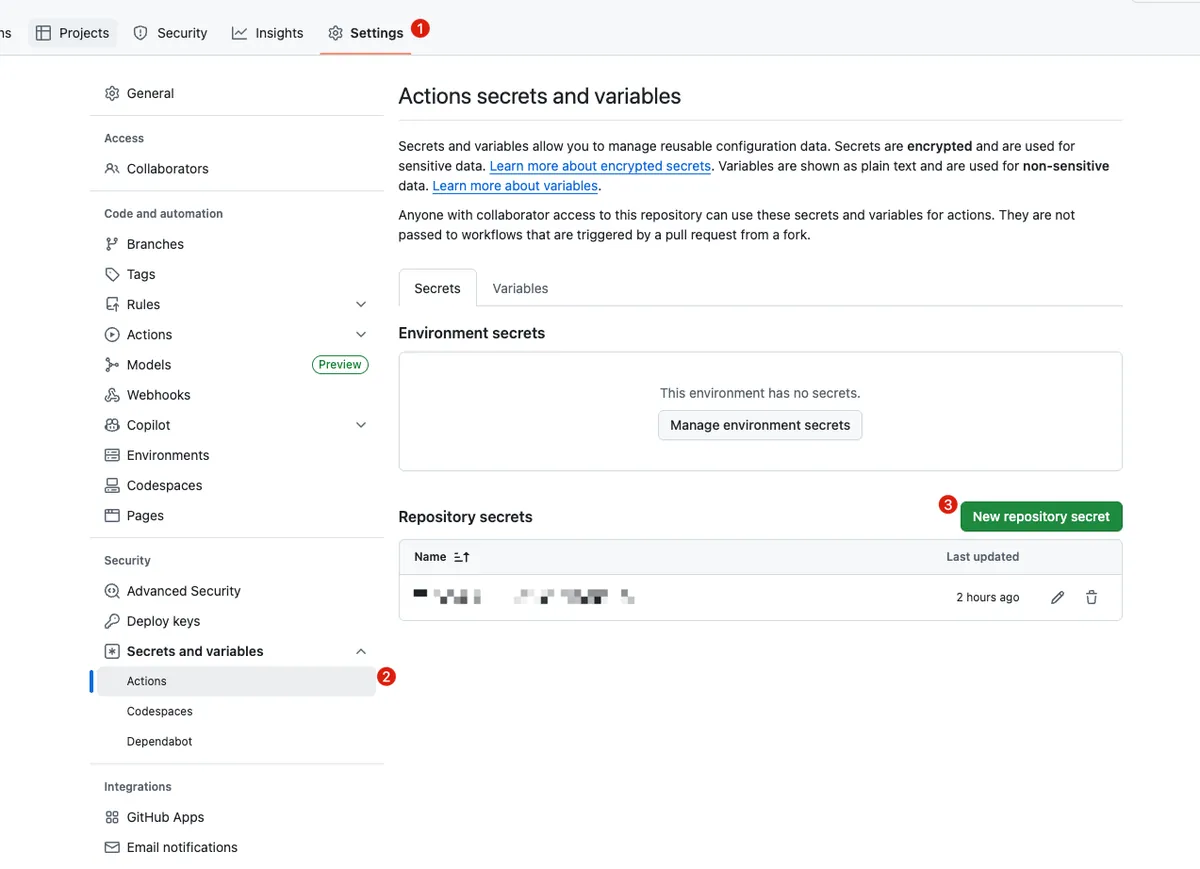
- Go back to the main Repo -> Settings -> Security -> Secrets and variables
- Add SSH Private Key Content to Secret:
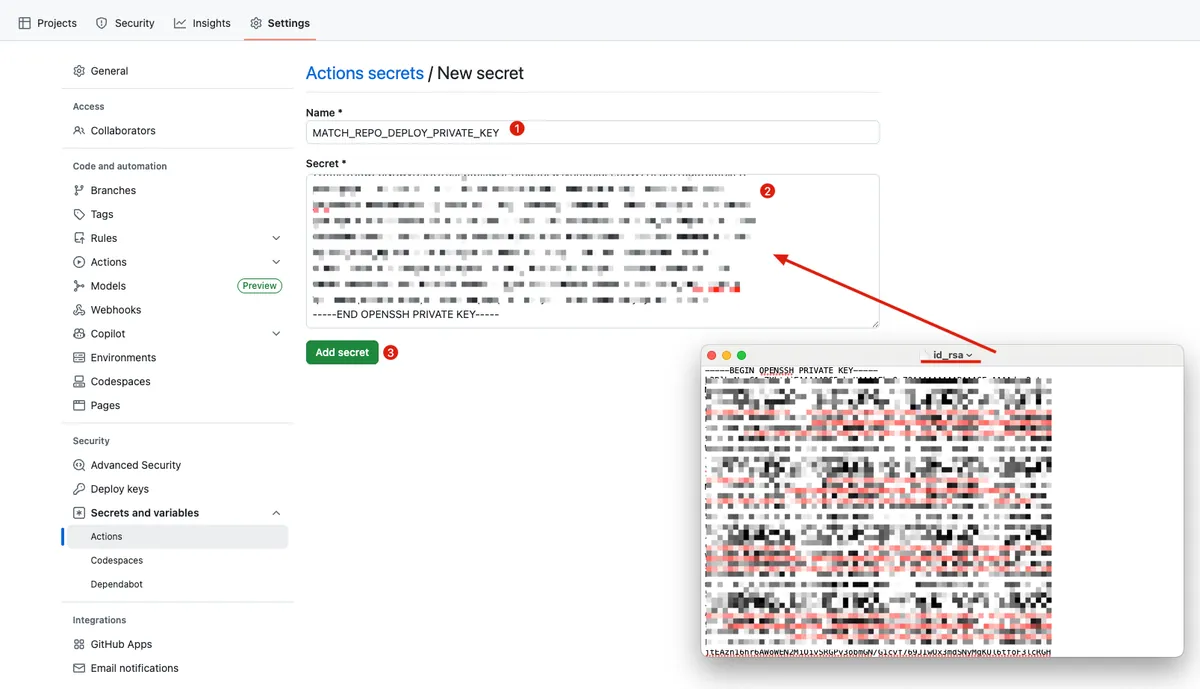
- Name:
MATCH_REPO_DEPLOY_PRIVATE_KEY
- Return to the main Repo’s GitHub Actions to set up the SSH Key:
name: CI - Deploy

on:
  push:
    branches: [ main ]
  pull_request:

jobs:
  build:
    runs-on: ubuntu-latest
    steps:
      - name: Checkout current repo (Repo A)
        uses: actions/checkout@v4

      - name: Setup SSH for Deploy Key
        run: \\|
          mkdir -p ~/.ssh
          echo "${{ secrets.MATCH_REPO_DEPLOY_PRIVATE_KEY }}" > ~/.ssh/id_ed25519
          chmod 600 ~/.ssh/id_ed25519
          ssh-keyscan github.com >> ~/.ssh/known_hosts

      - name: Test Clone
        run: \\|
          git clone [email protected]:xxxx/match-certificates.git
# Success!
# .. do deploy job...
- Setup Successful!
Issue 2 — Secure Storage and Use of App Store Connect API .p8 Key
Because GitHub Actions cannot store files directly, you must first save it as a string and then write it to a file.
-
For the same issue 1 step, add an
APP_STORE_CONNECT_API_KEY_CONTENTSecret in the main Repo. -
Open the
AuthKey_XXXXXX.p8file with a text editor, then copy and paste its content. -
Add a step in the main repo’s GitHub Actions to read content and write to a file:
name: CI - Deploy
on:
  push:
    branches: [ main ]
  pull_request:
jobs:
  build:
    runs-on: ubuntu-latest
    steps:
      - name: Checkout current repo (Repo A)
        uses: actions/checkout@v4

      - name: Setup SSH for Deploy Key
        run: \\|
          mkdir -p ~/.ssh
          echo "${{ secrets.MATCH_REPO_DEPLOY_PRIVATE_KEY }}" > ~/.ssh/id_ed25519
          chmod 600 ~/.ssh/id_ed25519
          ssh-keyscan github.com >> ~/.ssh/known_hosts

      - name: Write Secret Key to File
        env:
          APP_STORE_CONNECT_API_KEY_CONTENT: ${{ secrets.APP_STORE_CONNECT_API_KEY_CONTENT }}
        run: \\|
          # ensure fastlane directory exists
          mkdir -p ./fastlane

          # create file path
          APP_STORE_CONNECT_API_KEY_PATH=./fastlane/AuthKey_XXXXXX.p8

          # write content to file (keep newline)
          echo "$APP_STORE_CONNECT_API_KEY_CONTENT" > "$APP_STORE_CONNECT_API_KEY_PATH"

          # (optional) restrict permissions
          chmod 600 "$APP_STORE_CONNECT_API_KEY_PATH"

      - name: Deploy to Firebase
        env:
          MATCH_PASSWORD: "${{ secrets.MATCH_PASSWORD }}"
        run: bundle exec fastlane deploy_to_firebase
Issue 3 — Setting a Passphrase for the Private Match Repo to Prevent Prompt Interruptions During Match
-
For Step 1 of the same issue, add
MATCH_PASSWORDto Secrets in the main repo. -
Enter the
Passphrasefor the Fastlane Match Repo you configured. -
Add
env: secret.MATCH_PASSWORDto the main Repo’s GitHub Actions:
name: CI - Deploy
on:
  push:
    branches: [ main ]
  pull_request:
jobs:
  build:
    runs-on: ubuntu-latest
    steps:
      - name: Checkout current repo (Repo A)
        uses: actions/checkout@v4

      - name: Setup SSH for Deploy Key
        run: \\|
          mkdir -p ~/.ssh
          echo "${{ secrets.MATCH_REPO_DEPLOY_PRIVATE_KEY }}" > ~/.ssh/id_ed25519
          chmod 600 ~/.ssh/id_ed25519
          ssh-keyscan github.com >> ~/.ssh/known_hosts

      - name: Write Secret Key to File
        env:
          APP_STORE_CONNECT_API_KEY_CONTENT: ${{ secrets.APP_STORE_CONNECT_API_KEY_CONTENT }}
        run: \\|
          # ensure fastlane directory exists
          mkdir -p ./fastlane

          # create file path
          APP_STORE_CONNECT_API_KEY_PATH=./fastlane/AuthKey_XXXXXX.p8

          # write content to file (keep newline)
          echo "$APP_STORE_CONNECT_API_KEY_CONTENT" > "$APP_STORE_CONNECT_API_KEY_PATH"

          # (optional) restrict permissions
          chmod 600 "$APP_STORE_CONNECT_API_KEY_PATH"

      - name: Deploy to Firebase
        env:
          MATCH_PASSWORD: "${{ secrets.MATCH_PASSWORD }}"
        run: bundle exec fastlane deploy_to_firebase
Question 4 — Keychain Handling on Self-hosted Runner
Unlike cloud machines that are always clean and new each time, with Self-hosted Runners we can specify derived_data_path, output_directory, buildlog_path, and reinstall_app in Fastlane to ensure a clean environment for each run; but since Certificates and Profiles are installed into the system Keychain, how should we handle them?
Fastlane actually considers this for us and allows creating a clean Keychain before running Match:
name: CI - Deploy
on:
  push:
    branches: [ main ]
  pull_request:
jobs:
  build:
    runs-on: ubuntu-latest
    steps:
      - name: Checkout current repo (Repo A)
        uses: actions/checkout@v4

      - name: Setup SSH for Deploy Key
        run: \\|
          mkdir -p ~/.ssh
          echo "${{ secrets.MATCH_REPO_DEPLOY_PRIVATE_KEY }}" > ~/.ssh/id_ed25519
          chmod 600 ~/.ssh/id_ed25519
          ssh-keyscan github.com >> ~/.ssh/known_hosts

      - name: Write Secret Key to File
        env:
          APP_STORE_CONNECT_API_KEY_CONTENT: ${{ secrets.APP_STORE_CONNECT_API_KEY_CONTENT }}
        run: \\|
          # ensure fastlane directory exists
          mkdir -p ./fastlane

          # create file path
          APP_STORE_CONNECT_API_KEY_PATH=./fastlane/AuthKey_XXXXXX.p8

          # write content to file (keep newline)
          echo "$APP_STORE_CONNECT_API_KEY_CONTENT" > "$APP_STORE_CONNECT_API_KEY_PATH"

          # (optional) restrict permissions
          chmod 600 "$APP_STORE_CONNECT_API_KEY_PATH"

      - name: Create fastlane keychain
        env:
          KEYCHAIN_NAME: "${{ runner.name }}"
          MATCH_PASSWORD: "${{ secrets.MATCH_PASSWORD }}"
        run: \\|
          bundle exec fastlane run create_keychain \
            name:"$KEYCHAIN_NAME" \
            password:"$MATCH_PASSWORD" \
            unlock:true \
            timeout:0 \
            lock_when_sleeps:false

      - name: Deploy to Firebase
        env:
          MATCH_PASSWORD: "${{ secrets.MATCH_PASSWORD }}"
          KEYCHAIN_NAME: "${{ runner.name }}"
        run: bundle exec fastlane deploy_to_firebase

      # 🔥 This will run regardless of previous success or failure
      - name: Delete fastlane keychain
        if: always()
        env:
          KEYCHAIN_NAME: ${{ runner.name }}
        run: \\|
          bundle exec fastlane run delete_keychain \
            name:"$KEYCHAIN_NAME"
-
Each Runner only executes one task at a time, so we use the Runner Name as the Keychain Name. Each Runner will have its own Keychain.
-
Deleted after execution regardless of success or failure.
-
I didn’t set a separate
keychain_password; I just usedMATCH_PASSWORDuniformly.
Add keychain parameters to the match method in Fastlane/Fastfile:
#...
    match(
      type: "adhoc",
      app_identifier: app_identifier,
      readonly: false, # Update/upload cert/profile if needed
      force_for_new_devices: true, # Recreate provisioning profile for new devices
      keychain_name: ENV['KEYCHAIN_NAME'], # default value: nil
      keychain_password: ENV['MATCH_PASSWORD'] # default value: nil
    )
#...
This way, Match will save the pulled certificates to the specified Keychain instead of the shared login keychain.
Conclusion
The scope of Fastlane is very broad, so here I will only document the process of using Fastlane Match. Other lanes for testing, packaging, publishing, etc., will be covered in a new supplementary article when there’s a chance. If I think of any other Match-related cases, I will add them later! Feel free to leave questions or comments!
Further Reading
Please kindly proceed to read. 🤞🏻

Comments