
Crashlytics + Big Query Build a More Real-Time and Convenient Crash Tracking Tool
Integrate Crashlytics and Big Query to Automatically Forward Crash Logs to Slack Channel
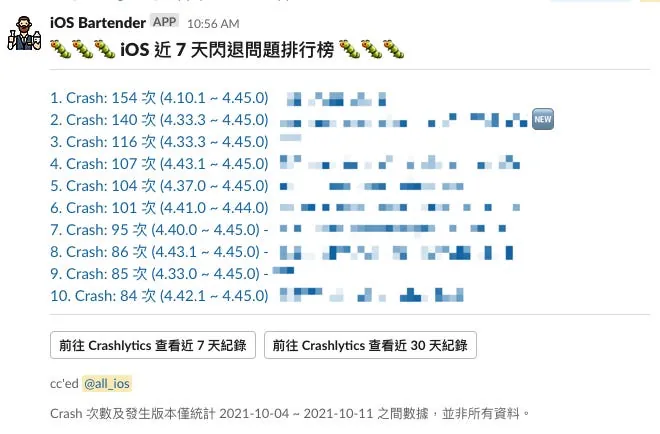
Results
Pinkoi iOS Team Live Photos
First, the result image: Weekly scheduled queries of Crashlytics crash records; filtering out the top 10 issues with the most crashes; sending the message to a Slack channel, making it easy for all iOS teammates to quickly understand the current stability.
Problem
For app developers, the Crash-Free Rate is arguably the most important metric. It represents the percentage of users who did not experience a crash. I believe every app aims for a Crash-Free Rate close to 99.9%. However, in reality, this is impossible. Any software can have bugs, and some crashes are caused by underlying (Apple) or third-party SDK issues. Additionally, the Crash-Free Rate can be affected by the DAU size; the higher the DAU, the more likely it is to encounter rare crash issues.
Since a 100% crash-free app does not exist, tracking and handling crashes is very important. Besides the most common Google Firebase Crashlytics (formerly Fabric), there are other options like Bugsnag and Bugfender. I haven’t personally compared these tools, so interested readers can explore them on their own. If you use other tools, the content of this article may not apply.
Crashlytics
The benefits of using Crashlytics include:
-
Stable, Backed by Google
-
Free, easy and quick to install
-
Besides crashes, you can also log error events (e.g., Decode Error)
-
One Firebase suite to rule them all: other services include Google Analytics, Realtime Database, Remote Config, Authentication, Cloud Messaging, Cloud Storage…
Side note: It is not recommended to build a full production service entirely on Firebase, as the costs can become very high once traffic increases… it’s basically a bait-and-switch model.
■■■■■■■■■■■■■■
𝖟𝖔𝖓𝖇𝖑𝖊 🍺 ゾンビル KDCEHQ 4H111 @ Twitter Says:
I heard that there was once a food delivery platform that used Firebase for their entire backend setup, and then, I heard this platform couldn’t pay the vendors.
Tweeted at 2019-10-06 08:54:06.
■■■■■■■■■■■■■■
Crashlytics also has many drawbacks:
-
Crashlytics does not provide an API to query crash data
-
Crashlytics only stores crash records for the past 90 days
-
Crashlytics’ integrations have poor support and flexibility
The biggest pain point is the poor support and flexibility of Integrations, combined with the lack of an API to write custom scripts for crash data; you can only rely on manually checking Crashlytics from time to time to track crash records and issues.
Crashlytics Supported Integrations Only:
-
[Email Notification] — Trending stability issues (Crashes affecting more users)
-
[Slack, Email Notification] — New Fatal Issue (Crash Problem)
-
[Slack, Email Notification] — New Non-Fatal Issue (Non-Crash Issue)
-
[Slack, Email Notification] — Velocity Alert (Crash Issues with Sudden Spike in Count)
-
[Slack, Email Notification] — Regression Alert (Issues marked as Solved but reoccurred)
-
Crashlytics to Jira issue
The above integrations and rules cannot be customized.
At first, we directly used 2.New Fatal Issue to Slack or Email. For Email, it was then triggered by Google Apps Script for further processing; however, this notification would flood the channel because it alerted on every crash, whether major or minor, even those caused by rare device or iOS issues. As DAU grew, the channel was overwhelmed with these notifications daily, but only about 10% were valuable—those that many users encountered and were related to our code errors.
So it doesn’t solve the issue of Crashlytics being hard to track automatically, still requiring a lot of time to review whether the problem is important.
Crashlytics + Big Query

After searching around, this is the only method I found, and it’s the only one officially provided; this is the trap behind the free offering. I guess neither Crashlytics nor Analytics Event will provide or plan to provide APIs for users to query data directly. The official recommendation is to export data to Big Query, and Big Query charges fees once free storage and query limits are exceeded.
Storage: The first 10 GB per month is free.
Query: The first 1 TB per month is free. (Query quota refers to how much data is processed when running a Select)
For detailed information, please refer to the Big Query pricing guide
For Crashlytics to Big Query setup details, please refer to the official documentation. You need to enable GCP services, link a credit card, and more.
Getting Started with Big Query to Query Crashlytics Logs
After setting up the Crashlytics Log to Big Query import schedule and completing the first data import, we can start querying the data.
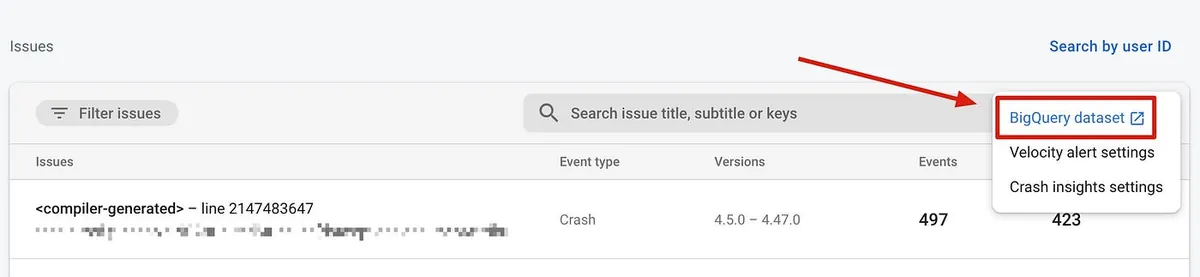
First, go to your Firebase project -> Crashlytics -> click the “•••” at the top right of the list -> then select “Go to BigQuery dataset”.
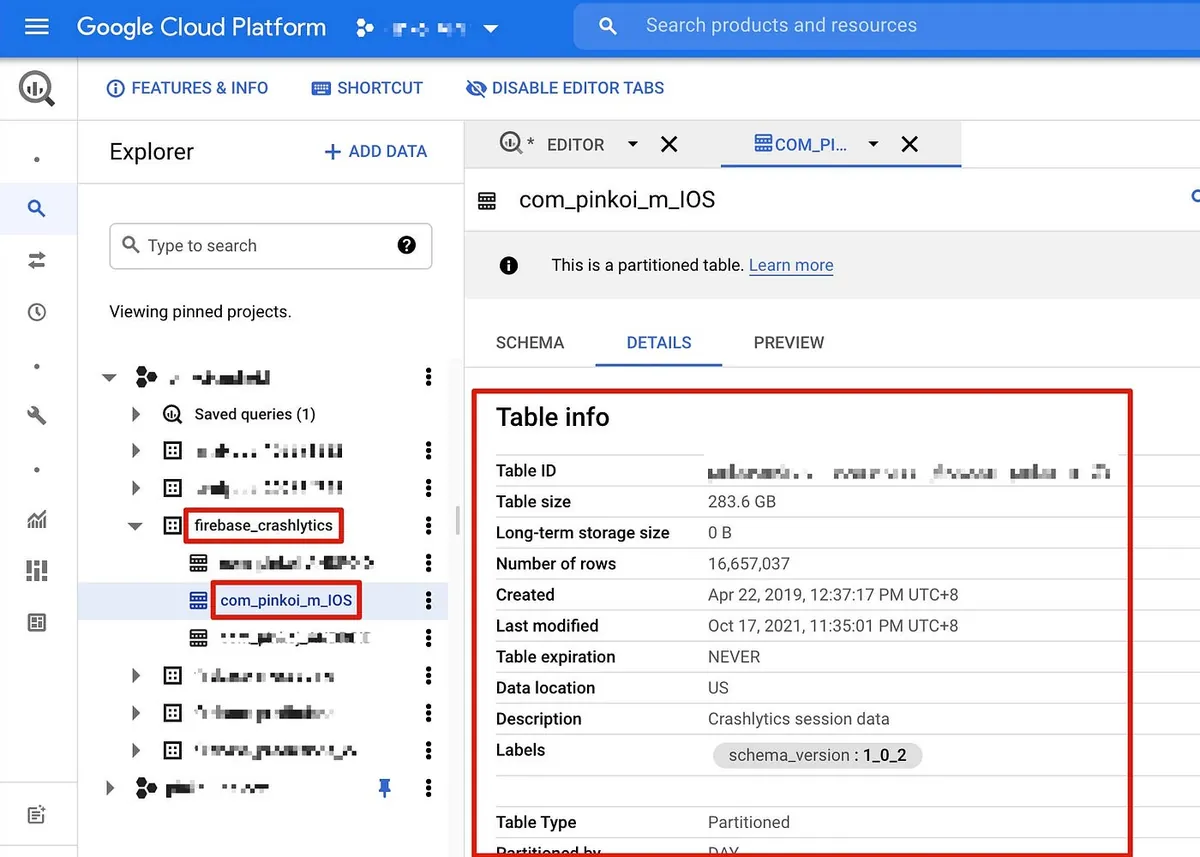
Go to GCP -> Big Query, then on the left under “Explorer,” select “firebase_crashlytics” -> choose your Table name -> “Details” -> on the right, you can view Table information, including the last modified time, used storage, retention period, and more.
Confirm that imported data is queryable.
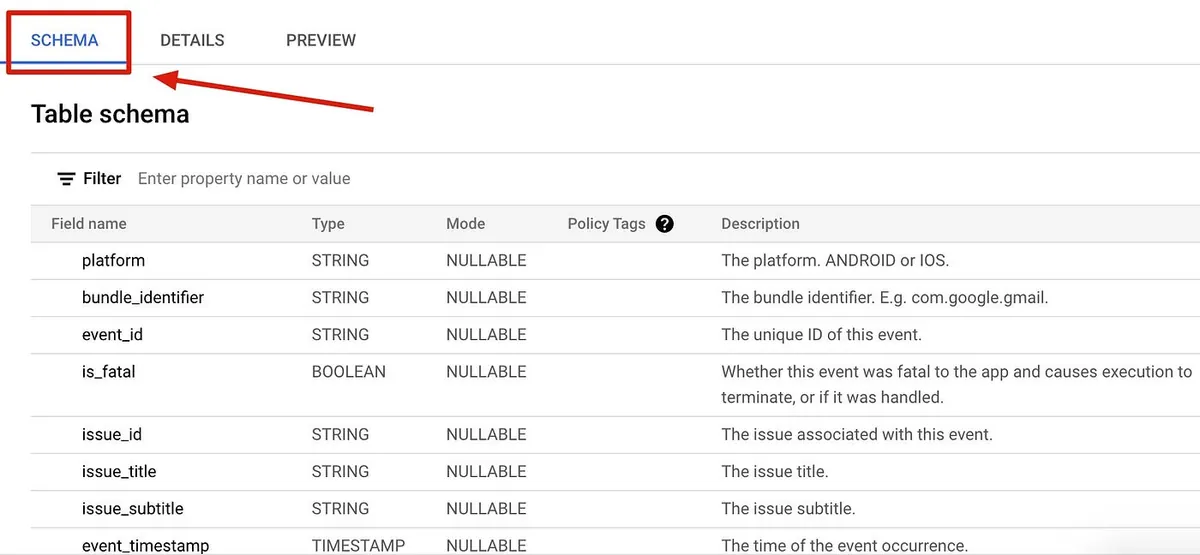
The top tab allows you to switch to “SCHEMA” to view the table’s column information or refer to the official documentation.
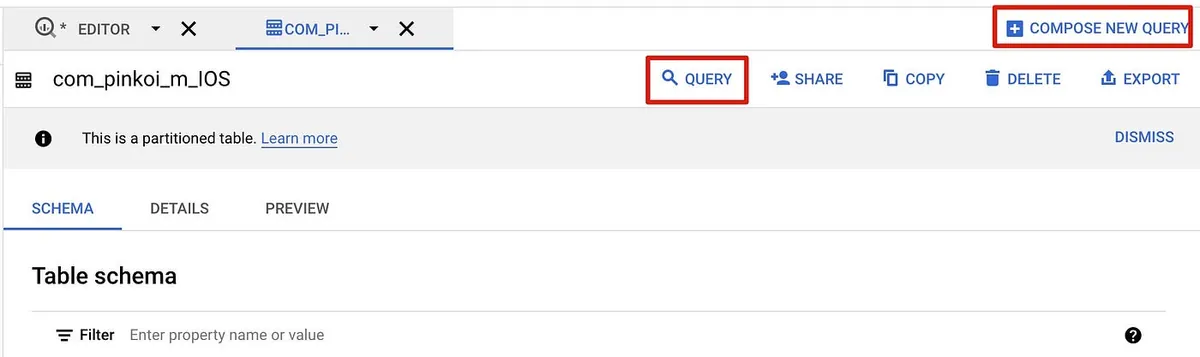
Click the “Query” button at the top right to open the interface with the assisted SQL Builder (recommended if you are not familiar with SQL):
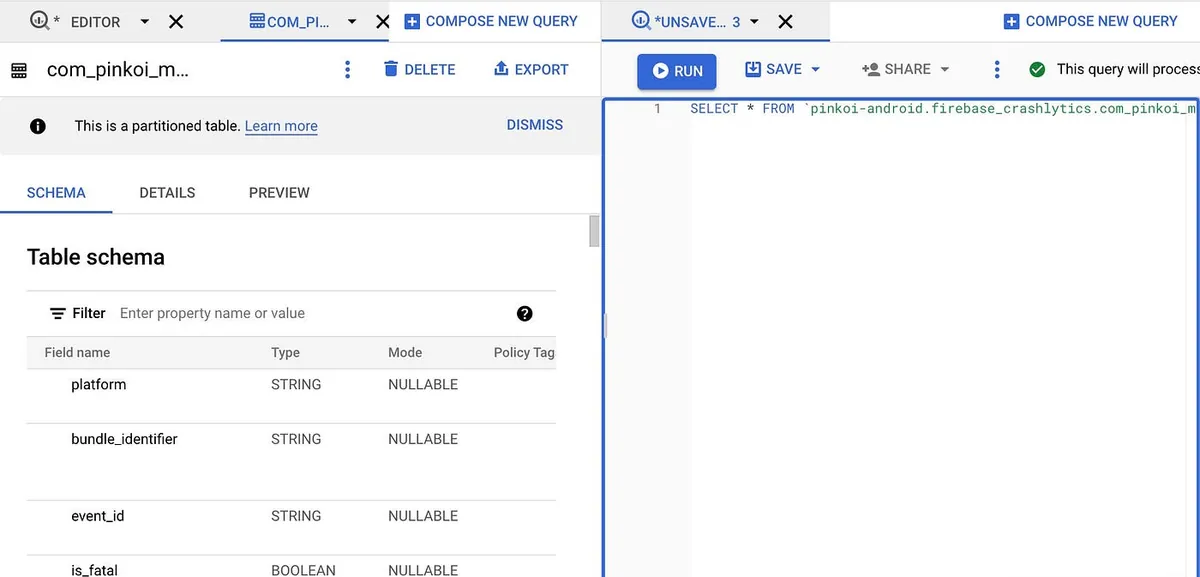
Or directly click “COMPOSE NEW QUERY” to open a blank Query Editor:

No matter which method you use, it’s the same text editor; after entering the SQL, you can preview syntax checks and the estimated query cost at the top right ( This query will process XXX when run. ):
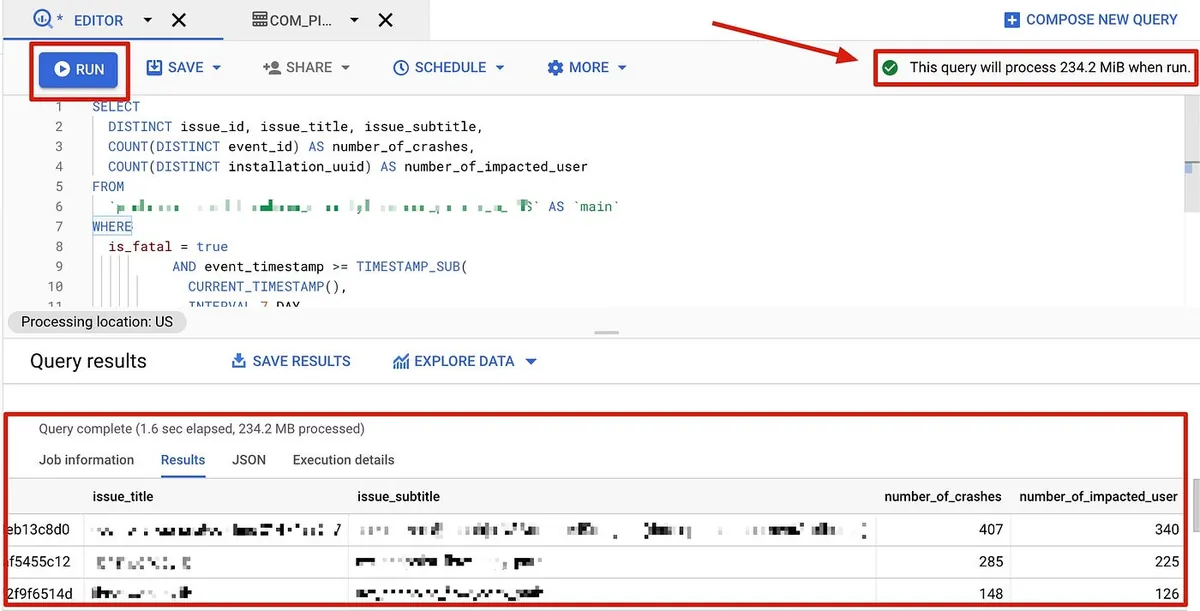
After confirming the query, click “RUN” at the top left to execute it. The results will appear in the Query results section below.
⚠️ Pressing “RUN” to execute the query will count toward your query quota and incur charges; please be careful not to run random queries.
If you are unfamiliar with SQL, you can first learn the basics, then refer to Crashlytics official examples for customization:
1. Count the number of crashes per day in the last 30 days:
SELECT
  COUNT(DISTINCT event_id) AS number_of_crashes,
  FORMAT_TIMESTAMP("%F", event_timestamp) AS date_of_crashes
FROM
 `你的ProjectID.firebase_crashlytics.你的TableName`
GROUP BY
  date_of_crashes
ORDER BY
  date_of_crashes DESC
LIMIT 30;
2. Query the Top 10 Most Frequent Crashes in the Last 7 Days:
SELECT
  DISTINCT issue_id,
  COUNT(DISTINCT event_id) AS number_of_crashes,
  COUNT(DISTINCT installation_uuid) AS number_of_impacted_user,
  blame_frame.file,
  blame_frame.line
FROM
  `你的ProjectID.firebase_crashlytics.你的TableName`
WHERE
  event_timestamp >= TIMESTAMP_SUB(CURRENT_TIMESTAMP(),INTERVAL 168 HOUR)
  AND event_timestamp < CURRENT_TIMESTAMP()
GROUP BY
  issue_id,
  blame_frame.file,
  blame_frame.line
ORDER BY
  number_of_crashes DESC
LIMIT 10;
However, the official example’s query results are sorted differently from what Crashlytics shows, likely because it groups by blame_frame.file (nullable) and blame_frame.line (nullable).
3. Query the Top 10 Devices with the Most Crashes in the Last 7 Days:
SELECT
  device.model,
COUNT(DISTINCT event_id) AS number_of_crashes
FROM
  `你的ProjectID.firebase_crashlytics.你的TableName`
WHERE
  event_timestamp >= TIMESTAMP_SUB(CURRENT_TIMESTAMP(), INTERVAL 168 HOUR)
  AND event_timestamp < CURRENT_TIMESTAMP()
GROUP BY
  device.model
ORDER BY
  number_of_crashes DESC
LIMIT 10;
For more examples, please refer to the official documentation.
If your SQL query returns no data, first make sure the specified Crashlytics data has been imported into Big Query (for example, the default SQL sample queries crashes from the current day, but the data might not have synced yet, so no results appear); if data is confirmed, then check if the filter conditions are correct.
Top 10 Crashlytics Issue Big Query SQL
Here we refer to the official example in section 2 and modify it. We want the result to match the crash issues and sorting as seen on the first page of Crashlytics.
Top 10 Crash Issues in the Last 7 Days:
SELECT
  DISTINCT issue_id,
  issue_title,
  issue_subtitle,
  COUNT(DISTINCT event_id) AS number_of_crashes,
  COUNT(DISTINCT installation_uuid) AS number_of_impacted_user
FROM
  `你的ProjectID.firebase_crashlytics.你的TableName`
WHERE
  is_fatal = true
  AND event_timestamp >= TIMESTAMP_SUB(
    CURRENT_TIMESTAMP(),
    INTERVAL 7 DAY
  )
GROUP BY
  issue_id,
  issue_title,
  issue_subtitle
ORDER BY
  number_of_crashes DESC
LIMIT
  10;
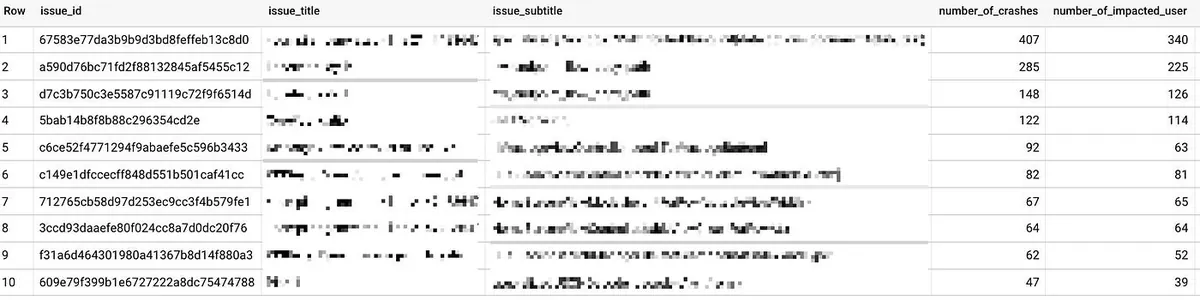
Compare the Top 10 Crashlytics crash issues, matches ✅.
Use Google Apps Script to Regularly Query & Forward to Slack
Go to the Google Apps Script homepage -> log in with the same account as Big Query -> click “New Project” at the top left, then rename the project by clicking the top left again after opening the new project.
First, let’s connect to Big Query to fetch the query data:
Refer to the official documentation example and insert the above Query SQL.
function queryiOSTop10Crashes() {
  var request = {
    query: 'SELECT DISTINCT issue_id, issue_title, issue_subtitle, COUNT(DISTINCT event_id) AS number_of_crashes, COUNT(DISTINCT installation_uuid) AS number_of_impacted_user FROM `firebase_crashlytics.你的TableName` WHERE is_fatal = true AND event_timestamp >= TIMESTAMP_SUB( CURRENT_TIMESTAMP(), INTERVAL 7 DAY ) GROUP BY issue_id, issue_title, issue_subtitle ORDER BY number_of_crashes DESC LIMIT 10;',
    useLegacySql: false
  };
  var queryResults = BigQuery.Jobs.query(request, '你的ProjectID');
  var jobId = queryResults.jobReference.jobId;

  // Check on status of the Query Job.
  var sleepTimeMs = 500;
  while (!queryResults.jobComplete) {
    Utilities.sleep(sleepTimeMs);
    sleepTimeMs *= 2;
    queryResults = BigQuery.Jobs.getQueryResults(projectId, jobId);
  }

  // Get all the rows of results.
  var rows = queryResults.rows;
  while (queryResults.pageToken) {
    queryResults = BigQuery.Jobs.getQueryResults(projectId, jobId, {
      pageToken: queryResults.pageToken
    });
    Logger.log(queryResults.rows);
    rows = rows.concat(queryResults.rows);
  }

  var data = new Array(rows.length);
  for (var i = 0; i < rows.length; i++) {
    var cols = rows[i].f;
    data[i] = new Array(cols.length);
    for (var j = 0; j < cols.length; j++) {
      data[i][j] = cols[j].v;
    }
  }

  return data
}
query: The number of rows can be freely changed to the written Query SQL.
The returned object structure is as follows:
[
  [
    "67583e77da3b9b9d3bd8feffeb13c8d0",
    "<compiler-generated> line 2147483647",
    "specialized @nonobjc NSAttributedString.init(data:options:documentAttributes:)",
    "417",
    "355"
  ],
  [
    "a590d76bc71fd2f88132845af5455c12",
    "libnetwork.dylib",
    "nw_endpoint_flow_copy_path",
    "259",
    "207"
  ],
  [
    "d7c3b750c3e5587c91119c72f9f6514d",
    "libnetwork.dylib",
    "nw_endpoint_flow_copy_path",
    "138",
    "118"
  ],
  [
    "5bab14b8f8b88c296354cd2e",
    "CoreFoundation",
    "-[NSCache init]",
    "131",
    "117"
  ],
  [
    "c6ce52f4771294f9abaefe5c596b3433",
    "XXX.m line 975",
    "-[XXXX scrollToMessageBottom]",
    "85",
    "57"
  ],
  [
    "712765cb58d97d253ec9cc3f4b579fe1",
    "<compiler-generated> line 2147483647",
    "XXXXX.heightForRow(at:tableViewWidth:)",
    "67",
    "66"
  ],
  [
    "3ccd93daaefe80f024cc8a7d0dc20f76",
    "<compiler-generated> line 2147483647",
    "XXXX.tableView(_:cellForRowAt:)",
    "59",
    "59"
  ],
  [
    "f31a6d464301980a41367b8d14f880a3",
    "XXXX.m line 46",
    "-[XXXX XXX:XXXX:]",
    "50",
    "41"
  ],
  [
    "c149e1dfccecff848d551b501caf41cc",
    "XXXX.m line 554",
    "-[XXXX tableView:didSelectRowAtIndexPath:]",
    "48",
    "47"
  ],
  [
    "609e79f399b1e6727222a8dc75474788",
    "Pinkoi",
    "specialized JSONDecoder.decode<A>(_:from:)",
    "47",
    "38"
  ]
]
You can see that it is a two-dimensional array.
Adding the Slack forwarding function:
Add a new function below the code above.
function sendTop10CrashToSlack() {

  var iOSTop10Crashes = queryiOSTop10Crashes();
  var top10Tasks = new Array();

  for (var i = 0; i < iOSTop10Crashes.length ; i++) {
    var issue_id = iOSTop10Crashes[i][0];
    var issue_title = iOSTop10Crashes[i][1];
    var issue_subtitle = iOSTop10Crashes[i][2];
    var number_of_crashes = iOSTop10Crashes[i][3];
    var number_of_impacted_user = iOSTop10Crashes[i][4];

    var strip_title = issue_title.replace(/[\<\\|\>]/g, '');
    var strip_subtitle = issue_subtitle.replace(/[\<\\|\>]/g, '');

    top10Tasks.push("<https://console.firebase.google.com/u/1/project/你的ProjectID/crashlytics/app/你的專案ID/issues/"+issue_id+"\\|"+(i+1)+". Crash: "+number_of_crashes+" times ("+number_of_impacted_user+" users) - "+strip_title+" "+strip_subtitle+">");
  }

  var messages = top10Tasks.join("\n");
  var payload = {
    "blocks": [
      {
        "type": "header",
        "text": {
          "type": "plain_text",
          "text": ":bug::bug::bug: iOS Top Crash Issues in the Last 7 Days :bug::bug::bug:",
          "emoji": true
        }
      },
      {
        "type": "divider"
      },
      {
        "type": "section",
        "text": {
          "type": "mrkdwn",
          "text": messages
        }
      },
      {
        "type": "divider"
      },
      {
        "type": "actions",
        "elements": [
          {
            "type": "button",
            "text": {
              "type": "plain_text",
              "text": "View Last 7 Days in Crashlytics",
              "emoji": true
            },
            "url": "https://console.firebase.google.com/u/1/project/你的ProjectID/crashlytics/app/你的專案ID/issues?time=last-seven-days&state=open&type=crash&tag=all"
          },
          {
            "type": "button",
            "text": {
              "type": "plain_text",
              "text": "View Last 30 Days in Crashlytics",
              "emoji": true
            },
            "url": "https://console.firebase.google.com/u/1/project/你的ProjectID/crashlytics/app/你的專案ID/issues?time=last-thirty-days&state=open&type=crash&tag=all"
          }
        ]
      },
      {
        "type": "context",
        "elements": [
          {
            "type": "plain_text",
            "text": "Crash counts and affected versions only include data from the last 7 days, not all data.",
            "emoji": true
          }
        ]
      }
    ]
  };

  var slackWebHookURL = "https://hooks.slack.com/services/XXXXX"; // Replace with your incoming webhook URL
  UrlFetchApp.fetch(slackWebHookURL,{
    method             : 'post',
    contentType        : 'application/json',
    payload            : JSON.stringify(payload)
  })
}
If you don’t know how to get the incoming WebHook URL, refer to the “Get Incoming WebHooks App URL” section in this article.
Testing & Scheduling Setup
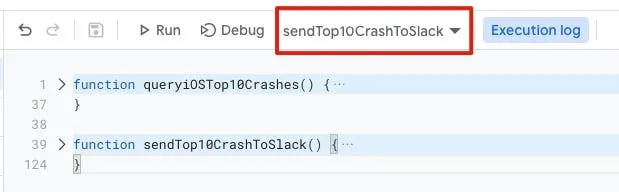
At this point, your Google Apps Script project should have the two Functions mentioned above.
Next, select the “sendTop10CrashToSlack” function above, then click Debug or Run to test it once. Since the first run requires authentication, please execute it at least once before proceeding to the next step.
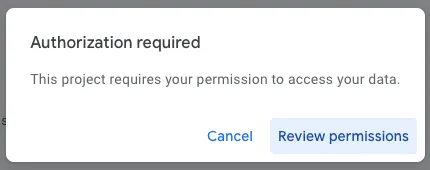
After successfully running a test, you can start scheduling automatic execution:
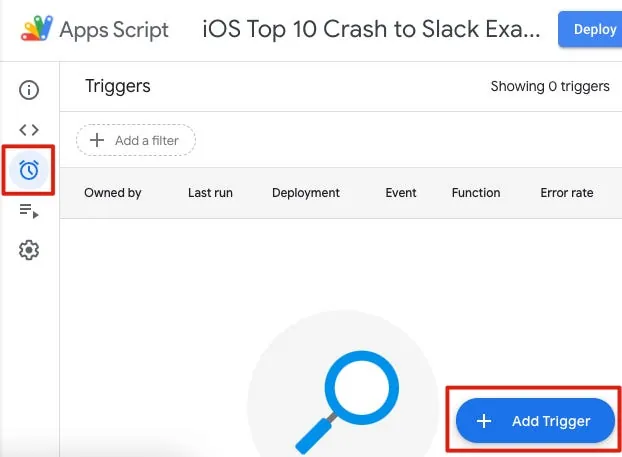
Select the alarm clock icon on the left, then choose “+ Add Trigger” at the bottom right.
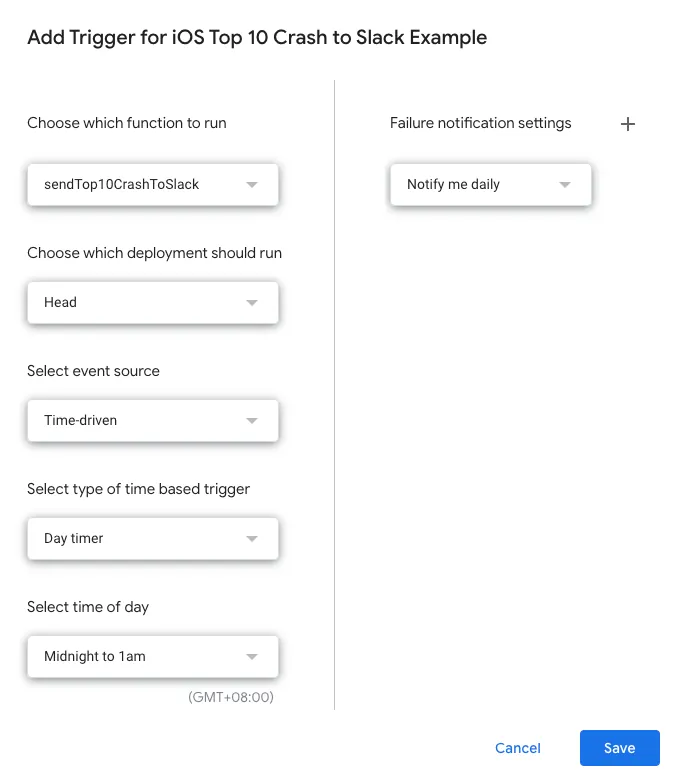
The first “Choose which function to run” (the entry point function to execute) should be changed to sendTop10CrashToSlack. The time interval can be set according to personal preference.
⚠️⚠️⚠️ Please note that each query accumulates costs, so do not set them carelessly; otherwise, automatic scheduled runs may result in high expenses.
Completed
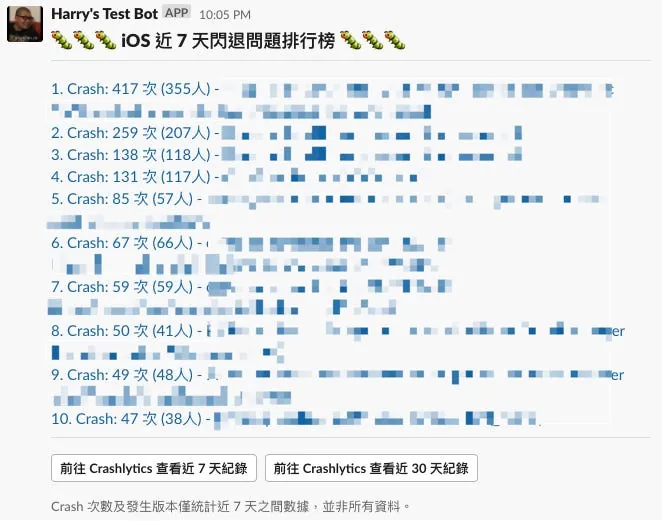
Example Result Image
From now on, you can quickly track current app crash issues directly on Slack and even discuss them there.
App Crash-Free Users Rate?
If you want to track the App Crash-Free Users Rate, please refer to the next article: “Crashlytics + Google Analytics Automated Query for App Crash-Free Users Rate”

Comments