
What’s New with Universal Links
iOS 13, iOS 14 Universal Links Updates & Setting Up a Local Testing Environment

Photo by NASA
Introduction
For a service that has both a website and an app, Universal Links are crucial for user experience, enabling seamless integration between the web and the app. However, the setup has always been simple with little detail available. Recently, I spent some time researching it and decided to record some interesting findings.
Common Considerations
In the services I’ve worked on, the consideration for implementing Universal Links is that the APP does not have a fully functional website. Universal Links recognize the domain name, and as long as the domain matches, it will open the APP. To address this, you can use NOT to exclude URLs that the APP does not support. If the website URLs are very complex, it’s better to create a new subdomain specifically for Universal Links.
When does apple-app-site-association update?
-
For iOS < 14, the app requests the apple-app-site-association file of the Universal Links website upon first install or update.
-
For iOS ≥ 14, Apple CDN caches and periodically updates the apple-app-site-association file for Universal Links websites; the app fetches it from Apple CDN during the first install or update. However, this may cause the apple-app-site-association on Apple CDN to be outdated.
Regarding Apple CDN’s update mechanism, I checked the documentation but found no mention; looking into the discussion, the official response was only “updates will be done regularly,” with details to be published later… but nothing has appeared so far.
I personally think it should update within 48 hours at the latest… So next time you make changes to the apple-app-site-association file, it’s recommended to update it online a few days before submitting the app update.
apple-app-site-association Apple CDN Verification:
Headers: HOST=app-site-association.cdn-apple.com
GET https://app-site-association.cdn-apple.com/a/v1/your-domain
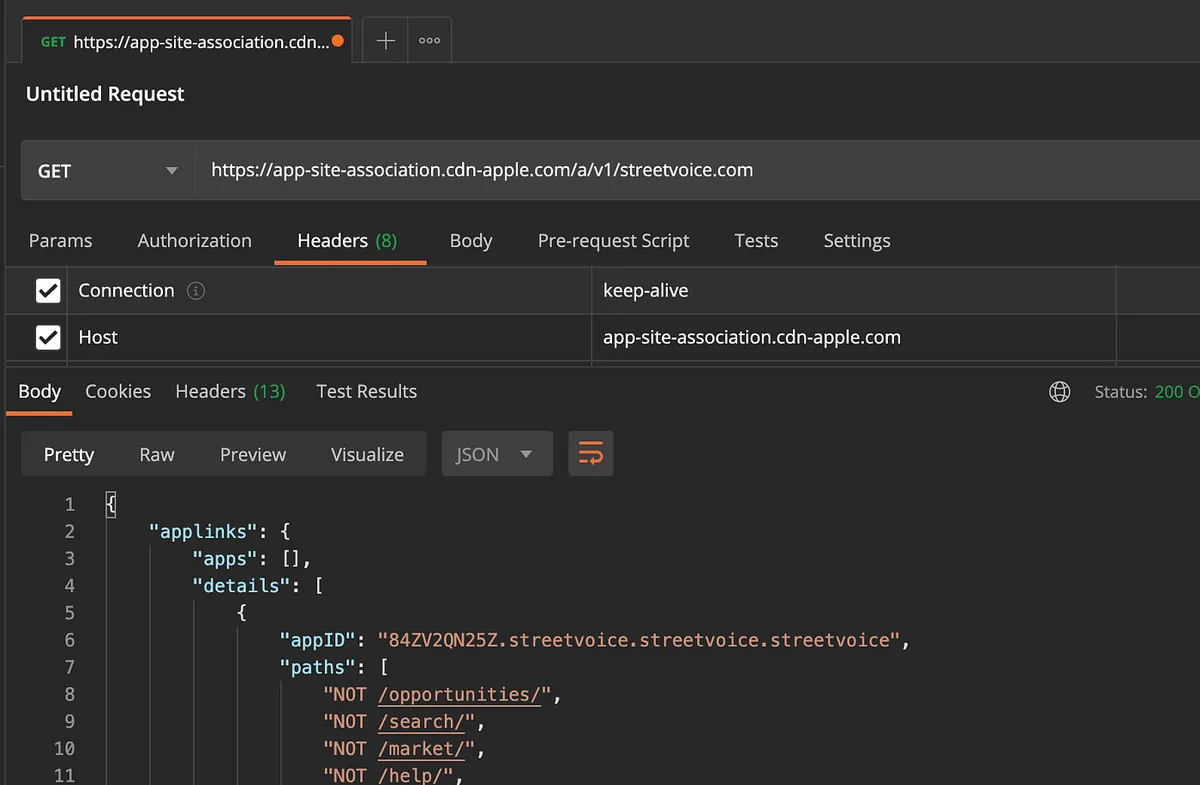
You can get the current version on Apple CDN. (Remember to add the Request Header Host=https://app-site-association.cdn-apple.com/)
iOS ≥ 14 Debug
Due to the aforementioned CDN issue, how can we debug during the development phase?
Fortunately, Apple provides a solution for this part; otherwise, not being able to update in real-time would be frustrating. We just need to add ?mode=developer after applinks:domain.com. Additionally, there are managed (for enterprise internal apps) and developer+managed modes available.

After adding mode=developer, the APP will fetch the latest app-site-association from the website every time it is Build & Run on the simulator.
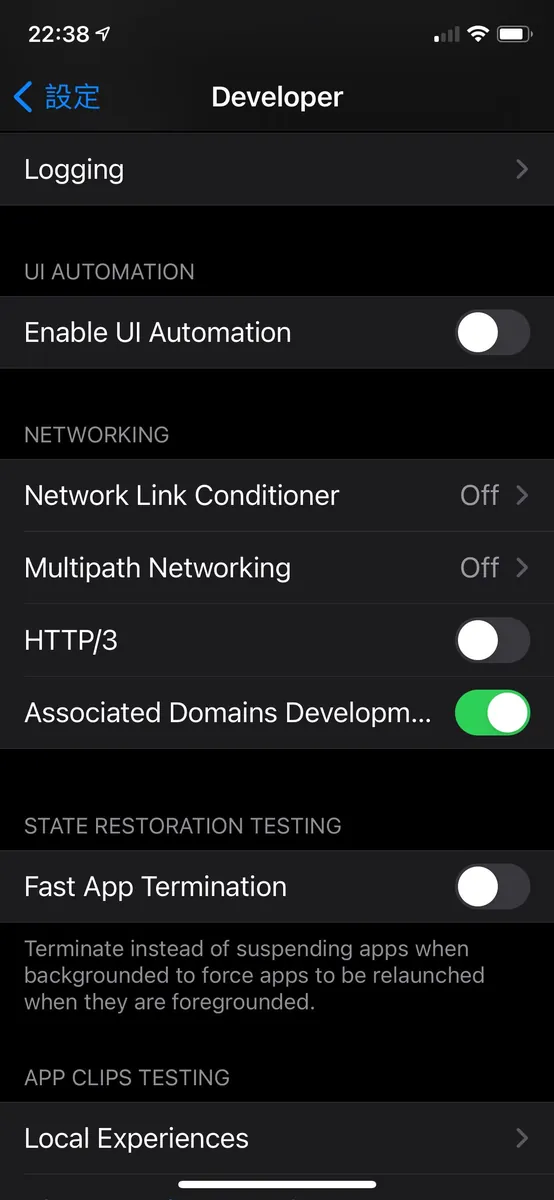
To Build & Run on a real device, first go to “Settings” -> “Developer” -> turn on the “Associated Domains Development” option.
⚠️ Here is a gotcha: the app-site-association file can be placed in the website root or the
./.well-knowndirectory; however, in mode=developer it only checks./.well-known/app-site-association, which made me think it wasn’t working.
Development Testing
For iOS <14, if you have changed the app-site-association file, remember to delete it and then rebuild & run the app to fetch the latest version. For iOS ≥ 14, please follow the previously mentioned method and add mode=developer.
Modifying the app-site-association content is best done directly on the server; however, for those of us who don’t always have access to the server, testing Universal Links can be very troublesome. We have to constantly bother backend colleagues for help, so it’s important to finalize the app-site-association content before going live. Constant changes can drive colleagues crazy.
Setting Up a Local Simulation Environment
To solve the above issue, we can start a small service locally.
First, install nginx on your Mac:
brew install nginx
If you haven’t installed brew yet, you can install it first:
/bin/bash -c "$(curl -fsSL https://raw.githubusercontent.com/Homebrew/install/HEAD/install.sh)"
After installing nginx, go to /usr/local/etc/nginx/ and open the nginx.conf file for editing:
...omitted
server {
        listen       8080;
        server_name  localhost;
#charset koi8-r;
#access_log  logs/host.access.log  main;
location / {
            root   /Users/zhgchgli/Documents;
            index  index.html index.htm;
        }
...omitted
Around line 44, change the root inside location / to the directory you want (here, Documents is used as an example).
Listen on 8080 port. No need to change if there is no conflict.
After saving the changes, run the command to start nginx:
nginx
To stop, enter:
nginx -s stop
Stop.
If you make changes to nginx.conf, remember to run:
nginx -s reload
Re-enable the service.
Create a ./.well-known directory inside the newly set root directory and place the apple-app-site-association file into the ./.well-known folder.
⚠️ If
.well-knowndisappears after creation, make sure to enable the “Show Hidden Files” feature on your Mac:
In the terminal:
defaults write com.apple.finder AppleShowAllFiles TRUE
Then run killall finder to restart all Finder processes.
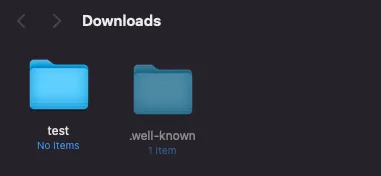
⚠️
apple-app-site-associationappears to have no file extension, but it actually has a .json extension:
Right-click on the file -> “Get Info” -> “Name & Extension” -> Check if there is a file extension & uncheck “Hide extension” if needed
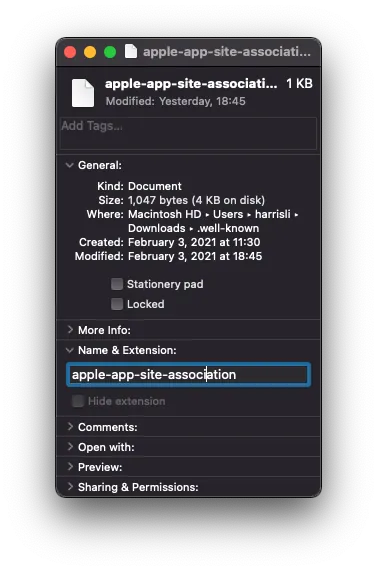
After confirming there are no issues, open the browser and test the following link to see if the apple-app-site-association file downloads correctly:
http://localhost:8080/.well-known/apple-app-site-association
If the download works properly, it means the local environment simulation is successful!
If you encounter 404/403 errors, please check whether the root directory is correct, whether the directory/files are placed properly, and if the apple-app-site-association file mistakenly has an extension (.json).
Register & Download Ngrok
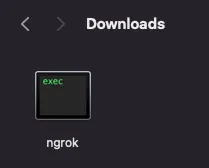
Extract the ngrok executable file
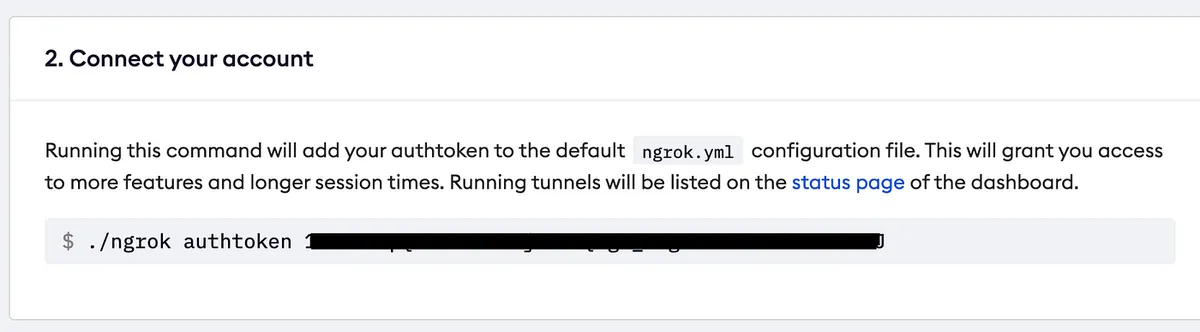
Go to the Dashboard page to perform the Config setup.
./ngrok authtoken YourTOKEN
After setting up, run:
./ngrok http 8080
Because our nginx is on port 8080.
Start the service.
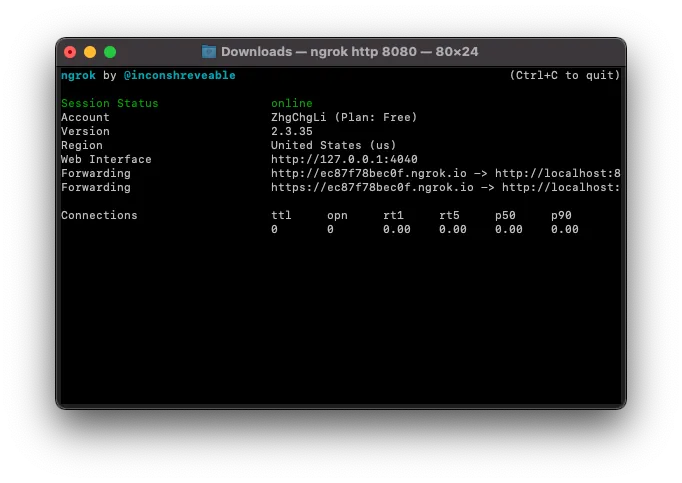
At this point, you will see a service startup status window, where you can find the assigned public URL under Forwarding.
⚠️ The URL assigned changes every time the app launches, so it can only be used for development testing.
Here, we use the assigned URL
https://ec87f78bec0f.ngrok.io/as an example
Go back to the browser and enter https://ec87f78bec0f.ngrok.io/.well-known/apple-app-site-association to see if the apple-app-site-association file can be downloaded and viewed correctly. If there are no issues, you can proceed to the next step.
Enter the URL assigned by ngrok into the Associated Domains applinks: setting.

Remember to include ?mode=developer to make testing easier for us.
Rebuild & Run APP:
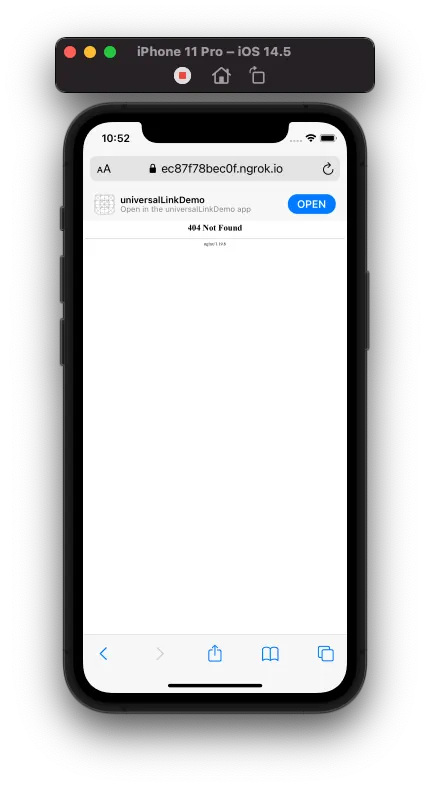
Open the browser and enter the corresponding Universal Links test URL (e.g., https://ec87f78bec0f.ngrok.io/buy/123) to see the result.
Ignore the 404 page because we don’t actually have that page; we are just testing whether iOS URL matching works as expected. If “Open” appears above, it means the match is successful. You can also test the NOT inverse condition.
Click “Open” to launch the APP -> Test successful!
After confirming that all tests pass during the development phase, provide the updated apple-app-site-association file to the backend for uploading to the server to ensure everything works perfectly.
Finally, remember to change Associated Domains applinks: to the official testing URL.
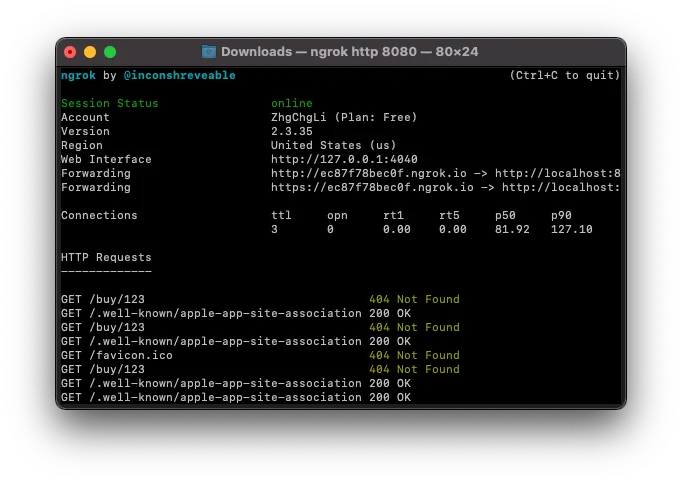
We can also check from the ngrok status window whether each APP Build & Run requests the apple-app-site-association file:
Applinks Configuration Content
Before iOS 13:
The configuration file is simpler, with only the following content configurable:
{
  "applinks": {
      "apps": [],
      "details": [
           {
             "appID" : "TeamID.BundleID",
             "paths": [
               "NOT /help/",
               "*"
             ]
           }
       ]
   }
}
Replace TeamID.BundleId with your project settings (e.g., TeamID = ABCD, BundleID = li.zhgchg.demoapp => ABCD.li.zhgchg.demoapp).
If there are multiple appIDs, add multiple sets accordingly.
The paths section defines matching rules and supports the following syntax:
-
*: Matches 0 or more characters, e.g.,/home/*(home/alan…) -
?: Matches exactly 1 character, e.g.,201?(2010~2019) -
?*:Matches 1 or more characters, e.g.,/?*(/test, /home..) -
NOT: negation exclusion, e.g.,NOT /help(any url but /help)
You can create more combinations based on your actual situation. For more information, please refer to the official documentation.
- Note that it is not a Regex and does not support any Regex syntax.
- The old version does not support Query (?name=123) or Anchor (#title).
- Chinese URLs must be converted to ASCII before placing them in paths (all URL characters must be ASCII).
iOS ≥ 13 and later:
Enhanced configuration file features, adding support for Query/Anchor, character sets, and encoding handling.
"applinks": {
  "details": [
    {
      "appIDs": [ "TeamID.BundleID" ],
      "components": [
        {
          "#": "no_universal_links",
          "exclude": true,
          "comment": "Matches any URL whose fragment equals no_universal_links and instructs the system not to open it as a universal link"
        },
        {
          "/": "/buy/*",
          "comment": "Matches any URL whose path starts with /buy/"
        },
        {
          "/": "/help/website/*",
          "exclude": true,
          "comment": "Matches any URL whose path starts with /help/website/ and instructs the system not to open it as a universal link"
        },
        {
          "/": "/help/*",
          "?": { "articleNumber": "????" },
          "comment": "Matches any URL whose path starts with /help/ and that has a query item with name 'articleNumber' and a value of exactly 4 characters"
        }
      ]
    }
  ]
}
Copied from the official documentation, you can see the format has changed.
appIDs is an array that can hold multiple appIDs, so you no longer need to repeat the entire block like before.
WWDC mentioned backward compatibility: when iOS ≥ 13 reads the new format, it will ignore the old paths.
Matching rules are now placed in components; supports 3 types:
-
/: URL -
?: Query, ex: ?name=123&place=tw -
#: Anchor, ex: #title
They can also be used together. For example, if only /user/?id=100#detail should open the APP, you can write:
{
  "/": "/user/*",
  "?": { "id": "*" },
  "#": "detail"
}
The matching syntax is the same as the original and also supports *, ?, and ?*.
Add a comment field for entering notes to help identification. (But note this is public and visible to others.)
For reverse exclusion, specify exclude: true instead.
Added the caseSensitive option to specify whether the matching rules are case-sensitive. The default is true. This can reduce the number of rules needed if case sensitivity is not required.
Added percentEncoded As mentioned earlier, the old version required converting the URL to ASCII before placing it in paths (which made Chinese characters look ugly and unreadable); this parameter determines whether to automatically encode for us, with the default being true.
If it’s a Chinese URL, it can be directly placed in (e.g., /客服中心).
Detailed official documentation can be found here.
Default Character Set:
This is one of the important features in this update, adding support for character sets.
Character sets defined by the system for us:
-
$(alpha):A-Z and a-z -
$(upper):A-Z -
$(lower):a-z -
$(alnum):A-Z, a-z, and 0–9 -
$(digit):0–9 -
$(xdigit): Hexadecimal characters, 0–9 and a,b,c,d,e,f,A,B,C,D,E,F -
$(region): ISO region code isoRegionCodes, e.g., TW -
$(lang):ISO language code isoLanguageCodes, Ex: zh
If our website supports multiple languages and we want to enable Universal Links, we can set it up like this:
"components": [
     { "/" : "/$(lang)-$(region)/$(food)/home" }
]
This way, both /zh-TW/home and /en-US/home are supported, which is very convenient and saves you from writing a long list of rules!
Custom Character Set:
Besides the default character set, we can also customize character sets to enhance configuration reuse and readability.
Just add substitutionVariables in applinks:
{
  "applinks": {
    "substitutionVariables": {
      "food": [ "burrito", "pizza", "sushi", "samosa" ]
    },
    "details": [{
      "appIDs": [ ... ],
      "components": [
        { "/" : "/$(food)/" }
      ]
    }]
  }
}
The example customizes a food character set and uses it later in the components.
The above example can match /burrito, /pizza, /sushi, /samosa.
For details, refer to the official document here.
No inspiration?
If you have no ideas for the content of the configuration file, you can secretly refer to other websites’ files by adding /app-site-association or /.well-known/app-site-association to the homepage URL of their service website to read their settings.
For example: https://www.netflix.com/apple-app-site-association
Supplementary Information
When using SceneDelegate, the entry point for opening a universal link is in the SceneDelegate:
func scene(_ scene: UIScene, continue userActivity: NSUserActivity)
Instead of AppDelegate:
func application(_ application: UIApplication, continue userActivity: NSUserActivity, restorationHandler: @escaping ([UIUserActivityRestoring]?) -> Void) -> Bool


Comments