
iOS Deferred Deep Link Implementation (Swift)
Build a Seamless App Redirect Flow That Works in All Scenarios
[2022/07/22] Update on iOS 16 Upcoming Changes
Starting from iOS 16, if the user does not actively perform a paste action, the app’s attempt to read the clipboard will trigger a prompt. The user must grant permission for the app to access the clipboard data.
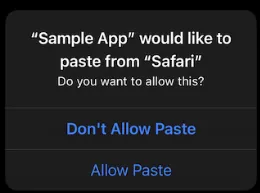
UIPasteBoard’s privacy change in iOS 16
[2020/07/02] Update
Irrelevant
After graduating and completing military service, I have been working aimlessly for almost three years. My growth has plateaued, and I started to settle into my comfort zone. Fortunately, I made a firm decision to resign, take a break, and start anew.
While reading Be Your Own Life Designer to rethink my life plan, I reflected on my work and life. Although my technical skills are not very strong, writing on Medium and sharing with others allows me to enter a “flow” state and gain a lot of energy. Recently, a friend asked me about Deep Link issues, so I took the chance to organize my research methods and refresh my energy!
Scenario
First, the actual use case needs to be explained.
- When the user has the APP installed and clicks a URL link (from Google search, FB post, Line link, etc.), the APP opens directly to the target screen. If not installed, it redirects to the APP Store to install the APP; after installation, opening the APP should reproduce the previously intended screen.
-
APP Download and Launch Data Tracking: We want to know how many people actually download and open the APP from the promotion link.
-
Special event entry points, such as downloading via a specific URL and opening the app to receive rewards.
Support:
iOS ≥ 9
What is the Difference Between Deferred Deep Link and Deep Link?
Pure Deep Link itself:
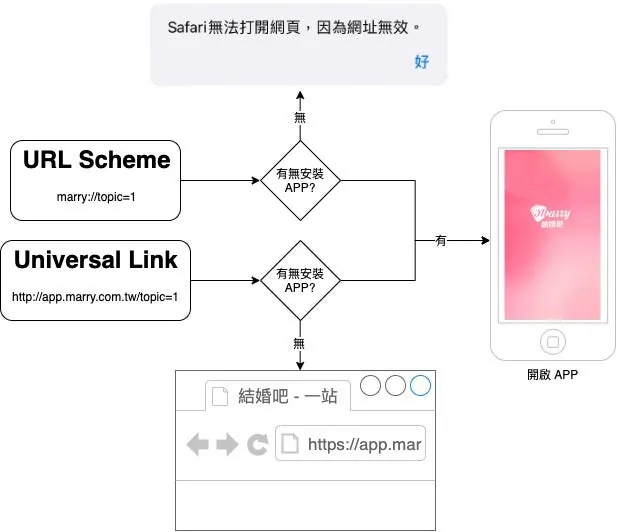
You can see that the iOS Deep Link mechanism only checks whether the app is installed; if it is, it opens the app, otherwise it does nothing.
First, we need to add a prompt for users to install the app if it’s not installed, redirecting them to the APP Store:
The URL Scheme is controlled by the system and is generally used for internal app calls, rarely exposed publicly; if the trigger point is outside your control (e.g., Line links), it cannot be handled.
If the trigger point is on your own webpage, you can use some tricks to handle it. Please refer to here:
<html>
<head>
  <title>Redirect...</title>
  <meta http-equiv="Content-Type" content="text/html; charset=UTF-8" />
  <script>
    var appurl = 'marry://open';
    var appstore = 'https://apps.apple.com/tw/app/%E7%B5%90%E5%A9%9A%E5%90%A7-%E6%9C%80%E5%A4%A7%E5%A9%9A%E7%A6%AE%E7%B1%8C%E5%82%99app/id1356057329';

    var timeout;
    function start() {
      window.location = appurl;
      timeout = setTimeout(function(){
        if(confirm('Install the Marry app now?')){
          document.location = appstore;
        }
      }, 1000);
    }

    window.onload = function() {
      start()
    }
  </script>
</head>
<body>

</body>
</html>
The general logic is to call the URL Scheme, then set a timeout. If the timeout expires and the page hasn’t redirected, assume the app is not installed and cannot call the scheme, then redirect to the App Store page (though the experience is still not ideal and may show a URL error message, but it adds automatic redirection).
Universal Link itself is a webpage. If no redirection occurs, it defaults to being displayed in a web browser. For those with web services, you can choose to redirect directly to the webpage; otherwise, redirect directly to the App Store page.
Web service websites can add the following inside the <head></head> section:
<meta name="apple-itunes-app" content="app-id=APPID, app-argument=page parameters">

When browsing the web version on iPhone Safari, an APP installation prompt and a button to open the current page in the APP will appear at the top; the parameter app-argument is used to pass page values and transmit them to the APP.
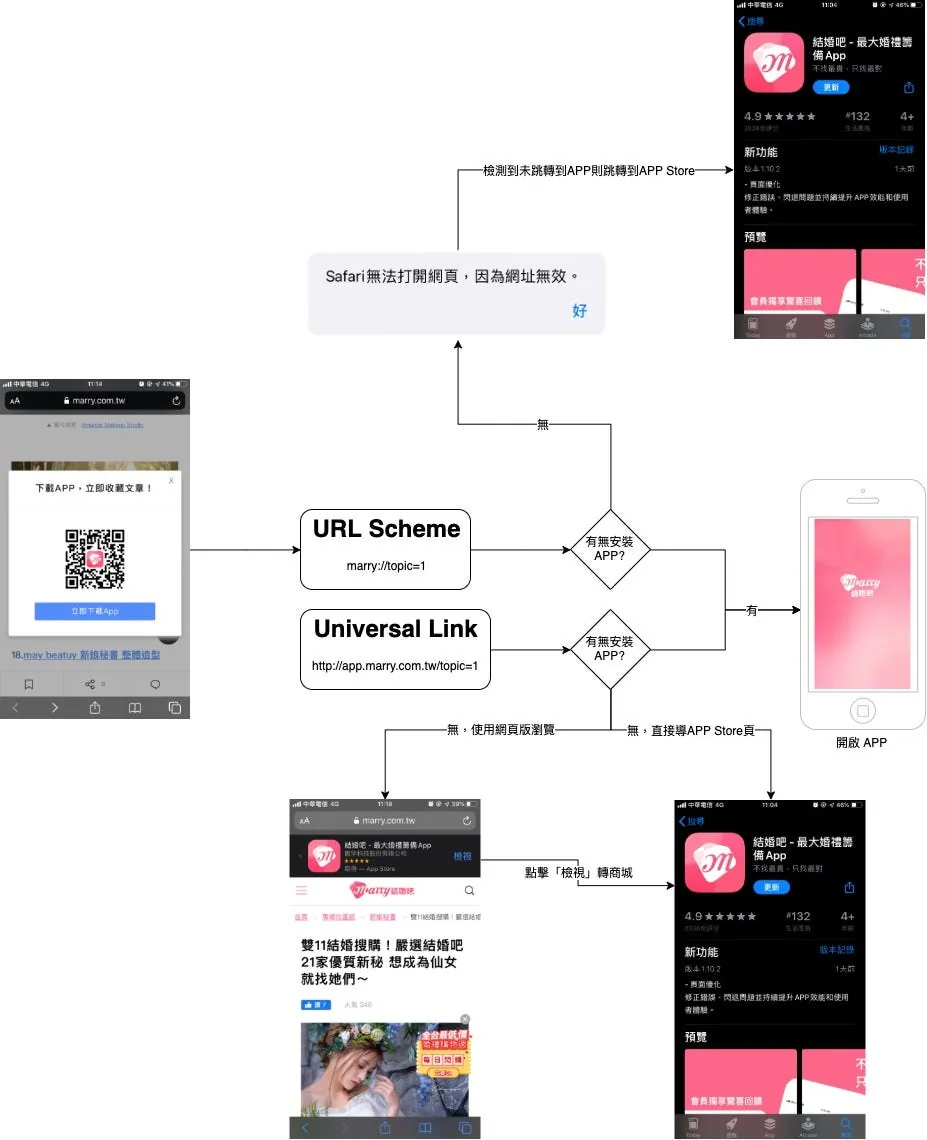
Flowchart Including “If None, Redirect to APP Store”
Improve Deep Link Handling on the APP Side:
What we want is not just “open the APP if the user has it installed,” but also to link the source information with the APP, so that when the APP opens, it automatically displays the target page within the APP.
URL Scheme method can be handled in AppDelegate’s func application(_ application: UIApplication, open url: URL, sourceApplication: String?, annotation: Any) -> Bool:
func application(_ application: UIApplication, open url: URL, sourceApplication: String?, annotation: Any) -> Bool {
    if url.scheme == "marry",let params = url.queryParameters {
      if params["type"] == "topic" {
        let VC = TopicViewController(topicID:params["id"])
        UIApplication.shared.keyWindow?.rootViewController?.present(VC,animated: true)
      }
    }
    return true
}
Universal Link is handled in the AppDelegate within func application(_ application: UIApplication, continue userActivity: NSUserActivity, restorationHandler: @escaping ([Any]?) -> Void) -> Bool:
extension URL {
    /// test=1&a=b&c=d => ["test":"1","a":"b","c":"d"]
    /// Parse URL query into a [String: String] dictionary
    public var queryParameters: [String: String]? {
        guard let components = URLComponents(url: self, resolvingAgainstBaseURL: true), let queryItems = components.queryItems else {
            return nil
        }

        var parameters = [String: String]()
        for item in queryItems {
            parameters[item.name] = item.value
        }

        return parameters
    }

}
First, here is an extension method for URL called queryParameters, which helps convert URL queries into a Swift Dictionary.
func application(_ application: UIApplication, continue userActivity: NSUserActivity, restorationHandler: @escaping ([Any]?) -> Void) -> Bool {

  if userActivity.activityType == NSUserActivityTypeBrowsingWeb, let webpageURL = userActivity.webpageURL {
    /// If the source is a universal link URL...
    let params = webpageURL.queryParameters

    if params["type"] == "topic" {
      let VC = TopicViewController(topicID:params["id"])
      UIApplication.shared.keyWindow?.rootViewController?.present(VC, animated: true)
    }
  }

  return true
}
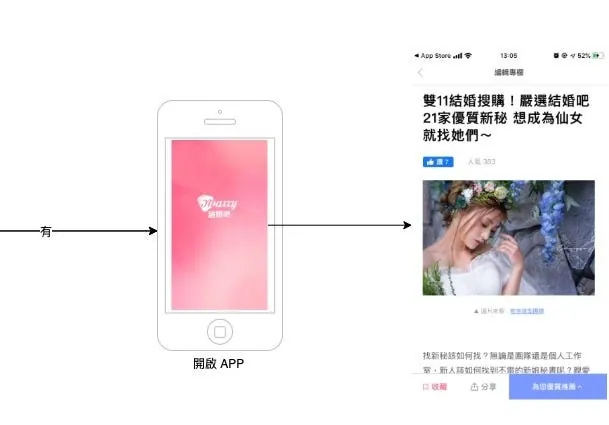
Done!
What is still missing?
It seems perfect now. We’ve handled all possible scenarios. So, what else is missing?
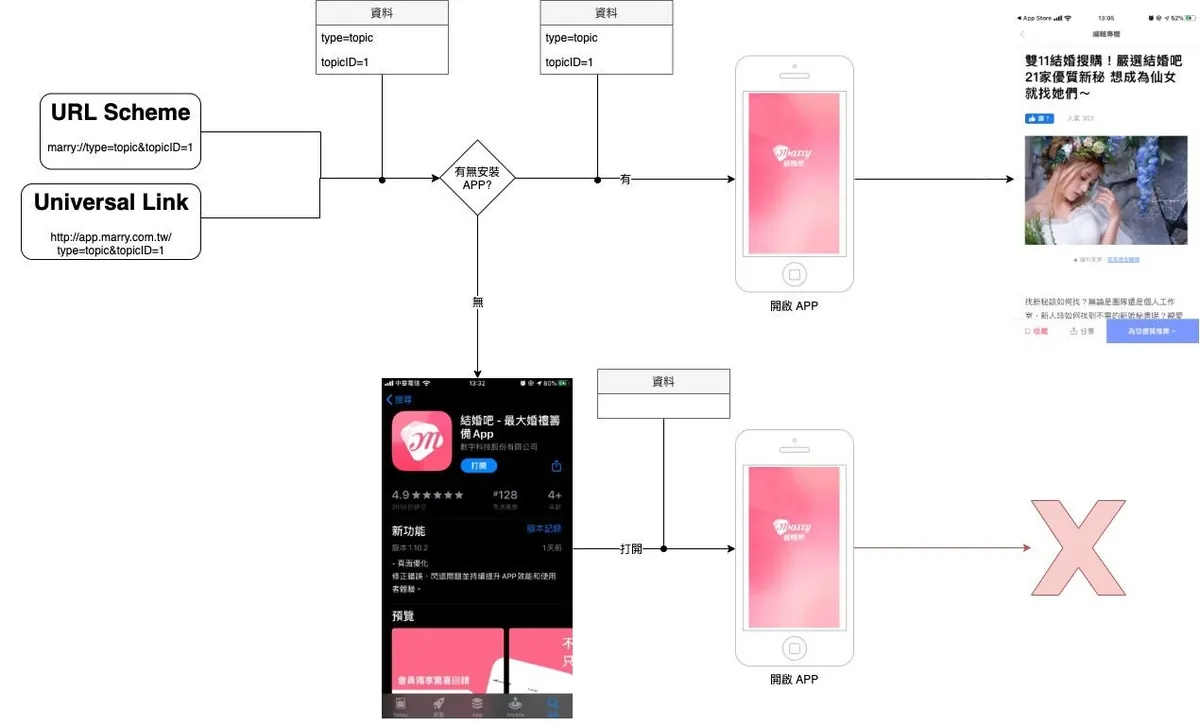
As shown in the figure, if the flow is Not Installed -> App Store Installation -> Opened from App Store, the data passed from the source will be interrupted. The app won’t know the source and will only display the home page. The user must go back to the previous webpage and click open again for the app to trigger the page jump.
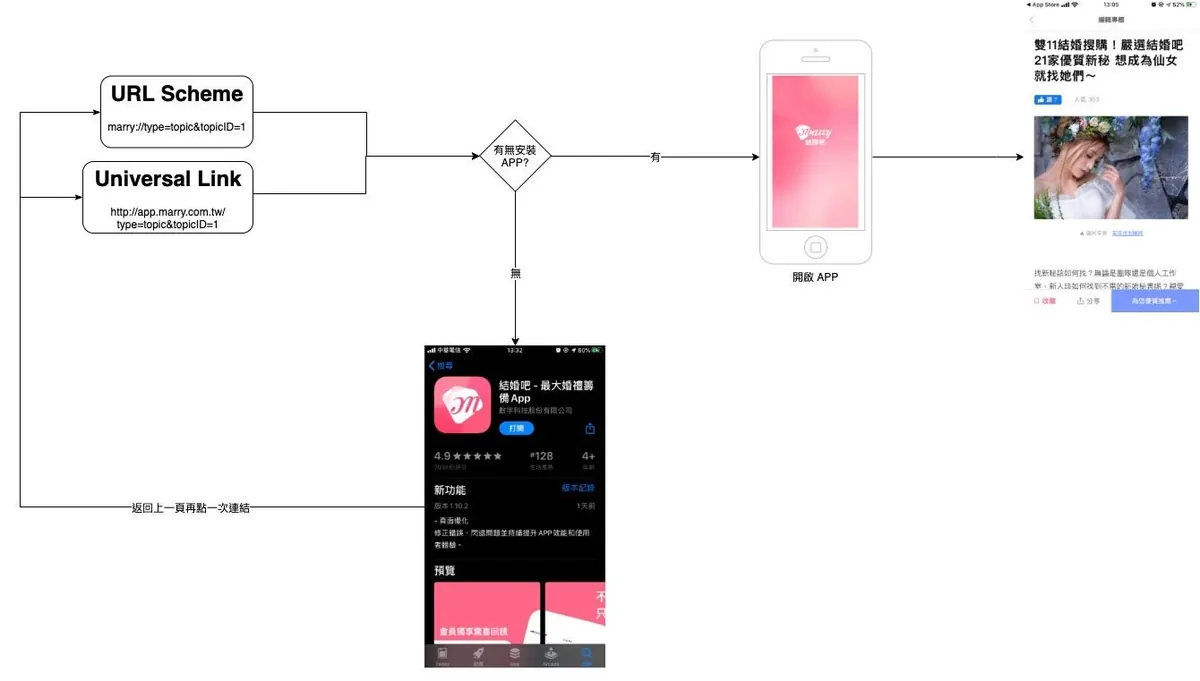
Although this is possible, adding an extra step increases drop-off rates and results in a less smooth user experience; moreover, users may not be that savvy.
Getting to the Point of This Article
What is Deferred Deep Link? Deferred Deep Link allows our Deep Link to retain source data even after the app is installed from the App Store.
According to Android engineers, Android natively supports this feature, but iOS does not support this setting, and achieving this functionality on iOS is not user-friendly. Please continue reading.
Deferred Deep Link
If you don’t want to spend time building it yourself, you can directly use branch.io or Firebase Dynamic Links. The method introduced in this article is the same approach used by Firebase.
There are two common methods online to achieve Deferred Deep Link functionality:
One method is to calculate a hash value based on user device, IP, environment, etc., and store data on the server from the web side; after the app is installed and opened, the same calculation is done, and if the values match, the data is retrieved and restored (the approach used by branch.io).
Another method introduced in this article, similar to Firebase’s approach, uses the iPhone clipboard and the Safari-App cookie sharing mechanism. This means storing data in the clipboard or cookies, which the app reads and uses after installation.
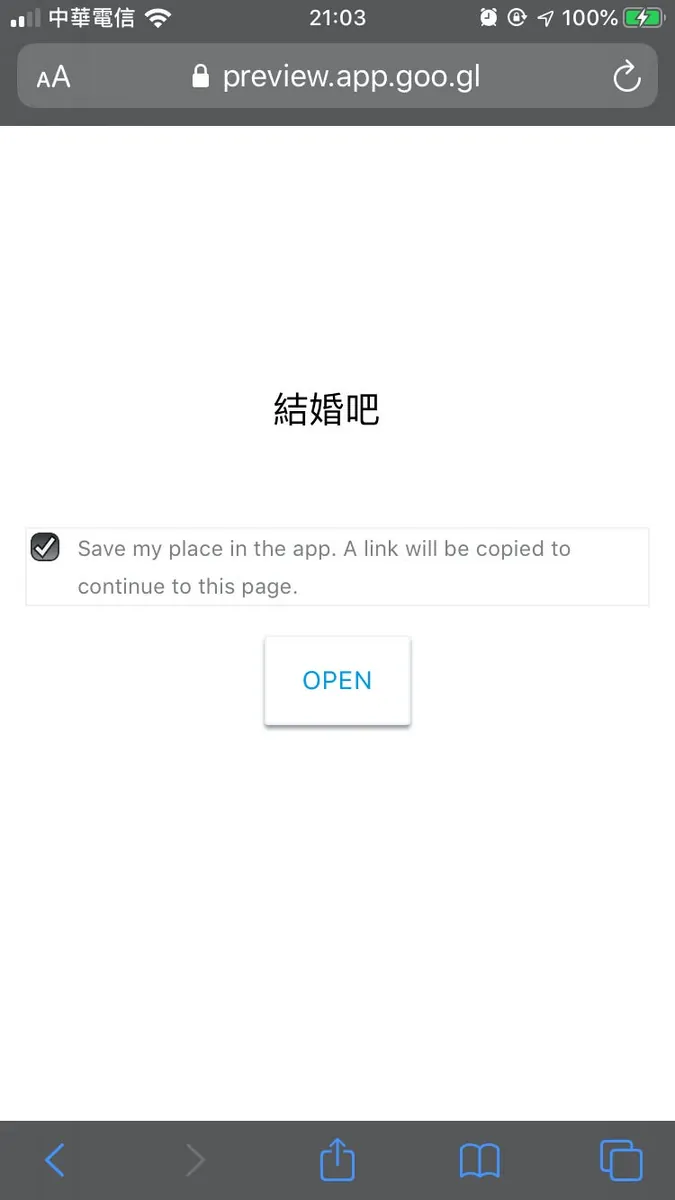
After clicking "Open," your clipboard will be automatically overwritten by JavaScript with the deep link information: https://XXX.app.goo.gl/?link=https://XXX.net/topicID=1&type=topic
Those who have used Firebase Dynamic Links are surely familiar with this redirect page. Once you understand the principle, you’ll know that this page cannot be removed from the process!
Firebase also does not provide options for style customization.
Support Level
First, let’s talk about a pitfall: support issues; as mentioned before, it’s “unfriendly”!

If the app only targets iOS ≥ 10, it becomes much easier. The app implements clipboard access, the web uses JavaScript to overwrite the clipboard with information, and then redirects to the App Store for download.
iOS = 9 does not support JavaScript automatic clipboard access but supports Safari and APP SFSafariViewController “Cookie Sharing Method”
Also, the APP needs to secretly add a SFSafariViewController in the background to load the Web, then retrieve the previously saved cookie information from the Web.
The steps are complicated & link clicking is limited to the Safari browser.
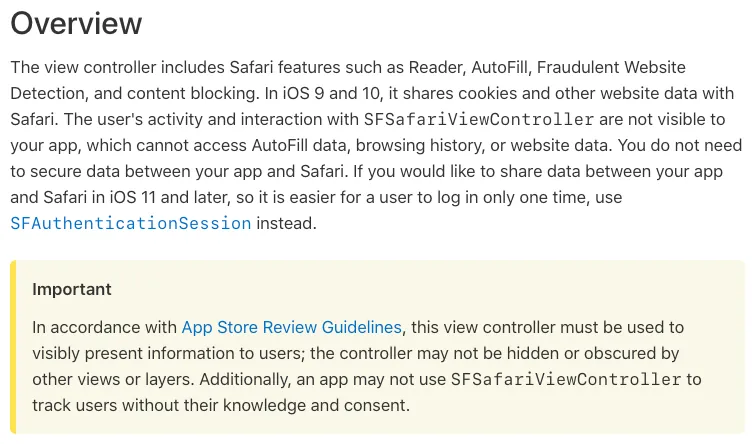
According to official documentation, iOS 11 no longer allows access to users’ Safari cookies. If needed, you can use SFAuthenticationSession, but this method cannot run silently in the background and will show the following prompt every time before loading:

SFAuthenticationSession prompt window
Also, app review does not allow placing SFSafariViewController where users cannot see it. (Triggering it programmatically and then adding it as a subview is less likely to be detected)
Hands-on Practice
Let’s keep it simple and only consider iOS users with version ≥ 10, using the iPhone clipboard to transfer information.
Web side:

We customized our own page by imitating Firebase Dynamic Links, using the clipboard.js library to copy the information we want to pass to the APP (marry://topicID=1&type=topic) to the clipboard when the user clicks “Go Now,” and then use location.href to redirect to the App Store page.
On the APP side:
Read the value from the pasteboard in AppDelegate or the main UIViewController:
let pasteData = UIPasteboard.general.string // Get string data from the general pasteboard
It is recommended to package the information using URL Scheme for easy identification and data parsing:
if let pasteData = UIPasteboard.general.string, let url = URL(string: pasteData), url.scheme == "marry", let params = url.queryParameters {
    if params["type"] == "topic" {
      let VC = TopicViewController(topicID: params["id"])
      UIApplication.shared.keyWindow?.rootViewController?.present(VC, animated: true)
    }
}
Finally, clear the information in the clipboard by using UIPasteboard.general.string = “” after completing the action.
Hands-on — Support for iOS 9 Version
Here comes the tricky part: to support iOS 9, as mentioned earlier, since clipboard access is not supported, we need to use the Cookie Sharing Method.
Web side:
The web side is also easy to handle. When the user clicks “Go Now,” store the information we want to pass to the APP in a Cookie (marry://topicID=1&type=topic), then use location.href to redirect to the APP Store page.
Here are two encapsulated JavaScript methods for handling Cookies to speed up development:
/// name: Cookie name
/// val: Cookie value
/// day: Cookie expiration in days, default is 1 day
/// EX1: setcookie("iosDeepLinkData","marry://topicID=1&type=topic")
/// EX2: setcookie("hey","hi",365) = valid for one year
function setcookie(name, val, day) {
    var exdate = new Date();
    day = day \\|\\| 1;
    exdate.setDate(exdate.getDate() + day);
    document.cookie = "" + name + "=" + val + ";expires=" + exdate.toGMTString();
}

/// getCookie("iosDeepLinkData") => marry://topicID=1&type=topic
function getCookie(name) {
    var arr = document.cookie.match(new RegExp("(^\\| )" + name + "=([^;]*)(;\\|$)"));
    if (arr != null) return decodeURI(arr[2]);
    return null;
}
On the APP side:
Here comes the most troublesome part of this article.
The principle was mentioned earlier. We need to secretly load an SFSafariViewController in the background within the main UIViewController without the user noticing.
Another pitfall: For iOS ≥ 10, if the SFSafariViewController’s view size is set smaller than 1, opacity less than 0.05, or isHidden is true, the SFSafariViewController will not load.
p.s iOS = 10 supports both Cookie and Pasteboard.
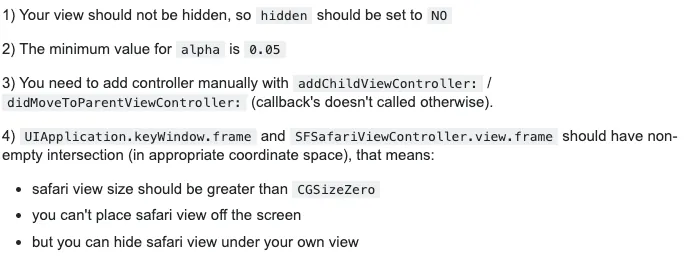
My approach is to place a UIView with any height above the main UIViewController on the homepage, aligning its bottom with the top of the main UIView. Then, connect an IBOutlet (sharedCookieView) to the class. In viewDidLoad(), initialize an SFSafariViewController and add its view to sharedCookieView. This way, it actually loads and displays, but the screen is off-screen so the user cannot see it 🌝.
What should the URL of SFSafariViewController point to?
Like the web sharing page, we need to create another page for reading cookies and place both pages under the same domain to avoid cross-domain cookie issues. The page content will be provided later.
@IBOutlet weak var SharedCookieView: UIView!

override func viewDidLoad() {
    super.viewDidLoad()

    let url = URL(string:"http://app.marry.com.tw/loadCookie.html")
    let sharedCookieViewController = SFSafariViewController(url: url)
    VC.view.frame = CGRect(x: 0, y: 0, width: 200, height: 200)
    sharedCookieViewController.delegate = self

    self.addChildViewController(sharedCookieViewController)
    self.SharedCookieView.addSubview(sharedCookieViewController.view)

    sharedCookieViewController.beginAppearanceTransition(true, animated: false)
    sharedCookieViewController.didMove(toParentViewController: self)
    sharedCookieViewController.endAppearanceTransition()
}
sharedCookieViewController.delegate = self
class HomeViewController: UIViewController, SFSafariViewControllerDelegate
You need to add this Delegate to capture the callback after the loading is complete.
We can at:
func safariViewController(_ controller: SFSafariViewController, didCompleteInitialLoad didLoadSuccessfully: Bool) {
Capture the load completion event in the method.
At this point, you might think the next step is to read the cookies inside the webpage in didCompleteInitialLoad to complete the process!
I couldn’t find a method here to read cookies from SFSafariViewController; all online methods return empty.
It may be necessary to use JavaScript to interact with the page content, having JavaScript read the Cookie and return it to the UIViewController.
The Tricky URL Scheme Method
Since iOS cannot directly access shared Cookies, we let the “page that reads the Cookie” handle the “Cookie reading” for us.
The getCookie() method from the previously attached JavaScript for handling cookies is used here. Our “cookie reading page” is a blank page (users won’t see it anyway), but the JavaScript part needs to read the cookie after the body onload:
<html>
<head>
  <title>Load iOS Deep Link Saved Cookie...</title>
  <script>
  function checkCookie() {
    var iOSDeepLinkData = getCookie("iOSDeepLinkData");
    if (iOSDeepLinkData && iOSDeepLinkData != '') {
        setcookie("iOSDeepLinkData", "", -1);
        window.location.href = iOSDeepLinkData; /// marry://topicID=1&type=topic
    }
  }
  </script>
</head>

<body onload="checkCookie();">

</body>

</html>
The actual principle summary is: in HomeViewController viewDidLoad, add an SFSafariViewController to secretly load the loadCookie.html page. The loadCookie.html page reads and checks previously stored cookies; if found, it reads and clears them, then uses window.location.href to trigger the URL Scheme mechanism.
So the corresponding callback handling will return to the AppDelegate’s func application(_ application: UIApplication, open url: URL, sourceApplication: String?, annotation: Any) -> Bool for processing.
Done! Summary:
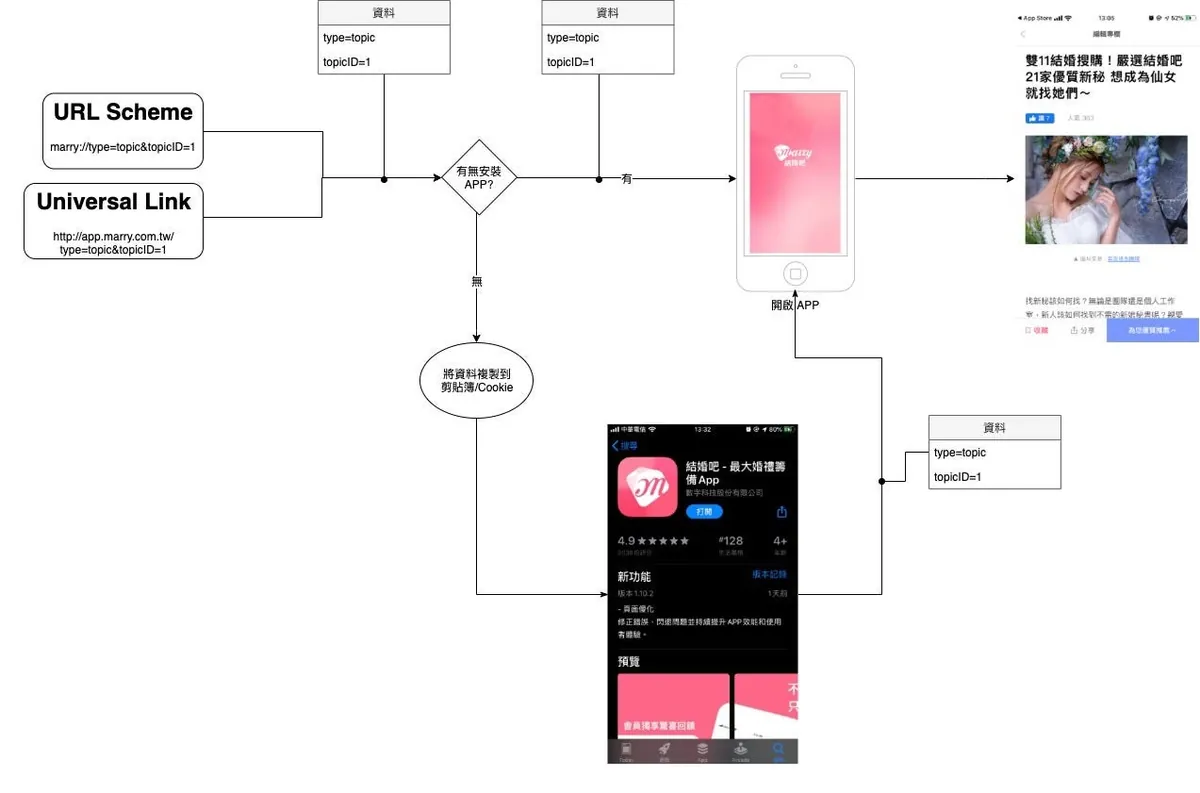
If it feels cumbersome, you can directly use branch.io or Firebase Dynamic. There’s no need to reinvent the wheel. Here, we built our own solution due to interface customization and some complex requirements.
iOS 9 users are now very rare, so you can safely ignore them if not necessary; using the clipboard method is fast and efficient, and it also frees you from the limitation of opening links only in Safari!


Comments