
iOS Cross-Platform Account and Password Integration to Enhance Login Experience
Features Worth Adding Besides Sign in with Apple

Photo by Dan Nelson
Features
A common issue for services with both a website and an app is that users have registered and saved their passwords on the website; however, after being guided to install the app, they have to enter their account and password from scratch when logging in, which is very inconvenient. This feature automatically fills the existing account and password stored on the phone into the app associated with the website, speeding up the user login process.
Screenshots

No fuss, here is the final result image first; at first glance, you might think it’s the iOS ≥ 11 Password AutoFill feature. However, please take a closer look—the keyboard does not pop up, and I tapped the “Choose Saved Password” button to bring up the account and password selection window.
Since Password AutoFill has been mentioned, let me keep you in suspense for a moment and first introduce Password AutoFill and how to set it up!
Password AutoFill
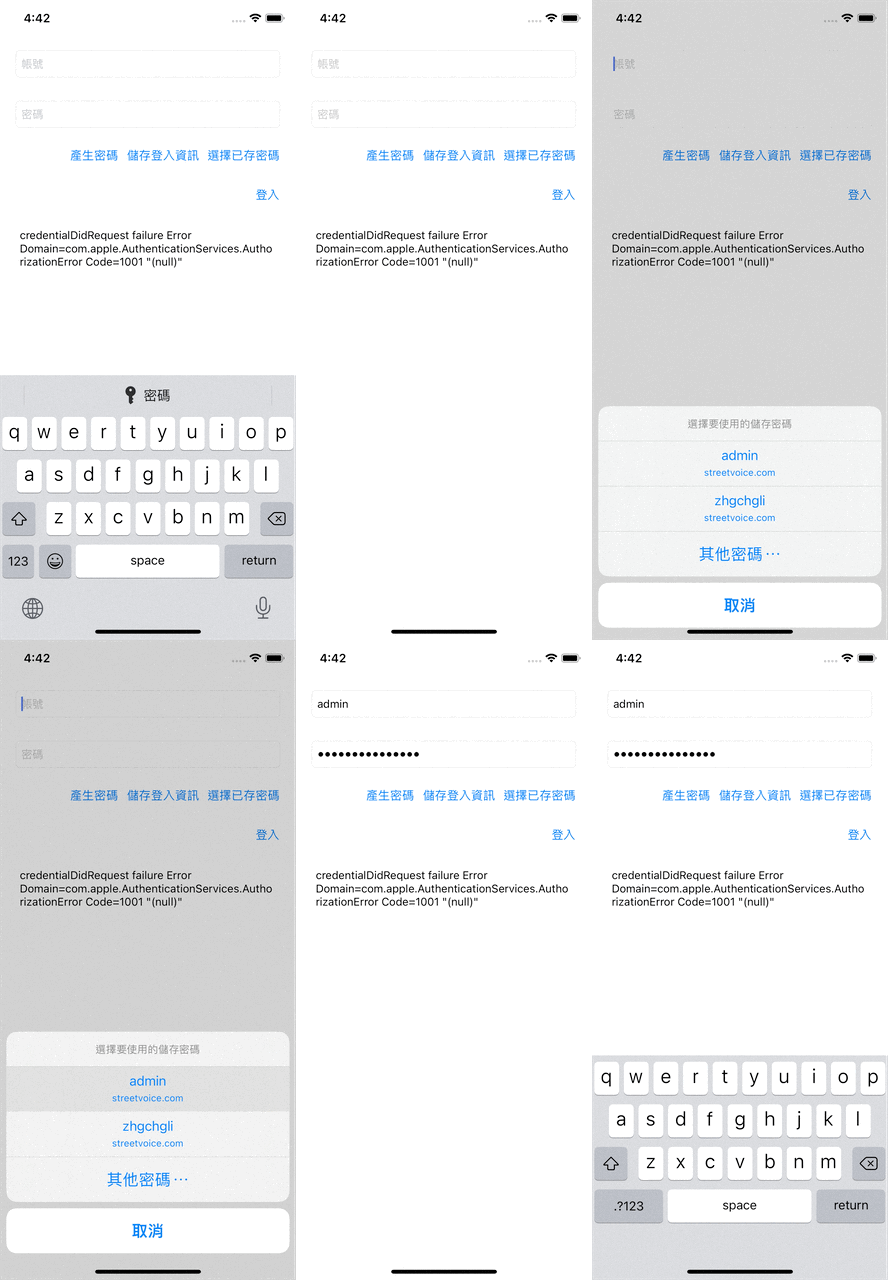
Support: iOS ≥ 11
As of iOS 14, this feature has become very common and nothing special; on the app’s login page, when the keyboard appears for input, you can quickly select the website version’s account credentials, and after selecting, it will auto-fill for a fast login!
So how do the APP and Web recognize each other?
Associated Domains! We specify Associated Domains in the APP and upload the apple-app-site-association file on the website, allowing both sides to recognize each other.
1. In the project settings under “Signing & Capabilities” -> top left “+ Capabilities” -> “Associated Domains”
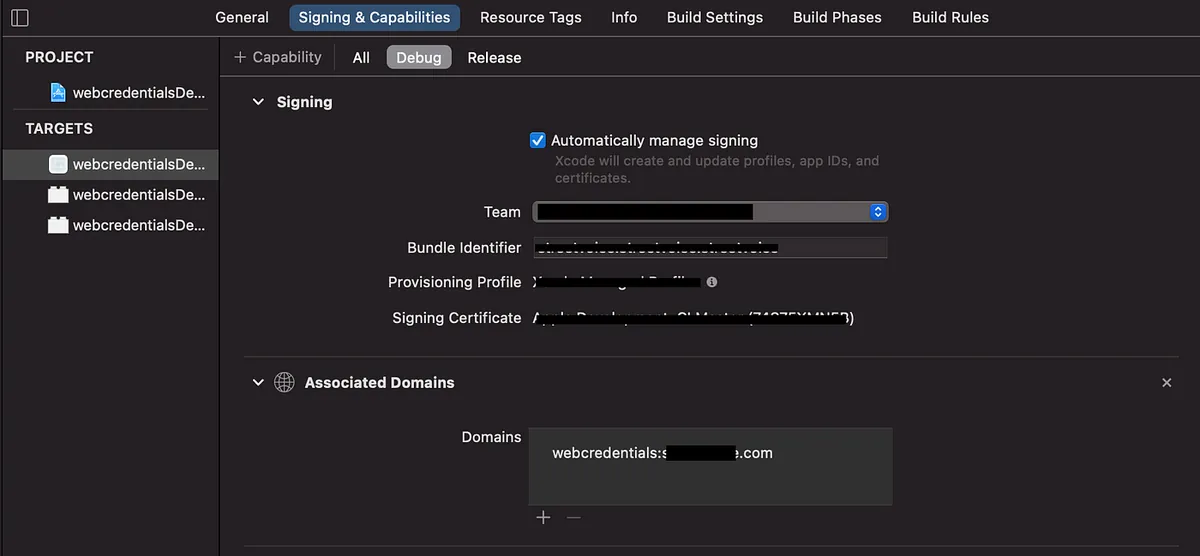
Add webcredentials:yourwebsite.com (e.g., webcredentials:google.com).
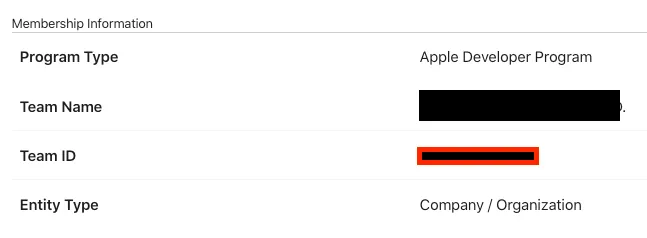
2. Go to the Apple Developer Portal
In the “Membership” tab, note down the “Team ID”.
3. Go to “Certificates, Identifiers & Profiles” -> “Identifiers” -> find your project -> enable the “Associated Domains” feature
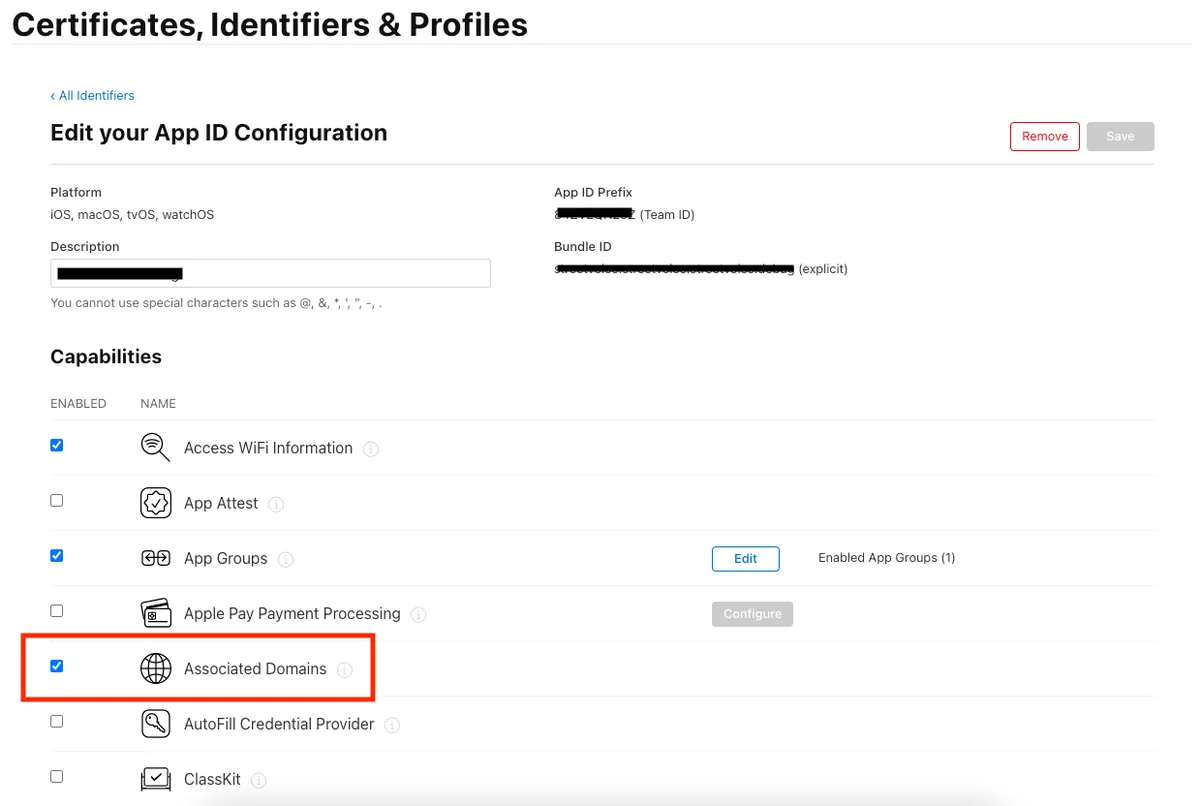
APP side setup complete!
4. Web Website Configuration
Create a file named “apple-app-site-association” (no extension), edit it with a text editor, and enter the following content:
{
  "webcredentials": {
    "apps": [
      "TeamID.BundleId"
    ]
  }
}
Replace TeamID.BundleId with your project settings (e.g., TeamID = ABCD, BundleID = li.zhgchg.demoapp => ABCD.li.zhgchg.demoapp)
Upload this file to the website’s root directory or /.well-known directory. Assuming your webcredentials website domain is set to google.com, the file should be accessible at google.com/apple-app-site-association or google.com/.well-known/apple-app-site-association.
Supplement: Subdomains
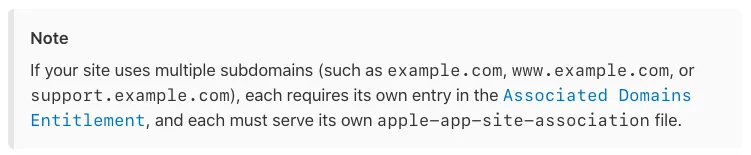
Excerpt from the official documentation: if they are subdomains, they must all be listed in the Associated Domains.
Web setup completed!
Supplement: applinks
Here, it was found that if the universal link applinks is already set, adding the webcredentials part is actually not necessary for it to work; however, we will still follow the official documentation to avoid potential issues in the future.
Back to the code
For the code part, we only need to set the TextField to:
usernameTextField.textContentType = .username
passwordTextField.textContentType = .password
If it is a new registration, the password confirmation field can use:
repeatPasswordTextField.textContentType = .newPassword
At this point, after rebuilding and running the app, saved password options for the same website will appear above the keyboard when entering the account.
Done!
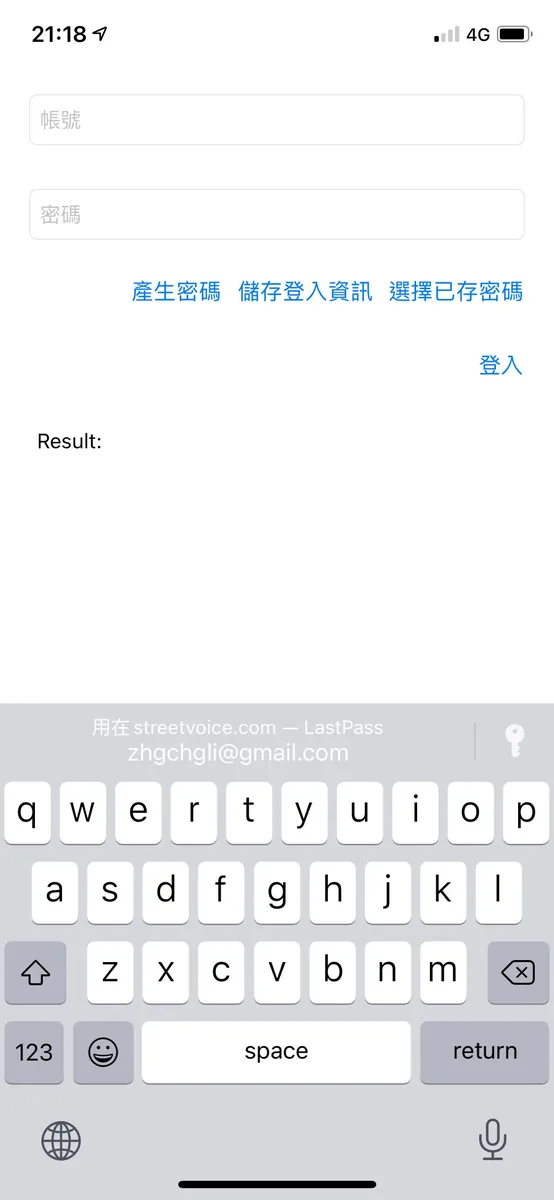
Not showing up?
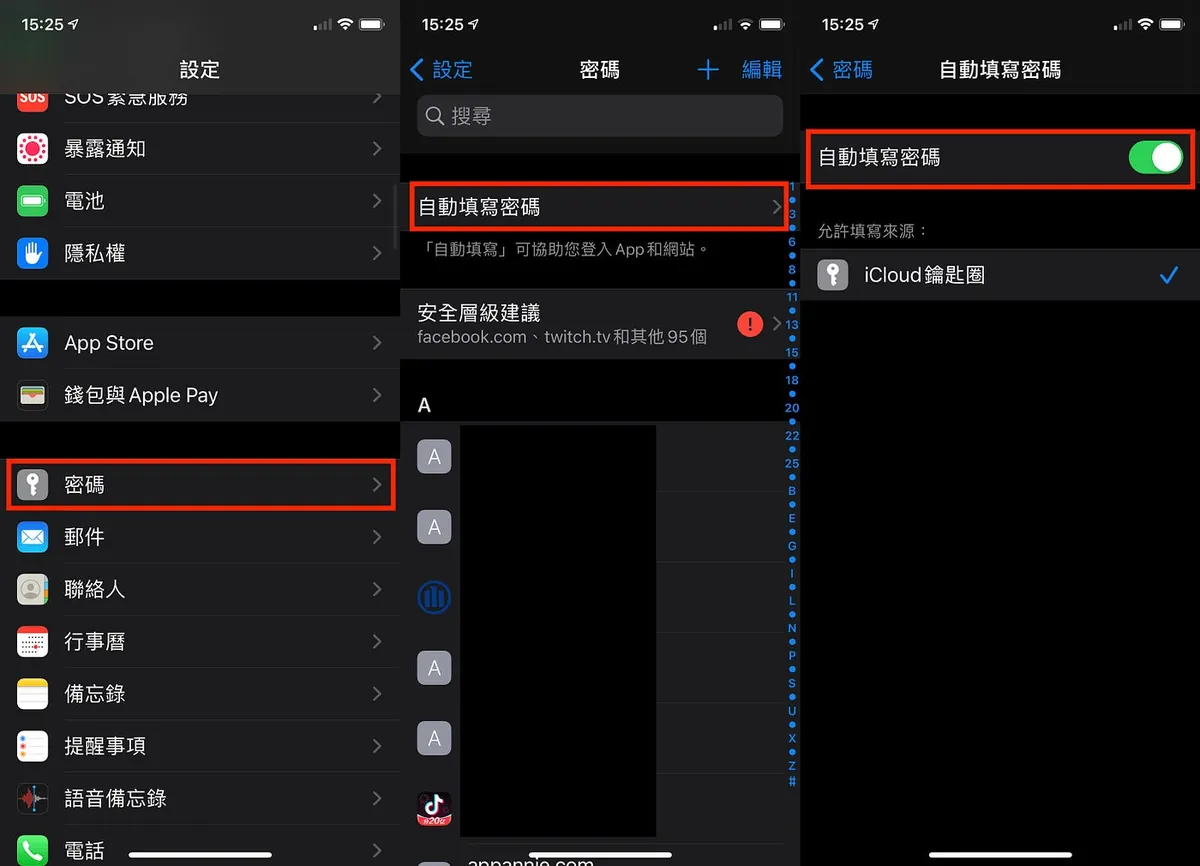
The Password AutoFill feature might be turned off (it’s off by default in the simulator). Please go to “Settings” -> “Passwords” -> “AutoFill Passwords” and turn on “AutoFill Passwords”.
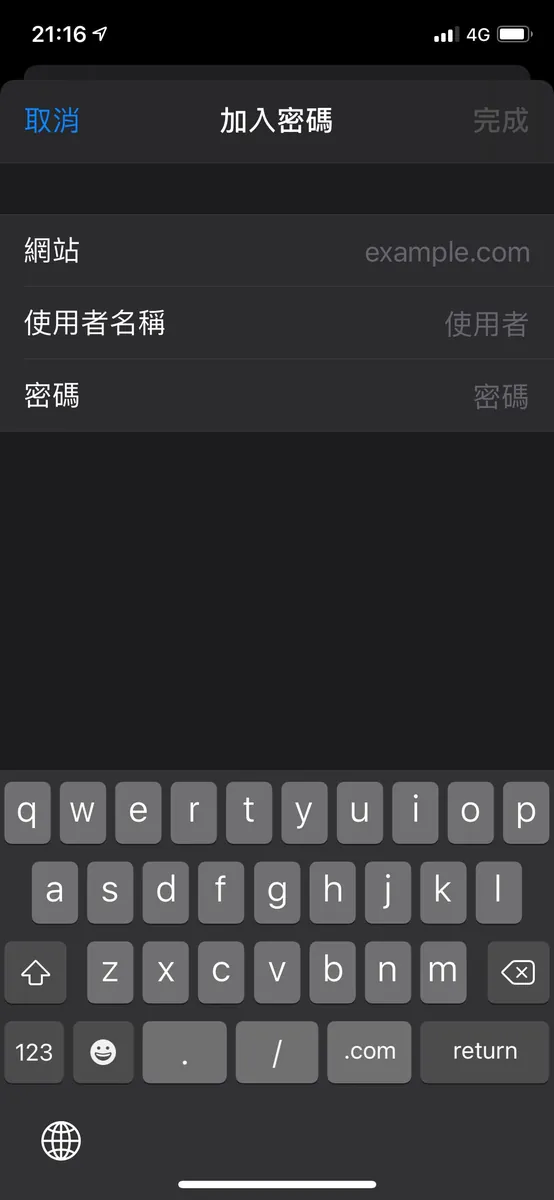
Or if there is no existing password for the website, you can still add one by going to “Settings” -> “Passwords” -> “+” in the top right corner -> Add new.
Getting Started
After the appetizer of introducing Password AutoFill, let’s move on to the main topic of this article: how to achieve the effect shown in the image.
Shared Web Credentials
Starting from iOS 8.0, although it was rarely used by apps before, this API could already be used to integrate website account passwords for users to quickly select, even before Password AutoFill was introduced.
Shared Web Credentials can not only read account passwords but also add new accounts, modify existing ones, and delete them.
Setup
⚠️ The Associated Domains must be properly configured, just like in the Password AutoFill setup mentioned earlier.
So you could say it’s an enhanced version of the Password AutoFill feature!!
Because you need to set up the environment required for Password AutoFill first before using this “advanced” feature.
Reading
Reading using the SecRequestSharedWebCredential method:
SecRequestSharedWebCredential(nil, nil) { (credentials, error) in
  guard error == nil else {
    DispatchQueue.main.async {
      //alert error
    }
    return
  }

  guard CFArrayGetCount(credentials) > 0,
    let dict = unsafeBitCast(CFArrayGetValueAtIndex(credentials, 0), to: CFDictionary.self) as? Dictionary<String, String>,
    let account = dict[kSecAttrAccount as String],
    let password = dict[kSecSharedPassword as String] else {
      DispatchQueue.main.async {
        //alert error
      }
      return
    }

    DispatchQueue.main.async {
      //fill account,password to textfield
    }
}
SecRequestSharedWebCredential(fqdn, account, completionHandler)
-
fqdn If there are multiple
webcredentialsdomains, you can specify one or use null to specify none. -
account Specify the account to query; use null to specify no account.

Screenshot. (You might notice it looks different from the initial screenshot)
⚠️ This reading method has been marked as Deprecated since iOS 14!
⚠️ This reading method has been marked as Deprecated since iOS 14!
⚠️ This reading method has been marked as Deprecated since iOS 14!
"Use ASAuthorizationController to create an ASAuthorizationPasswordRequest (AuthenticationServices framework)"
This method only applies to iOS 8 ~ iOS 14. After iOS 13, you can use the same API as Sign in with Apple — AuthenticationServices.
AuthenticationServices Reading Method
Support iOS ≥ 13
import AuthenticationServices

class ViewController: UIViewController {
  override func viewDidLoad() {
      super.viewDidLoad()
      //...
      let request: ASAuthorizationPasswordRequest = ASAuthorizationPasswordProvider().createRequest()
      let controller = ASAuthorizationController(authorizationRequests: [request])
      controller.delegate = self
      controller.performRequests()
      //...
  }
}

extension ViewController: ASAuthorizationControllerDelegate {
    func authorizationController(controller: ASAuthorizationController, didCompleteWithAuthorization authorization: ASAuthorization) {

        if let credential = authorization.credential as? ASPasswordCredential {
          // fill credential.user, credential.password to textfield
        }
        // else if as? ASAuthorizationAppleIDCredential... sign in with apple
    }
    func authorizationController(controller: ASAuthorizationController, didCompleteWithError error: Error) {
        // alert error
    }
}
Screenshot: You can see that the new approach integrates better with Sign in with Apple both in flow and display.
⚠️ This login cannot replace Sign in with Apple (they are two different things).
Writing Account Credentials to “Passwords”
Only the reading part has been deprecated; adding, deleting, and editing parts still work as before.
The add, delete, and edit operations are performed using SecAddSharedWebCredential.
SecAddSharedWebCredential(domain as CFString, account as CFString, password as CFString?) { (error) in
  DispatchQueue.main.async {
    guard error == nil else {
      // alert error
      return
    }
    // alert success
  }
}
SecAddSharedWebCredential(fqdn, account, password, completionHandler)
-
fqdn can be freely set to any domain to store and does not have to be in
webcredentials -
account Specifies the account to add, modify, or delete
-
To delete data, set password to
nil -
Processing Logic:
-
account exists & password provided = update password
-
account exists & password is nil = delete account and password from domain
-
account does not exist & password is provided = add account and password to domain
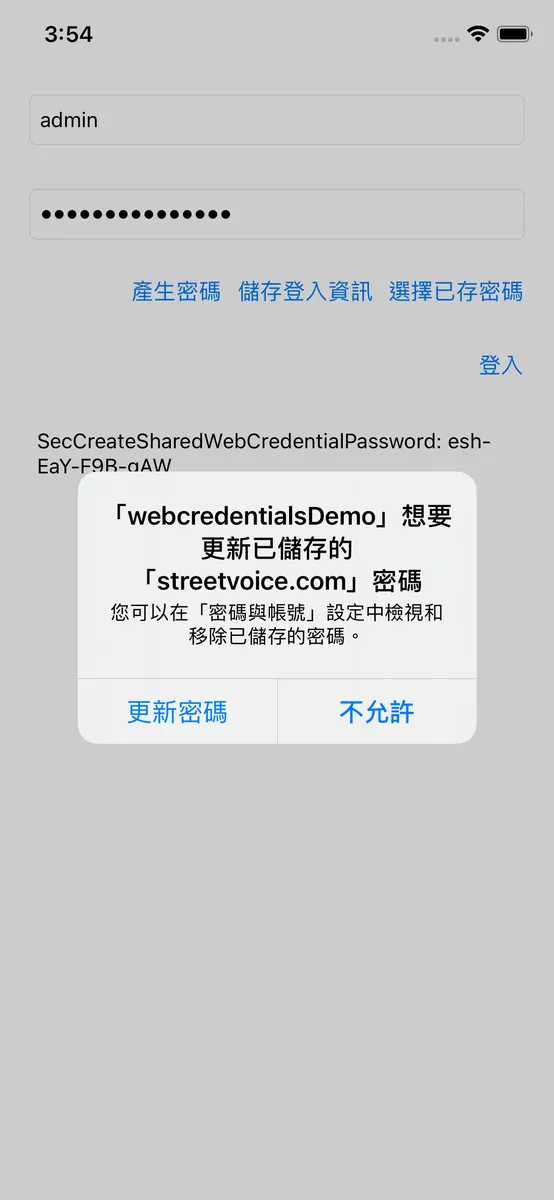
⚠️ This is also not a method to secretly modify data in the background; every change will trigger a prompt to the user, and the data will only be updated when the user taps “Update Password”.
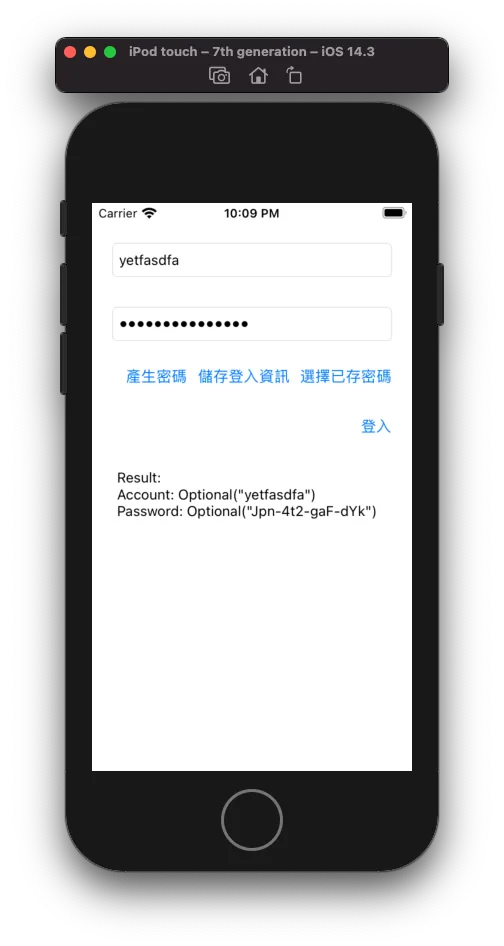
Password Generator
The last small feature, the password generator.
Using SecCreateSharedWebCredentialPassword() for operations.
let password = SecCreateSharedWebCredentialPassword() as String? ?? ""

The password generated by the generator consists of uppercase and lowercase letters, numbers, and uses “-“ as separators (e.g., Jpn-4t2-gaF-dYk).
Full Test Project Download
Drawbacks
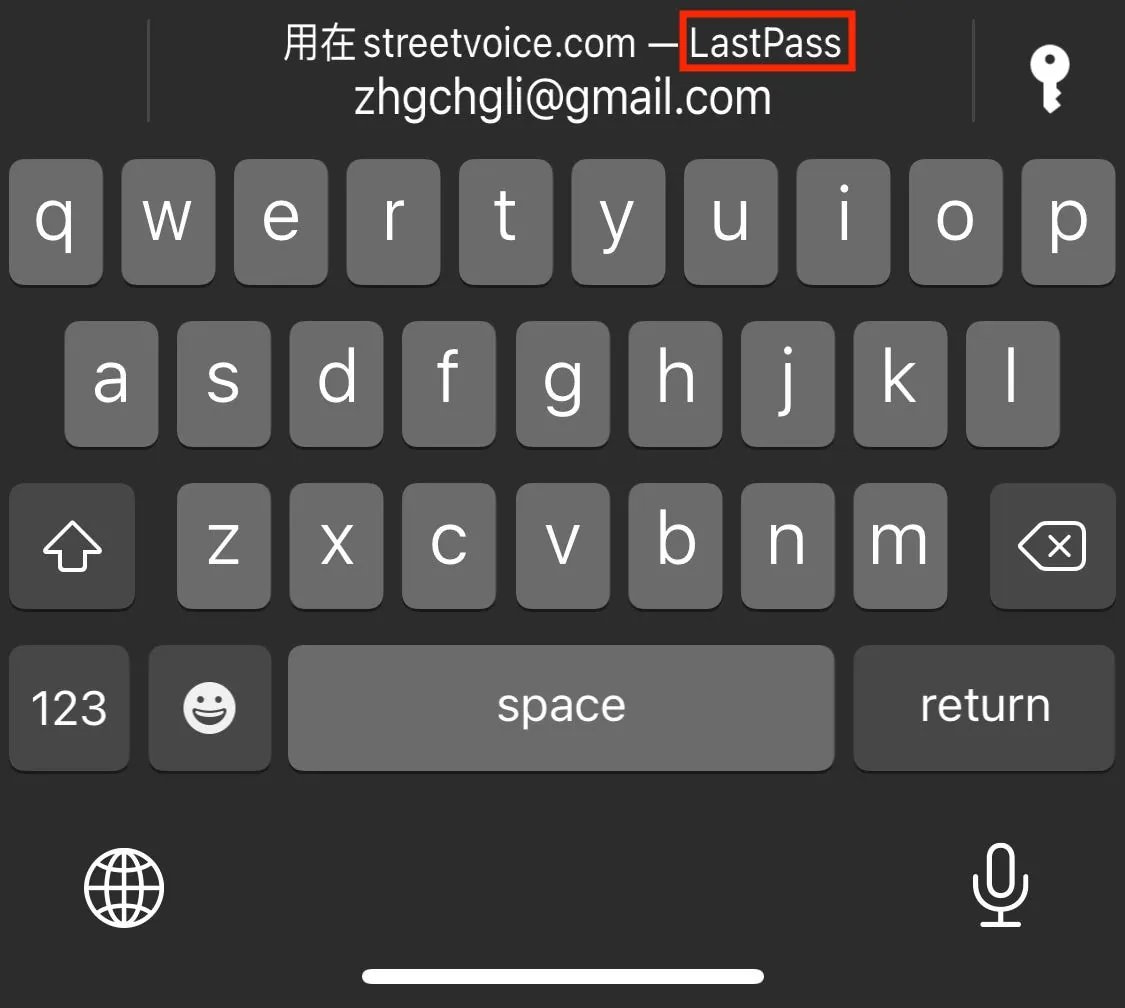
For those using third-party password managers (e.g., 1Password, LastPass), you might notice that while the keyboard’s Password AutoFill supports displaying and inputting passwords, they do not appear in AuthenticationServices or SecRequestSharedWebCredential. It is unclear if this functionality can be achieved.
Conclusion
Thanks everyone for reading, and thanks to saiday and StreetVoice for letting me know about this feature XD.
XCode ≥ 12.5 simulators now support screen recording and saving as GIF, which is super useful!
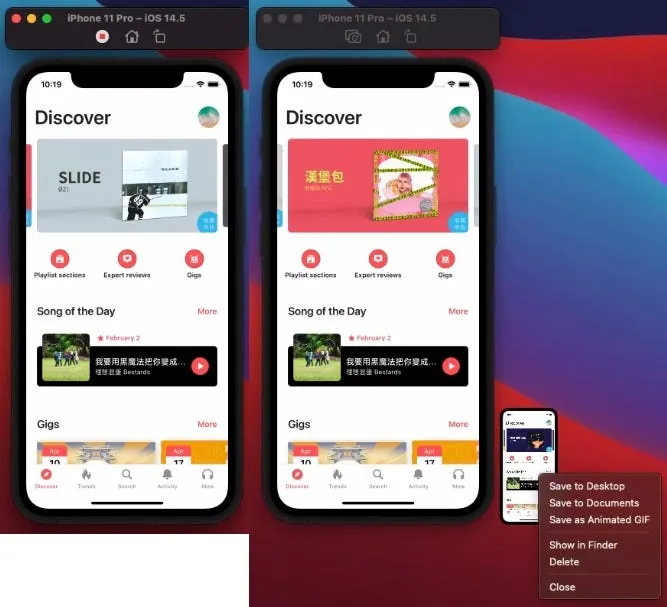
Press “Command” + “R” on the simulator to start recording, click the red dot to stop; then right-click the preview thumbnail that slides out at the bottom right and select “Save as Animated GIF” to save as a GIF and directly paste it into the article!


Comments