
What? iOS 12 Can Send Push Notifications Without User Authorization (Swift) — (Updated 2019–02–06)
UserNotifications Provisional Authorization and iOS 12 Silent Notifications Introduction
MurMur……
Recently, I worked on improving the low permission and click rates of app push notifications with some optimizations. In the initial version, the experience was very poor—the app immediately showed the “App wants to send notifications” prompt upon launch. Naturally, the denial rate was very high. Based on statistics of actual notification displays using Notification Service Extension, it is estimated that only about 10% of users allowed push notifications.
Currently, the new installation onboarding process is adjusted, and the timing for prompting the notification permission dialog is optimized as follows:
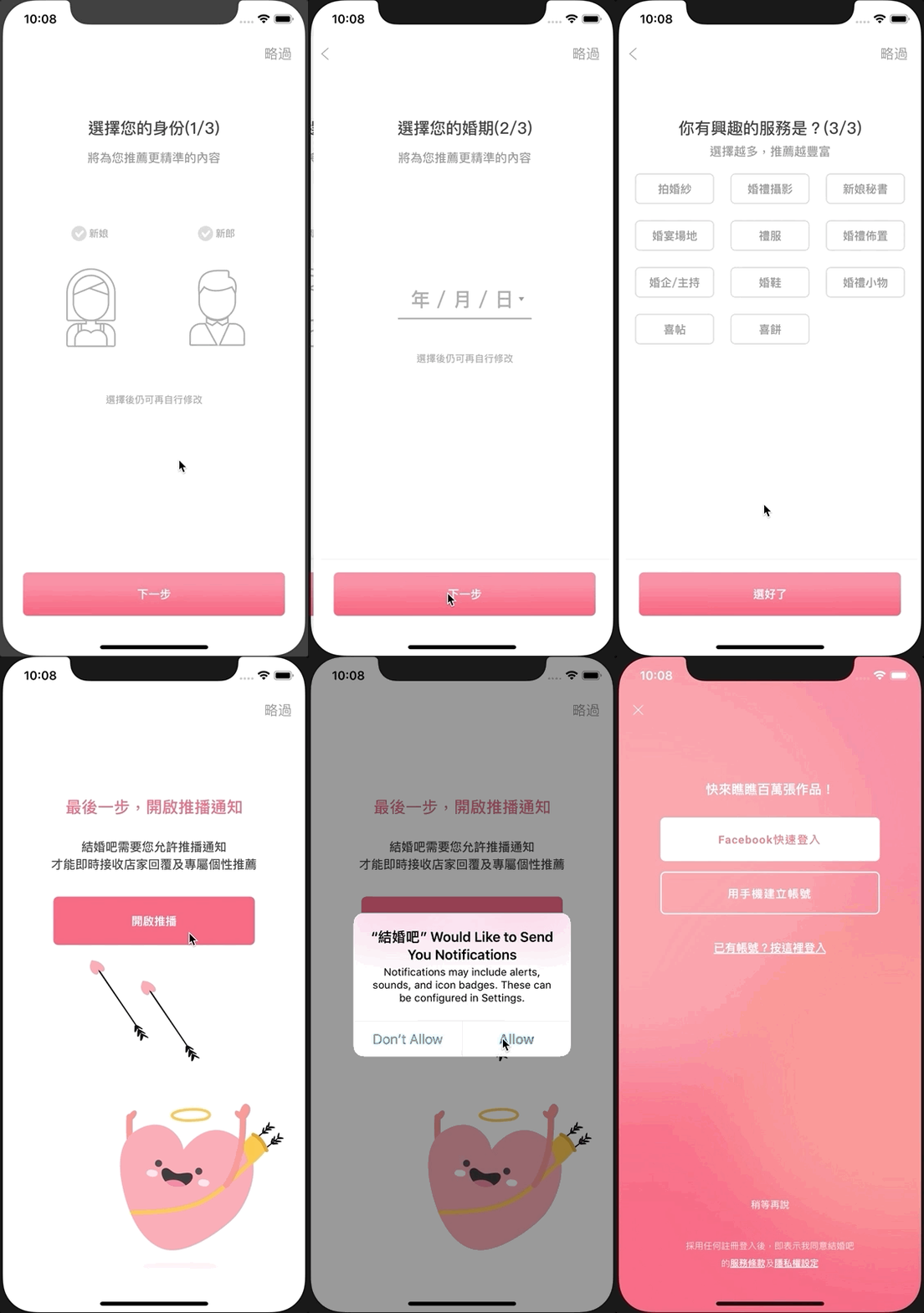
If the user is still unsure or wants to try before deciding whether to receive notifications, they can tap “Skip” at the top right. This avoids the irreversible result of tapping “Don’t Allow” due to unfamiliarity with the app at the start, which prevents future permission prompts.
Getting to the Point
When working on the above optimization, I discovered that UserNotifications in iOS 12 introduced a new .provisional permission. Simply put, it is a temporary notification permission that allows sending push notifications (silent notifications) to users without showing the permission prompt. Let’s look at its actual effects and limitations.
How to Request Provisional Notification Permission?
if #available(iOS 12.0, *) {
    let center = UNUserNotificationCenter.current()
    let permissiones:UNAuthorizationOptions = [.badge, .alert, .sound, .provisional]
    // You can request only the provisional permission, or request all permissions at once XD
    // Neither will trigger the notification authorization prompt

    center.requestAuthorization(options: permissiones) { (granted, error) in
        print(granted)
    }
}
We add the above code to AppDelegate’s didFinishLaunchingWithOptions and then launch the app. You will notice that no notification permission prompt appears; at this point, go to Settings to check App Notification Settings.
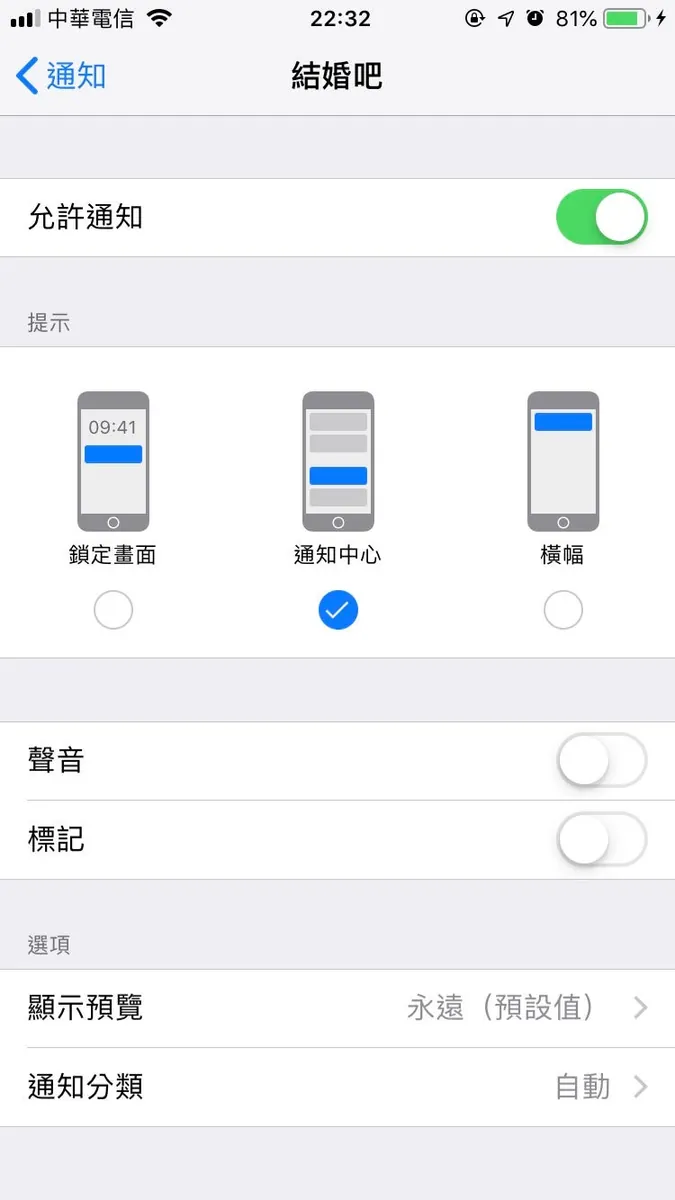
(Figure 1) Obtaining Provisional Notification Permission
We quietly obtained provisional notification permission 🏆
Add the authorizationStatus .provisional case when checking the current notification permission in the code (iOS 12 and later only):
if #available(iOS 10.0, *) {
    UNUserNotificationCenter.current().getNotificationSettings { (settings) in
        if settings.authorizationStatus == .authorized {
            // Allowed
        } else if settings.authorizationStatus == .denied {
            // Not allowed
        } else if settings.authorizationStatus == .notDetermined {
            // Not asked yet
        } else if #available(iOS 12.0, *) {
            if settings.authorizationStatus == .provisional {
                // Currently provisional authorization
            }
        }
    }
}
Attention! If you check the current notification permission status,
settings.authorizationStatus == .notDeterminedandsettings.authorizationStatus == .provisional
Both can still prompt the user with a notification permission request window.
What Can Silent Notifications Do? How Are Push Notifications Displayed?
First, here is a diagram summarizing when silent notifications will appear:
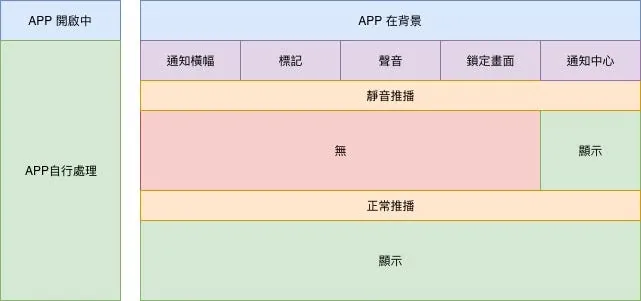
You can see that for silent push notifications, when the app receives a notification in the background, no banner will appear, no sound alert, no badge update, and it will not show on the lock screen; it will only appear in the Notification Center when the phone is unlocked and pulled down:
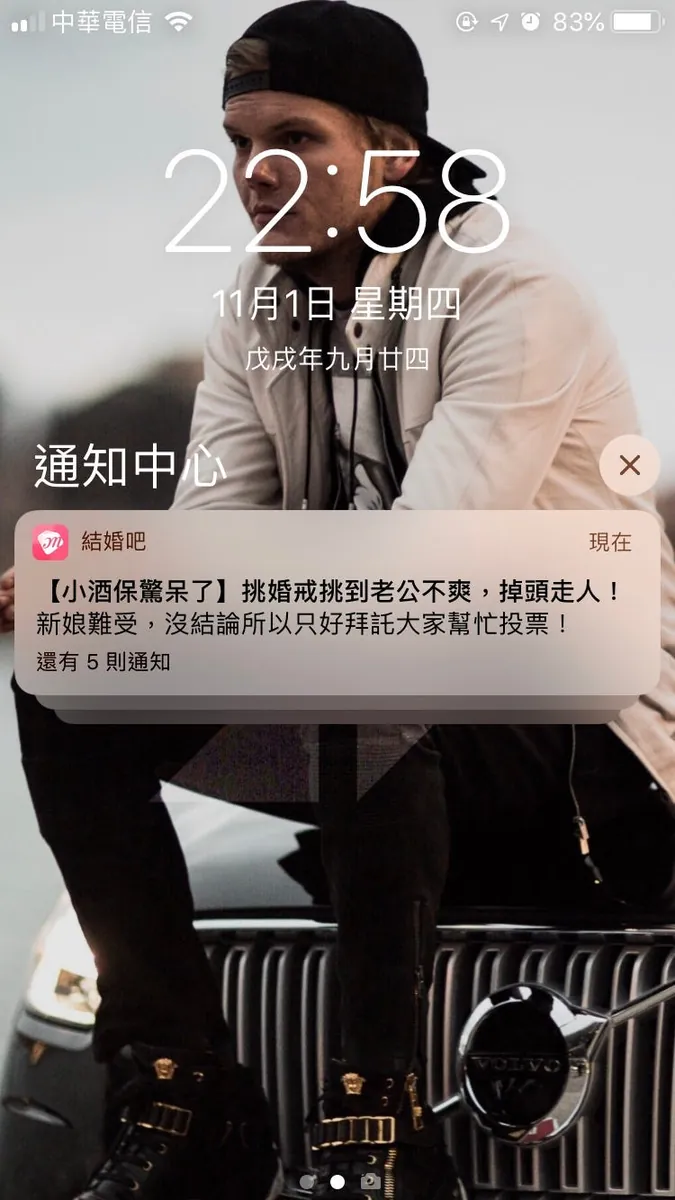
You can see the push notifications you sent, and they will automatically be grouped into a category.
After clicking expand, users can choose:

This expanded permission prompt only appears under silent push notifications with “provisional” authorization.
-
To “Continue” Receiving Push Notifications — “Send Important Notifications”: Notification permissions are fully enabled! Notification permissions are fully enabled! Notification permissions are fully enabled! It’s so important that we say it three times. At this point, the code requesting permissions earlier effectively requests all permissions at once, which is quite significant.
Or continue receiving silent notifications -
“Off” — Tapping “Turn Off All Notifications” completely disables push notifications (including silent notifications).
Note: How to manually set an existing app to silent notifications?
Silent notifications are a new setting optimized for notifications in iOS 12 and are not directly related to provisional authorization. However, once the app obtains provisional authorization, it can send silent notifications. Setting an app’s notifications to silent is simple. One way is to go to “Settings” - “Notifications” - find the app, turn off all permissions except “Notification Center” (as shown in Figure 1), which results in silent notifications.
Alternatively, when receiving an app notification, press and hold to expand it, then tap the “…” in the top right corner and select “Deliver Quietly” to achieve the same effect:

With provisional authorization, the notification permission prompt will appear when triggered later:
Removing .provisional from the notification permission request will still properly ask the user whether to allow notifications:
if #available(iOS 10.0, *) {
    let center = UNUserNotificationCenter.current()
    let permissions: UNAuthorizationOptions = [.badge, .alert, .sound]
    center.requestAuthorization(options: permissions) { (granted, error) in
        print(granted)
    }
}
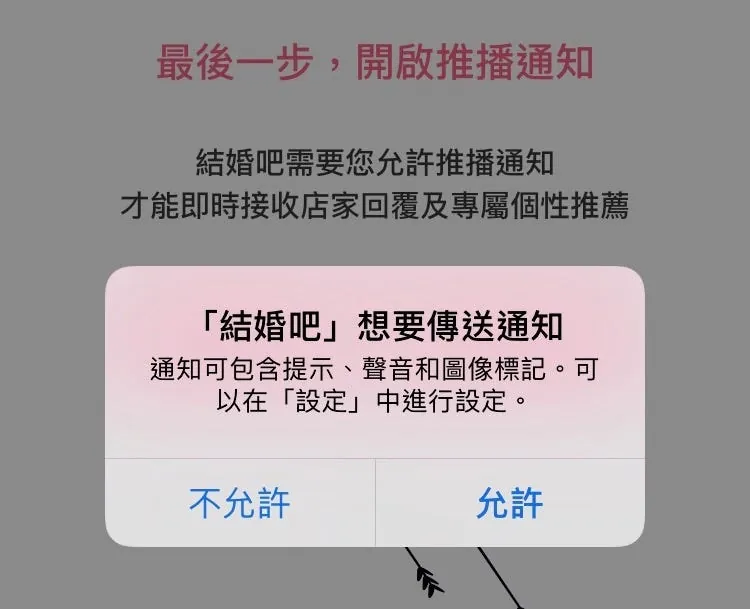
Tap “Allow” to get all notification permissions, tap “Don’t Allow” to disable all notification permissions (including previously granted provisional permissions).
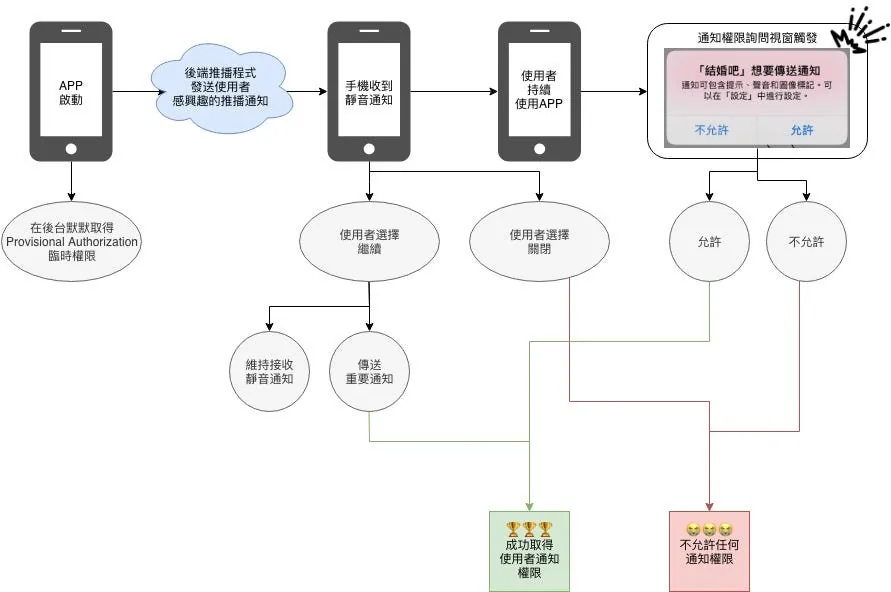
The overall process is as follows:
Summary:
This thoughtful notification improvement in iOS 12 builds a better bridge for interaction between users and developers regarding notification features, helping to avoid users permanently disabling notifications.
For users, when the notification permission prompt appears, they often don’t know whether to allow or deny because they don’t know what kind of notifications the developer will send. It could be ads or important messages. The unknown is scary, so most people tend to play it safe and press deny first.
For developers, we carefully prepare many items, including important messages to notify users, but due to the issues mentioned above, users block them, wasting the effort we put into crafting the content!
This feature allows developers to seize the opportunity when users first install the app, design the notification flow and content, prioritize pushing items of interest to users, increase their awareness of the app’s notifications, track notification click rates, and prompt users to opt-in for notifications at the right time.
Although the only visible place is the Notification Center, having any exposure is still an opportunity; from another perspective, if we were users and didn’t allow notifications, an app sending a bunch of notifications with banners, sounds, and lock screen alerts would feel very intrusive (just like the competing side XD). Apple’s approach strikes a balance between users and developers.
The current issue is that there are still too few iOS 12 users 🤐

Comments