Natural Person Certificate Application|Step-by-Step Guide to Seamless Online Services
Struggling with online government or financial service access? This guide simplifies natural person certificate application, enabling you to complete the process swiftly and unlock hassle-free digital services.
This post was translated with AI assistance — let me know if anything sounds off!
Table of Contents
Introduction
In today’s digital age, whether opening an online bank account, filing taxes online, or applying for various government services, identity verification is increasingly required. The “Citizen Digital Certificate” acts like your ID card in the online world and is essential for many online transactions. For example, when using pure online banks like LINE Bank, since there are no physical branches, increasing transfer limits or setting up authorized accounts must be done through online verification with the Citizen Digital Certificate, making it an indispensable part of digital financial services.
This article will guide you step-by-step through the application process for the Citizen Digital Certificate, so you no longer have to be confused by complicated procedures.
What is the Citizen Digital Certificate?
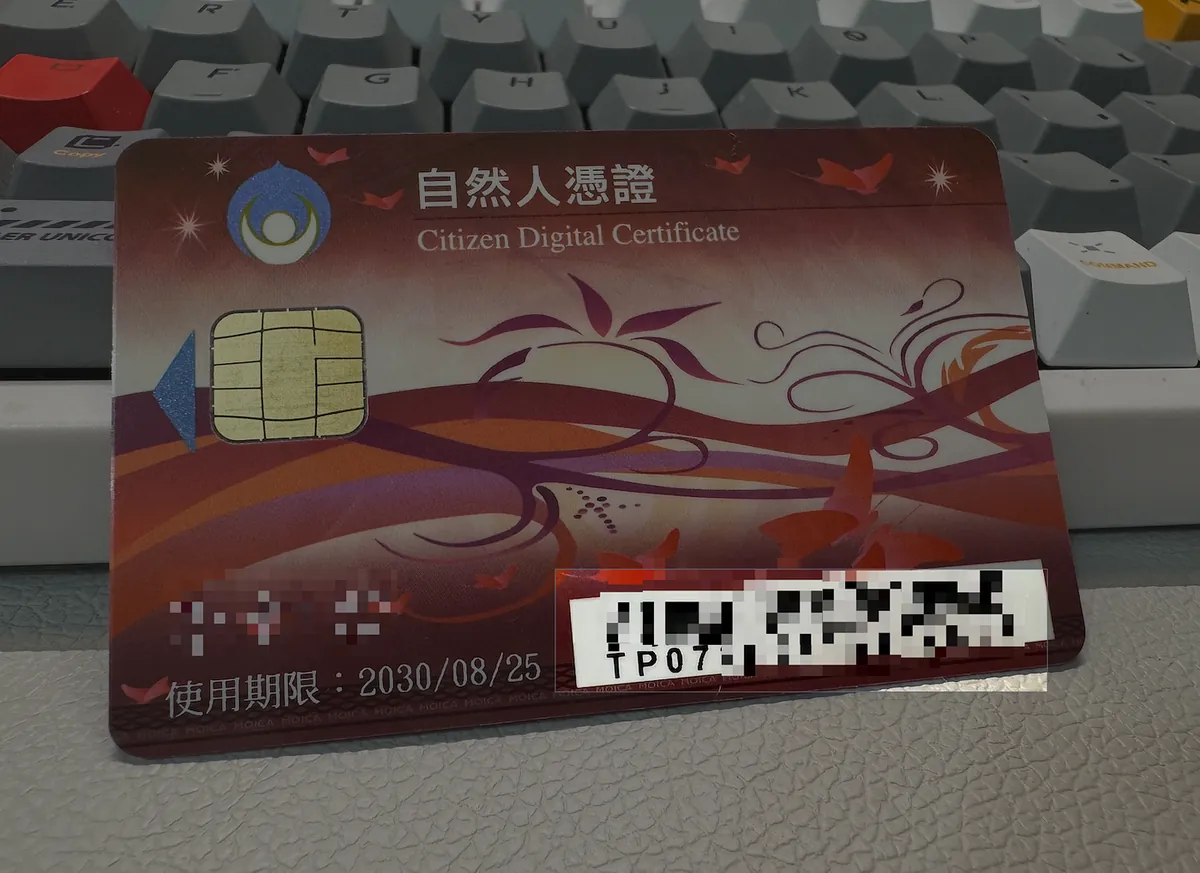
The Citizen Digital Certificate is a smart card with an IC chip, issued by the Ministry of the Interior Certificate Authority (MOICA). It can identify your identity online, ensuring data transmission security and privacy, allowing you to safely use various online services.
Main Uses:
Online Tax Filing
Check Labor and Health Insurance Information
Apply for an Electronic Household Registration Transcript
Online Banking, Securities Account Opening, or Permission Upgrade
Check Personal Credit Report
Referendum Petition
Eligibility and Required Documents
Eligibility: Citizens aged 18 or above with household registration in Taiwan.
Preparation materials:
Original National ID Card
Processing Fee: NT$250
An Email Address (used to receive certificate notifications)
Application Process
Step 1: Online Appointment and Application Form Submission
To save your waiting time at the household registration office, it is recommended to fill out the application form first on the National Certification Authority website.
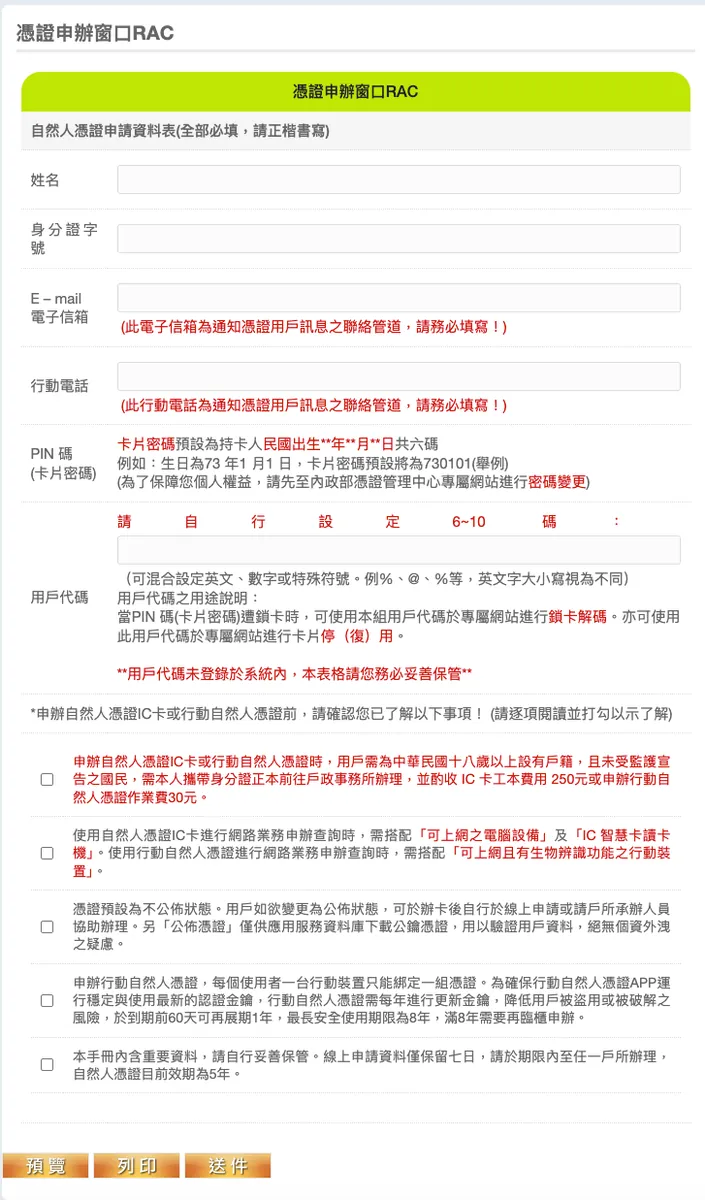 (Image source: Department of Civil Affairs Certificate Management Center)
After entering the website, fill in your personal information such as “National ID Number,” “Name,” and “Date of Birth” according to the form fields.
Set a User Code, which will be used when you need to modify your certificate information in the future. Please be sure to remember it.
Enter your email address. This will be used for receiving certificate-related notifications in the future.
After confirming the information is correct, submit the form. Once completed, the system will notify you that the online reservation is done.
Memo: The online form data will be saved for 7 days. Please complete the in-person processing within 7 days.
Step 2: Visit the Household Registration Office in Person for Processing
After completing the online form, please bring your original ID card and a 250 NTD processing fee to any household registration office in person to complete the procedure.
No residency restriction: You can apply at any convenient household registration office nationwide.
Walk-in Service: The counter for applying for the Natural Person Certificate usually has a short wait time.
On-site Card Pickup: After data verification and payment, you can receive your Natural Person Certificate card on-site.
(Image source: National Certification Authority, Ministry of the Interior)
At the counter, the staff will ask you to set a PIN code (certificate password), which should be 6-10 digits long. This password is required whenever you use the certificate in the future, so please remember it carefully.
How to Use the Citizen Digital Certificate?
After obtaining the Citizen Digital Certificate, you can authenticate your identity online using the following two main methods:
Method 1: Use with a Card Reader on a Computer
This is the most traditional and common way to use it.
Prepare an IC Card Reader: You need to purchase a compatible IC card reader first.
Install Drivers: Connect the card reader to the computer and install the necessary drivers according to the manual.
Using the Certificate: When you need to verify your identity on declaration websites (such as online tax filing) or internet banking, follow the website prompts to insert your Citizen Digital Certificate card and enter your PIN code.
Method 2: Use Mobile Phone NFC Function for Authentication
In recent years, many apps (especially financial service apps like LINE Bank) have supported directly using the phone’s NFC function to read the Natural Person Certificate, eliminating the need for a card reader.
Using LINE Bank as an example:
When the app requests Natural Person Certificate verification, it usually opens a sensing page.
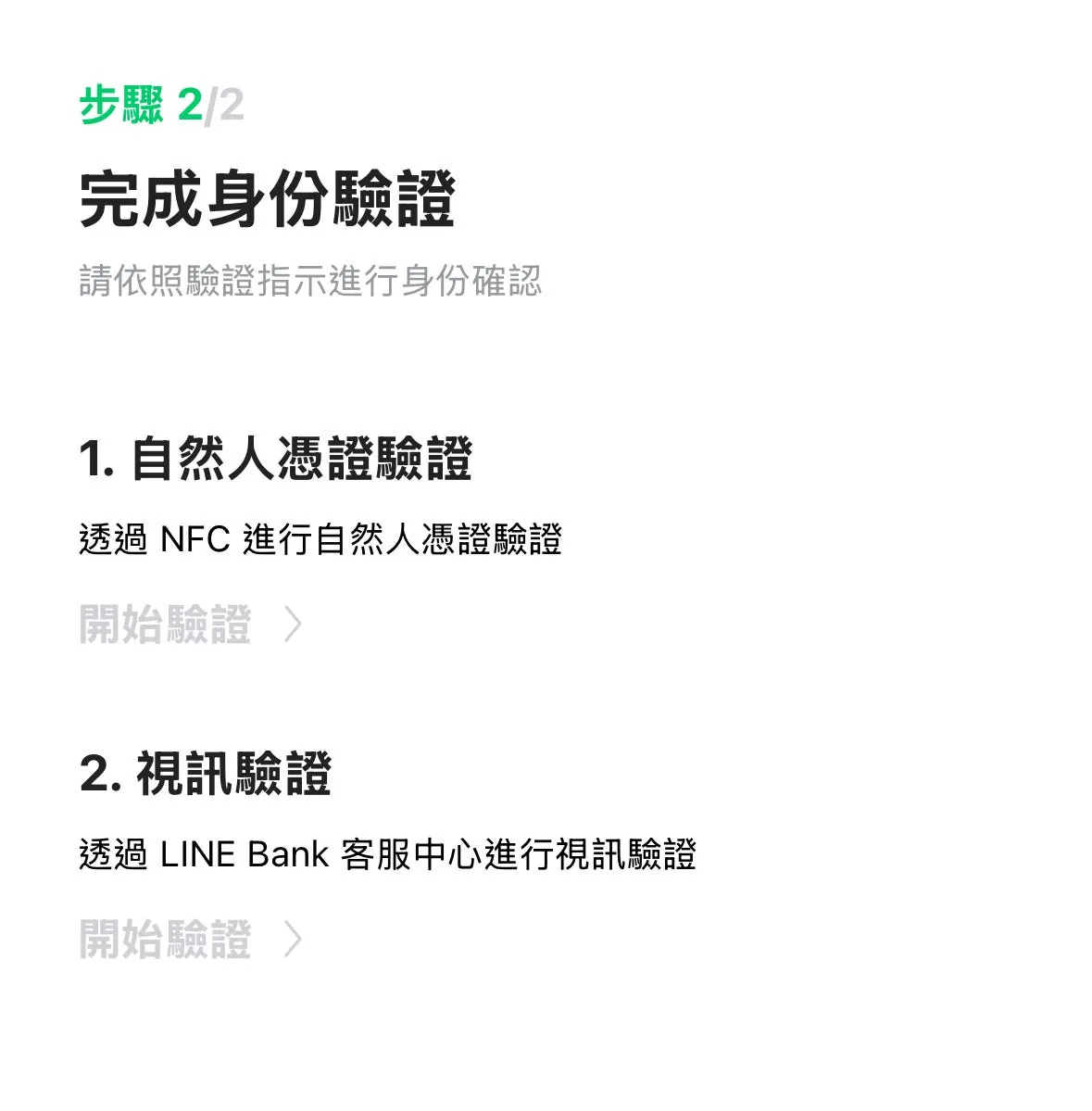 (Image source: LINE Bank App)
Next, you need to place the Citizen Digital Certificate card near the phone’s NFC sensing area to complete the verification.
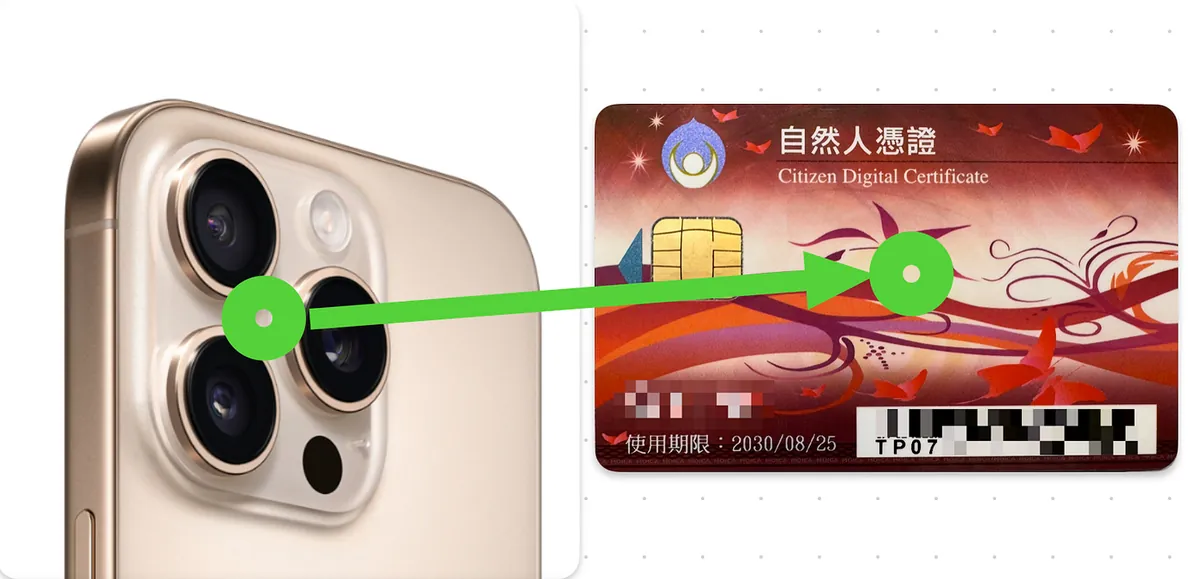 (Image source: LINE Bank App)
Mobile NFC Tips:
iPhone: The NFC sensing area is at the top of the phone (near the front camera). Place the card horizontally at the top of the phone.
Android: The NFC sensing area location varies by brand, usually near the logo on the back. Refer to the phone manual or try different spots.
Sensing Issue: The sensing range of the Citizen Digital Certificate is sometimes limited. If it doesn’t work initially, slowly move the card near the sensing area or slightly adjust its angle and try again.
Further Reading
If you want to learn how to use the Natural Person Certificate to set up a designated account on LINE Bank for overseas remittances (e.g., funding Firstrade), you can refer to the detailed tutorial below:
Conclusion
The process of applying for a Natural Person Certificate is simple and quick. It only takes a little time to bring great convenience and security to your digital life. Whether for financial management or government services, it can all be handled with one card. If you haven’t applied yet, why not start your application now!
This post was originally published on Medium (View original post), and automatically converted and synced by ZMediumToMarkdown.