
Is Using Google Site to Build a Personal Website Still Up-to-Date?
Experience and Setup Guide for Creating a Personal Website with the New Google Site

Update 2022–07–17
I have used my own tool, ZMediumToMarkdown, to download Medium articles in bulk and convert them to Markdown format for migration to Jekyll.
===
Origin
When I changed jobs last year, I somewhat “impulsively” registered a domain to serve as a personal resume redirect link. After six months, I thought about making the domain more useful by adding more information. On the other hand, I was also looking for a second website to back up the articles I published on Medium, just in case.
Expected Features
-
Customizable pages available
-
A smooth writing interface like Medium
-
Interactive Features (Like/Comment/Follow)
-
Good SEO structure
-
Lightweight and fast loading
-
Can bind your own domain
-
Low Intrusiveness (Ad Intrusiveness, Website Branding)
-
Easy to Build
Website Platform Choices
-
Self-hosted WordPress
A long time ago, I rented hosting and a domain to build a personal website using WordPress. After setting it up, customizing the layout I liked, installing plugins, and even developing missing plugins myself, I lost the motivation to write. It felt bulky, and the loading speed and SEO were not as good as Medium. Spending more time tweaking it would only reduce my motivation to write further. -
Matters/Jianshu… etc.
Similar to the Medium platform, not suitable since I don’t consider monetization. -
wix/weebly are too focused on commercial websites, and their free versions are too intrusive.
-
Google Site (This Article)
-
Github Pages + Jekyll
-
Still searching »> Suggestions are welcome
About Google Site
Around 2010, I used the old version of Google Site to create a personal website -> a file download center page. My memory is a bit vague, but I recall the layout was bulky and the interface was not smooth. After 10 years, I thought the service was discontinued, but I accidentally saw domain investors using it as a domain parking page to display contact info for sales:
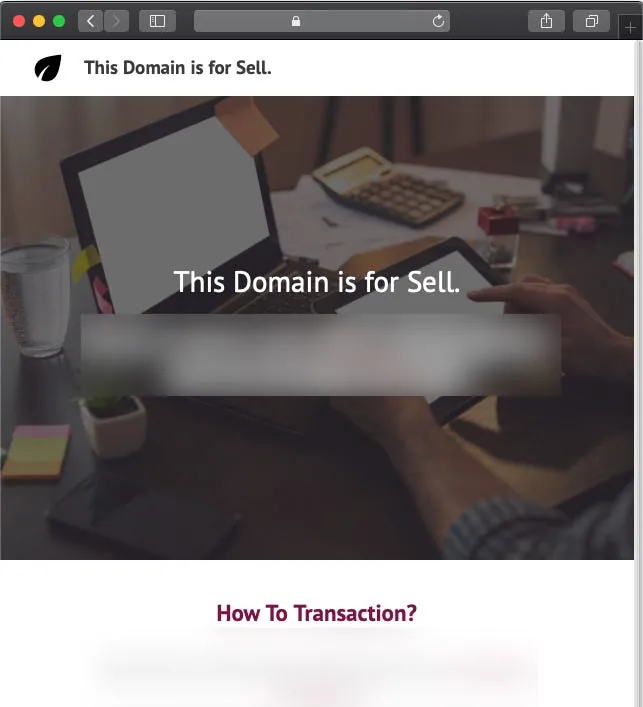
At first glance, I thought, “Wow! The visuals are nice, and they even made a page just to sell domains.” Then I noticed the cursor at the bottom left and realized, “Wow! This was built with Google Site,” which is completely different from the interface I used 10 years ago. After checking, I found out that Google Site never stopped its service; instead, it launched a brand-new version in 2016. Although it’s been almost five years, the interface is at least up to date!
Finished Product Showcase
Don’t say anything for now, just take a look at what I made. If you feel the same way, you might consider giving it a try!
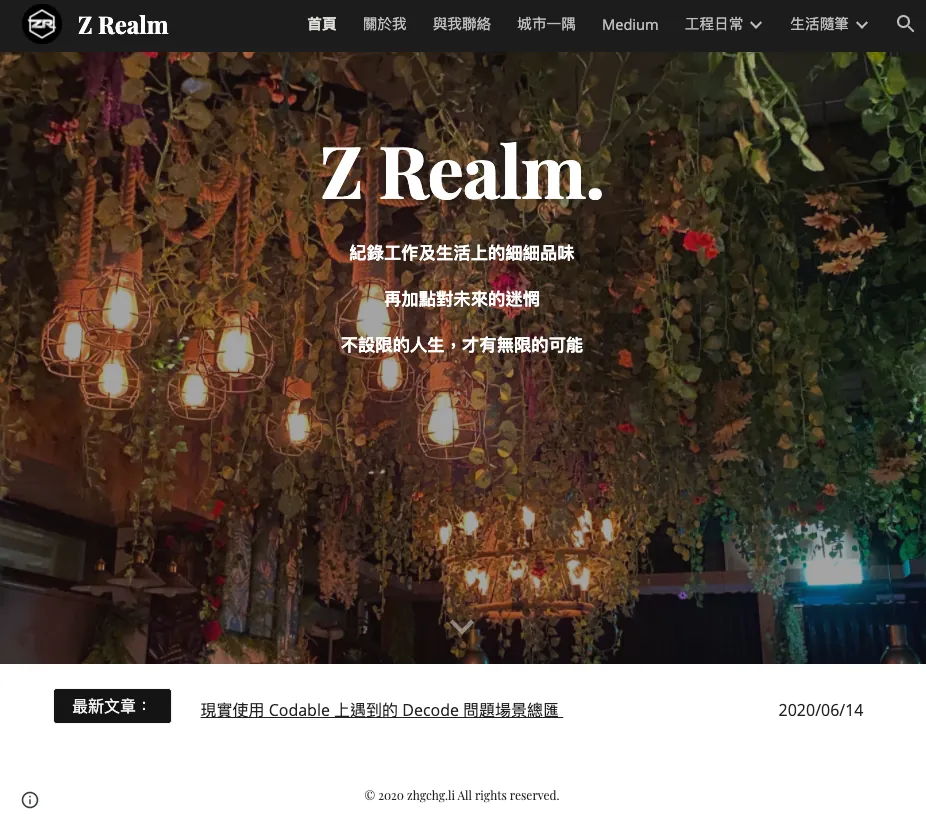
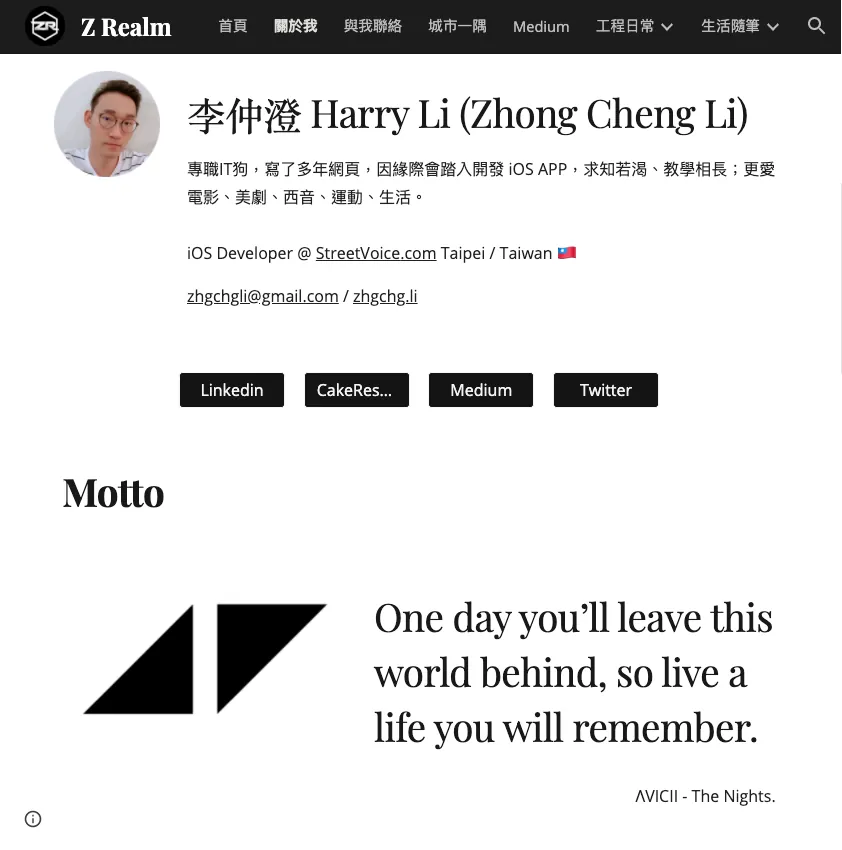
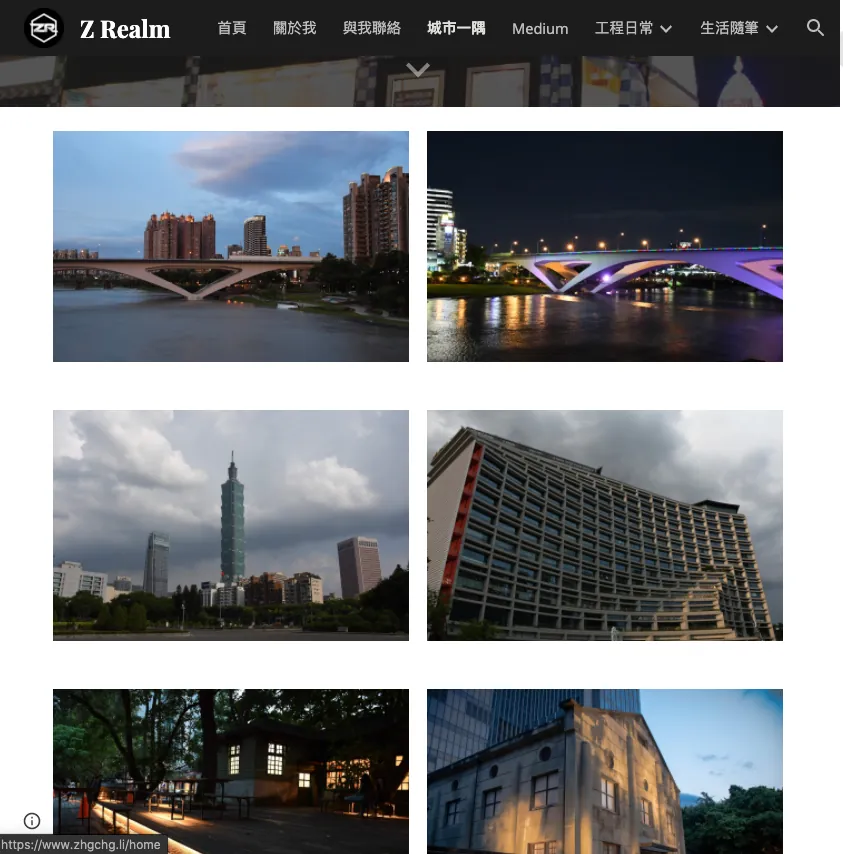
City Corner (Waterfall Flow Photo Display)
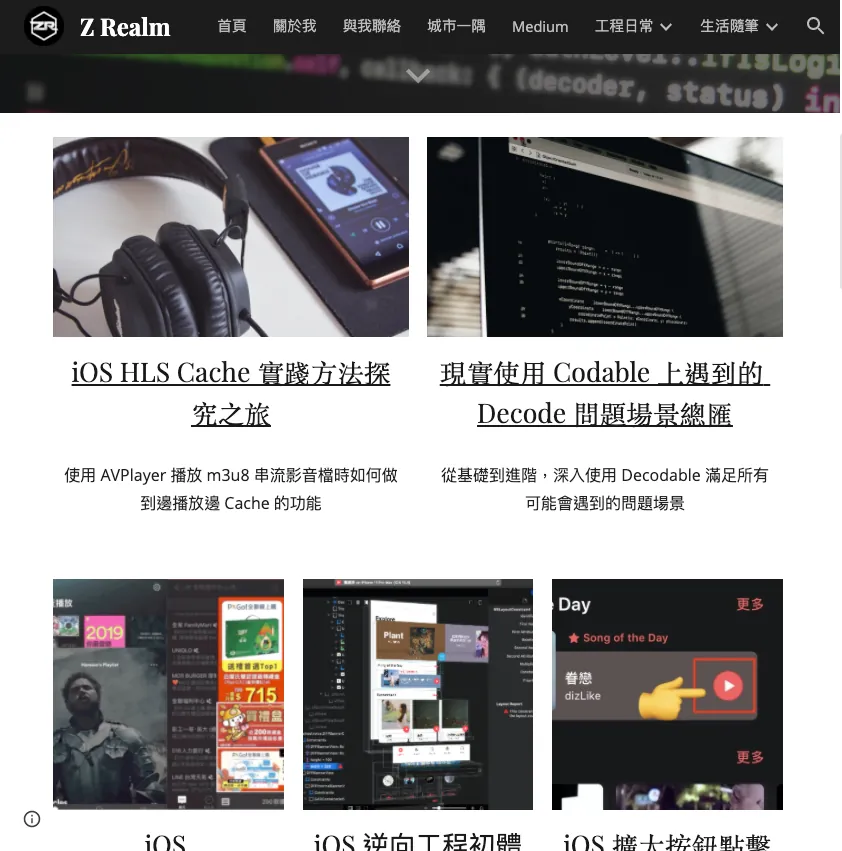
Table of Contents (link back to Medium)
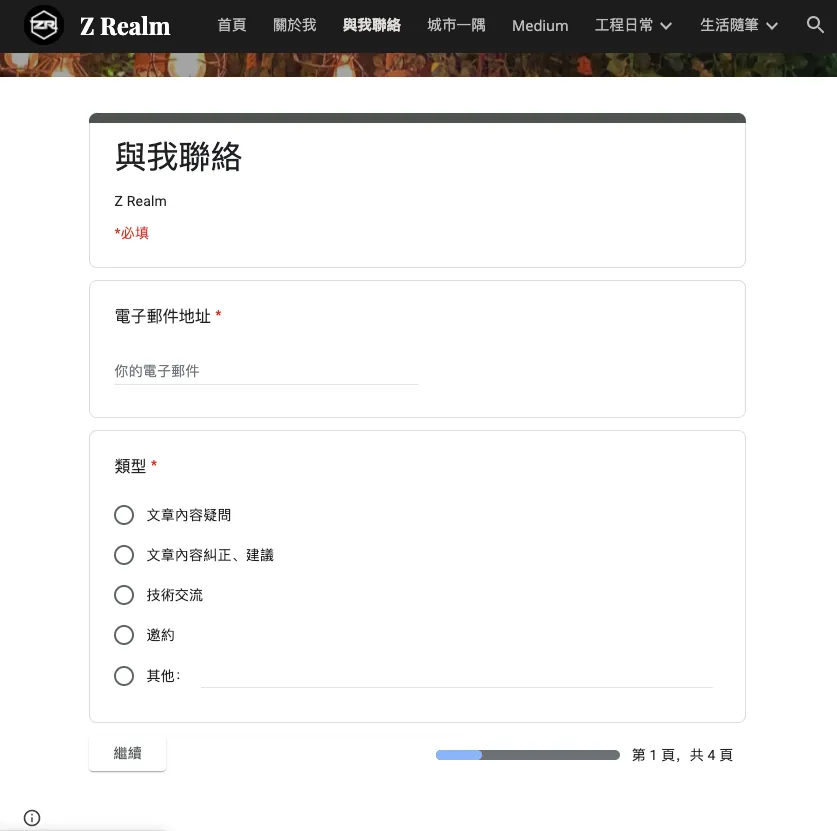
Contact Me (Embedded Google Form)
Why not give it a try?
To save reading time, here is the conclusion first; I am still looking for a better service option. Although Google Site is continuously maintained and updated, it fails to meet several key needs important to me. Below are the critical drawbacks I encountered while using it.
Fatal Drawbacks
-
Code Highlighting Limitations
The feature only provides agray background for Code Blockswithout color syntax highlighting. To embed Gists, you must use Embed JavaScript (iframe), but Google Site does not handle this well. The iframe height does not adjust with the page, resulting in either too much blank space or dual scrollbars on small mobile screens, which looks ugly and is hard to read. -
SEO structure is basically zero
“Surprised or not?” Google’s own service has SEO structure as bad as 💩, offering no customization for head meta (description/tag/og:). Forget about SEO ranking; just sharing the site on Line/Facebook shows no preview info, only an ugly URL and site name.

Advantages
1. Low intrusiveness, only a floating exclamation mark at the bottom left that shows “Google Workspace Report Abuse” when clicked

2. Easy-to-use interface, drag components from the right to quickly build pages
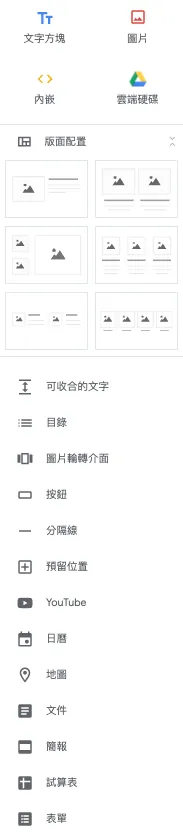
Similar to wix/weebly.. or cakeresume? Layout and components just drag and drop to complete!
3. Supports RWD, Built-in Search, Navigation Bar
4. Support Landing Page

5. No special traffic limits; storage depends on the creator’s Google Drive quota
6. 🌟 Custom Domain Binding Supported
7. 🌟 Directly Integrate GA for Visitor Analysis
8. Official Community collects feedback and continuously maintains updates
9. Support Announcement Notifications
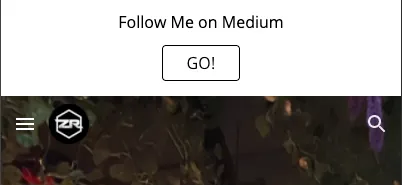
10. 🌟 Effortlessly embed Youtube, Google Forms, Google Slides, Google Docs, Google Calendar, Google Maps, and support responsive design for desktop/mobile browsing
11. 🌟 Page content supports embedded JavaScript/Html/CSS
12. Clean and simple URLs (http://example.com/page-name/subpage-name), customizable page path names
13. 🌟 Page layout has guidelines/auto-alignment, very thoughtful
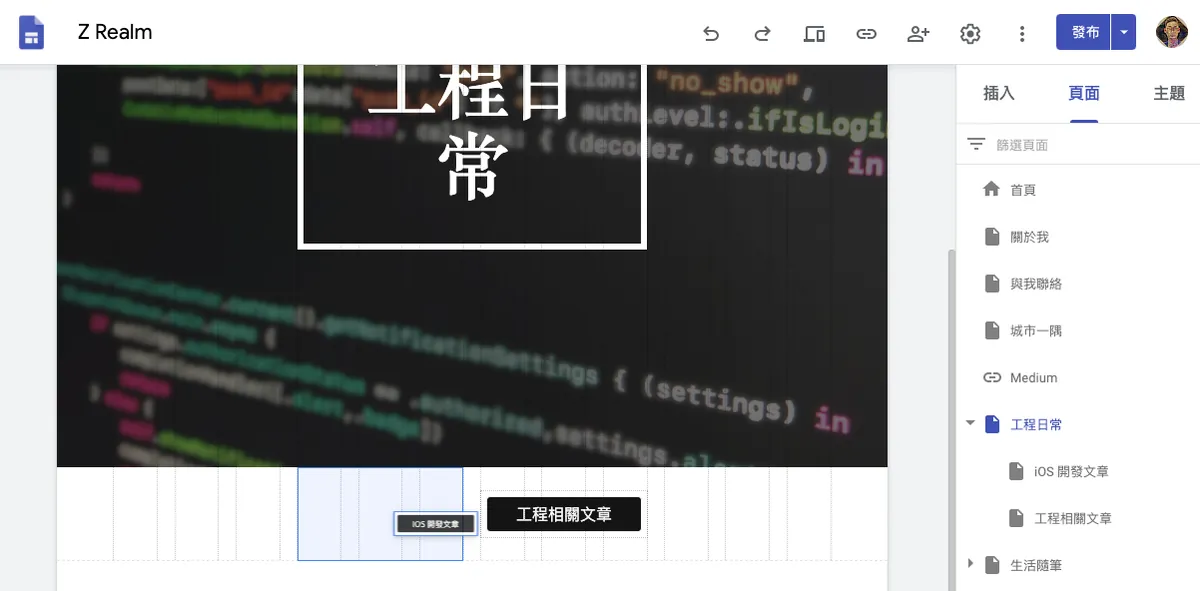
Dragging components shows alignment guides
Suitable Websites
I think Google Site is only suitable for very lightweight web services, such as school clubs, small event pages, or personal resumes.
Some Setup Instructions
List some problems you encountered and solved during use; everything else is WYSIWYG operation and not worth recording.
How to Bind a Personal Domain?
1. Go to http://google.com/webmasters/verification
2. Click “Add Property,” enter “your domain,” then click “Continue”

3. Choose your domain service provider and copy the DNS verification string
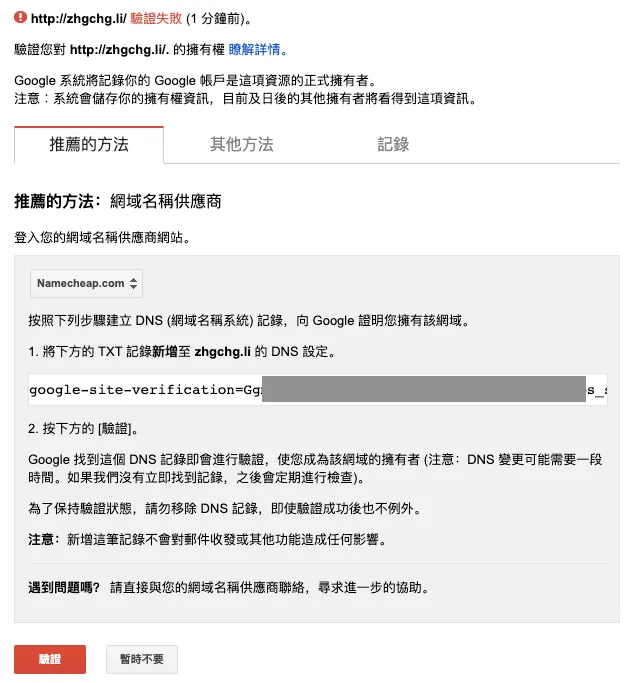
4. Go to the domain service provider’s website (Here we use Namecheap.com as an example, similar for others)
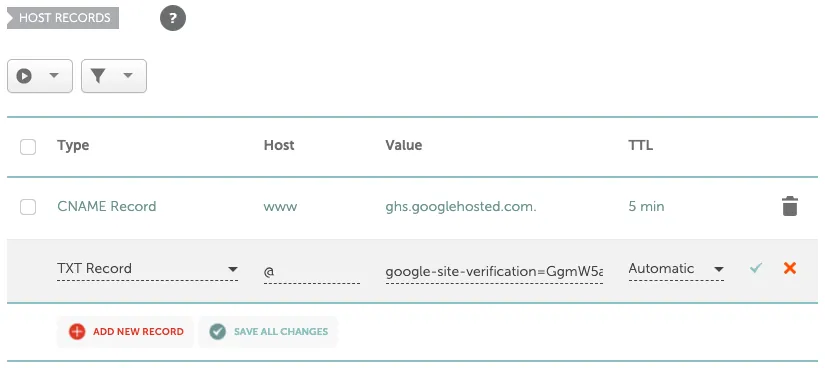
Add a new record in the DNS settings section, select the type as “TXT Record”, enter “@” for the host, and paste the copied DNS verification string as the value, then click Add to submit.
Add a new record, select the type “CNAME Record”, enter “www (or your desired subdomain)” for the host, and enter “ghs.googlehosted.com.” for the value, then click Add to submit.
You can also redirect more from http://zhgchg.li -> http://www.zhgchg.li
After setting this up, please wait a moment… waiting for the DNS records to take effect…
5. Return to Google Master to Verify
If you see “Verification of resource failed”, don’t worry! Please wait a little longer. If it still doesn’t work after more than 1 hour, then go back and check if the settings are correct.

Successfully Verified Domain Ownership
6. Return to your Google Site settings page
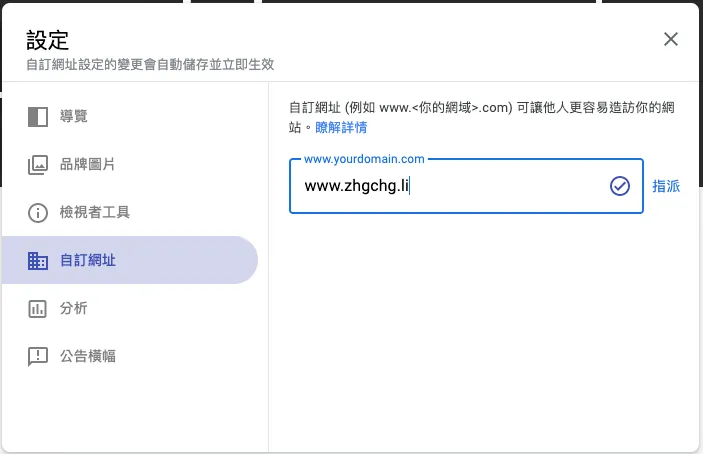
Click the gear icon (Settings) in the top right corner, select “Custom URL,” enter the domain name or subdomain you want to assign, then click “Assign.”

After successfully assigning, close the settings window and click “Publish” at the top right to publish.
Here, you still need to wait a moment… waiting for the DNS record to take effect…
7. Open a new browser and enter the URL to see if it can be accessed normally
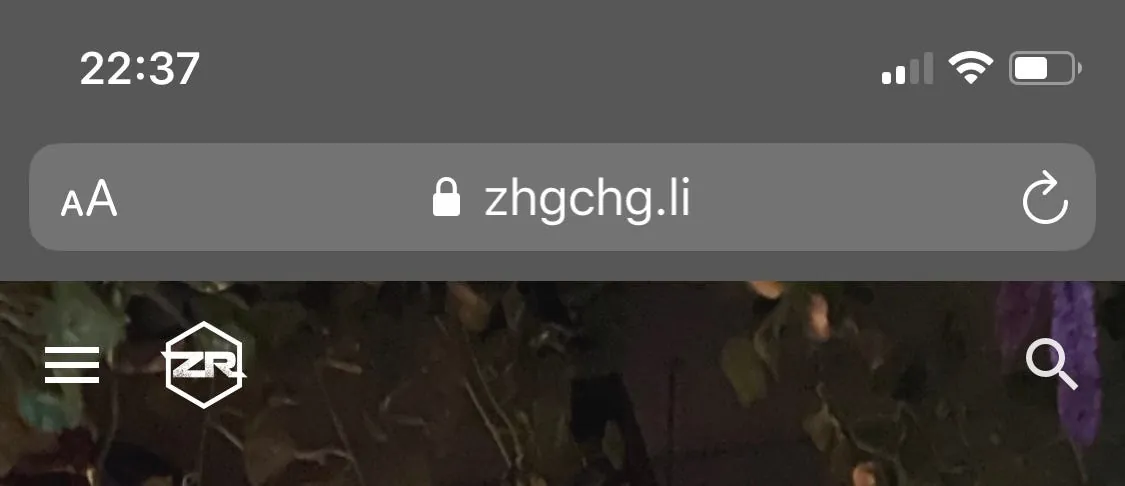
If you see “Page cannot be opened”, don’t worry! Please wait a little longer. If it still doesn’t open after more than 1 hour, then go back and check if there are any errors in the settings.
Done!
Subpages and Page Path Settings

Subpages in the navigation bar will automatically group and display.
How to Set Up?
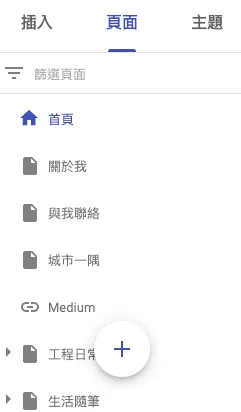
Switch to the “Pages” tab on the right.
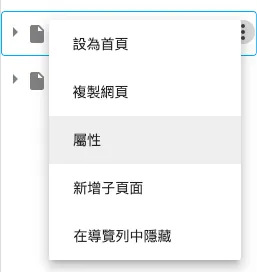
You can add a new page by dragging it under an existing page to make it a subpage, or by clicking the “…” for options.
Select the property to customize the page path.
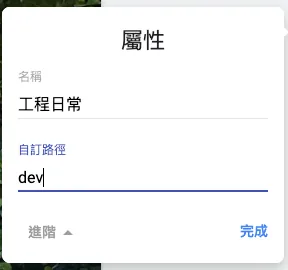
Enter the path name (e.g., dev -> http://www.zhgchg.li/dev)
Header and Footer Settings
1. Header Settings

Hover over the navigation bar and select “Add Header”
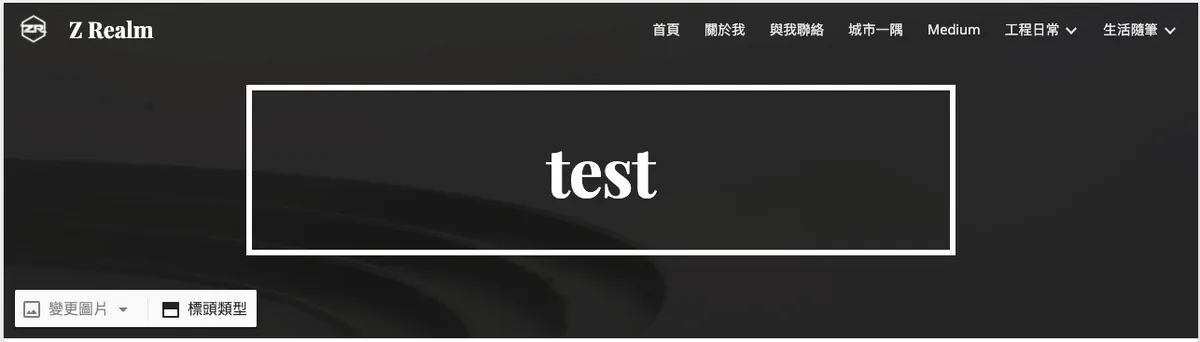
After adding a header, moving the mouse to the bottom left corner allows you to change the image, enter title text, and change the header type.

2. Footer Settings

Hover the mouse at the bottom of the page and select “Edit footer” to enter footer information.

Note! The footer information is shared across the entire site; all pages will have the same content applied!
You can also click the “eye” icon at the bottom left to toggle the display of footer information on this page
Set Website Favicon, Header Name, and Icon

favicon

Website Title and Logo
How to Set Up?
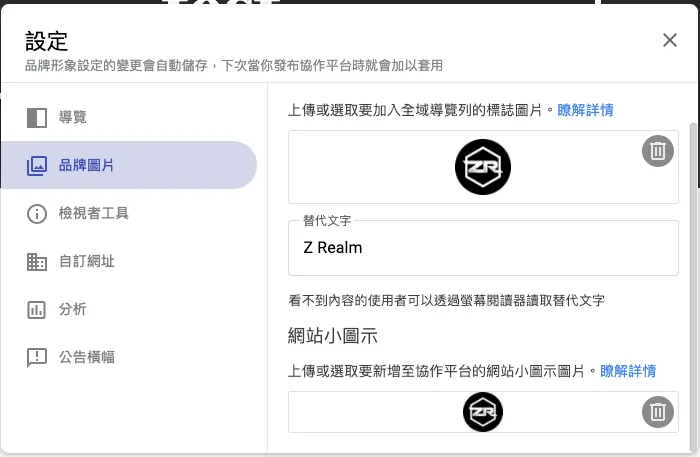
Click the “Gear (Settings)” icon at the top right and select “Brand Image” to set it up. Don’t forget to go back to the page and click “Publish” for the changes to take effect!
Hide/Show Page Last Updated Info and Page Anchor Link Hint

Last Updated Information

Page Anchor Link Tips
How to Set Up?
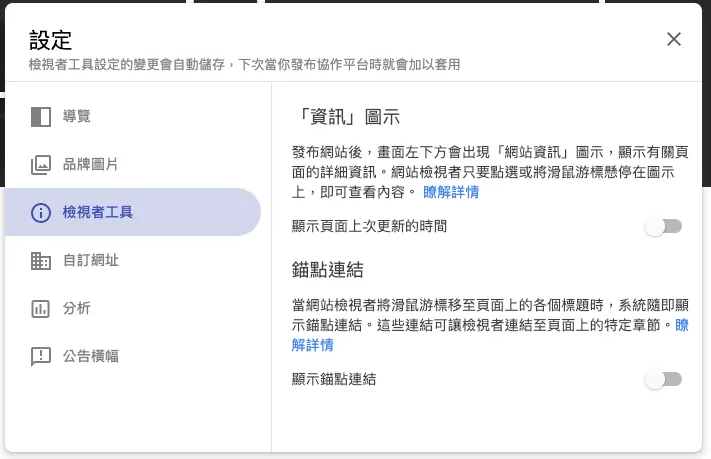
Click the “Gear (Settings)” icon at the top right and select “Viewer Tools” to configure. Don’t forget to go back to the page and click “Publish” for the changes to take effect!
Connect GA for Traffic Analysis
1. Go to https://analytics.google.com/analytics/web/?authuser=0#/provision/SignUp to create a new GA account
2. After creation, copy the GA tracking ID
3. Return to Your Google Site Settings Page
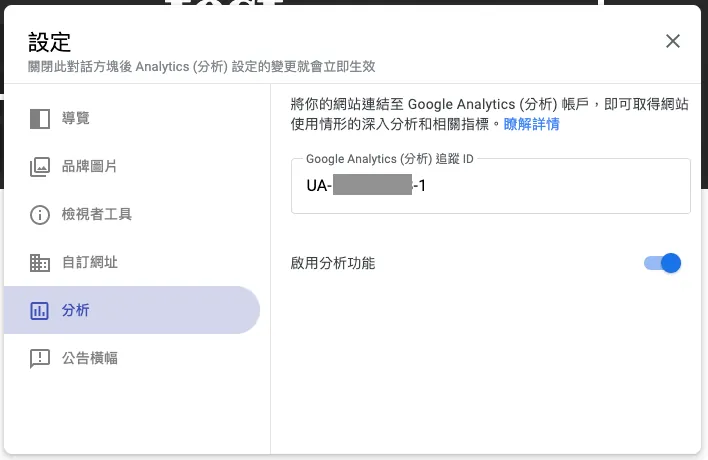
Click the “Gear (Settings)” icon at the top right, select “Analytics,” and enter your “GA Tracking ID” to set it up. Don’t forget to go back to the page and click “Publish” for the changes to take effect!
Set Site-wide/Homepage Banner Announcement
Banner Announcement
How to Set Up?
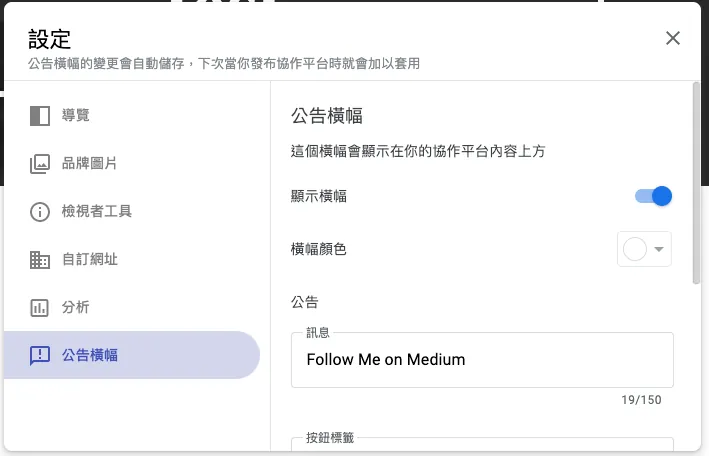
Click the “Gear (Settings)” icon at the top right and select “Announcement Banner” to set it up. Don’t forget to return to the page and click “Publish” for the changes to take effect!
You can specify the banner message content, color, button text, link URL, whether to open in a new tab, and set it to display site-wide or only on the homepage.
Publish Settings

Top right corner “Publish ▾”
You can review the changes and publish.
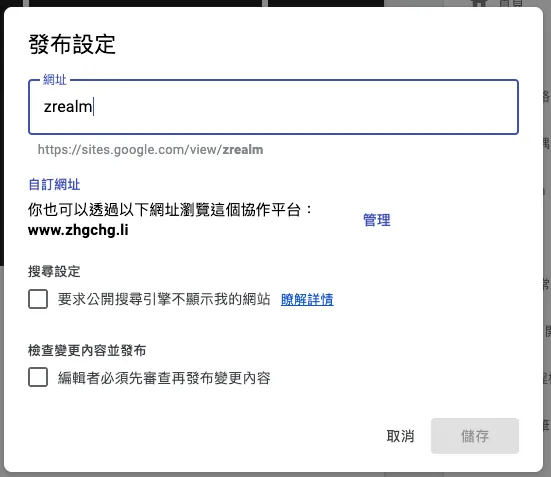
You can set whether to allow search engines to index the site and disable the content check prompt before each publish.
Embedding Javascript/HTML/CSS, Large Number of Images
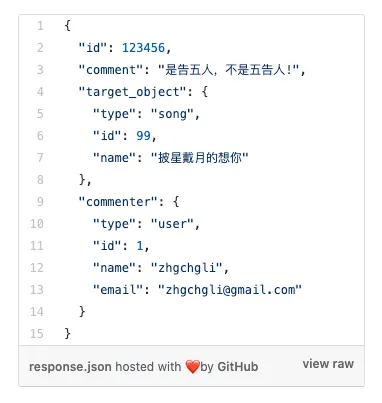
Example: Gist
But as mentioned in the critical drawbacks above, embedded iframes cannot adjust their height responsively according to the page size.
How to Insert?
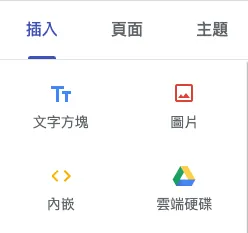
Choose “Embed”

Choose Embed Code
You can input JavaScript/HTML/CSS to create custom styled Button UI.
Alternatively, choose “Image” to insert multiple pictures, which will be displayed in a waterfall layout (like my City Corner page mentioned above).
Embedded Google Forms cannot be filled out directly on the page?
This is because the form contains a “File Upload” item, which cannot be embedded in other pages via iframe due to browser security restrictions; therefore, only the survey information is shown, and users must click the fill button to open a new window to complete the form.
The only solution is to remove the file upload issue, allowing direct form filling on the page.
Button component URL cannot accept anchor links
EX: #lifesection, I want to use it at the top of the page for a table of contents navigation or at the bottom as a GoTop button.
After checking the official community, it’s currently not possible. Button links can only 1. open an external link in a new window or 2. link to an internal page. So, I ended up splitting the menu using subpages.
Further Reading
For any questions or feedback, feel free to contact me.


Comments