
Exploring the Eternal Problem of Xcode Virtual Directories and My Open Source Tool Solution
Apple Developer Occupational Hazard: Early Xcode Use of Virtual Directories Caused Directory Structure Chaos and Difficulty Integrating Modern Tools Like XcodeGen and Tuist.

Photo by Saad Salim
English version of this post:
Exploring the Long-Standing Issues of XCode Virtual Directories and My Open Source Tool Solution
Background
As the team size and project grow, the Xcode project file (.xcodeproj) increases in size, reaching tens or even hundreds of thousands of lines depending on the project’s complexity. With multiple developers working on different branches simultaneously, conflicts are inevitable; once an XcodeProj file conflicts, it is as difficult to resolve as Storyboard/.xib conflicts. Since it is also a pure descriptor file, it’s easy to accidentally remove files added by others or bring back references to files others have deleted when resolving conflicts.
Another issue is that as modularization progresses, the process of creating and managing modules in the Xcode project file (.xcodeproj) is very unfriendly. Any changes to modules can only be seen through diffs of the Xcode project file, which hinders the team’s move towards modularization.
If it’s just to prevent conflicts, you can simply do File Sorting in the pre-commit hook. There are many existing scripts on GitHub that you can directly refer to for setup.
XCFolder
Long story short, I developed a tool that converts Xcode’s early virtual directories into physical directories based on the directory structure inside Xcode.
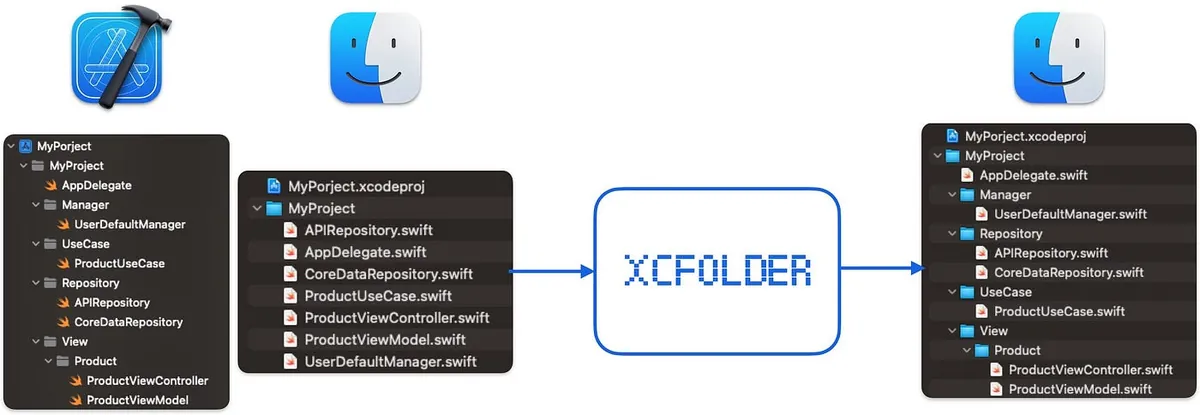
Scroll down to continue the story…
Modern Xcode Project File Management
The specific idea is similar to why we discourage using Storyboard or .xib in team development: we need a well-maintained, iterative, and code-reviewable interface to manage the “Xcode project file.” Currently, there are two popular free tools available on the market:
-
XCodeGen: A classic tool that uses YAML to define Xcode project content and then generates the Xcode project file (.xcodeproj).
It allows direct structure definition with YAML, has a lower learning curve, and is easier to adopt, but offers weaker support for modularization, dependency management, and dynamic YAML configuration. -
Tuist: A newer tool released in recent years that uses Swift DSL to define Xcode project contents, then converts them into Xcode project files (.xcodeproj).
It is more stable and flexible, with built-in modularization and dependency management features, but has a higher learning and adoption curve.
No matter which one, our core workflow will become:
-
Create XCode Project Configuration File (XCodeGen
project.yamlor TuistProject.swift) -
Add XcodeGen or Tuist to Developer and CI/CD Server Environments
-
Use XcodeGen or Tuist to Generate
.xcodeprojXcode Project Files via Configuration Files -
Add
/*.xcodeprojdirectory files to.gitignore -
Adjust the developer workflow to run XcodeGen or Tuist when switching branches, generating the
.xcodeprojXcode project file from configuration files. -
Adjust the CI/CD process to run XcodeGen or Tuist to generate the
.xcodeprojXcode project file from configuration files. -
Completed
.xcodeproj Xcode project files are generated by XcodeGen or Tuist based on YAML or Swift DSL configuration files. The same configuration file and tool version will produce identical results; therefore, we no longer need to commit .xcodeproj files to Git. This guarantees no more .xcodeproj file conflicts in the future. Any changes to the project structure or module additions are made by updating the configuration files. Since these are written in YAML or Swift, we can easily iterate and perform code reviews.
Tuist Swift Example: Project.swift
import ProjectDescription

let project = Project(
    name: "MyApp",
    targets: [
        Target(
            name: "MyApp",
            platform: .iOS,
            product: .app,
            bundleId: "com.example.myapp",
            deploymentTarget: .iOS(targetVersion: "15.0", devices: [.iphone, .ipad]),
            infoPlist: .default,
            sources: ["Sources/**"],
            resources: ["Resources/**"],
            dependencies: []
        ),
        Target(
            name: "MyAppTests",
            platform: .iOS,
            product: .unitTests,
            bundleId: "com.example.myapp.tests",
            deploymentTarget: .iOS(targetVersion: "15.0", devices: [.iphone, .ipad]),
            infoPlist: .default,
            sources: ["Tests/**"],
            dependencies: [.target(name: "MyApp")]
        )
    ]
)
XCodeGen YAML Example: project.yaml
name: MyApp
options:
  bundleIdPrefix: com.example
  deploymentTarget:
    iOS: '15.0'

targets:
  MyApp:
    type: application
    platform: iOS
    sources: [Sources]
    resources: [Resources]
    info:
      path: Info.plist
      properties:
        UILaunchScreen: {}
    dependencies:
      - framework: Vendor/SomeFramework.framework
      - sdk: UIKit.framework
      - package: Alamofire

  MyAppTests:
    type: bundle.unit-test
    platform: iOS
    sources: [Tests]
    dependencies:
      - target: MyApp
File Directory Structure
XCodeGen or Tuist generates the XCode project file (.xcodeproj) directory structure based on the actual file directories and locations, where the actual directories correspond to the XCode project file directories.
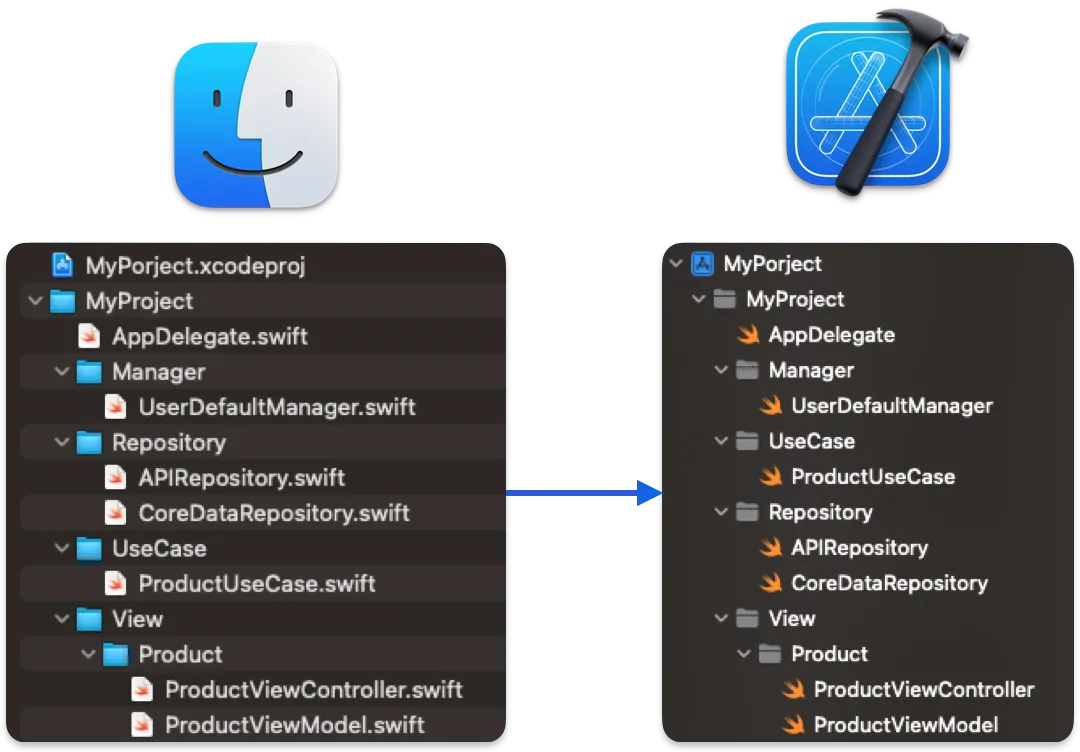
Therefore, the actual directory location of the files is very important, and we use it directly as the Xcode project file directory.
In modern Xcode/Xcode projects, it is common for these two directories to be located at the same level, but this is exactly the issue this article aims to explore.
Early Xcode Used Virtual Directories
In early versions of Xcode, right-clicking on the file directory and selecting “New Group” does not create a real folder. Files are placed under the project root directory and referenced in the .xcodeproj Xcode project file, so the directory only appears in the Xcode project file and does not exist physically.
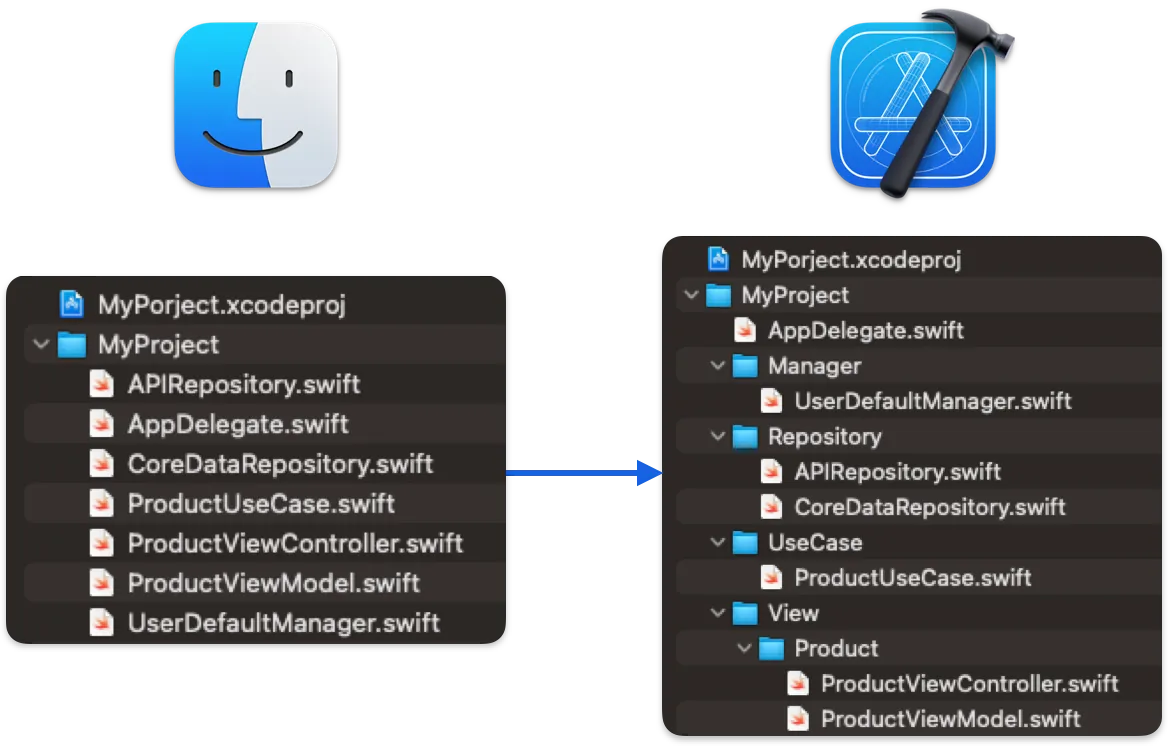
Over time, Apple gradually phased out this odd design in Xcode. Later versions introduced “New Group with Folder,” then defaulted to creating physical directories unless you chose “New Group without Folder.” Now (Xcode 16) there is only “New Group,” which automatically generates the Xcode project file directory based on the physical directory.
Problems with Virtual Directories
-
Cannot use XCodeGen or Tuist because both require physical directory locations to generate XCode project files (.xcodeproj).
-
Code Review Difficulty: The directory structure is not visible on the Git Web GUI, and all files appear flattened.
-
DevOps and Third-Party Tool Integration Challenges: For example, Sentry and GitHub can assign warnings or auto-assign based on directories, but without directories—only files—this setup is not possible.
-
The project directory structure is extremely complex, with a large number of files flattened in the root directory.
For an old project that didn’t address the virtual directory issue early, with over 3,000 files in virtual directories, manually moving them would make you want to quit and sell rice cakes. This can truly be called an “Apple Developer Occupational Hazard 😔”.
Convert Xcode Project Virtual Folders to Physical Folders
For all these reasons, we urgently need to convert Xcode project’s virtual directories into physical directories; otherwise, project modernization and more efficient development workflows cannot proceed.
❌ Xcode 16 “Convert to folder” Option
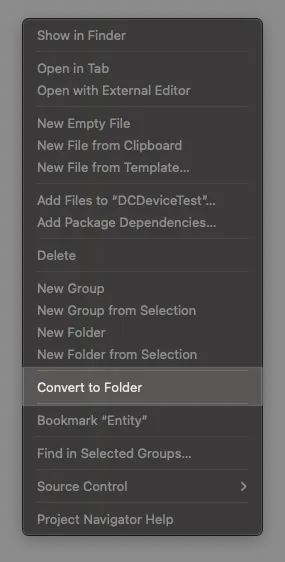
Xcode 16
When Xcode 16 was first released last year, I noticed this new menu option. I originally hoped it could automatically convert virtual directory files into physical directories for us.
But in reality, it requires you to first create the directories and place the files in their corresponding physical locations. Clicking “Convert to folder” will change the Xcode project directory setting to the new type, PBXFileSystemSynchronizedRootGroup. To be honest, this has no effect on the conversion itself; it’s more about upgrading to the new directory setting after conversion.
If the directory is not created and files are not placed correctly, clicking “Convert to folder” will show the following error:
Missing Associated Folder
Each group must have an associated folder. The following groups are not associated with a folder:
• xxxx
Use the file inspector to associate a folder with each group, or delete the groups after moving their content to another group.
🫥 Open Source Projects venmo / synx
After searching on GitHub for a long time, I only found this open-source tool written in Ruby that converts virtual directories to physical ones. It works to some extent, but since it hasn’t been updated for about 10 years, many files still need to be manually mapped and moved, so it can’t fully convert the structure. Therefore, I gave up on it.
However, I still appreciate the inspiration from this open-source project, which made me consider developing my own conversion tool.
✅ My open-source projects ZhgChgLi / XCFolder
A Command Line Tool developed purely in Swift, based on XcodeProj, parses the .xcodeproj Xcode project file, reads all files to get their directories, converts virtual directories into physical directories, moves files to the correct locations, and finally adjusts the directory settings in the .xcodeproj Xcode project file to complete the conversion.
Usage
git clone https://github.com/ZhgChgLi/XCFolder.git
cd ./XCFolder
swift run XCFolder YOUR_XCODEPROJ_FILE.xcodeproj ./Configuration.yaml
For Example:
swift run XCFolder ./TestProject/DCDeviceTest.xcodeproj ./Configuration.yaml
CI/CD Mode ( Non Interactive Mode ):
swift run XCFolder YOUR_XCODEPROJ_FILE.xcodeproj ./Configuration.yaml --is-non-interactive-mode
Configuration.yaml allows you to set the desired execution parameters:
# Ignored directories, will not be parsed or converted
ignorePaths:
- "Pods"
- "Frameworks"
- "Products"

# Ignored file types, will not be converted or moved
ignoreFileTypes:
- "wrapper.framework" # Frameworks
- "wrapper.pb-project" # Xcode project files
#- "wrapper.application" # Applications
#- "wrapper.cfbundle" # Bundles
#- "wrapper.plug-in" # Plug-ins
#- "wrapper.xpc-service" # XPC services
#- "wrapper.xctest" # XCTest bundles
#- "wrapper.app-extension" # App extensions

# Only create folders and move files, do not modify .xcodeproj Xcode project folder settings
moveFileOnly: false

# Prefer using git mv command to move files
gitMove: true
⚠️ Please Note Before Execution:
-
Please make sure Git has no uncommitted changes to avoid the script accidentally polluting your project directory.
(The script will check this and throw an error❌ Error: There are uncommitted changes in the repositoryif any uncommitted changes are found.) -
By default, the
git mvcommand is preferred to move files to ensure complete git file log history. If the move fails or the project is not a Git repository, FileSystem Move will be used instead.
Just wait for the execution to complete:
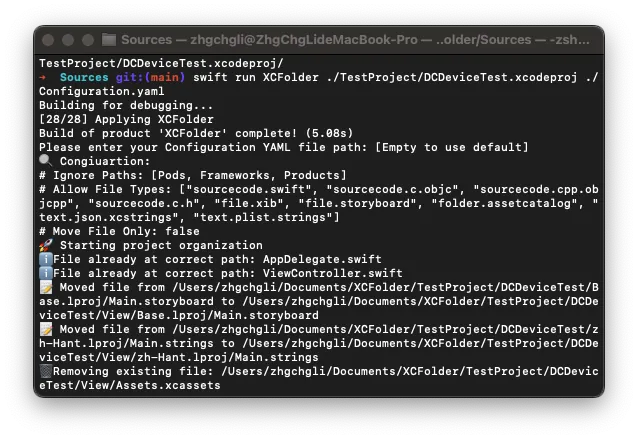
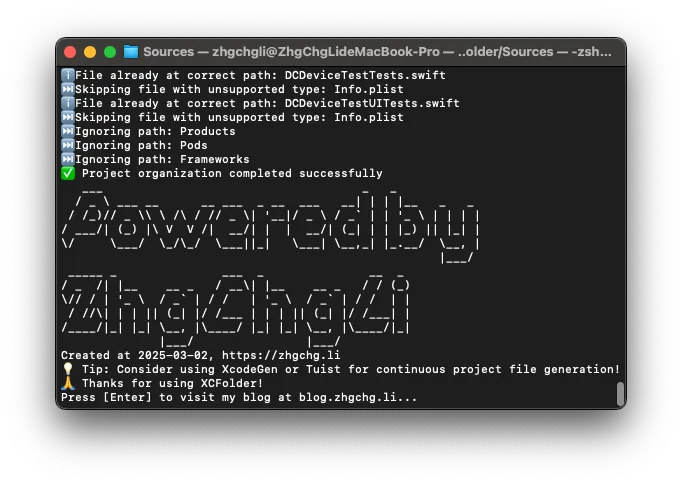
⚠️ Please note after execution:
-
Please check if there are any missing (red) files in the project directory. If the number is small, you can fix them manually. If there are many, please verify whether the ignorePaths and ignoreFileTypes settings in Configuration.yaml are correct, or create an Issue to let me know.
-
Check if related paths in Build Settings, e.g.
LIBRARY_SEARCH_PATHS, need to be manually updated. -
Recommend doing a Clean & Build to check.
-
If you don’t want to manage the current
.xcodeprojXcode project file, you can directly start using XcodeGen or Tuist to regenerate the directory and files
Modify Script:
You can open the project and edit the script by directly clicking ./Package.swift.
Other Development Notes
-
Thanks to XcodeProj, we can easily access the contents of
.xcodeprojXcode project files using Swift objects. -
Developing with the Clean Architecture pattern as well
-
In PBXGroup settings, if there is no path but only a name, it is a virtual folder; otherwise, it is a physical folder.
-
Xcode 16’s new directory setting
PBXFileSystemSynchronizedRootGrouponly requires declaring the root directory, which will automatically be resolved from the physical directory. There is no need to declare every folder and file inside the.xcodeprojXcode project file. -
Developing Command Line Tools directly with SPM (Package.swift) is really convenient!


Comments