
[iOS] Temporary Workaround for Black Launch Screen Bug After Several Launches
Temporary Workaround to Fix XCode Build & Run App Stuck on Black Screen Issue
Photo by Etienne Girardet
Problem
Not sure which XCode version started this (probably 14?), but some projects get stuck on a black screen after multiple Build & Run attempts on the simulator. It stays stuck at Launching Application… with no response; rebuilding and running again doesn’t help. You have to manually kill the entire simulator and restart it to fix the issue.

New projects or projects with new settings rarely encounter this issue; older projects face it more often. Due to their long history and complex settings, no definite root cause can be found online. It is mostly suspected to be an XCode bug (or related to M1?). However, this problem is very annoying. Often when building and running to check results, the screen goes completely black, forcing a full restart that wastes about 1–2 minutes each time, greatly interrupting development.
Workaround
Here is a workaround: since the black screen issue cannot be avoided and it does not occur on the first Build & Run after the simulator starts, we just need to ensure that the simulator is freshly restarted before every Build & Run.
First, we need to get the Device UUID of the simulator you want to run
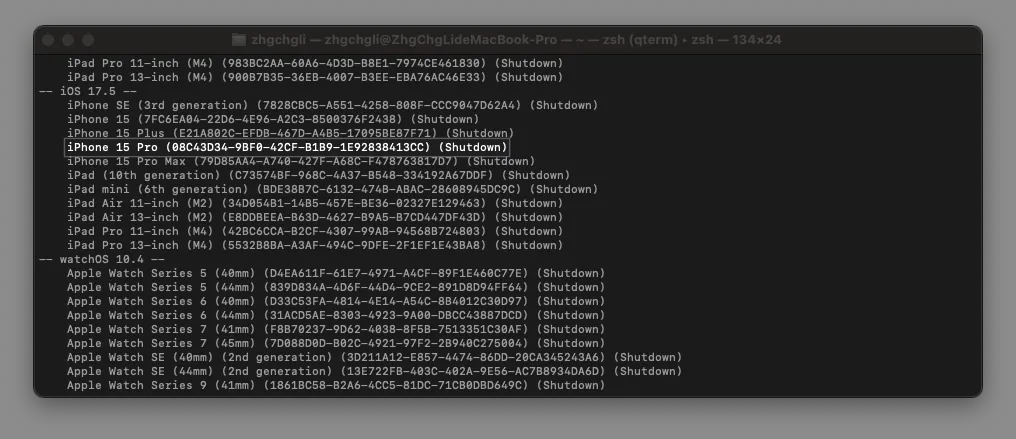
Run in Terminal:
xcrun simctl list devices
-
Find the simulator device you want to use and its Device UUID
-
Here I use my iPhone 15 Pro (iOS 17.5) as an example
Device UUID =08C43D34–9BF0–42CF-B1B9–1E92838413CC
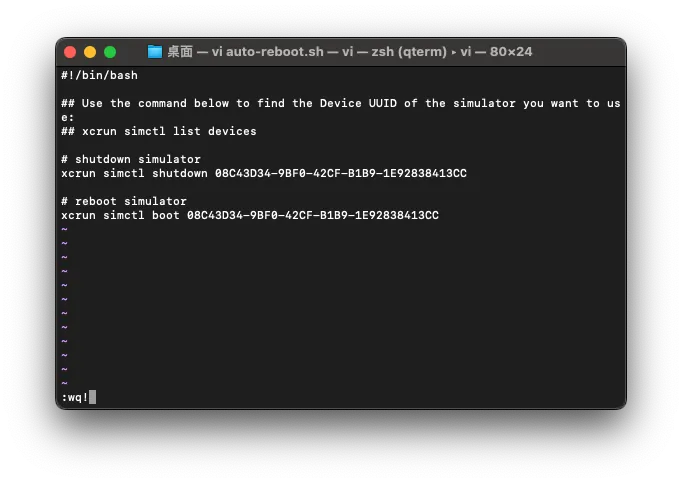
Next, let’s add an auto-reboot.sh Shell Script file
-
cd /the/directory/where/you/want/to/place/this/script/ -
vi auto-reboot.sh
Paste the following Script:
-
Replace
[Device UUID]with the Device UUID of the simulator you want to use -
Remember to update the Device UUID in this script if the simulator changes; otherwise, it won’t work
#!/bin/bash

## Use the command below to find the Device UUID of the simulator you want to use:
## xcrun simctl list devices

# shutdown simulator
xcrun simctl shutdown [Device UUID]

# reboot simulator
xcrun simctl boot [Device UUID]
-
The script logic is simple and straightforward: just shut down & restart the simulator you want to use.
-
ESC&:wq!
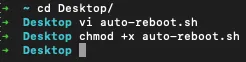
Adjust auto-reboot.sh Execution Permissions:
chmod +x auto-reboot.sh
Back to XCode Settings
Since everyone uses different simulators, I set this up in XCode Behaviors to avoid changing project settings or affecting the team via git. However, for a simple, team-wide sync, you can also set it directly in Scheme -> Build -> Pre-actions -> sh /path/to/your/script/auto-reboot.sh.
XCode Behaviors
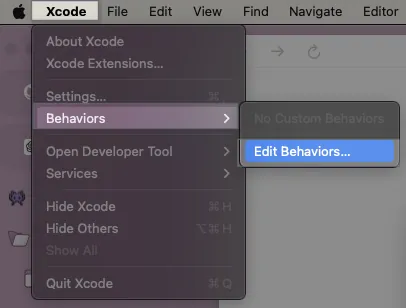
- XCode -> Behaviors -> Edit Behaviors…
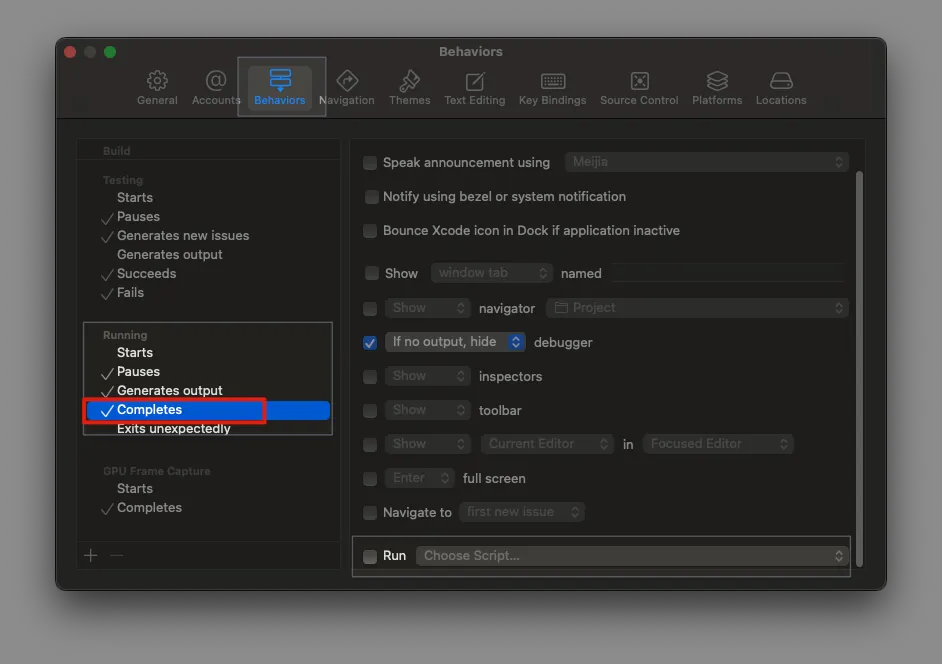
-
Find the
Runningsection -
Select the
Completesoption
Completes timing = Stop or Rebuild -
Check
Runon the right side
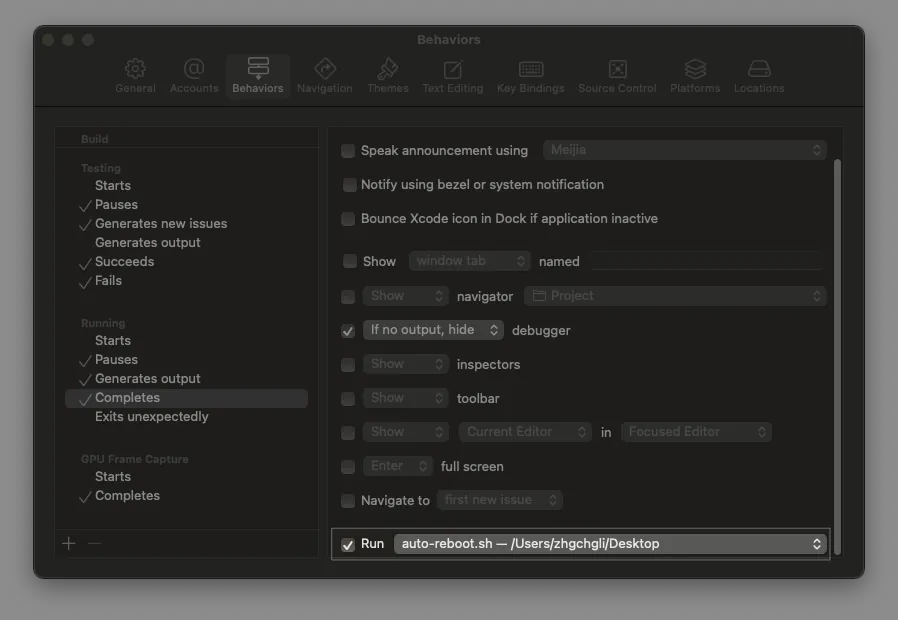
-
Select
Choose Script…and choose the location of the newly createdauto-reboot.shfile. -
Completed
Principle and Conclusion
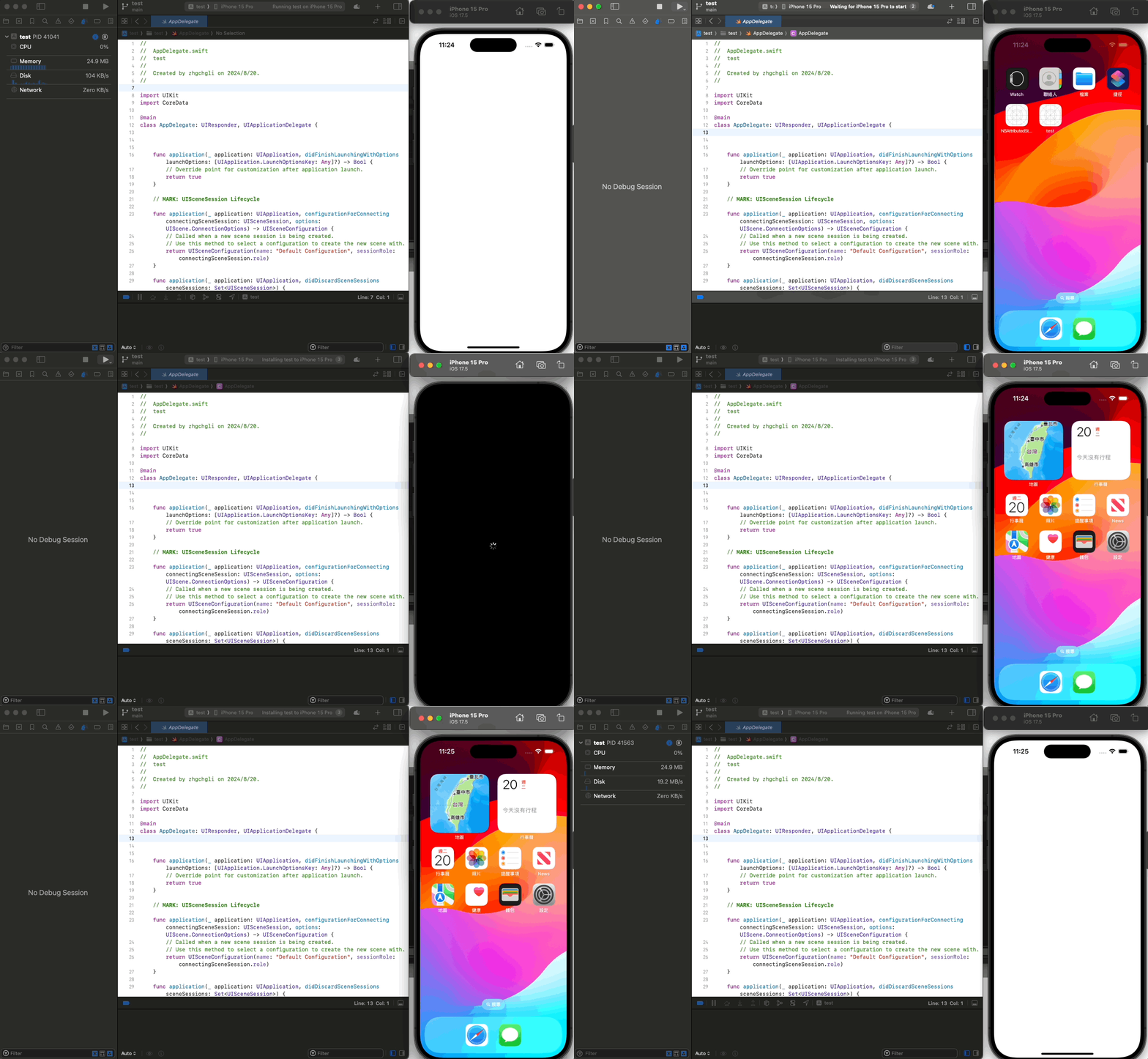
The demo is a clean project, so the build time is very short.
We use XCode Behaviors to restart the simulator at the Completes (Stop or Rebuild) event. This happens before the Build starts, allowing the restart to finish almost always before Build -> Run completes.
If you repeatedly restart too quickly, the reboot might be too slow, causing Run to fail to find the target and resulting in another type of black screen. However, this situation is not considered here. At least this solution can keep Build & Run working normally during regular daily use.
The impact on speed is acceptable since Build & Run itself takes some time, which is enough for the simulator to restart.


Comments