
iOS Reverse Engineering First Experience
Jailbreaking, Extracting IPA, Cracking, UI Analysis, Injection, and Reverse Engineering Exploration Process
About Security
The only security-related topic I have done before is « Using Man-in-the-Middle Attack to Sniff Transmission Data »; building on that, suppose we encrypt data before transmission and decrypt it inside the app to prevent man-in-the-middle sniffing—can the data still be stolen?
The answer is definitely yes! Even without actual testing, there is no unbreakable system in the world, only the matter of time cost. When the time and effort needed to crack it exceed the benefits, it can be considered secure!
How?
Having come this far, how else can it be cracked? This is exactly the topic I want to record — “Reverse Engineering” — to unlock your APP and study how you do encryption and decryption. I’ve always been somewhat clueless about this field, only attending two major talks at iPlayground 2019, roughly understanding the principles and implementation. Recently, I had the chance to try it out and want to share it with everyone!
What Can You Do with Reverse Engineering?
-
Viewing the App UI Layout and Structure
-
Obtaining the APP Resource Directory .assets/.plist/icon…
-
Modifying APP Functionality and Repackaging (e.g., Removing Ads)
-
Decompiling to infer the original code content and obtain business logic information
-
Dumping .h Header Files / Keychain Content
Implementation Environment
macOS Version: 10.15.3 Catalina
iOS Version: iPhone 6 (iOS 12.4.4 / Jailbroken) Required
Cydia: Open SSH
Jailbreak Part
Any iOS or iPhone version can be used as long as the device is jailbroken. It is recommended to use an older phone or a development device to avoid unnecessary risks. You can refer to 瘋先生越獄教學 based on your phone and iOS version. If necessary, downgrade iOS using iOS 降版 (check signing status) before jailbreaking.
I used an old iPhone 6 for testing. It was originally updated to iOS 12.4.5, but jailbreak kept failing on 12.4.5. Fortunately, I downgraded to 12.4.4 and successfully jailbroke it using checkra1n!
The steps are few and not difficult; they just require some waiting time!
An experience where I made a silly mistake: After downloading an older IPSW file, I connected my phone to the Mac and used Finder’s file browser (since iTunes was removed after macOS 10.5). In the left sidebar under Locations, I selected the phone, which brought up the phone info screen. Then, holding down the “Option” key and clicking “Restore iPhone” opened a window to select the IPSW file. Choosing the downloaded older IPSW allowed me to complete the downgrade and restore.
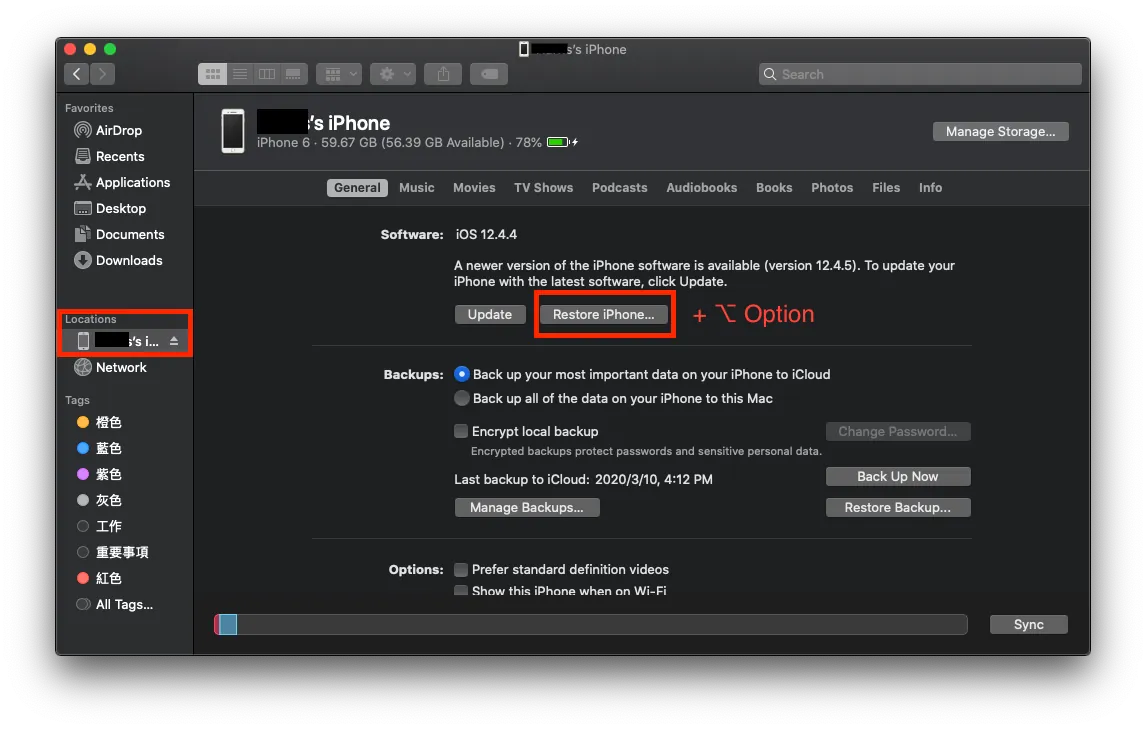
I foolishly pressed Restore iPhone… it just wastes time by reinstalling the latest version again…
Using Lookin Tool to Inspect Other Apps’ UI Layout
Let’s start with a fun appetizer: using tools along with a jailbroken phone to see how other people’s apps are laid out.
Viewing Tools: First is the classic Reveal (more features, costs about $60 with a trial available). The second is the free open-source tool lookin made by Tencent’s QMUI Team. Here, lookin is used for demonstration; Reveal is quite similar.
It’s okay if you don’t have a jailbroken phone. This tool is mainly for use in projects under development to inspect debug layouts (replacing Xcode’s basic inspector) and can be used regularly during development!
Only jailbroken iPhones can be used to analyze third-party apps.
If you want to view your own project…
You can choose to install via CocoaPods, Breakpoint Insertion (simulator only), Manual Framework Import into Project, or Manual Setup, four methods in total.
After building and running the project, you can select the APP screen in the Lookin tool -> view the layout structure.
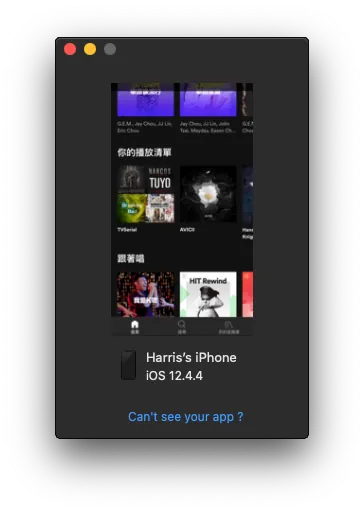
If you want to inspect someone else’s APP…
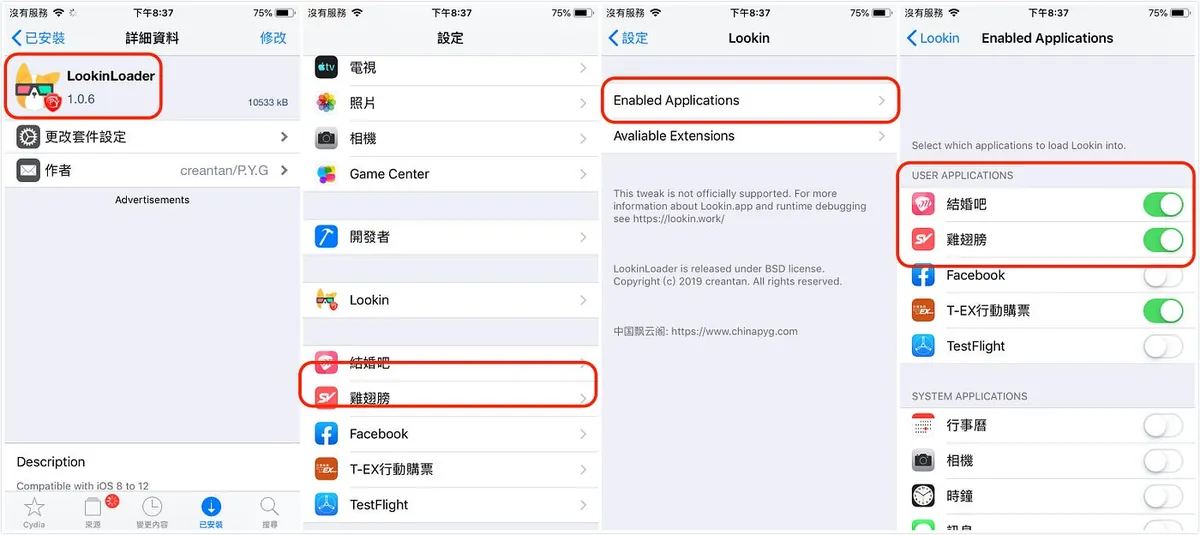
Step 1. On the jailbroken iPhone, open Cydia -> search for LookinLoader -> Install -> go back to the phone’s Settings -> Lookin -> Enabled Applications -> Enable the apps you want to inspect.
Step 2. Use a USB cable to connect the iPhone to the Mac -> open the app you want to inspect -> return to the computer, select the app screen in the Lookin tool -> you can then view the layout structure.
Lookin for Viewing Layout Structure
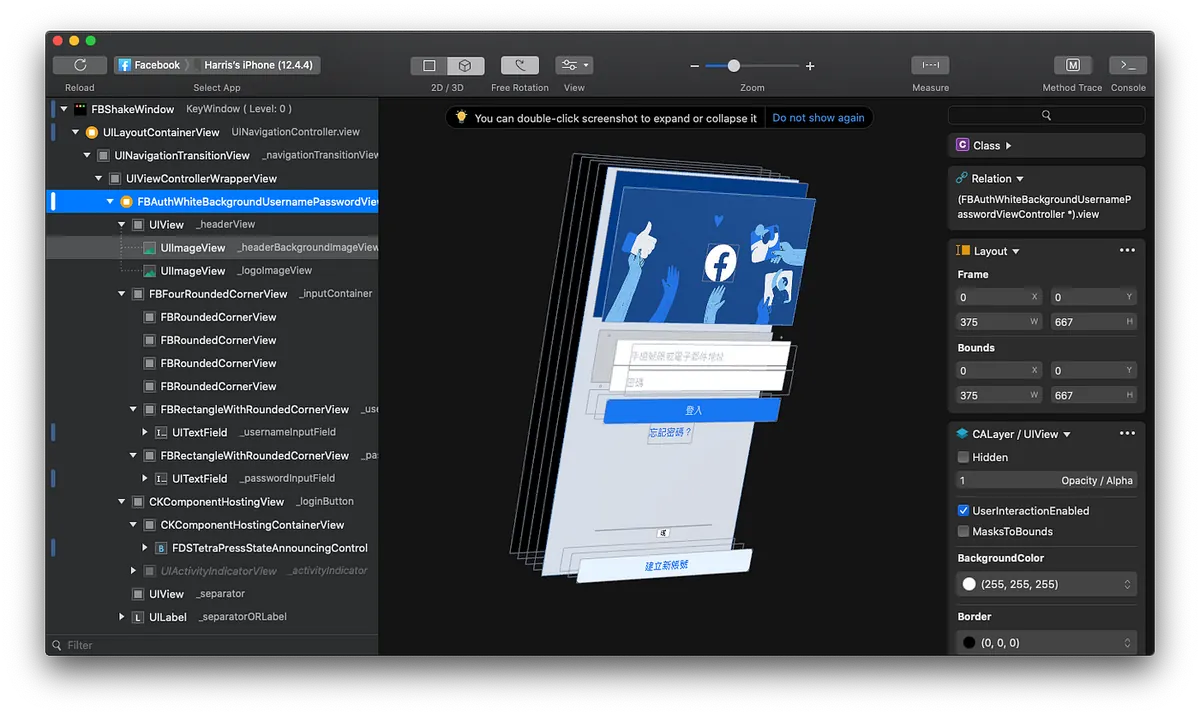
Facebook Login Screen Layout Structure
You can view the View Hierarchy in the left sidebar and dynamically modify the selected object in the right sidebar.
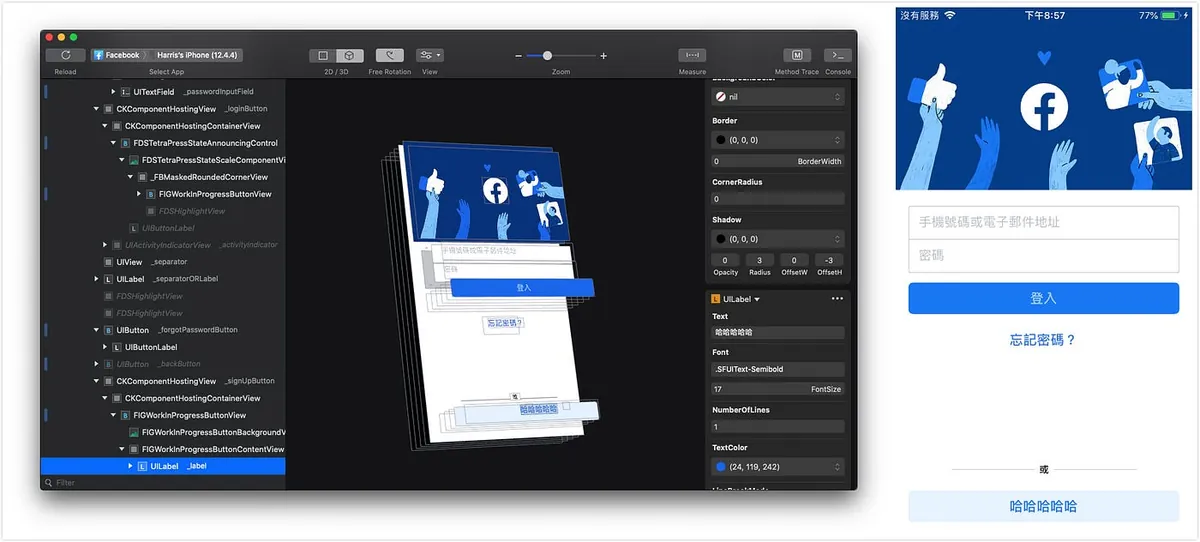
The original “Create New Account” was changed by me to “Hahaha”
Modifications to objects will also be reflected in real-time on the mobile app, as shown in the image above.
Just like the “F12” developer tools in web browsers, all modifications only affect the View and do not impact the actual data. It is mainly used for debugging, but you can also use it to change values, take screenshots, and prank your friends XD
Use Reveal to Inspect APP UI Layout Structure
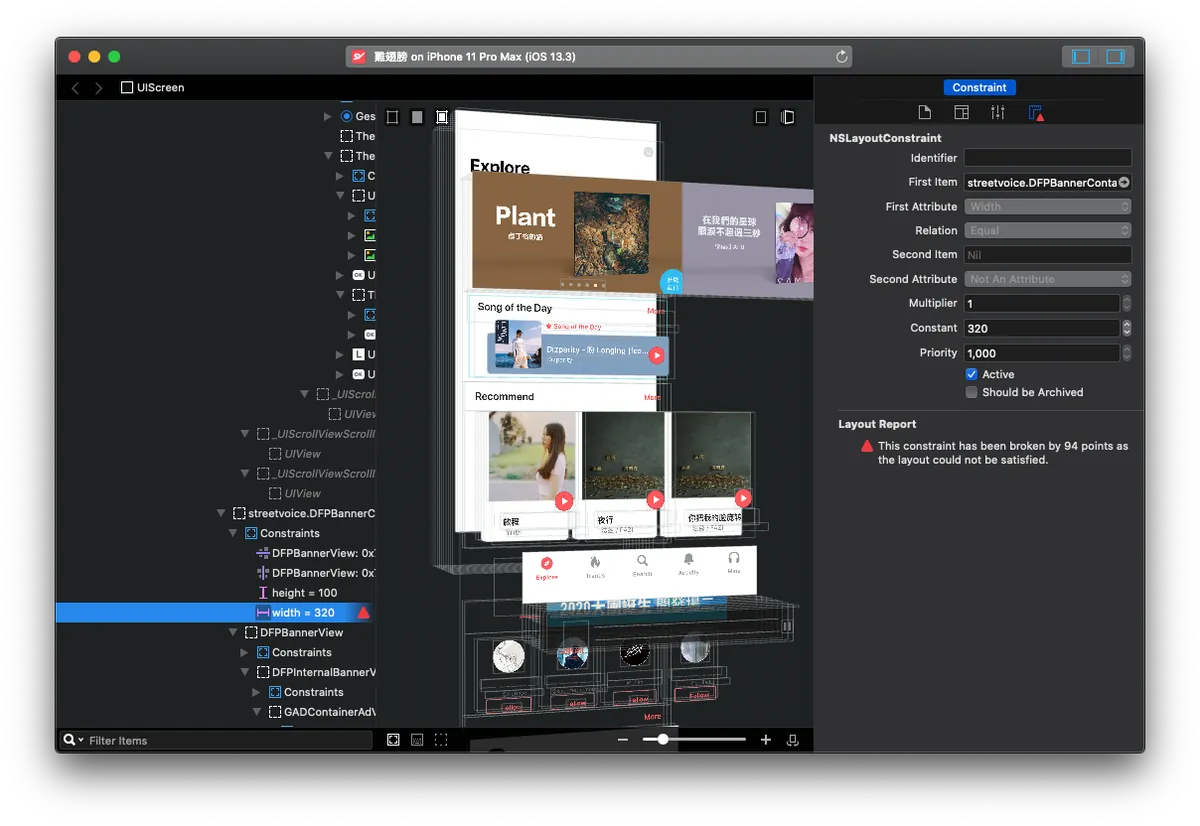
Although Reveal requires a paid license, I personally prefer Reveal; it provides more detailed structure display, and the info panel on the right is almost the same as the XCode development environment. You can make real-time adjustments as needed, and it also alerts Constraint Errors, which is very helpful for UI layout fixes!
These two tools are very helpful in daily development of your own APP!
After understanding the process environment and interesting parts, let’s get to the main topic!
The following steps require a jailbroken iPhone
Extracting the APP .ipa File & Cracking the Shell
All apps installed from the App Store have their .ipa files protected by FairPlay DRM, commonly known as shell protection. Removing this protection is called “cracking the shell.” Therefore, simply extracting the .ipa from the App Store is meaningless and unusable.
*Another tool, APP Configurator 2, can only extract protected files. Since it is not very useful, it will not be discussed further. Those interested in using this tool can click here to see the tutorial.
Extracting the original .ipa file after dumping the shell using tools + jailbroken device:
Regarding tools, I initially used Clutch, but it always showed FAILED. After checking the project’s issues, I found many people had the same problem. It seems this tool no longer works on iOS ≥ 12. There is also a classic tool called dumpdecrypted, but I haven’t explored it.
Here, we use the Python tool frida-ios-dump for dynamic dumping, which is very convenient to use!
First, let’s prepare the environment on the Mac:
-
Mac comes with Python 2.7 by default. This tool supports Python 2.X/3.X, so there’s no need to install Python separately. However, I use Python 3.X for operations. If you encounter issues with Python 2.X, consider installing and using Python 3!
-
Install pip (Python package manager)
-
Install frida using pip:
sudo pip install frida -upgrade -ignore-installed six(python 2.X)
sudo pip3 install frida -upgrade -ignore-installed six(python 3.X) -
In Terminal, enter
frida-ps. If there is no error message, it means the installation was successful! -
Clone the AloneMonkey/frida-ios-dump project
-
Enter the project and open the dump.py file with a text editor
-
Verify if the SSH connection settings are correct (usually no changes needed)
User = ‘root’
Password = ‘alpine’
Host = ‘localhost’
Port = 2222
Environment on a Jailbroken Device:
-
Install Open SSH: Cydia → Search → Open SSH → Install
-
Install Frida Source: Cydia → Sources → Top right “Edit” → Top left “Add” → https://build.frida.re
-
Install Frida: Cydia → Search → Frida → Install the tool matching your phone’s processor version (e.g., I have an iPhone 6 A11, so I installed
Frida for pre-A12 devices).
After setting up the environment, start working:
-
Connect the phone to the computer using a USB cable
-
Open a Terminal on your Mac and enter
iproxy 2222 22to start the server. -
Ensure the phone and computer are on the same network (e.g., connected to the same WiFi)
-
Open another Terminal and enter ssh [email protected], then input the SSH password (default is
alpine)
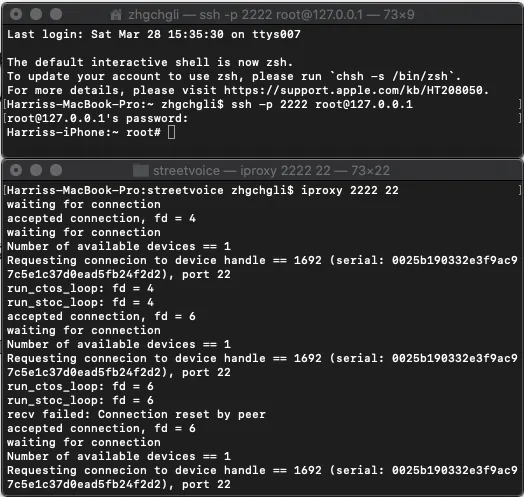
- Open another Terminal to run the dumping commands, and cd into the cloned /frida-ios-dump directory.
Enter dump.py -l to list the apps installed/running on the device.
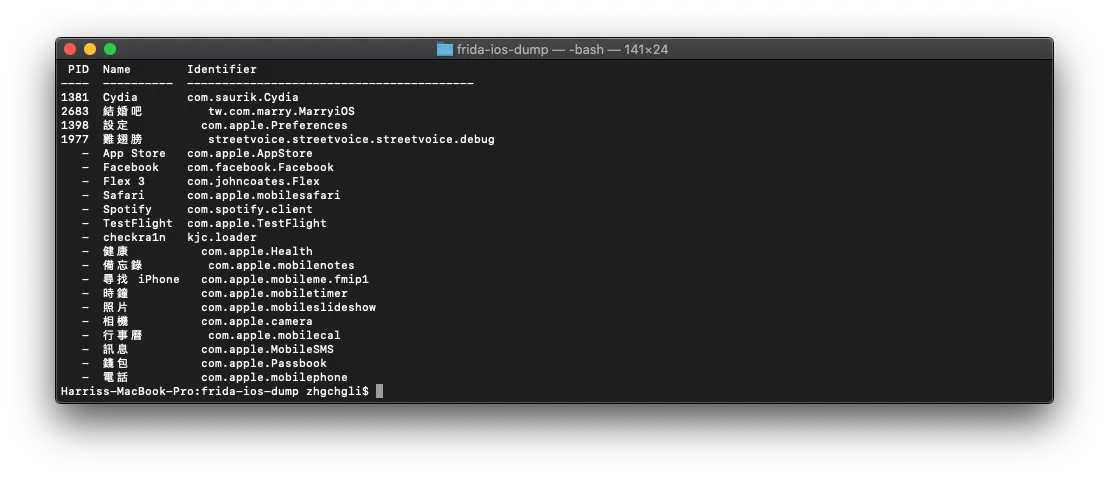
- Find the APP name / Bundle ID to dump, then enter:
dump.py APP_NAME_or_BundleID -o output_path/output_filename.ipa
Here, you must specify the output path/filename, because the default output path is /opt/dump/frida-ios-dump/. Since we don’t want to move it to /opt/dump, specifying the output path is necessary to avoid permission errors.
- After a successful export, you will get the decrypted .ipa file!
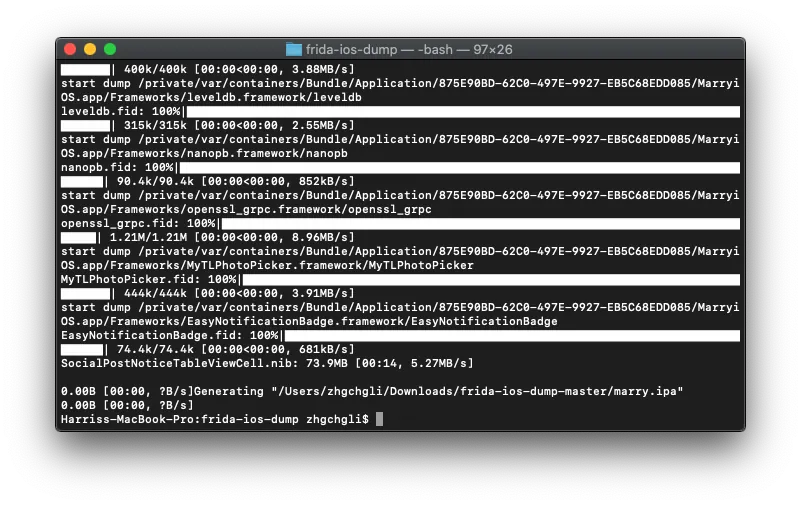
-
The phone must be unlocked to use the tools.
-
If connection errors or “reset by peer” occur, try unplugging and reconnecting the USB, or restarting iproxy.
- Rename the .ipa file directly to .zip, then right-click to extract the archive.
/Payload/APP_NAME.app will appear
With the original APP file, we can…
1. Extract the APP’s resource directory
Right-click on APPName.app → “Show Package Contents” to view the app’s resource directory.
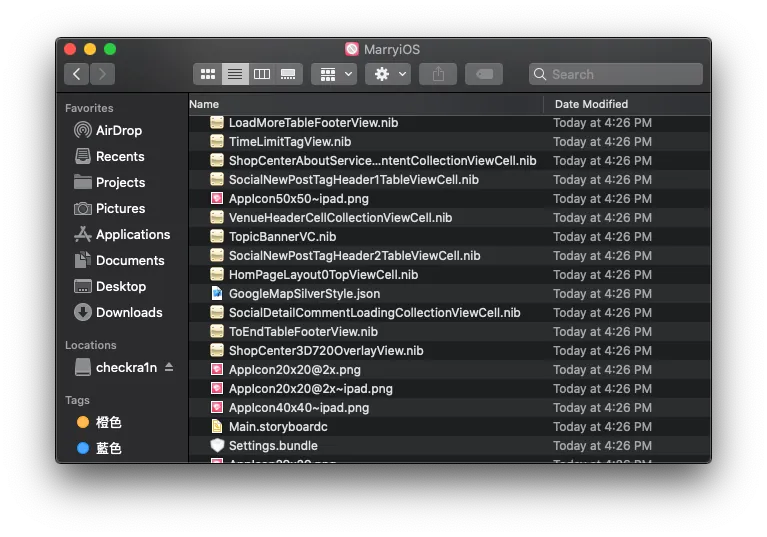
2. class-dump Export APP .h Header File Information
Using the class-dump tool to export all .h header files of the entire APP (including Frameworks) (Objective-C only; not applicable for Swift projects)
nygard/class-dump I tried this great tool but kept failing; in the end, I succeeded only by using the modified class-dump tool from AloneMonkey / MonkeyDev toolkit.
-
Download the tool directly from here MonkeyDev/bin/class-dump
-
Open Terminal and use directly:
./class-dump -H APP_PATH/APP_NAME.app -o OUTPUT_PATH
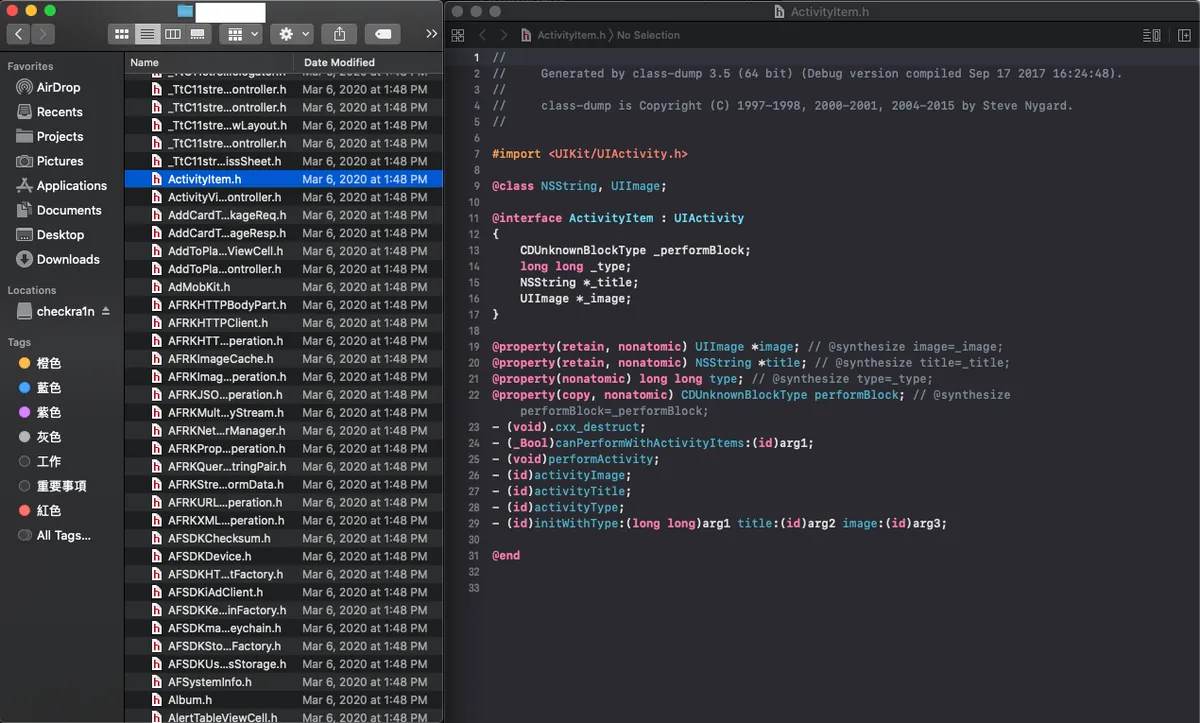
After a successful dump, you can obtain the entire app’s .h information.
4. The Final and Most Difficult Step — Performing Decompilation
You can use the decompilation tools IDA and Hopper for analysis. Both are paid tools, but Hopper offers a free trial (30 minutes per session).
We can directly drag the obtained APPName.app file into Hopper to start the analysis.
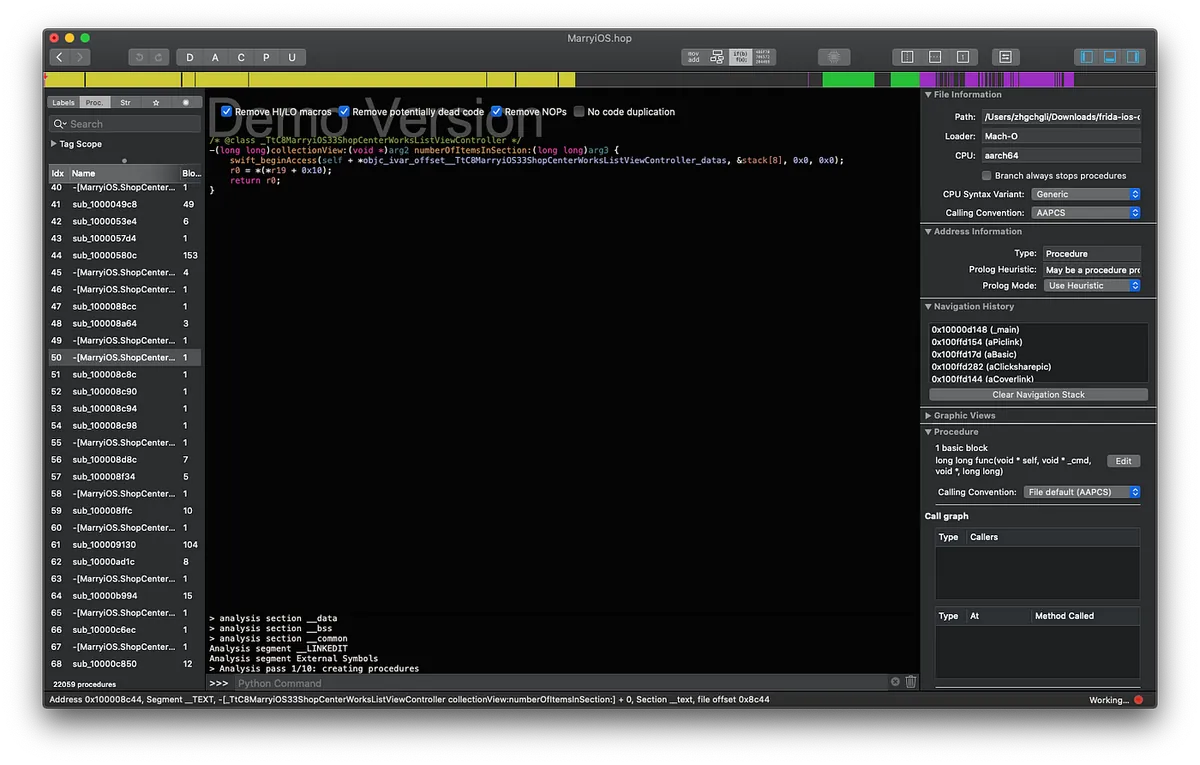
However, I stopped here because from this point on, you need to study machine code, infer methods using class-dump results, and so on; it requires very advanced skills!
After bypassing decompilation, you can modify the operation yourself and repackage it into a new APP.

Image taken from One Piece
Other Tools for Reverse Engineering
1. Using the Free MITM Proxy Tool to Sniff API Network Request Information
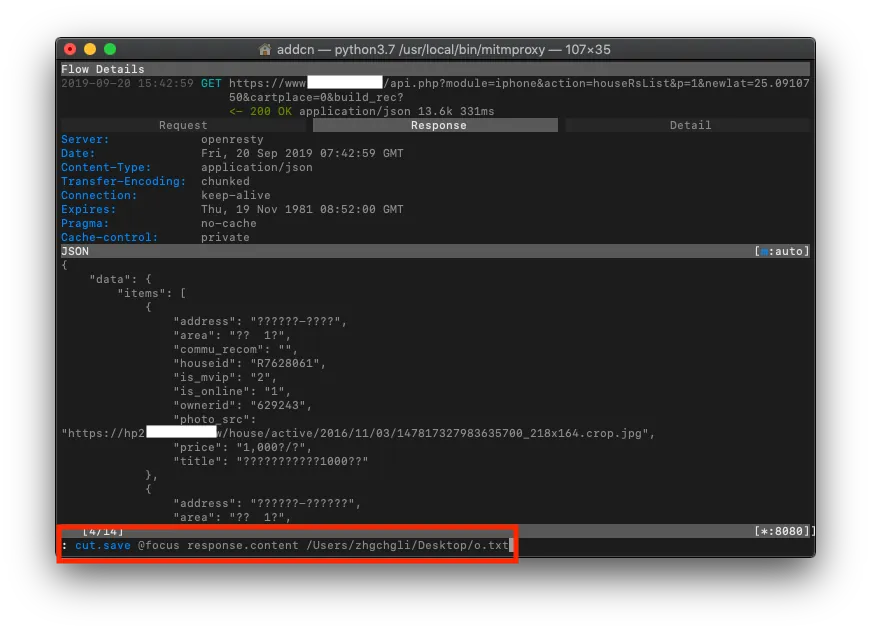
»The app uses HTTPS for transmission, but data was still stolen.
2.Cycript (Used with Jailbroken Devices) Dynamic Analysis/Injection Tool:
-
Open “Cydia” on the jailbroken device -> Search for “Cycript” -> “Install”
-
Open a Terminal on your computer and use Open SSH to connect to the phone with
ssh root@phoneIP(default password isalpine) -
Open the target APP (keep the APP in the foreground)
-
In Terminal, enter
ps -e \\| grep APP Bundle IDto find the running APP Process ID -
Use
cycript -p Process IDto inject the tool into the running APP
Debugging and control can be done using Objective-C/JavaScript.
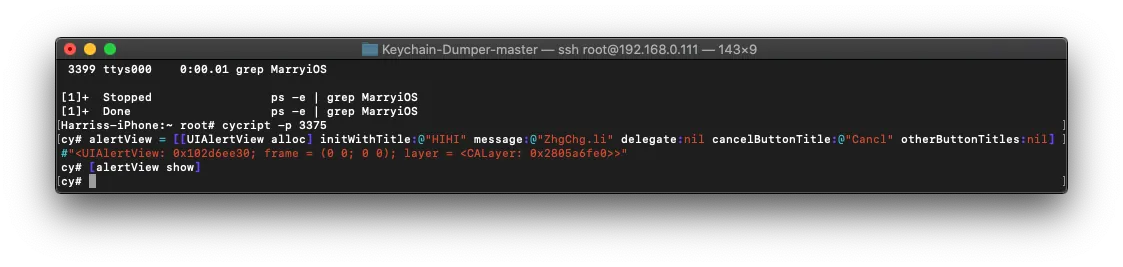
For Example:
cy# alert = [[UIAlertView alloc] initWithTitle:@"HIHI" message:@"ZhgChg.li" delegate:nil cancelButtonTitle:@"Cancel" otherButtonTitles:nl]
cy# [alert show]
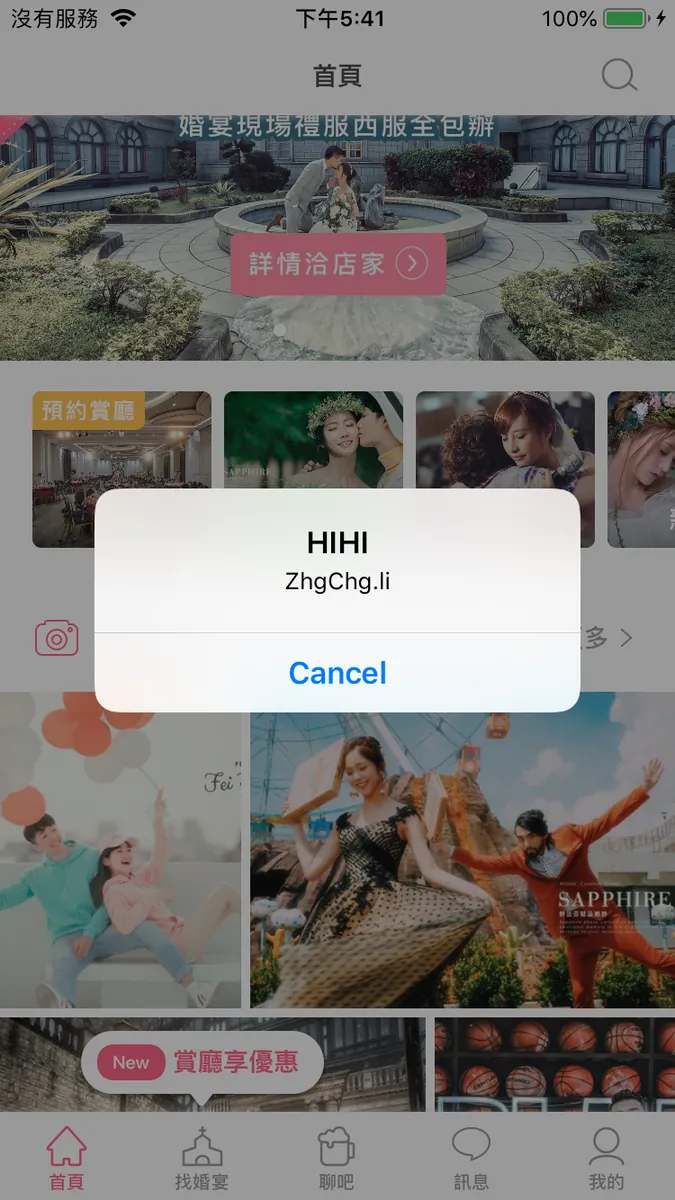
Inject a UIAlertViewController…
-
chose() : Get target
-
UIApp.keyWindow.recursiveDescription().toString() : Display the view hierarchy structure information
-
new Instance (Memory Address): Get object
-
exit(0) : Exit
For detailed instructions, please refer to this article.
3. Lookin / Reveal UI Layout Inspection Tools
As mentioned before, recommending it again; it is also very useful for daily development in your own projects. I suggest purchasing and using Reveal.
4. MonkeyDev Integration Tool allows dynamic injection to modify the APP and repackage it into a new APP
5. ptoomey3 / Keychain-Dumper , export KeyChain contents
For detailed steps, please refer to this article, but I was unable to get it to work. According to the project issues, it seems to fail on iOS ≥ 12.
Summary
This field is a huge pitfall and requires a solid technical foundation to master; this article only provides a brief “experience” of what reverse engineering feels like, so please forgive any shortcomings! For academic research only, do not use for malicious purposes; personally, I found the whole process and tools quite interesting and gained a better understanding of app security!
Comments