
[Deprecated] Enhance User Experience by Adding 3D TOUCH Feature to Your iOS APP Now (Swift)
iOS 3D TOUCH Applications
[Deprecated] 2020/06/14
iPhone 11 and later models have removed the 3D Touch feature; it is replaced by Haptic Touch, which is implemented differently.
A while ago, during some downtime in project development, I explored many interesting iOS features: CoreML, Vision, Notification Service Extension, Notification Content Extension, Today Extension, Core Spotlight, Share Extension, SiriKit (some have been documented in articles, more to come🤣)
Among them is today’s main focus: 3D Touch feature
This feature, supported since iOS 9/iPhone 7, only became truly useful to me after I switched from an iPhone 6 to an iPhone 8!
3D Touch can be implemented in two features within an app, as follows:

- Preview ViewController Preview Feature — 結婚吧APP
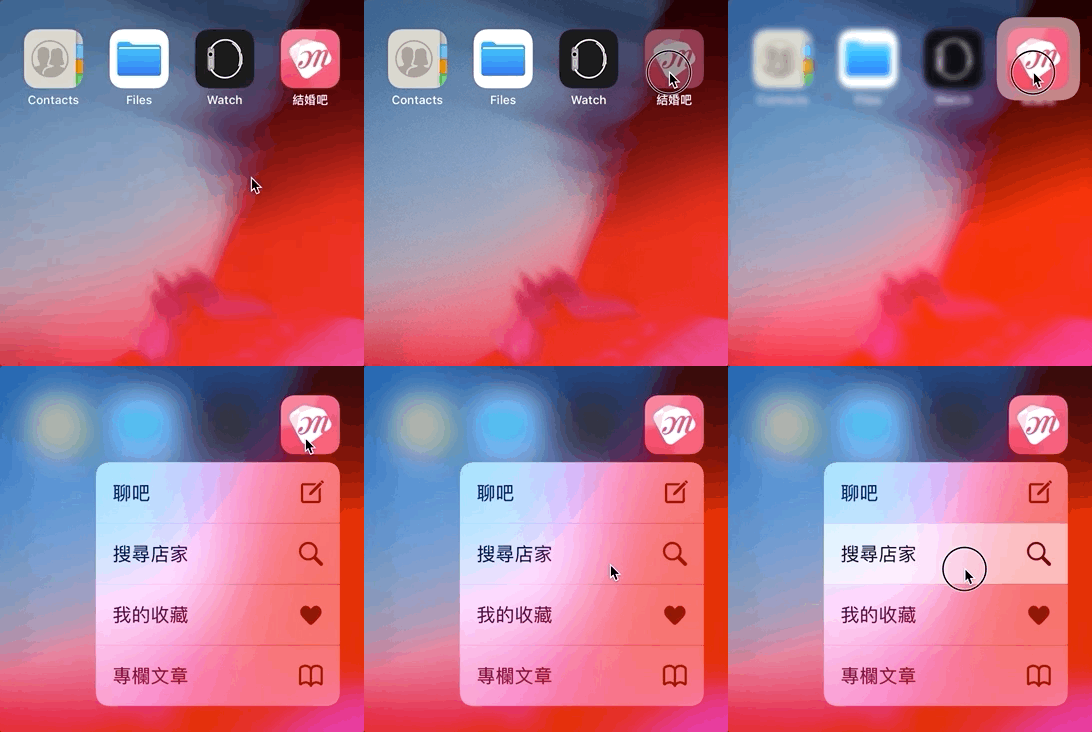
- 3D Touch Shortcut APP Launch Feature
The first item is the most widely used and effective (Facebook: News Feed content preview, Line: sneak peek messages). The second item, App Shortcut Launch, currently has low usage according to data, so it is discussed last.
1. Preview ViewController Preview Feature:
The feature demonstration is shown in Figure 1 above. The ViewController preview supports
-
Background Blur on 3D Touch Press
-
3D Touch Peek ViewController Preview Window on Press
-
3D Touch press pops up a ViewController preview window, swipe up to reveal an options menu below
-
3D Touch Press and Release to Return to Window
-
3D Touch Press and Deep Press to Enter Target ViewController
Here, the implementation code will be listed separately for A: List View and B: Target View:
Since there is no way in B to determine whether it is a preview or an actual entry into the view, we first create a Protocol to pass values for this judgment.
protocol UIViewControllerPreviewable {
    var is3DTouchPreview:Bool {get set}
}
This way, we can make the following judgment in B:
class BViewController:UIViewController, UIViewControllerPreviewable {
     var is3DTouchPreview:Bool = false
     override func viewDidLoad() {
     super.viewDidLoad()
     if is3DTouchPreview {
       // If this is a preview window... for example: go full screen, hide toolbar
     } else {
       // Display normally in full mode
   }
}
A: List view, which can be a UITableView or UICollectionView:
class AViewController:UIViewController {
    // Register views that support 3D Touch
    override func traitCollectionDidChange(_ previousTraitCollection: UITraitCollection?) {
        super.traitCollectionDidChange(previousTraitCollection)
        if traitCollection.forceTouchCapability == .available {
            //TableView:
            registerForPreviewing(with: self, sourceView: self.TableView)
            //CollectionView:
            registerForPreviewing(with: self, sourceView: self.CollectionView)
        }
    }
}
extension AViewController: UIViewControllerPreviewingDelegate {
    // Handle after 3D Touch is released
    func previewingContext(_ previewingContext: UIViewControllerPreviewing, commit viewControllerToCommit: UIViewController) {

        // Now directly push the target page, so disable preview mode parameter in ViewController:
        if var viewControllerToCommit = viewControllerToCommit as? UIViewControllerPreviewable {
            viewControllerToCommit.is3DTouchPreview = false
        }
        self.navigationController?.pushViewController(viewControllerToCommit, animated: true)
    }

    // Control the cell location for 3D Touch and the ViewController to display
    func previewingContext(_ previewingContext: UIViewControllerPreviewing, viewControllerForLocation location: CGPoint) -> UIViewController? {

        // Get current indexPath/cell at the touch location
        //TableView:
        guard let indexPath = TableView.indexPathForRow(at: location),let cell = TableView.cellForRow(at: indexPath) else { return nil }
        //CollectionView:
        guard let indexPath = CollectionView.indexPathForItem(at: location),let cell = CollectionView.cellForItem(at: indexPath) else { return nil }

        // The ViewController to display
        let targetViewController = UIStoryboard(name: "StoryboardName", bundle: nil).instantiateViewController(withIdentifier: "ViewControllerIdentifier")

        // Area to keep clear during background blur (usually the touch area), see Figure 1
        previewingContext.sourceRect = cell.frame

        // 3D Touch window size, default is adaptive and usually does not need changes
        // To modify, use: targetViewController.preferredContentSize = CGSize(width: 0.0, height: 0.0)

        // Inform the previewed ViewController that it is currently in preview mode:
        if var targetViewController = targetViewController as? UIViewControllerPreviewable {
            targetViewController.is3DTouchPreview = true
        }

        // Return nil to have no effect
        return nil
    }
}
Note! The registration for the 3D Touch-enabled View must be placed inside traitCollectionDidChange, not in “viewDidLoad” ( please refer to this article )
Regarding where to add it, I encountered many issues. Some online sources say to put it in viewDidLoad, others say in cellForItem, but both places sometimes cause it to fail or only work for some cells.
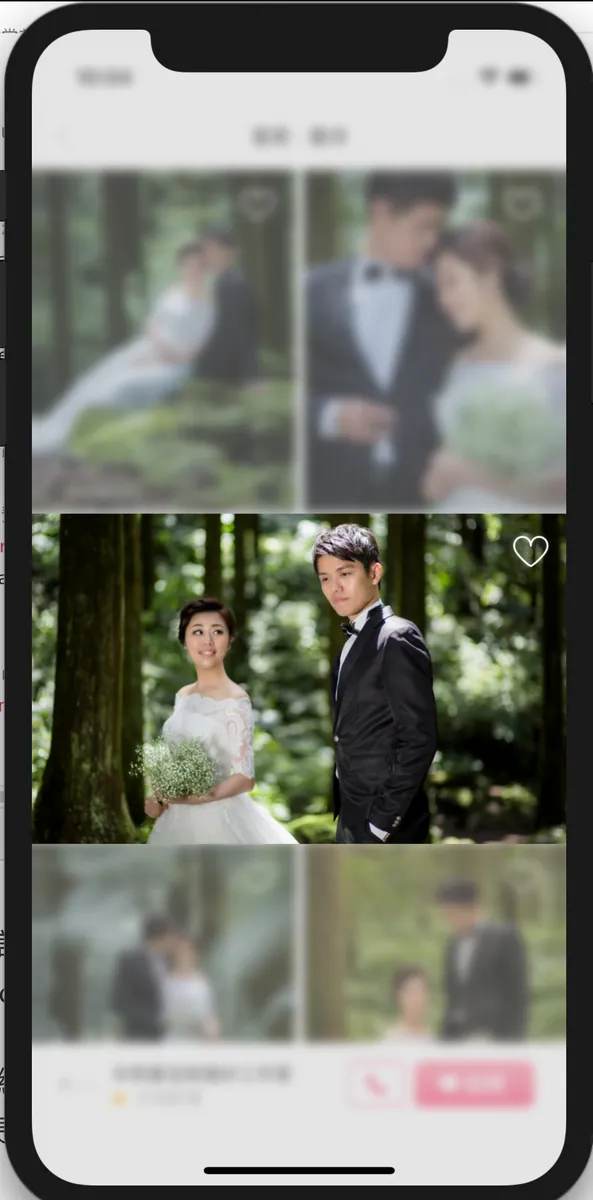
Figure 1 Background Blur Reserved Area Illustration
If you need to add an options menu below after swiping up, please add it inside B. It’s B, B, B!

override var previewActionItems: [UIPreviewActionItem] {
  let profileAction = UIPreviewAction(title: "View Business Info", style: .default) { (action, viewController) -> Void in
    // Action after tapping
  }
  return [profileAction]
}
Return an empty array to indicate this feature is not used.
Done!
2. APP Shortcut Launch
Step One
Add the UIApplicationShortcutItems key in info.plist, type Array
Add menu items (Dictionary) with the following key-value settings:
-
[Required] UIApplicationShortcutItemType: Identifier string used for decision-making in AppDelegate
-
[Required] UIApplicationShortcutItemTitle: Option title
-
UIApplicationShortcutItemSubtitle: Option subtitle
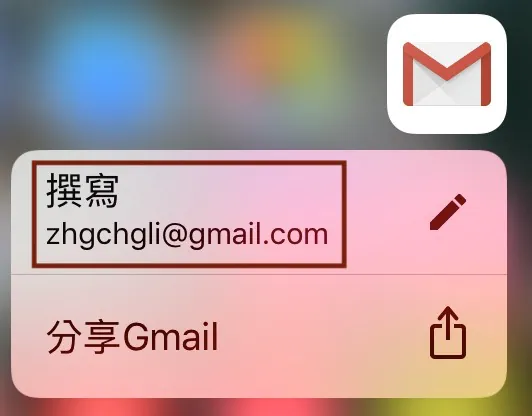
- UIApplicationShortcutItemIconType : Using System Icons
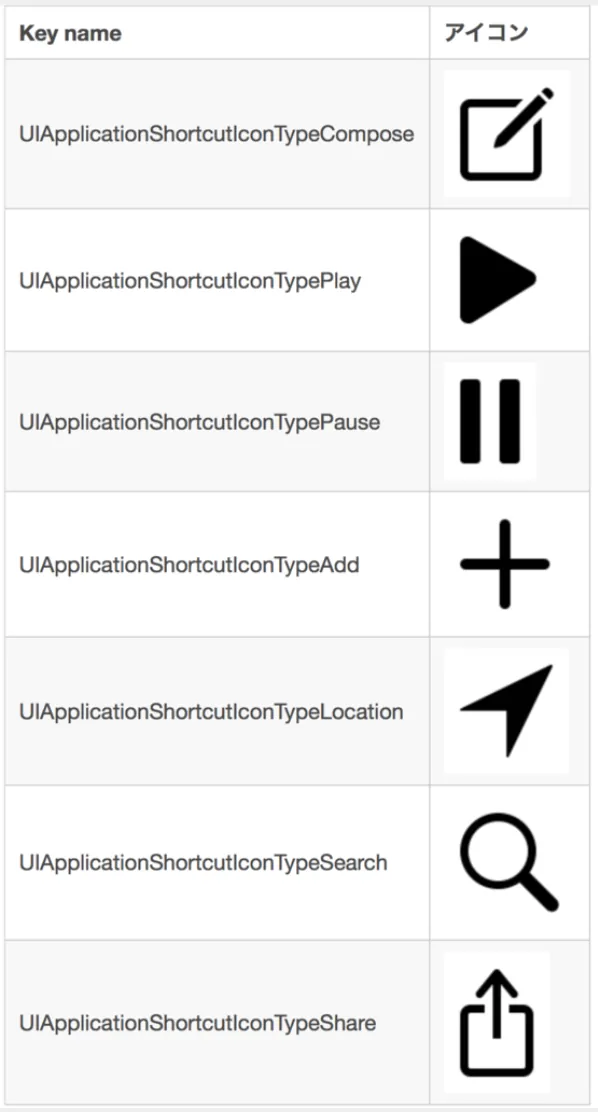
Reference from this article
-
UIApplicationShortcutItemIconFile: Use a custom icon (size: 35x35, monochrome), choose either this or UIApplicationShortcutItemIconType
-
UIApplicationShortcutItemUserInfo: Additional info, e.g., [id:1]
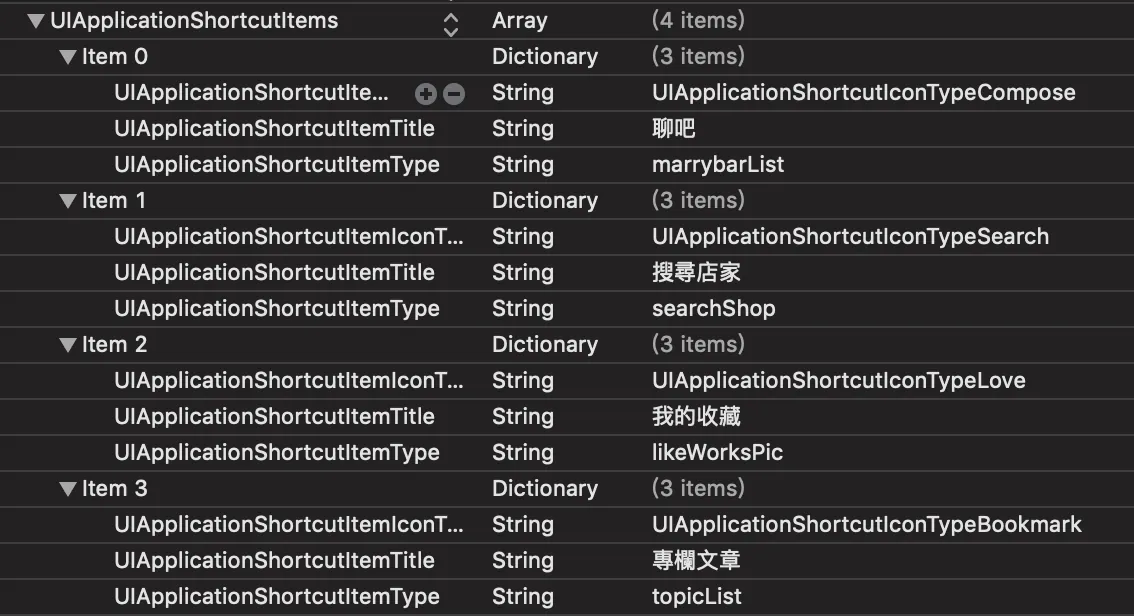
My settings are as shown in the image above.
Step 2
Add the handling Function in AppDelegate
func application(_ application: UIApplication, performActionFor shortcutItem: UIApplicationShortcutItem, completionHandler: @escaping (Bool) -> Void) {
    var info = shortcutItem.userInfo

    switch shortcutItem.type {
    case "searchShop":
      //
    case "topicList":
      //
    case "likeWorksPic":
      //
    case "marrybarList":
      //
    default:
        break
    }
    completionHandler(true)
}
Done!
Conclusion
Adding 3D Touch functionality in an app is not difficult and users will find it thoughtful ❤; it can be combined with design operations to enhance user experience. However, currently only the two functions mentioned above are available, and since iPhone 6s and below, iPads, and iPhone XR do not support 3D Touch, the practical features are even fewer, mainly serving as an aid to enhance the experience.
p.s.

If you test carefully, you’ll notice that during CollectionView scrolling, when part of the image has already scrolled off-screen, pressing will cause the above situation to occur 😅

Comments